1. المقدمة
This manual provides essential information for setting up, operating, maintaining, and troubleshooting your HP Omen 45L GT22 Gaming Desktop. Please read this manual thoroughly before using your new system to ensure proper functionality and longevity.
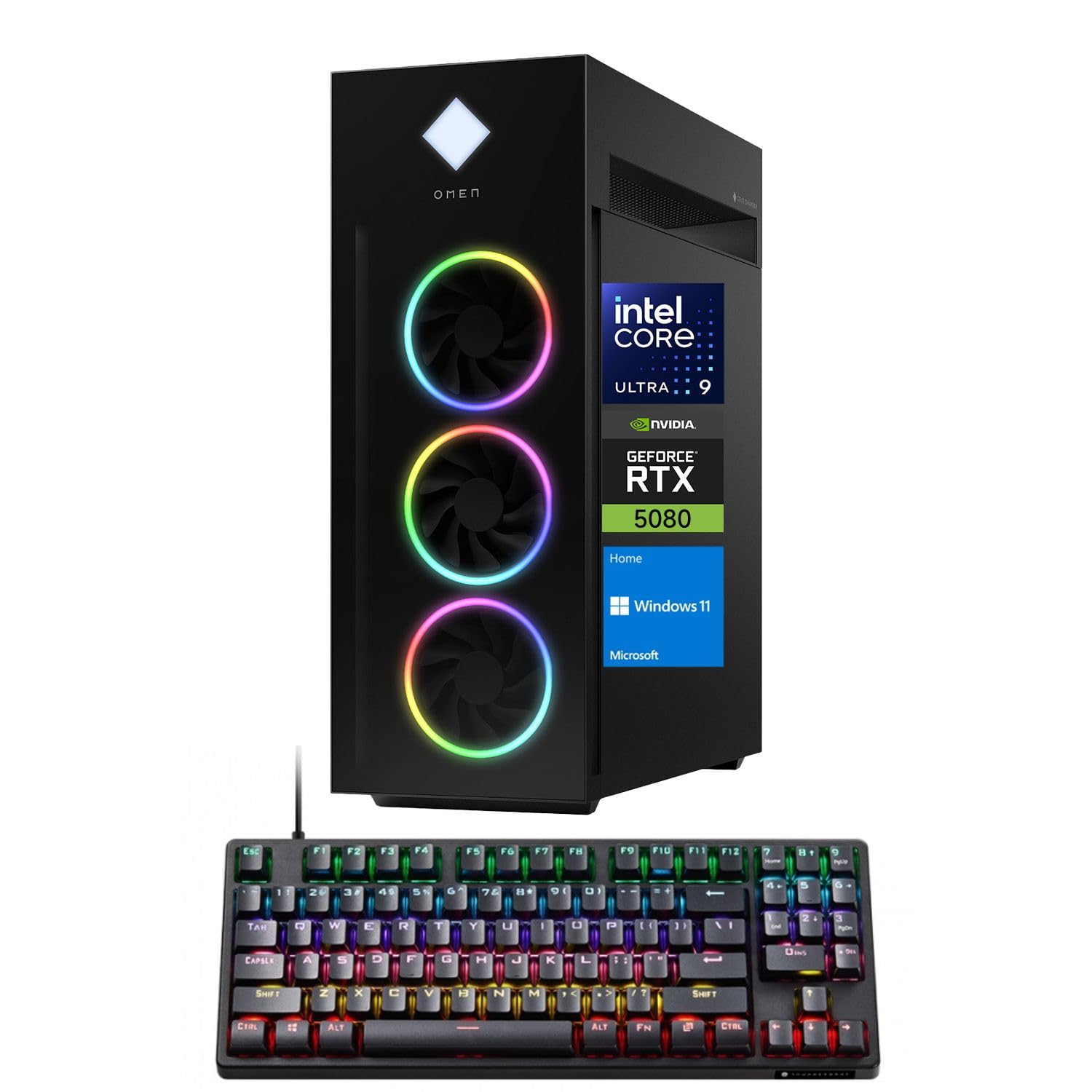
Figure 1: HP Omen 45L GT22 Gaming Desktop. This image displays the front and side of the desktop tower, highlighting its design and RGB lighting elements.
2. ماذا يوجد في الصندوق
تأكد من وجود جميع المكونات في العبوة:
- HP Gaming Tower Desktop
- Thunderobot KG3089R Gaming Keyboard
- كابل الطاقة
- التوثيق (هذا الدليل، معلومات الضمان)
3. دليل الإعداد
3.1 التفريغ والتنسيب
- قم بإزالة سطح المكتب وجميع الملحقات من العبوة بعناية.
- Place the desktop on a stable, flat surface with adequate ventilation around all sides. Avoid placing it in enclosed spaces or near heat sources.
3.2 توصيل الأجهزة الطرفية
Connect your monitor, keyboard, mouse, and other devices to the appropriate ports on the desktop.

Figure 2: Rear Ports of the HP Omen 45L GT22. This image illustrates the various input/output ports available on the back of the desktop, including USB, HDMI, DisplayPort, and Ethernet.
- شاشة: قم بتوصيل شاشتك باستخدام كابل HDMI أو DisplayPort بمنافذ بطاقة الرسومات المخصصة.
- لوحة المفاتيح والفأرة: Connect the Thunderobot KG3089R Gaming Keyboard and your mouse to any available USB Type-A ports.
- شبكة: For a wired connection, connect an Ethernet cable to the RJ-45 port. For wireless, ensure Wi-Fi antennas are connected (if external) or that the internal Wi-Fi is enabled during software setup.
- قوة: Connect the power cable to the desktop's power supply port and then to a power outlet.
3.3 التشغيل الأولي وإعداد نظام التشغيل
- اضغط على زر الطاقة الموجود في مقدمة سطح المكتب.
- Follow the on-screen instructions to complete the Windows 11 Home operating system setup. This includes setting up your user account, network connection, and privacy settings.
- Once Windows is set up, ensure all drivers are installed and updated. You can typically find driver updates through Windows Update or the HP support webموقع.
4. تعليمات التشغيل
4.1 إدارة الطاقة
- تشغيل الطاقة: اضغط على زر الطاقة الموجود في مقدمة سطح المكتب.
- اغلق: انقر فوق زر البدء في نظام التشغيل Windows، ثم الطاقة > إيقاف التشغيل.
- إعادة تشغيل: انقر فوق زر ابدأ في نظام التشغيل ويندوز، ثم الطاقة > إعادة التشغيل.
- ينام: انقر فوق زر ابدأ في نظام التشغيل ويندوز، ثم الطاقة > وضع السكون.
4.2 Understanding Your System Components
Your HP Omen 45L GT22 is equipped with high-performance components for demanding tasks and gaming.

Figure 3: Intel Core Ultra 9 285K Processor. This image highlights the specifications of the Intel Core Ultra 9 285K CPU, including its cache, cores, and threads.
- المعالج: Intel Core Ultra 9 285K (24 Cores, 24 Threads, 36MB L3 Cache, up to 5.70GHz). This powerful CPU handles complex computations and multitasking.
- بطاقة الرسوميات: NVIDIA GeForce RTX 5080 (16GB GDDR7). This dedicated GPU is responsible for rendering high-fidelity graphics for gaming and creative applications.
- ذاكرة: 32GB DDR5 RAM. High-speed memory ensures smooth operation when running multiple applications simultaneously.
- تخزين: 2TB PCIe NVMe M.2 SSD. Provides fast boot times and rapid data access for your operating system and applications.
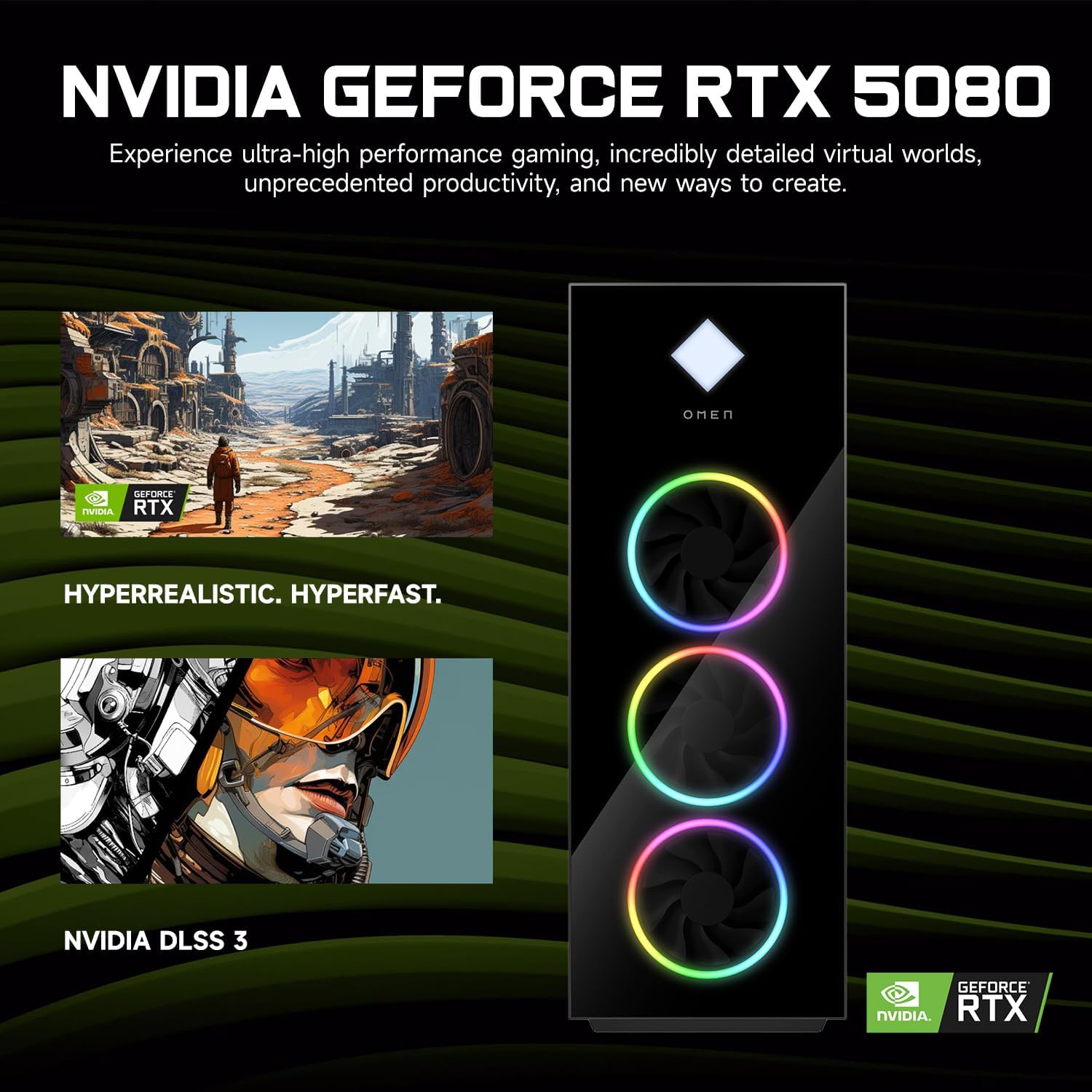
Figure 4: NVIDIA GeForce RTX 5080 Graphics. This image details the capabilities of the NVIDIA GeForce RTX 5080, emphasizing its performance for gaming and content creation.
4.3 RGB Light Studio
The HP Omen 45L GT22 features customizable RGB lighting. Use the pre-installed Omen Gaming Hub software to personalize the lighting effects on your desktop's fans and chassis. Refer to the Omen Gaming Hub's in-app help for detailed instructions on customization options.

Figure 5: Gaming Setup with HP Omen 45L GT22. This image shows the desktop integrated into a complete gaming station, including a monitor, keyboard, and mouse, demonstrating its aesthetic appeal.
5. الصيانة
5.1 تنظيف سطح المكتب
- الخارج: Use a soft, lint-free cloth to wipe down the exterior surfaces. For stubborn marks, slightly dampاغسل القماش بالماء. تجنب المواد الكيميائية القاسية.
- تهوية: Regularly check and clean the ventilation grilles and fan openings to prevent dust buildup, which can impede airflow and cause overheating. Use compressed air to gently clear dust from vents. Ensure the system is powered off and unplugged before cleaning.
5.2 تحديثات البرامج
احرص على تحديث نظام التشغيل وبرامج التشغيل لديك لضمان الأداء والأمان الأمثل.
- تحديثات الويندوز: Regularly check for and install updates via Windows Settings > Update & Security > Windows Update.
- تحديثات برنامج التشغيل: Update graphics drivers (NVIDIA GeForce Experience) and other system drivers (HP Support Assistant or HP website) periodically.
5.3 النسخ الاحتياطي للبيانات
قم بعمل نسخة احتياطية لبياناتك المهمة بشكل منتظم على محرك أقراص خارجي أو تخزين سحابي لمنع فقدان البيانات.
6. استكشاف الأخطاء وإصلاحها
This section addresses common issues you might encounter. For more complex problems, contact HP Support.
- لا يوجد طاقة:
- تأكد من توصيل كابل الطاقة بشكل آمن بكل من سطح المكتب ومأخذ الطاقة.
- تأكد من أن منفذ الطاقة يعمل عن طريق توصيل جهاز آخر.
- Check the power supply unit (PSU) switch on the back of the desktop (if present) is in the 'ON' position.
- لا يوجد عرض على الشاشة:
- Confirm the monitor is powered on and connected to the graphics card's HDMI or DisplayPort output, not the motherboard's integrated graphics ports (if applicable).
- حاول استخدام كابل أو شاشة أخرى إذا كانت متاحة.
- تأكد من تحديد مصدر الإدخال الصحيح على شاشتك.
- النظام بطيء أو لا يستجيب:
- أغلق التطبيقات غير الضرورية التي تعمل في الخلفية.
- تحقق من مدير المهام (Ctrl+Shift+Esc) للتأكد من عدم وجود استخدام مرتفع لوحدة المعالجة المركزية أو ذاكرة الوصول العشوائي أو القرص.
- تأكد من تحديث Windows وبرامج التشغيل.
- قم بإجراء فحص للفيروسات/البرامج الضارة.
- مشاكل الاتصال بالشبكة:
- بالنسبة للاتصالات السلكية، تأكد من توصيل كابل الإيثرنت بشكل صحيح وأن جهاز التوجيه/المودم يعمل.
- For Wi-Fi, check if Wi-Fi is enabled in Windows settings and ensure you are connected to the correct network with the right password.
- أعد تشغيل جهاز التوجيه/المودم وجهاز الكمبيوتر المكتبي.
7. المواصفات
| ميزة | التفاصيل |
|---|---|
| رقم الموديل | جي تي 22 |
| المعالج | Intel Core Ultra 9 285K (24 Cores, 24 Threads, 36MB L3 Cache, 3.20GHz base, up to 5.70GHz max turbo) |
| الرسومات | بطاقة رسومات NVIDIA GeForce RTX 5080 (16 جيجابايت GDDR7) |
| كبش | 32 جيجابايت DDR5 (4800 ميجاهرتز) |
| تخزين | قرص SSD PCIe NVMe M.2 بسعة 2 تيرابايت |
| نظام التشغيل | ويندوز 11 هوم |
| الاتصال اللاسلكي | واي فاي 6 (802.11ax)، بلوتوث |
| المنافذ (الأمامية) | 2 x USB Type-A 5Gbps (HP Sleep and Charge), 2 x USB 2.0 Type-A, 1 x headphone/microphone combo, 1 x microphone |
| المنافذ (الخلفية) | 1 x USB Type-C 10Gbps, 2 x USB Type-A 5Gbps, 4 x USB 2.0 Type-A, 1 x 3.5 mm audio jack, 1 x RJ-45, 1 x Thunderbolt 4 with USB Type-C 40Gbps, 1 x HDMI, 3 x DisplayPort, 5 x Audio Port |
| الأبعاد (الطول × العرض × الارتفاع) | 21.85 × 18.5 × 8.03 بوصة |
| وزن | 49.8 رطل |
| لون | أسود |
8. الضمان والدعم
للحصول على معلومات الضمان، يرجى الرجوع إلى الوثائق المرفقة مع المنتج أو زيارة موقع دعم HP الرسمي website. HP provides various support resources, including drivers, manuals, and troubleshooting guides.
دعم HP Webموقع: الدعم.hp.com
When contacting support, please have your product model number (GT22) and serial number ready.