1. المقدمة
This manual provides detailed instructions for the setup, operation, maintenance, and troubleshooting of your NIIMBOT B1 Portable Thermal Label Printer. Please read this manual thoroughly before using the device to ensure proper function and longevity.

Image 1.1: The NIIMBOT B1 Label Maker shown with examples of printed labels for various applications.
2. انتهى المنتجview
2.1 محتويات العبوة
تأكد من وجود جميع العناصر في الحزمة الخاصة بك:
- NIIMBOT B1 Label Maker x1
- كابل Type-C x1
- دليل المستخدم x1
- Roll label tape (50x30mm) x1 (pre-installed in some models)

Image 2.1: The NIIMBOT B1 Label Maker and its included accessories.
2.2 الميزات الرئيسية
- 2-Inch Label Printing: Supports label widths from 20mm to 50mm (1-2 inches).
- الطباعة الحرارية: لا حاجة للحبر أو مسحوق الحبر، مما يقلل من تكاليف التشغيل.
- Automatic Label Identification: For faster and easier printing.
- الاتصال: Compatible with iOS & Android smartphones via Bluetooth, and PC via USB.
- NIIMBOT App: Offers 10+ fonts/languages, 100+ borders, 1500+ symbols, barcodes, QR codes, icons, time stamps, pictures, photos, and OCR print functions.
- تصميم محمول: صغير الحجم وخفيف الوزن لسهولة النقل والاستخدام.
- إيقاف التشغيل التلقائي: Customizable auto-off settings (15min, 30min, 60min, never) to conserve battery.
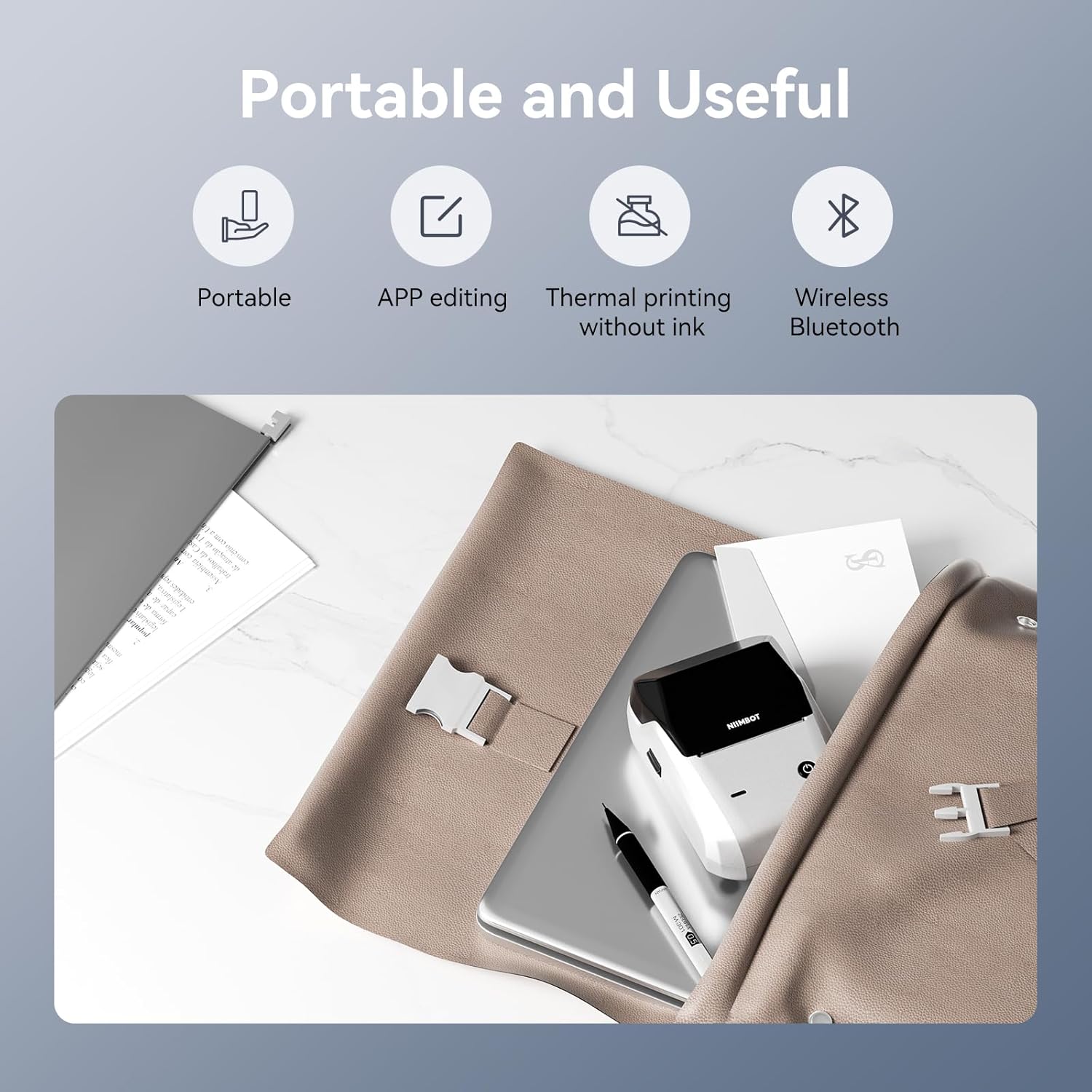
الصورة 2.2: انتهىview of the NIIMBOT B1's portable and useful features.
3. الإعداد
3.1 Loading Label Tape
- Rotate the side latch to open the tape slot.
- Load the label tape into the slot, ensuring the label side faces upwards.
- Adjust the guide plate to fit the label roll snugly.
- Close the tape slot, leaving a small portion of the label tape extending for smooth feeding.

Image 3.1: Proper installation of label tape in the NIIMBOT B1.
3.2 تثبيت التطبيق والاتصال به
The NIIMBOT B1 requires the NIIMBOT app for smartphone operation.
- Download the NIIMBOT app from the App Store (iOS) or Google Play Store (Android). بحث عن "NIIMBOT".
- تأكد من تفعيل خاصية البلوتوث في هاتفك.
- Open the NIIMBOT app and click "Connect" to search for nearby devices.
- Select your B1 printer from the list (e.g., B1-XXXXXX) to pair. If prompted for a pairing code, enter 0000 or 1234.
- Once connected, the app will automatically identify the label tape in the printer.

Image 3.2: NIIMBOT App download and connection process.
3.3 اتصال الكمبيوتر (ويندوز)
For PC connectivity, you will need to download the driver from the official NIIMBOT webموقع.
- قم بزيارة موقع NIIMBOT الرسمي website and download the B1 printer driver for Windows 7/10.
- Install the driver on your PC.
- Connect the NIIMBOT B1 printer to your PC using the provided USB Type-C cable.
- Open the NIIMBOT desktop software to begin printing.

Image 3.3: Connecting the NIIMBOT B1 to a PC via USB.
3.4 دليل الفيديو للبدء السريع
Watch this video for a quick visual guide on setting up and using your B1 Label Maker.
Video 3.4: A quick start guide demonstrating the initial setup and basic operation of the NIIMBOT B1 Label Maker.
4. تعليمات التشغيل
4.1 Creating and Editing Labels
- In the NIIMBOT app, select a template or create a new label.
- Use the various editing tools to add text, images, icons, barcodes, QR codes, and other elements.
- Customize font styles, sizes, alignment, and other layout options.
- The app supports features like OCR (Optical Character Recognition) for converting images to text.

Image 4.1: The NIIMBOT App interface for creating and editing labels.
4.2 طباعة الملصقات
- After designing your label, click the "Print" button in the app.
- Adjust the number of copies and print density as needed.
- Confirm the print settings and initiate printing.
- The printer will automatically feed and print the labels. Gently tear off the printed labels.

Image 4.2: Smartphone printing process with the NIIMBOT B1.
4.3 معاني ضوء المؤشر
Understand the status of your printer through its indicator light:
- فلاش أزرق: ترقية البرنامج الثابت قيد التقدم.
- ثابت الأزرق: Printer is in standby mode.
- فلاش أخضر: Printer is actively printing.
- ثابت الأخضر: Bluetooth is successfully connected.
- فلاش أحمر: Printer is charging.
- ثابت الأحمر: Cover is open, out of paper, or low battery.

Image 4.3: Guide to the NIIMBOT B1 indicator light statuses.
4.4 الاستخدام السابقampليه
The NIIMBOT B1 is versatile for various labeling needs:
- الاستخدام المنزلي: Kitchen labels, gift labels, kids' item labels, trip item labels.
- للاستخدام التجاري: Beauty & personal care, DIY item labels, mail labels, perfume labels, bakery food labels.

الصورة 4.4: مثالamples of NIIMBOT B1 usage for home organization.

الصورة 4.5: مثالamples of NIIMBOT B1 usage for small businesses.

الصورة 4.6: مثالamples of labels for bakery and food products.
Video 4.7: Demonstration of the NIIMBOT B1 Label Maker's ease of use for various labeling tasks.
الفيديو 4.8: عرضasing the multipurpose capabilities of the NIIMBOT B1 Label Maker for different applications.
5. الصيانة
5.1 تنظيف رأس الطباعة
يضمن التنظيف المنتظم لرأس الطباعة جودة طباعة مثالية.
- أطفئ الطابعة وافصل كابل الطاقة.
- افتح حجرة الملصق.
- امسح رأس الطباعة برفق باستخدام قطعة قطن.ampمخفف بالكحول الأيزوبروبيل.
- Allow the print head to dry completely before closing the compartment and turning on the printer.
5.2 العناية بالبطارية
- اشحن الطابعة بانتظام، حتى لو لم تكن قيد الاستخدام المتكرر، للحفاظ على صحة البطارية.
- Avoid exposing the printer to extreme temperatures.
- استخدم كابل Type-C المرفق فقط للشحن.
6. استكشاف الأخطاء وإصلاحها
6.1 المشكلات والحلول الشائعة
| مشكلة | السبب المحتمل | حل |
|---|---|---|
| الطابعة لا تعمل | بطارية منخفضة؛ لم يتم الضغط على زر الطاقة لفترة كافية | Charge the printer; Press and hold the power button for 3 seconds. |
| غير قادر على الاتصال عبر البلوتوث | Bluetooth off on phone; Printer not in pairing mode; App permissions | Ensure Bluetooth is on; Restart printer; Check app permissions for nearby devices. |
| جودة طباعة رديئة | Dirty print head; Incorrect print density; Low battery | Clean the print head (see 5.1); Adjust print density in the app; Charge the printer. |
| عدم تغذية الملصقات بشكل صحيح | Incorrect label installation; Guide plate not adjusted | Reinstall label tape correctly (see 3.1); Adjust the guide plate to fit the label roll. |
| لم يتعرف الكمبيوتر على الطابعة | Driver not installed; Faulty USB cable | Install the correct PC driver (see 3.3); Try a different USB cable. |
7. المواصفات
| ميزة | التفاصيل |
|---|---|
| اسم الموديل | B1 |
| تكنولوجيا الطباعة | حراري |
| الاتصال | بلوتوث، يو اس بي |
| أقصى دقة طباعة | 203 نقطة في البوصة |
| أقصى سرعة للطباعة (أحادية اللون) | 15 مم/ثانية |
| الحد الأقصى لحجم الوسائط | 2 بوصة (50 ملم) |
| الأجهزة المتوافقة | Smartphone (Android & iOS), PC (Windows 7/10) |
| وزن العنصر | 1.1 رطل (499 جرام) |
| أبعاد المنتج | 5.5 بوصة عمق × 3.5 بوصة عرض × 2.5 بوصة ارتفاع |
| بطارية | 1 بطارية مطلوبة (متضمنة) |
| استخدامات محددة | Labeling for Small Business Product Price/Address, School and Office Files Classification, Home Supplies Organization, Personal Item Identification, Name Tags and Warehouse |
8. الضمان والدعم
8.1 معلومات الضمان
The NIIMBOT B1 Label Printer comes with a 1-year warranty coverage. Please retain your proof of purchase for warranty claims.
8.2 دعم العملاء
For further assistance, technical support, or warranty inquiries, please contact NIIMBOT customer service through their official webالموقع أو معلومات الاتصال المقدمة مع عبوة المنتج الخاص بك.


