1. المقدمة
The Phomemo M950 Label Maker is a versatile, portable thermal label printer designed for both home and office use. It offers dual printing modes: direct input via its integrated keyboard and wireless printing via Bluetooth connection to a mobile application. This device utilizes thermal printing technology, eliminating the need for ink cartridges, and supports various label tape types for diverse labeling needs.
2. معلومات السلامة
- Keep the device away from water and high humidity to prevent electric shock or damage.
- لا تقم بتفكيك الجهاز أو محاولة إصلاحه بنفسك. اتصل بدعم العملاء للحصول على المساعدة.
- Use only Phomemo-approved label tapes to ensure optimal performance and prevent damage to the print head.
- يحفظ بعيدًا عن متناول الأطفال.
- تجنب تعريض الجهاز لأشعة الشمس المباشرة أو درجات الحرارة القصوى.
- Charge the device using a compatible Type-C USB power adapter.
3. محتويات العبوة
Please check the package contents upon unboxing. If any items are missing or damaged, contact your retailer or Phomemo customer support.
- صانع الملصقات Phomemo M950
- 12mm Label Tape Roll (pre-installed or included separately)
- كابل شحن USB من النوع C
- دليل المستخدم (هذا المستند)
4. انتهى المنتجview
Familiarize yourself with the components of your Phomemo M950 Label Maker.

Image: Phomemo M950 Label Maker showing its main features including no ink, one-touch key, keyboard editing, app editing, 203 DPI resolution, backlight support, Type-C recharge, and built-in cutter.
المميزات الرئيسية:
- إدخال لوحة المفاتيح: Integrated QWERTY keyboard for direct label creation.
- الاتصال عبر البلوتوث: Connects to smartphones for advanced label design via the Phomemo app.
- الطباعة الحرارية: No ink required, uses thermal label tapes.
- شاشة بإضاءة خلفية: Ensures visibility in low-light conditions.
- القاطع المدمج: لقص الملصقات بشكل نظيف ودقيق.
- بطارية قابلة لإعادة الشحن: Integrated 1200mAh battery, rechargeable via Type-C port.
5. الإعداد
5.1. شحن الجهاز
Before first use, fully charge the label maker.
- Connect the provided USB Type-C cable to the charging port on the side of the label maker.
- قم بتوصيل الطرف الآخر من الكابل بمحول طاقة USB متوافق (غير مرفق) أو بمنفذ USB في الكمبيوتر.
- سيُظهر ضوء مؤشر الشحن حالة الشحن. وبمجرد اكتمال الشحن، سيتغير لون المؤشر أو ينطفئ.

Image: Phomemo M950 Label Maker highlighting the Type-C charging port and its compact dimensions.
5.2. تحميل شريط الملصقات
Ensure the device is powered off before loading or replacing tape.
- Open the tape compartment cover located on the top or back of the device.
- Insert the label tape roll with the label side facing up, ensuring it sits securely in the compartment.
- Feed the end of the label tape through the tape guide until it protrudes slightly from the output slot.
- أغلق غطاء حجرة الشريط بإحكام.
5.3. تشغيل / إيقاف التشغيل
Press and hold the Power button (usually marked with a power symbol) for a few seconds to turn the device on or off.
6. تعليمات التشغيل
The Phomemo M950 offers two primary methods for creating labels.

Image: Phomemo M950 Label Maker illustrating the two usage modes: direct printing from the keyboard and printing via a mobile device using the 'Print Master' app.
6.1. Keyboard Printing
This mode allows you to create labels directly on the device without needing a smartphone.
- تشغيل الطاقة: Turn on the label maker. The screen will illuminate.
- Type Text: Use the QWERTY keyboard to type your desired label text. The text will appear on the display.
- تخصيص: Use the function keys (e.g., 'Fn', 'Shift', 'Symbol', 'Caps', 'Accent') to access various customization options such as font styles, sizes, symbols, and borders. The device supports multiple languages, borders, and symbols.
- قبلview: Use the 'Preview' button to see how your label will look before printing.
- مطبعة: Press the 'Print' button to print the label. The built-in cutter will automatically cut the label after printing.

Image: Phomemo M950 Label Maker showcasing its extensive features including support for 23+ languages, 103+ borders, and 790+ symbols and icons for label customization.
6.2. Bluetooth App Printing
For more advanced design options, connect your label maker to the 'Print Master' mobile app.
- تحميل التطبيق: Download the 'Print Master' app from your mobile device's app store (App Store for iOS, Google Play for Android).
- تمكين البلوتوث: Ensure Bluetooth is enabled on your mobile device and the Phomemo M950.
- يتصل: Open the 'Print Master' app and follow the on-screen instructions to connect to your M950 label maker via Bluetooth.
- ملصق التصميم: Use the app's interface to design your label. The app offers massive templates, additional fonts, borders, and icons.
- مطبعة: Once your design is complete, tap the print icon in the app to send the label to the M950 for printing.

Image: Phomemo M950 Label Maker demonstrating the use of the 'Print Master' app with numerous templates, 270+ borders, 110+ fonts, 1500 icons, and 14+ languages for creative label design.
6.3. Adjusting Print Density
For optimal print quality, especially with ribbon tapes, adjust the print density.
- Press the 'Fn' key, then select 'Pinter Densities' (Printer Densities).
- Choose 'High' for clearer prints, particularly when using ribbon tapes.

Image: Step-by-step guide on how to set the print density to 'High' on the Phomemo M950 Label Maker for clear prints, especially for ribbon tapes.
7. الصيانة
7.1. تنظيف رأس الطباعة
Regular cleaning ensures consistent print quality.
- Turn off the label maker and open the tape compartment.
- امسح رأس الطباعة برفق بقطعة قماش ناعمة وخالية من الوبر.ampمخفف بالكحول الأيزوبروبيل.
- Allow the print head to dry completely before closing the compartment and powering on the device.
7.2. Tape Storage
Store label tapes in a cool, dry place away from direct sunlight to preserve their quality and adhesive properties.
8. استكشاف الأخطاء وإصلاحها
If you encounter issues with your Phomemo M950, refer to the following common problems and solutions.
| مشكلة | السبب المحتمل | حل |
|---|---|---|
| لا يوجد طاقة | Low battery; Device off | Charge the device; Press and hold power button to turn on. |
| جودة طباعة رديئة | Print head dirty; Incorrect print density; Low battery | Clean print head; Adjust print density to 'High'; Charge device. |
| Label not feeding | Tape incorrectly loaded; Tape jammed; Out of tape | Re-load tape correctly; Clear any jams; Replace tape roll. |
| فشل اتصال البلوتوث | Bluetooth off; Device not paired; App issue | Ensure Bluetooth is on for both devices; Re-pair in app; Restart app/device. |
| القاطع لا يعمل | Tape jammed; Cutter mechanism obstructed | Clear any tape jams; Ensure no debris is blocking the cutter. |
9. المواصفات
| ميزة | التفاصيل |
|---|---|
| اسم الموديل | م950 |
| ماركة | فوميمو |
| تكنولوجيا الطباعة | حراري |
| تكنولوجيا الاتصال | Bluetooth, Keyboard |
| مخرجات الطابعة | أحادي اللون |
| أقصى دقة طباعة | 203 نقطة في البوصة |
| الحد الأقصى لحجم الوسائط | 12 مم * 4000 مم |
| الأجهزة المتوافقة | الهواتف الذكية |
| قوة | 10 واط |
| نوع البطارية | بطارية ليثيوم أيون مدمجة 1200 مللي أمبير في الساعة |
| منفذ الشحن | يو إس بي من النوع سي |
| أبعاد المنتج | 15.2 × 5.4 × 11.2 سم |
| وزن العنصر | 490 جرام |
| لون | أبيض |
| ميزة خاصة | Portable, Backlight Screen, Built-in Cutter |
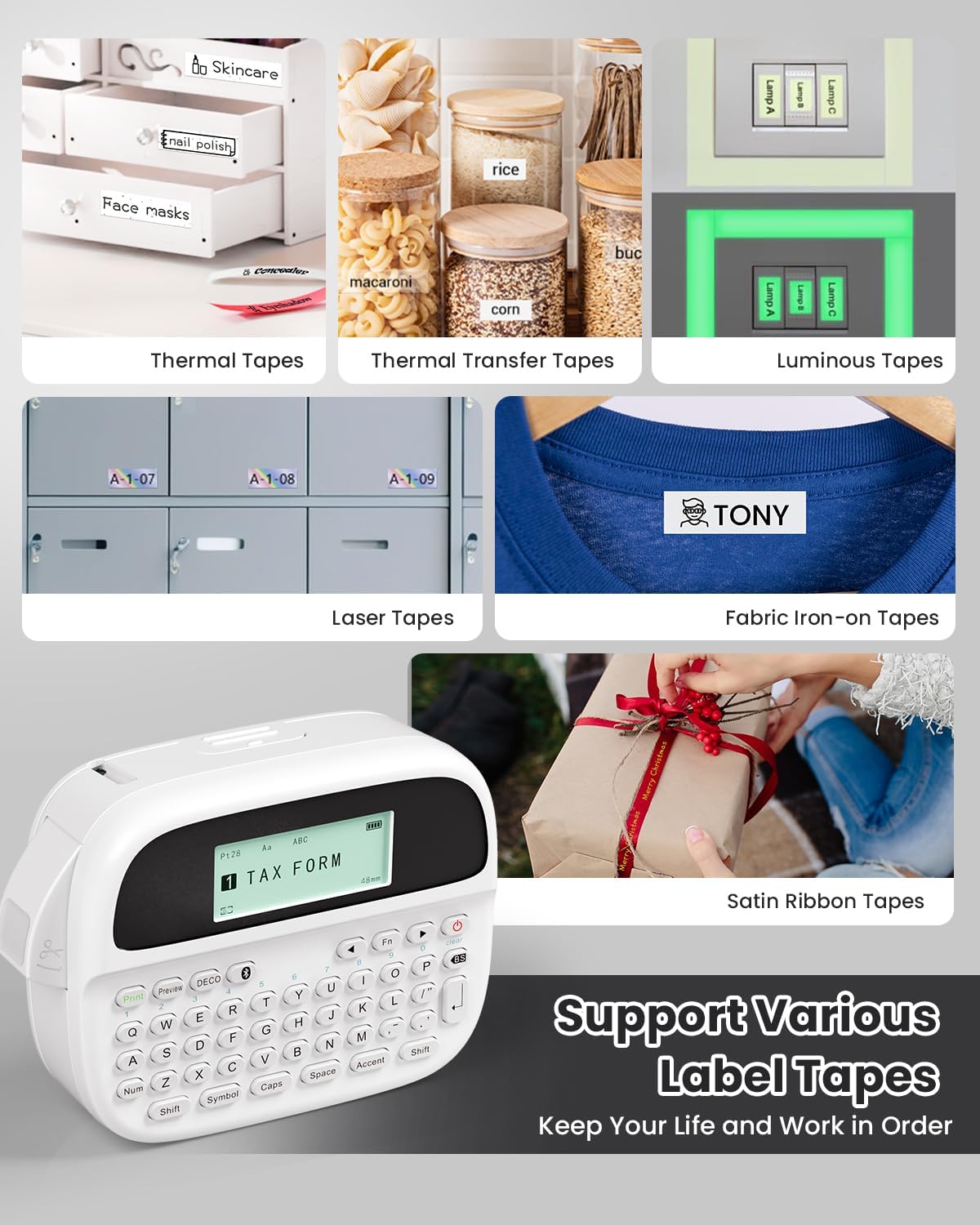
Image: Phomemo M950 Label Maker supporting various label tape types including Thermal, Thermal Transfer, Luminous, Laser, Fabric Iron-on, and Satin Ribbon tapes.

Image: Phomemo M950 Label Maker demonstrating its backlight screen feature, allowing for comfortable use even at night.
10. الضمان والدعم
For warranty information, technical support, or service inquiries, please refer to the official Phomemo webالموقع أو تواصل مع خدمة العملاء مباشرةً. احتفظ بإيصال الشراء كإثبات للشراء في حال وجود أي مطالبات بالضمان.
فوميمو الرسمي Webموقع: Visit Phomemo Store


