1. المقدمة
This manual provides detailed instructions for the safe and efficient operation of your MARKLIFE P50 Portable Bluetooth Thermal Label Maker Machine. Please read this manual thoroughly before using the device and retain it for future reference. The P50 is designed for creating various labels using thermal printing technology, connecting wirelessly via Bluetooth to mobile devices or via USB to Windows PCs.
2. محتويات العبوة
تأكد من تضمين جميع العناصر المذكورة أدناه في طردك. في حال وجود أيٍّ منها مفقودًا أو تالفًا، يُرجى التواصل مع خدمة العملاء.
- آلة صنع الملصقات MARKLIFE P50
- 3 Label Tapes (2 rolls of 1.57" x 1.18" white gap labels, 1 roll of 2" x 2" circle gap labels)
- كابل شحن USB-C
- دليل المستخدم (هذا المستند)
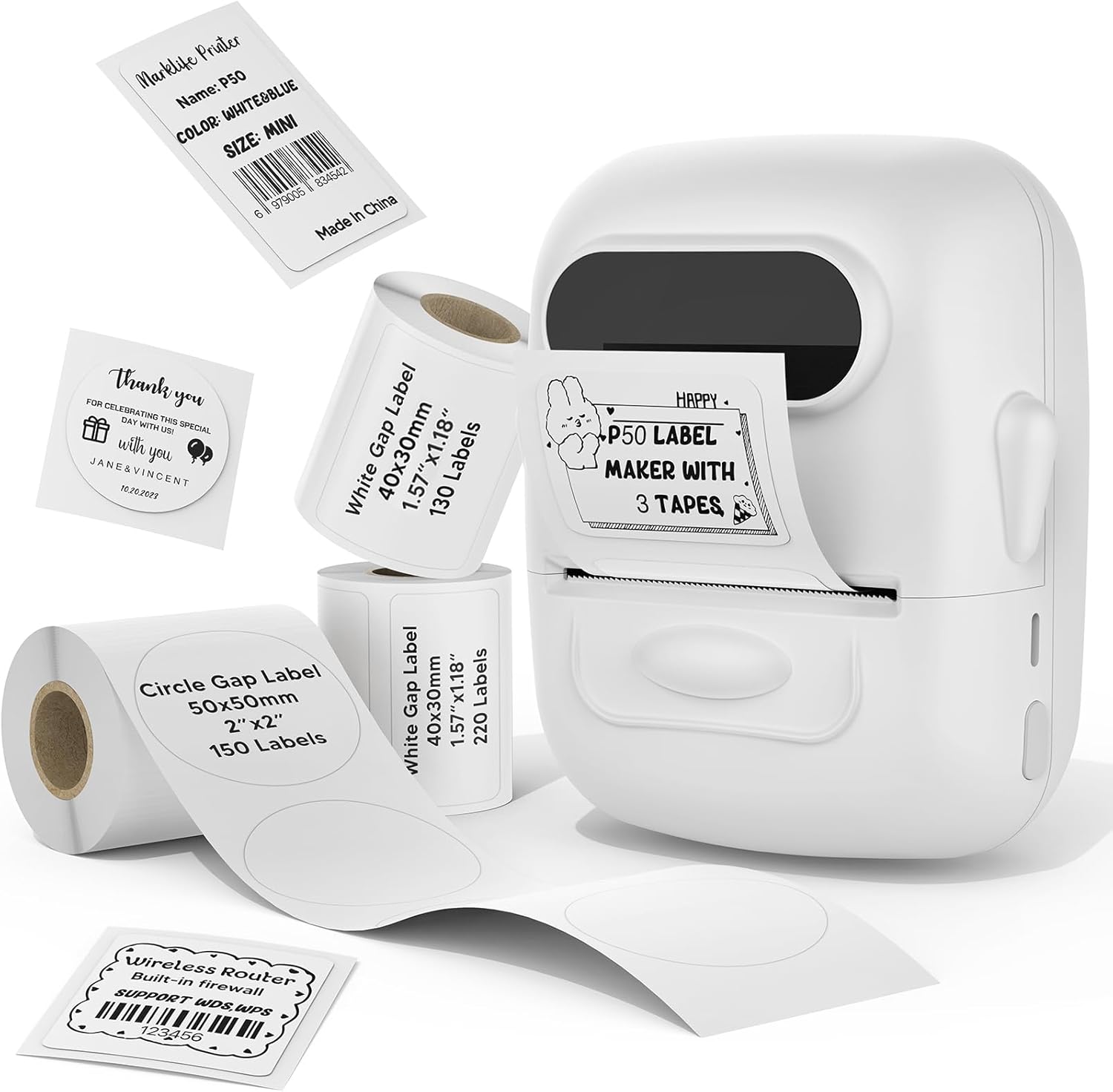
Image: The MARKLIFE P50 label maker machine shown with various label rolls and printed labels, including a barcode label (example: 6979005834542) and a "Thank You" label. This illustrates the device and its primary function of printing labels.
3. انتهى المنتجview
The MARKLIFE P50 is a compact and portable thermal label printer designed for various labeling needs. It connects wirelessly via Bluetooth to your smartphone or tablet, and also supports USB connection to Windows PCs. The device utilizes thermal printing technology, meaning it does not require ink cartridges, only thermal label paper.
المميزات الرئيسية:
- الطباعة الحرارية: No ink required, prints in black and white.
- الربط اللاسلكي: Bluetooth 4.0 for mobile devices (Android & iOS).
- توافق الكمبيوتر الشخصي: USB connection and online software for Windows PCs.
- توافق واسع النطاق مع الملصقات: Supports label widths from 0.59 inches to 2.24 inches.
- تصميم محمول: Lightweight and equipped with a built-in 1200mAh rechargeable battery for on-the-go use.
- Smart App Functions: Features voice and image recognition, barcode scanning, PDF batch printing, and photo printing on labels.

Image: A hand placing the compact MARKLIFE P50 label maker into a small handbag, emphasizing its portable design. Icons indicate its portability, built-in 1200mAh battery, and Type-C charging capability.
4. الإعداد
4.1 شحن الجهاز
Before initial use, fully charge the P50 label maker. Connect the provided USB-C cable to the charging port on the device and the other end to a compatible USB power adapter (not included) or a computer USB port. The charging indicator light will provide status feedback.
4.2 Loading Label Rolls
- افتح غطاء حجرة الملصق.
- Insert the label roll with the printing surface facing upwards, ensuring it is aligned correctly within the guides.
- Pull a small portion of the label paper out past the printing slot.
- Close the label compartment cover firmly.
- Press the power button twice quickly to initiate automatic label calibration. The printer will feed a small amount of label paper to detect the label size.

Image: A visual guide demonstrating the process of loading label rolls into the P50 label maker. It also illustrates the compatible label widths, ranging from 0.59 inches to 2.24 inches, and contrasts it with fixed-size label makers.
4.3 تثبيت التطبيق والاقتران عبر البلوتوث
- تنزيل التطبيق: بحث عن "MARKLIFE" in your mobile device's app store (iOS App Store or Google Play Store) and install the official application.
- تشغيل الطاقة: Press and hold the power button on the P50 label maker until the indicator light turns on.
- تمكين البلوتوث: تأكد من تمكين Bluetooth على جهازك المحمول.
- الاقتران: Open the MARKLIFE app. The app should automatically detect the P50 printer. Follow the on-screen prompts to connect. No Wi-Fi connection is required for mobile pairing.
5. تعليمات التشغيل
5.1 Basic Label Creation and Printing (Mobile App)
- Ensure the P50 is powered on and connected to the MARKLIFE app via Bluetooth.
- Within the app, select a template or create a new label design. The app offers various templates for clothing labels, price labels, cable labels, jewelry labels, address labels, and ingredient labels.
- Customize your label with text, images, barcodes, or QR codes.
- Adjust print density and photo quality settings as needed.
- قبلview the label to ensure accuracy.
- Tap the "Print" button in the app to send the design to the P50 label maker.

Image: The P50 label printer positioned next to a laptop and a smartphone, demonstrating its connectivity with both mobile and PC devices. The laptop screen displays label design software, and the smartphone shows the MARKLIFE app interface.
5.2 ميزات التطبيق المتقدمة
- Voice and Image Recognition: Convert spoken words or images into editable text for your labels.
- مسح الباركود: Scan existing barcodes (e.g., 0123456789005) to generate new ones or integrate them into your designs.
- PDF Batch Printing: Print multiple labels from a PDF document.
- طباعة الصور: Insert and print photos directly onto labels.
- OCR Scanner: Use your phone's camera as an OCR scanner within the app to extract text from documents for labeling.
- التخزين السحابي: Save your label designs to the cloud for easy access and reprinting.
5.3 اتصال الكمبيوتر (ويندوز)
For Windows PC users, connect the P50 label maker via the USB-C cable. Download and install the dedicated software from the official MARKLIFE website. This software allows for label design and printing directly from your computer.
5.4 الطباعة الدفعية
The P50 supports batch printing, allowing you to print multiple copies of the same label or a series of different labels efficiently. This feature is managed through the MARKLIFE app or PC software.

Image: The P50 label maker actively printing a continuous roll of labels, demonstrating its batch printing capability. The labels shown are price tags with barcodes (example: 123456), indicating efficient production for business use.
6. الصيانة
- تنظيف رأس الطباعة: نظف رأس الطباعة الحرارية بانتظام بقطعة قماش ناعمة وخالية من الوبر.ampened with isopropyl alcohol. Ensure the device is powered off and cool before cleaning.
- التنظيف الخارجي: امسح الجزء الخارجي من الجهاز بقطعة قماش ناعمة وجافة. تجنب استخدام المنظفات الكاشطة أو المذيبات.
- تخزين: قم بتخزين جهاز طباعة الملصقات في مكان بارد وجاف بعيدًا عن أشعة الشمس المباشرة ودرجات الحرارة القصوى.
- العناية بالبطارية: لإطالة عمر البطارية، تجنب تفريغها بالكامل بشكل متكرر. اشحن الجهاز بانتظام، حتى في حال عدم استخدامه لفترات طويلة.
- تخزين الملصقات: Store thermal labels in a cool, dark place to prevent premature fading or degradation.
7. استكشاف الأخطاء وإصلاحها
7.1 المشكلات والحلول الشائعة
| مشكلة | السبب المحتمل | حل |
|---|---|---|
| الطابعة لا تعمل | مشكلة في البطارية أو الطاقة المنخفضة. | Charge the device using the provided USB-C cable. Ensure the charging cable and adapter are functioning correctly. |
| غير قادر على الاتصال عبر البلوتوث | البلوتوث معطل، أو الجهاز خارج نطاق التغطية، أو هناك مشكلة في التطبيق. |
|
| Poor print quality or blank labels | Incorrect label loading, dirty print head, or low-quality labels. |
|
| لا يتم تغذية الملصقات بشكل صحيح أو أنها تتعطل. | Improper label loading or foreign objects in the paper path. |
|
8. المواصفات
| ميزة | التفاصيل |
|---|---|
| اسم الموديل | طابعة ملصقات P50 |
| ماركة | ماركلايف |
| تكنولوجيا الطباعة | حراري |
| مخرجات الطابعة | أحادي اللون (أبيض وأسود) |
| تكنولوجيا الاتصال | بلوتوث، يو اس بي |
| الأجهزة المتوافقة | Android, iOS mobile devices, Windows PC |
| طريقة التحكم | برنامج |
| الحد الأقصى لحجم الوسائط | 2.24 بوصة (57 مم) |
| عرض الملصقات المدعومة | 0.59 بوصة - 2.24 بوصة (15 مم - 57 مم) |
| بطارية | بطارية قابلة لإعادة الشحن مدمجة بقوة 1200 مللي أمبير في الساعة |
| منفذ الشحن | يو إس بي من النوع سي |
| أبعاد المنتج | 4 × 3 × 2 بوصة (تقريبًا) |
| وزن العنصر | 6 أونصة (تقريبًا) |
9. الضمان والدعم
9.1 الضمان المحدود
The MARKLIFE P50 Label Maker Machine comes with a limited warranty. Please refer to the warranty card included in your package or contact MARKLIFE customer support for specific terms and conditions. This warranty typically covers manufacturing defects under normal use.
9.2 دعم العملاء
For technical assistance, troubleshooting, or warranty claims, please contact MARKLIFE customer support through the official website or the contact information provided in your product packaging. Please have your model number (P50) and purchase details ready when contacting support.


