1. انتهى المنتجview
The LILYGO TTGO T-Echo is a versatile wireless communication module featuring the NRF52840 microcontroller, LoRa SX1262 transceiver, L76K GPS, and a 1.54-inch E-Paper display. This device is designed for long-range, low-power communication, making it suitable for off-grid messaging, tracking, and various IoT applications. It supports mesh networking protocols like Meshtastic, allowing devices to relay messages to extend communication range.

Figure 1: LILYGO TTGO T-Echo NRF52840 LoRa Wireless Module
2. الميزات الرئيسية
- ميكروكنترولر: رقم NRF52840
- جهاز إرسال واستقبال LoRa: SX1262 (915MHz) for long-range, low-power communication.
- وحدة GPS: L76K Multi-System Positioning GNSS (GPS, GLONASS, BeiDou, QZSS) with improved receiving and anti-interference attributes.
- عرض: 1.54-inch E-Paper display (200x200 resolution, 2 grey levels, 2s full refresh time).
- الربط اللاسلكي: Bluetooth 5, Thread, Bluetooth Mesh, ANT, 802.15.4, Zigbee.
- Bus Interfaces: UART, SPI, TWI, PDM, I2S, QSPI.
- ذاكرة: 2MB Flash, 256KB RAM.
- Optional Sensor: BME280 temperature and pressure sensor (depending on model).
3. محتويات العبوة
تأكد من وجود جميع العناصر في الحزمة الخاصة بك:
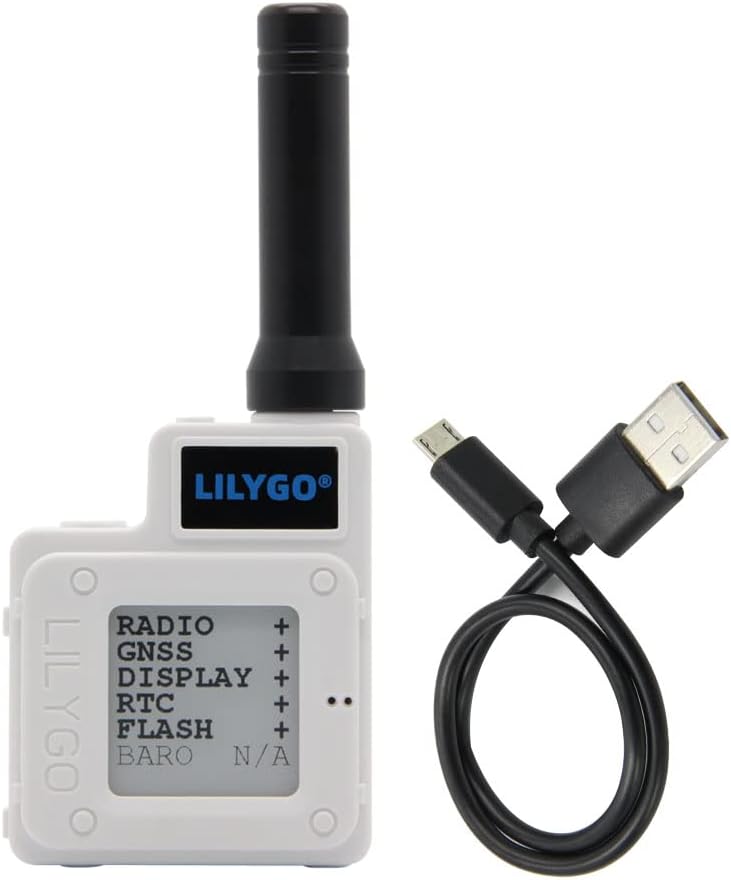
Figure 2: T-Echo module and USB cable
- 1 x SoftRF Motherboard
- 1 × هوائي GPS
- 1 x LORA 915MHz Antenna
- 1 x NFC Antenna
- 1 x Touch Cable
- 1 x Jst 2pin1.25mm Battery Cable
- كابل USB من النوع C عدد 1
- 1 x 850mA Capacity Battery
- 1 x ABS Material Enclosure White
4. تحديد المكون

الشكل 3: العودة view مع مكونات مُصنّفة

Figure 4: Detailed Pinout Diagram
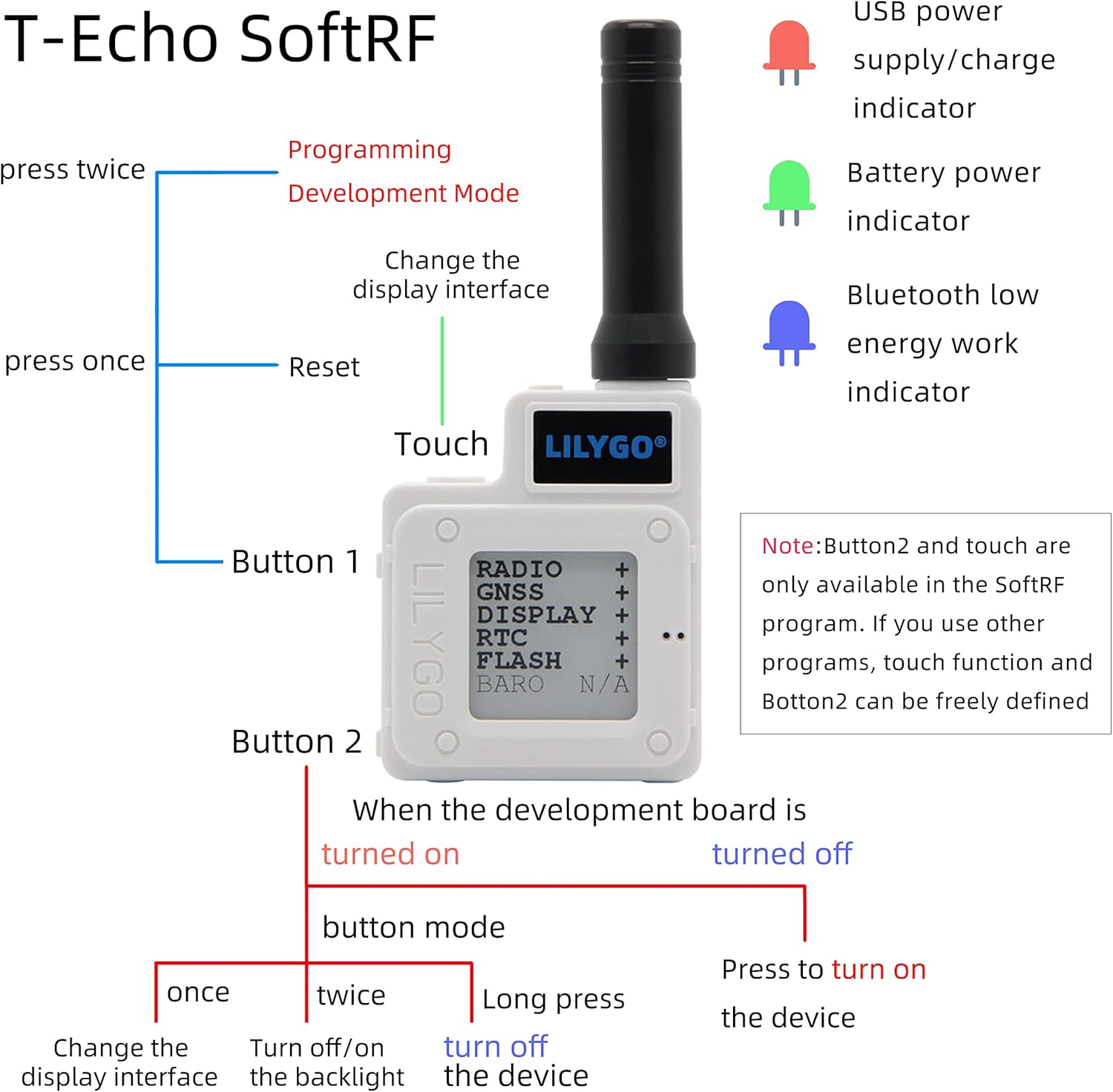
Figure 5: Button functions and LED indicators
5. الإعداد
5.1 Hardware Assembly
The T-Echo module comes with an ABS enclosure. Follow these steps to assemble the device:
- Connect the LoRa antenna to the module's SMA connector.
- Carefully place the main board into the bottom part of the enclosure.
- Connect the battery to the appropriate JST connector on the board.
- Secure the battery within the enclosure, often using double-sided adhesive foam for isolation and stability.
- Attach the top part of the enclosure and secure it with the provided screws.
Video 1: Installation for Mesh Node T114 Board+Battery+N36 Case Set
Video 2: N30 Protective Case for ESP32 LoRa V3 Board Antenna Battery
5.2 Firmware Installation
To utilize the full capabilities of your LILYGO T-Echo, it is recommended to install the Meshtastic firmware. This firmware enables mesh networking capabilities for off-grid communication.
- Download the Meshtastic firmware for the LILYGO T-Echo from the official Meshtastic webموقع.
- Connect your T-Echo device to your computer using the provided USB-C cable.
- Follow the instructions on the Meshtastic website or the provided video to flash the firmware onto your device. This typically involves using a web flasher tool or a command-line interface.
Video 3: How to Install Meshtastic to LILYGO T-Echo
6. تعليمات التشغيل
6.1 Basic Device Operation
The T-Echo features two buttons (Button 1 and Button 2) and a touch interface for navigation and control, especially when running the SoftRF program. LED indicators provide visual feedback on device status.
- الزر 1:
- Press once to reset the device.
- Press twice to enter Programming Development Mode.
- Button 2 (when device is turned on, in button mode):
- Press once to change the display interface.
- Press twice to turn off/on the backlight.
- اضغط لفترة طويلة لإيقاف تشغيل الجهاز.
- واجهة تعمل باللمس: Changes the display interface (available in SoftRF program).
- مؤشرات LED:
- Red LED: USB power supply/charge indicator.
- Green LED: Battery power indicator.
- Blue LED: Bluetooth low energy work indicator.
Figure 6: Button functions and LED indicators
6.2 إرسال واستقبال الرسائل
After installing the Meshtastic firmware and connecting your device to a mobile phone via Bluetooth, you can use the Meshtastic app to send and receive text messages.
- Ensure your T-Echo is powered on and connected to your phone via Bluetooth.
- Open the Meshtastic application on your smartphone.
- Select the desired channel or recipient within the app.
- Type your message and send it. The T-Echo will transmit the message over the LoRa network.
- Incoming messages will be displayed on the T-Echo's E-Paper screen and within the Meshtastic app.
Video 4: How to use
7. Wiring and Sensor Integration
The LILYGO T-Echo can be integrated with external sensors and relays for various applications, such as door monitoring or remote control. The following diagram illustrates a typical wiring setup for a door monitoring system using a Hall Effect sensor and a relay.
Video 5: ESP32 LoRa V3 N32 Set DIY Project - Door Monitor
8. الصيانة
- شحن البطارية: Charge the device using the provided USB-C cable. The red LED indicates charging status, and the green LED indicates battery level.
- تحديثات البرامج الثابتة: Periodically check the official Meshtastic webموقع للحصول على تحديثات البرامج الثابتة لضمان الأداء الأمثل والوصول إلى الميزات الجديدة.
- تنظيف: استخدم قطعة قماش ناعمة وجافة لتنظيف الجهاز. تجنب استخدام المواد الكيميائية القاسية أو المواد الكاشطة.
- تخزين: قم بتخزين الجهاز في مكان بارد وجاف بعيدًا عن أشعة الشمس المباشرة ودرجات الحرارة القصوى.
9. استكشاف الأخطاء وإصلاحها
- الجهاز لا يعمل: Ensure the battery is charged. Connect the device to a power source via USB-C.
- لا يوجد اتصال بلوتوث: Verify Bluetooth is enabled on your smartphone and the T-Echo. Ensure the blue LED is active. Try restarting both devices.
- Unable to Send/Receive Messages: Check the LoRa antenna connection. Ensure both devices are within range and running compatible Meshtastic firmware. Verify channel settings in the Meshtastic app.
- نظام تحديد المواقع العالمي (GPS) لا يعمل: Ensure the GPS antenna is properly connected and the device has a clear view من السماء.
- E-Paper Display Issues: If the display is unresponsive or shows artifacts, try resetting the device.
10. المواصفات
| رقم موديل العنصر | ح472-أ |
| حجم العرض | 1.54 بوصة |
| نوع العرض | النسخة الإلكترونية |
| يدعم البلوتوث | بلوتوث |
| تكنولوجيا الاتصال | بلوتوث |
| سعة تخزين الذاكرة | 2 ميجا بايت |
| مدخلات واجهة الإنسان | أزرار |
| نوع التركيب | لوحة جبل |
11. الضمان والدعم
For warranty information and technical support, please refer to the documentation provided with your purchase or visit the official LILYGO webقد تختلف شروط الضمان المحددة حسب المنطقة والتاجر.


