1. انتهى المنتجview
The KuWFi LTE Router CPE812 is a 4G wireless WiFi internet router designed to provide network connectivity using a SIM card. It features a transmission speed of up to 300Mbps and supports up to 32 WiFi users. This device is suitable for home and office environments, offering a 2.4GHz WiFi hotspot with broad coverage.
المميزات الرئيسية:
- 4G LTE FDD: B1/B3/B7/B8/B20
- 4G LTE TDD: B38/B39/B40/B41
- الجيل الثالث 3G WCDMA: B1 / B8
- Wireless transmission speed up to 300Mbps
- 2.4GHz WiFi hotspot with up to 3,000 square meter coverage
- Supports up to 32 WiFi users
- Internal dual-antenna design
- LED indicator display for status monitoring
- Security Protocol: WPA2-PSK
- Two RJ45 ports (one WAN, one LAN)

الصورة 1.1: الجبهة view of the KuWFi LTE Router CPE812, showcasing its four non-detachable antennas and LED indicators.
2. دليل الإعداد
Follow these steps to set up your KuWFi LTE Router CPE812.
2.1. إدخال بطاقة SIM
- Locate the SIM card slot on the side of the router.
- Insert a standard SIM card into the designated slot. Ensure the SIM card is correctly oriented.
- The router supports standard SIM cards. Micro and Nano SIM cards require an adapter (not included).

الصورة 2.1: الجانب view of the router highlighting the SIM card slot, LAN/WAN ports, and power input.

Image 2.2: Illustration indicating that only standard SIM cards are directly compatible; Micro and Nano SIMs require adapters.
2.2. تشغيل جهاز التوجيه
- Connect the power adapter to the DC IN port on the router.
- قم بتوصيل محول الطاقة بمأخذ الحائط.
- Press the ON/OFF button to power on the device. The LED indicators on the front will light up.

Image 2.3: The router packaged with its power adapter, Ethernet cable, and user manual.
2.3. الاتصال الأولي بشبكة الواي فاي
- Once powered on, the router will broadcast a Wi-Fi signal.
- ابحث عن شبكات الواي فاي المتاحة على جهاز الكمبيوتر أو الجهاز المحمول الخاص بك.
- Connect to the network with the SSID (Wi-Fi name) printed on the label at the bottom of the router (e.g., WIFI-XXXXX).
- Enter the default Wi-Fi password (e.g., 12345678) also found on the router's label.
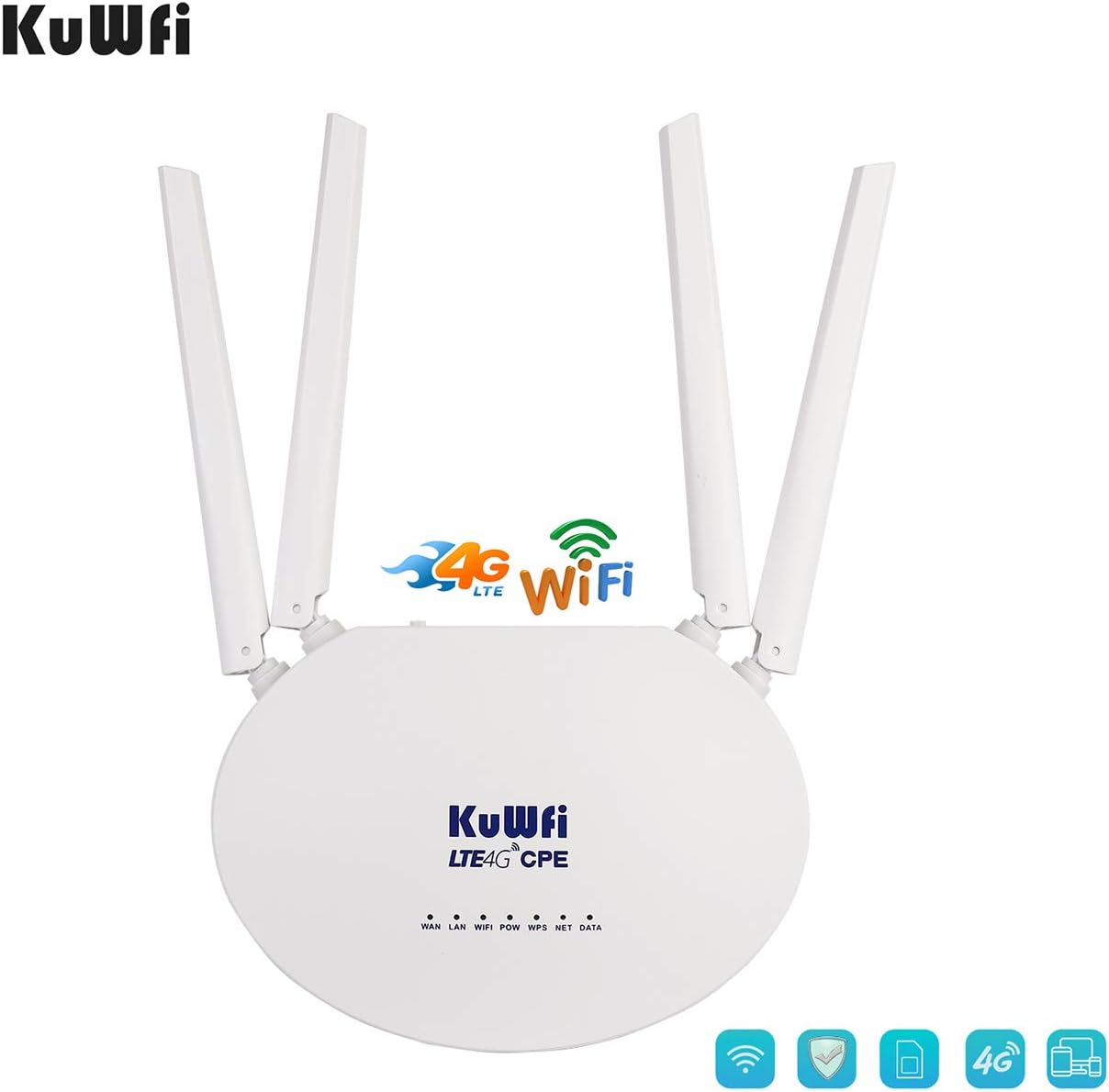
Image 2.4: The bottom label of the router displaying important information such as the default SSID and password.
2.4. الوصول إلى Web Interface and APN Setup
- افتح web browser on a device connected to the router's Wi-Fi.
- أدخل عنوان IP الافتراضي 192.168.10.1 في شريط العناوين واضغط على Enter.
- تسجيل الدخول إلى web interface. The default username and password are typically "admin" (refer to the router's label if different).
- Navigate to the "3G/4G setup" section.
- مهم: Uncheck the "auto select 3G / 4G ISP" option.
- Choose "User Defined" for the APN settings.
- Enter the correct APN (Access Point Name) provided by your SIM card provider. If you are unsure, you can insert your SIM card into a mobile phone and check its APN settings, or contact your SIM card provider.
- Click "APPLY" to save the settings.

الصورة 2.5: مثالample of how to find APN settings on a mobile phone.

الصورة 2.6: Web interface screenshot demonstrating where to enter APN details.
3. التشغيل
3.1. Understanding Work Modes
The router supports various work modes to suit different network environments. These can typically be configured in the web interface under the "Mode" section.
- 3G/4G Wireless Router Mode: Connects to the internet via SIM card and broadcasts Wi-Fi.
- Standard Wireless Router Mode: Connects to a local network via Ethernet and broadcasts Wi-Fi.
- Standard Wireless AP and APClient Bridge Mode: Works as an access point or client bridge.
- Wireless AP Client Mode: Connects to another wireless AP or router via Ethernet.
3.2. Modifying Wi-Fi Settings
To change your Wi-Fi network name (SSID) or password:
- الوصول إلى web الواجهة (192.168.10.1).
- Go to the "Wireless" section, then "Basic" to modify the SSID. Enter your desired network name and click "Apply".
- Go to the "Wireless" section, then "Security" to modify the Wi-Fi password (WPA-PSK Key). Enter your new password and click "Apply".
3.3. Video Guide: Setup and Configuration
Video 3.1: An operational video demonstrating the setup process, SIM card insertion, power connection, and web interface configuration for the KuWFi LTE Router CPE812. This video also shows how to set the APN and change Wi-Fi settings.
4. الصيانة
To ensure optimal performance and longevity of your KuWFi LTE Router CPE812:
- Keep the device in a cool, dry place, away from direct sunlight and moisture.
- تجنب وضع جهاز التوجيه بالقرب من المجالات الكهرومغناطيسية القوية.
- Clean the exterior of the router with a soft, dry cloth. Do not use liquid cleaners.
- تأكد من التهوية المناسبة حول الجهاز لمنع ارتفاع درجة الحرارة.
- تحقق بشكل دوري من وجود تحديثات للبرامج الثابتة على جهاز الشركة المصنعة website to enhance performance and security.
5. استكشاف الأخطاء وإصلاحها
إذا واجهت مشاكل مع جهاز التوجيه الخاص بك، فراجع الحلول الشائعة التالية:
5.1. No Network Data Connection Despite Wi-Fi Connection
If your device connects to the router's Wi-Fi but has no internet access:
- تحقق من إعدادات نقطة الوصول (APN): Confirm that the APN settings in the router's web interface are correct. You can verify the correct APN by inserting your SIM card into a mobile phone and checking its network settings, then manually entering it into the router.
- Contact Provider: If the frequency bands are correct but automatic connection fails, manually set the APN. Consult your SIM card provider for the correct APN information.

Image 5.1: Detailed steps for checking and setting APN on a mobile device.
5.2. Poor 4G Signal
If you experience weak or unstable 4G signal:
- وضع الشبكة: Ensure that you have selected "4G only" in the router's settings if your area has strong 4G coverage.
- وضع جهاز التوجيه: Position the router in an open area, away from obstructions like thick walls or large metal objects, and near a window if possible, to improve signal reception.
- Lock Network Type: في web interface, you can manage the settings page to lock the router to a 4G or 3G network, which can improve network stability if the signal is fluctuating.
5.3. Router Not Recognizing SIM Card
If the router does not detect the SIM card:
- الإدراج الصحيح: Ensure the SIM card is inserted correctly and fully into the slot.
- نوع بطاقة سيم: Verify you are using a standard SIM card or the correct adapter for Micro/Nano SIMs.
- IMEI Activation: Note that if your SIM card requires IMEI activation, this router may not function.
6. المواصفات
| ميزة | التفاصيل |
|---|---|
| رقم الموديل | CPE812 |
| Network Frequency (4G LTE FDD) | B1/B3/B7/B8/B20 (2100/1800/2600/900/800MHz) |
| Network Frequency (4G LTE TDD) | ب38/ب39/ب40/ب41 |
| Network Frequency (3G WCDMA) | ب1/ب8 |
| وحدة المعالجة المركزية الرئيسية | RT7628 Basic Frequency 580MHz |
| ذاكرة للقراءة فقط | 64Mbits SPI Flash |
| كبش | 1024 ميجا بايت DDR2 |
| انتقال المدى | 50-100م |
| درجة حرارة العمل | -10 درجة مئوية ~ 40 درجة مئوية |
| منافذ الشبكة المحلية | 2 x RJ45 (1 WAN, 1 LAN) |
| سرعة واي فاي | ما يصل إلى 300 ميجابت في الثانية (2.4 جيجا هرتز) |
| Max WiFi Users | 32 |
| نوع الهوائي | داخلي |
| بروتوكول الأمان | WPA2-PSK |
| طريقة التحكم | برنامج (Web واجهه المستخدم) |
| المكونات المضمنة | جهاز التوجيه |
| وزن العنصر | 12.8 أونصات |
| أبعاد الحزمة | 10.9 × 8.2 × 1.5 بوصة |
7. الضمان والدعم
KuWFi provides comprehensive support for its products.
- ضمان: يأتي هذا المنتج مع ضمان لمدة 3 سنوات.
- الدعم الفني: VIP Technical Support is available for assistance with setup, configuration, and troubleshooting.
- اتصال: If you encounter any problems, especially regarding SIM card connectivity or APN settings, please contact the seller or KuWFi customer support for assistance.


