1. المقدمة
This manual provides detailed instructions for the setup, operation, and maintenance of your Xerox VersaLink C505/X Color Laser Multifunction Printer. The C505/X is designed for efficient performance in fast-paced work environments, offering print, copy, scan, and fax functionalities.
Key features include a customizable 7-inch color touchscreen for intuitive control, mobile and cloud connectivity, and robust security measures.
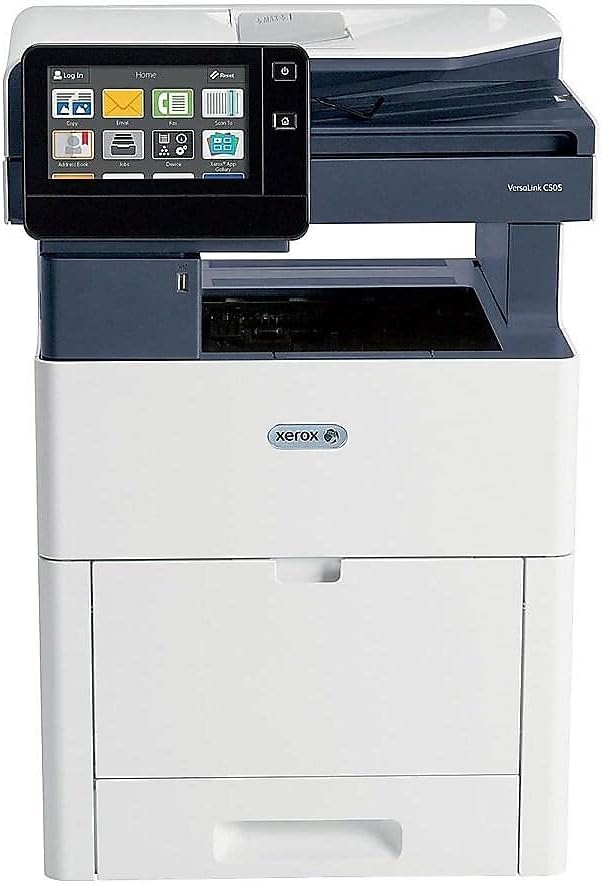
الشكل 1: الجبهة view of the Xerox VersaLink C505/X Multifunction Printer.
2. الإعداد
2.1 فك العبوة والفحص الأولي
Carefully remove the printer from its packaging. Verify that all components listed below are present and undamaged:
- Xerox VersaLink C505 Color MFP
- Starter capacity toner cartridges (one each of cyan, magenta, yellow: 2,400 capacity; black: 5,000 capacity)
- قرص مضغوط للبرامج والوثائق
- دليل التثبيت
- Quick User Guides
- سلك الطاقة
2.2 توصيل الطاقة
- ضع الطابعة على سطح مستوٍ وثابت.
- قم بتوصيل سلك الطاقة المرفق بمدخل الطاقة الخاص بالطابعة ثم بمأخذ كهربائي مؤرض.
- لا تقم بتشغيل الجهاز حتى يتم إجراء جميع التوصيلات الأخرى.
2.3 تركيب خرطوشة الحبر
Install the starter toner cartridges into their respective slots. Refer to the Quick User Guides for specific instructions on opening the toner access panel and inserting cartridges.

Figure 2: Toner cartridge access panel open, showing toner installation.
2.4 اتصال الشبكة و USB
The printer supports both Ethernet and USB connectivity.
- إيثرنت: قم بتوصيل كابل Ethernet من منفذ Ethernet الخاص بالطابعة بجهاز التوجيه أو المحول الشبكي لديك.
- USB: قم بتوصيل كابل USB من منفذ USB الخاص بالطابعة بالكمبيوتر.
2.5 تثبيت البرنامج
Insert the provided software and documentation CD into your computer's CD/DVD drive. Follow the on-screen instructions to install the necessary drivers and utilities. Alternatively, visit the official Xerox support webموقع للحصول على أحدث برامج التشغيل.
3. تشغيل الطابعة
3.1 واجهة شاشة تعمل باللمس
The 7-inch color touchscreen provides access to all printer functions. Navigate through menus by tapping and swiping, similar to a smartphone. The home screen displays icons for various functions such as Print, Copy, Scan, and Fax.

Figure 3: Close-up of the 7-inch color touchscreen control panel.
3.2 الطباعة
لطباعة المستندات:
- تأكد من أن الطابعة متصلة بجهاز الكمبيوتر الخاص بك أو بالشبكة.
- Open the document on your computer and select the print option.
- Choose the Xerox VersaLink C505/X from the list of available printers.
- Adjust print settings (e.g., color/monochrome, duplex printing, paper size) as needed. The printer supports up to 43 ppm color and 45 ppm monochrome, with automatic duplexing.
- Confirm the print job.
3.3 النسخ
لعمل نسخ:
- ضع المستند الأصلي على زجاج الماسح الضوئي أو في وحدة التغذية التلقائية للمستندات (ADF).
- On the touchscreen, tap the "Copy" icon.
- Select desired settings such as number of copies, color/black and white, and two-sided copying. The maximum copy speed is 45 ppm (black & white) with resolutions up to 1200 x 2400 dpi.
- اضغط على زر "ابدأ".
3.4 المسح
لمسح المستندات ضوئيًا:
- ضع المستند على زجاج الماسح الضوئي أو داخل وحدة التغذية التلقائية للمستندات.
- On the touchscreen, tap the "Scan" icon.
- Choose the scan destination (e.g., email, network folder, USB drive) and adjust scan settings.
- اضغط على زر "ابدأ".
3.5 الفاكس
لإرسال فاكس:
- ضع المستند على زجاج الماسح الضوئي أو داخل وحدة التغذية التلقائية للمستندات.
- On the touchscreen, tap the "Fax" icon.
- أدخل رقم الفاكس للمستلم.
- اضبط أي إعدادات ضرورية للفاكس.
- اضغط على زر "ابدأ".
3.6 Mobile and Cloud Connectivity
The VersaLink C505/X offers out-of-the-box connectivity to cloud services like Google Drive, Microsoft OneDrive, and DropBox. Additional options are available through the Xerox App Gallery, allowing for flexible workflow integration.
4. الصيانة
4.1 استبدال خرطوشة الحبر
When a toner cartridge is low or empty, the printer's display will indicate which cartridge needs replacement. Always use genuine Xerox toner cartridges for optimal performance and print quality.
- افتح لوحة الوصول الأمامية للطابعة.
- قم بإزالة خرطوشة الحبر الفارغة بعناية عن طريق سحبها للخارج مباشرة.
- قم بفك عبوة خرطوشة الحبر الجديدة ورجها بلطف لتوزيع الحبر.
- أدخل الخرطوشة الجديدة في الفتحة المناسبة حتى تسمع صوت طقطقة عند تثبيتها في مكانها.
- أغلق لوحة الوصول الأمامية.
4.2 التنظيف
يساعد التنظيف المنتظم على الحفاظ على جودة الطباعة وإطالة عمر الطابعة الخاصة بك.
- الخارج: امسحي الأسطح الخارجية بقطعة ناعمة ، دamp، قطعة قماش خالية من الوبر.
- زجاج الماسح الضوئي: Use a soft cloth moistened with glass cleaner to clean the scanner glass. Ensure no residue remains.
- المكونات الداخلية: Refer to the detailed user manual on the software and documentation CD for instructions on cleaning internal components, such as the print heads or rollers, if necessary.
5. استكشاف الأخطاء وإصلاحها
This section addresses common issues you might encounter with your Xerox VersaLink C505/X. For more complex problems, consult the full user manual or contact support.
5.1 انحشار الورق
If a paper jam occurs, the touchscreen will display an error message indicating the location of the jam. Follow the on-screen instructions to clear the jammed paper. Always pull paper in the direction of the paper path to avoid tearing.
5.2 مشاكل جودة الطباعة
If printouts show streaks, faded areas, or incorrect colors:
- تحقق من مستويات الحبر واستبدل أي خراطيش منخفضة.
- تأكد من استخدام الورق المناسب لطباعة عملك.
- قم بإجراء تشخيص لجودة الطباعة من لوحة تحكم الطابعة.
- Clean the print heads or other internal components as instructed in the detailed manual.
5.3 مشاكل الاتصال
If the printer is not communicating with your computer or network:
- Verify that all cables (power, USB, Ethernet) are securely connected.
- أعد تشغيل الطابعة وجهاز الكمبيوتر/الموجه.
- Check network settings on the printer's touchscreen.
- Ensure the correct printer drivers are installed on your computer.
6. المواصفات
| ميزة | التفاصيل |
|---|---|
| اسم الموديل | Xerox C505/X VersaLink |
| الوظائف | الطباعة والنسخ والمسح الضوئي والفاكس |
| تكنولوجيا الطباعة | ليزر ملون |
| أقصى سرعة للطباعة (أحادية اللون) | 45 جزء في المليون |
| أقصى سرعة للطباعة (ملونة) | 43 جزء في المليون |
| أقصى دقة للطباعة (أبيض وأسود) | 2400 نقطة في البوصة |
| أقصى دقة طباعة (ملونة) | 1200 × 2400 نقطة في البوصة |
| الطباعة على الوجهين | اوتوماتيكي |
| نوع الماسح الضوئي | وثيقة |
| أقصى سرعة نسخ (أبيض وأسود) | 45 جزء في المليون |
| أقصى دقة للنسخ (بالألوان) | حتى 1200 x 2400 dpi |
| طريقة التحكم | App, Touch (7-inch display) |
| الاتصال | USB ، إيثرنت |
| الحد الأقصى لسعة ورقة الإدخال | 3250 ورقات |
| صواني قياسية | 2 (550 Sheet Tray, 150 Sheet Multi Purpose Tray) |
| أحجام الوسائط المدعومة | Letter (8.5 x 11 inches), Legal (8.5 x 14 inches) |
| نوع الحبر | Toner (Black, Cyan, Magenta, Yellow) |
| سعة تخزين الذاكرة | 4096 ميجا بايت |
| أبعاد المنتج | 26 بوصة عمق × 23 بوصة عرض × 31 بوصة ارتفاع |
| وزن العنصر | 77.2 رطل |
| واتtage | 600 واط |
7. الضمان والدعم
7.1 ضمان المنتج
The Xerox VersaLink C505/X Color Laser MFP comes with a standard one-year full warranty from the date of purchase. This warranty covers defects in materials and workmanship under normal use. For detailed terms and conditions, please refer to the warranty documentation included with your product or visit the official Xerox webموقع.
7.2 دعم العملاء
For technical assistance, troubleshooting, or service requests, please contact Xerox customer support. Support contact information can be found on the Xerox webالموقع الإلكتروني أو في الوثائق المرفقة مع طابعتك.
الموارد المتاحة على الإنترنت: قم بزيارة موقع دعم زيروكس الرسمي website for FAQs, driver downloads, and additional user guides.


