

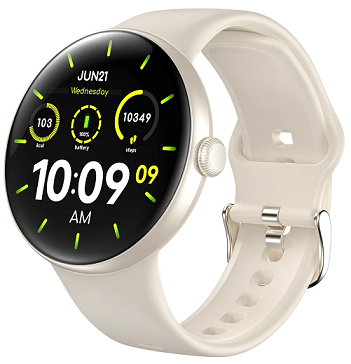
anyloop R1 Watch
Download the app topair and bind the watch
Download anyloop by scanning this QR code, or from Google Play or app store, and install it. (It’s totally free to download anyloop.)

Obtain more functions and usage
Scan this QR code, or open https://any-loop.com/pages/help-and-manual, to obtain more functions and usage.

Attaching and removing the band
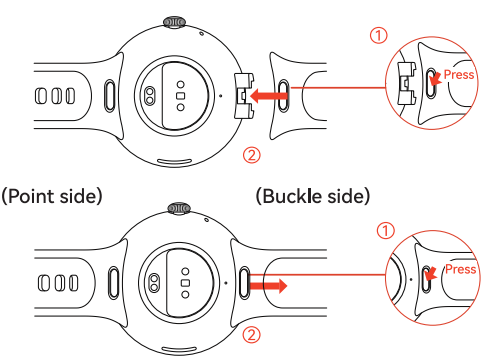
Notes:
When you ore fitting or renewing the watch bond, please take care not to hurt your fingernail.
- Press and hold the button of watch band.
- Align the watch band with the device and fasten them together.
- Pull the watch band gento/ after finishing assembly to ensure it will not drop.
- Press and hold the button of watch band to take down the watch band.
About the Watch

Power button
- When the watch is off, press and hold this button to power on the watch.
- When the watch is on, press and hold this button to power off the watch.
- When the screen is off, press this button to turn on the screen.
- Press this button to switch the display interface from any other page to watch face.
- When the display interface is watch face, press this button to open the watch’s app menu.
- When the display interface is the watch’s menu, double-click this button to change the menu style.
UI touch
- Under Watch face, slide to the right to open the watch application menu.
- When the display interface is watch face, slide it up to view the notification panel.
- When the display interface is watch face, slide it dawn to open the control center.
Notes:
- For first use, please charge up the watch to activate it.
- If the wotch cannot be powered on, please charge it up, and then have another try
How to Pair the Watch
- Please scan the QR code on the right side using your phone; then download anyloop and install it. Alternatively,search anyloop from Google Play or app store; then download the latest version of anyloop and install it.
- Ensure your phone’s Bluetooth is on.
- Open anyloop. Log on or register your account as the app instructs (or enter the visitor mode).
- Click “Add a device”, and select the device to pair. Give the app related permission as the tooltip prompts.
- Click the watch’s Bluetooth name to make pairing.
- Click “Accept” on the watch to confirm pairing. Once pairing succeeds, the watch will go to watch face automatically.
- To assure the availability of the watch’s function Phone Call,please accept the Bluetooth pairing request on the watch.
Otherwise, functions Phone Call and Voice Assistant will be unavailable. If you accidently refuse the Bluetooth pairing request on the watch,please refer to “FAQs – What if the watch cannot make a phone call or use the voice assistant?”

Notes:
- During pairing, please confirm your phone’s Bluetooth is on, and ensure the watch is being connected to your phone.
- If the watch cannot be searched during device adding,or if the watch cannot be connected at use, please reset/reboot it, and then have another try.
- Once pairing achieves success, please protect the app backstage from being accidentally closed by the system as the app guides. Otherwise, there may be a result that the watch is disconnected from your phone,affecting the watch to operate as normal.
- For better user experience, please use the latest version of app. The operating system should be above Android 5.0 or IOS 9.0.
- If you have problems with connection and pairing, please refer to “FAQs – What if the watch cannot be connected to or paired with your phone?”
How to Wear the Watch
- Wear the watch properly, neither too tight nor too loose, to allow your skin to breathe. In that way, you could feel comfortable, and the sensor could operate normally.
- For accurate measurement, please keep your arm level and still, and keep your skin comfortable by leaving a room for a finger between watch and skin.
- You could tighten the watch band during exercise and loosen it after exercise.
- The tattoo, mark, and hair on your wrist where the watch is worn may affect the heart rate sensor. For this reason, please wear the watch on a wrist that will not disturb its function.

Notes:
- Once the watch band is well fit, please full it appropriately to check whether it’s secure or not.
- If you want to buy a watch band, please go to the anyloop store.
- If the watch band appears to have breakage, please contact Support@any-loop.com for renewal.
Main Functions
 Heart rate
- Click “Heart rate” on the watch’s menu.
- The watch will begin to measure your heart rate automatically.
- Wait about 10 seconds, and then you could view the measured heart rate.
- Slide up or down the interface to view other information on heart rate. You could turn on Bluetooth, synchronize the information on heart rate with the app, and view further data of heart rate.
How to change settings for heart rate measurement
- Open anyloop.
- Click “More Settings” on Device page.
- Select the desired options, and set the method of measuring the heart rate.
- Continuous measurement: Measure your heart rate continuously (once five minutes around the clock).
- Heart rate warning: When your heart rate stays above the set value continuously, the watch will give you a warning sign.
- Wearing detection: When the watch presents “Please wear the watch properly” continuously, the thing may be either that the tattoo, mark, and hair on your wrist affect the sensor measuring your heart rate or that you wear the watch not as this Guide suggests. In the former case, you could close wearing detection.
In the latter case, please refer to “How to wear the watch”
 Sp02
Sp02
- Click “SpO2” on the watch’s menu.
- The watch will begin to measure your SpO2 automatically.
3. Wait about 10 seconds, and then you could view the measured SpO2. You could turn on Bluetooth, synchronize the information on SpO2 with the app, and view further data of SpO2.
 Sleep
Sleep
- Sleep with the watch on, and it will begin to measure your sleep automatically.
- When you wake up, click “Sleep” on the watch’s menu, and then you could view the information on sleep for the previous night.
- You could turn on Bluetooth, synchronize the information on sleep with the app, and view further data of sleep.
Notes:
If you have doubts about the data of sleep in anyloop, you could log in https://any-loop.com/pages/help-and-manual to view further information, or you could contact support@anyloop.com.
 Exercise
- Click “Exercise” on the watch’s menu.
- Slide up or down the intertace to select the desired exercise.
- The watch will begin to record your exercise data automatically in 3 seconds. Slide up or down the interface to view heart rate, distance, time, etc. Slide right the interface to go back to or finish exercise.
- You could turn on Bluetooth, synchronize the information on exercise with the app, and view further data of exercise from the plate Exercise on Homepage.
Notes:
In exercise mode, your heart rate will be measured on a real-time basis.
 Message Notification
- When the watch is connected to your phone via Bluetooth,the watch could receive messages from your phone’s notification center.
When the display interface is watch face, slide it up to open the notification panel, and then the message notifications could be viewed.
How to change settings for Message Notification
- Open anyloop.
- Click “More Settings” on Device page.
- Find “General”, and select Message Notification. You could choose whether to enable Message Notification here and select the app to receive notifications.
Notes:
At present, the watch does not support reply to messages.
A message could present 100 characters at most.
 Weather
- Turn on Bluetooth. Ensure the watch is connected to your phone.
- Open anyloop.
- Click “More Settings” on Device page.
- Find the app plate, and turn on “Weather”
- Open the watch’s menu. Click “Weather” to view the information on local weather.
Notes:
Conditions for the watch to update data of weather:
- The app has got permission to fix your location;
- Your phone is in the condition of normal network connection; and
- The watch is in the condition of normal Bluetooth connection.
- If all the above conditions are met, the watch will update air temperature once every two hours. If air temperature remains unchanged, please close the app backstage and re-open it.
Watch face

- Press and hold watch face to enter “Edit” interface. Slide left or right the interface, and then select the desired watch face.
- Turn on Bluetooth. Ensure the watch is connected to your phone. You could open anyloop and select more watch face from watch face store.
- Alternatively, you could upload a picture to generate a user-defined watch face.
Watch face Store
- Open anyloop. Turn on Bluetooth. Ensure the watch is connected to your phone.
- Click “Watch face Store” on Device page.
- Select the desired dial. Click Install.
- The watch’s watch face will be updated to that dial automatically.
 Daily exercise data
Click “Data” on the watch’s menu, and you could view information on your current exercise.
- Steps: View your steps for the day. The closer to the goal the number of your steps is, the bigger the graphical progress is.
- Calories: View your calories consumed for the day. The closer to the goal the number of your calories is, the bigger the graphical progress is.
- Distance: View your exercise distance for the day. The closer to the goal your exercise distance is, the bigger the graphical progress is.
How to set a goal
- Turn on Bluetooth. Ensure the watch is connected to your phone. Open anyloop.
- Find the plate “My Goals” on “Me” page.
- Click the desired data type, and set your goal.
 How to make a phone call
- Turn on Bluetooth. Ensure the watch is connected to your phone.
- Click “Call” on the app menu.
- Enter a number by using the keypad, and then click the icon Call.
 How to answer a phone call
- Turn on Bluetooth. Ensure the watch is connected to your phone.
- When there is an incoming call, click the to answer that incoming call. You could use the watch’s built-in microphone and speaker. Click the icon microphone
 to turn off/on the microphone. Click the to reject that incoming call.
How to charge up the watch - Wire the charging cable to the power adapter or your computer’s USB interface.
- Make the charging port tight aligned with the charging contacts on the watch’s back.
- During charging, you could view the charging status on the screen.
- When the watch is fully charged, please disconnect it from the wireless charger.
Notes:
- Please use the charging cable in the package.
- Before charging, please ensure the charging port is dry,clean, free of foreign matter such as sweat, liquid, dust,and so on.
- If the product is long laid aside, its advisable to power off the product before you put it aside. That product on the shelf shall be fully charged once six months to prevent its battery from being excessively discharged or even being damaged
- If the watch cannot be charged, please contact Support@any-loop.com.
Packing List
- Smart watch × 1
- Charging cable × 1
- Instructions × 1
Basic Parameters
| Product Name | Smart Watch |
| Product Model | ALW12 |
| Input | sv = 0.2A |
| Battery | 300mAh |
| Water Resistance Rating | IP68 |
| Maximum Operating Temperture | 4S’C (113″F) |
Matters Needing Attention
- This product, not a medical apparatus, shall not substitute for professional medical diagnosis. Its design or intention is not for diagnosing diseases and other symptoms or for curing,relieving, treating, or preventing any symptom or disease.
Before making any decision on your health, please seek advice from your medical service provider. - Do not try to replace the battery yourself. Do not drop,incinerate, puncture or crush the battery as this may cause the battery to catch fire or explode.
- Keep away this product from over-temperature and under-temperature conditions. Otherwise, it may catch fire or explode.
- anyloop has internal and external certification agencies do harmful material testing for the watch, covering all materials in contact with skin, dermatologic toxicity, and wearing. Some people may show skin allergies to vinyl leather, fiber, etc., and they will show symptoms such as erythema and inflammation after long contact with this product. If you have such symptoms, please stop using the product right away, and seek advice from your doctor.
- Please don’t use an unauthorized/incompatible power charger or data cable. Otherwise, there may be a result that the watch is damaged, catches fire, explodes, or leads to other dangers.
- Radio waves from this product probably affect availability of implantable/personal medical apparatuses such as cardiac pacemaker and hearing aid
- Please don’t dispose this product and its accessories as general household garbage. Please ensure you dispose or recycle this product and its accessories by local laws and regulations.
Repair & Maintenance
- Avoid using liquid soap, hand sanitizer, body wash, washing liquid, and other cleansers to clean the watch. Residual liquid soap, detergent, hand sanitizer, or cleanser remaining on the watch may induce irritation to your skin or might bring down the watch’s waterproof performance.
- Please don’t wear the watch in underwater sports like snorkeling, diving, or scuba diving; in aquatic sports like water skiing or surfing; and in swimming in such environment of high hydraulic pressure as river. In those environments, hydraulic pressure will vary suddenly, causing change to the watch’s waterproof performance.
- The watch’s waterproof performance may be impaired because of acute change to air/water temperature. For this reason, please don’t wear the watch in high-temperature environments such as sauna room and hot water bath.
- You could use the watch in exercise, in hand washing, or in rain
- Keep the watch dry, away from damp. Do not long expose the watch to direct sunlight. Both over-temperature and under-temperature may result in the watch’s breakdown.
- Please don’t wear the watch in MRI examination or in other highly magnetic environments. Otherwise, the watch may be damaged.
Customer Service
If you have any questions or doubts, please contact our customer support team at support@anyloop.com. We wish you would love your new smart watch.
FCC & IC Statement
This device complies with Part 15 of the FCC Rules. Operation is subject to the following two conditions:
- This device may not cause harmful interference, and
- this device must accept any interference received, including interference that may cause undesired operation.
NOTE 1: This equipment has been tested and found to comply with the limits for a Class B digital device, pursuant to part 15 of the FCC Rules. These limits are designed to provide reasonable protection against harmful interference in a residential installation. This equipment generates, uses and can radiate radio frequency energy and, if not installed and used in accordance with the instructions, may cause harmful interference to radio communications. However, there is no guarantee that interference will not occur in a particular installation. If this equipment does cause harmful interference to radio or television reception, which can be determined by turning the equipment off and on, the user is encouraged to try to correct the interference by one or more of the following measures:
- Reorient or relocate the receiving antenna.
- Increase the separation between the equipment and receiver.
- Connect the equipment into an outlet on a circuit different from that to which the receiver is connected.
- Consult the dealer or an experienced radio/TV technician for help
NOTE 2: Any changes or modifications to this unit not expressly approved by the party responsible for compliance could void the user’s authority to operate the equipment.
- The device has been evaluated to meet general RF exposure requirement. The device can be used in portable exposure condition without restriction.
- The device has been evaluated to meet general RF exposure requirement.
- The device can be used in portable exposure condition without restriction.
- This device contains licence-exempt transmitter(s)/receiver(s) that comply with Innovation, Science and Economic
- Development Canadas licence-exempt RSS(s). Operation is subject to the following two conditions:
- This device may not cause interference
- This device must accept any interference, including interference that may cause undesired operation of the device.
Due to the limitation of product size, the product certification information is printed on the outerpackage, please see as below:
FCC ID: 2BBVM-ALW12
IC: 31734-ALW12

Manufactured by: Shenzhen Yuanhuan Technology Co., Ltd.
Address: 1307, East Block, Building 6, Tianan Yungu Industrial
Park, Phase II, Gangtou Community, Bantian Street, Longgang
District, Shenzhen, Guangdong Province, China
Made in China
FAQS
What if the watch cannot be connected to or paired with your phone?
When the watch is disconnected, a red connection symbol ( ) will appear in the control center. When the watch is connected to your phone, a white connection symbol (
 ) will appear in the control center. Please try the following steps.When any of them is finished,please check whether the watch can be connected or not.
- Check whether the watch can be connected
- First, put together the watch and your phone. Open anyloop.
- phone’s Bluetooth; then click “Connect” on the app’s Device page.
- Reboot the watch; then click “Connect” on the app’s Device page.
- Try re-connect the watch to your phone.
- Please select “Unbind” in the app’s Device module. (That operation will result in the watch’s data being cleared.)
- Clear the watch’s Bluetooth information from the Bluetooth list in your phone’s system; then turn off and on Bluetooth in your phone’s system.
- Go to the app’s BindView; re-bind the watch.
If the above way cannot solve your problem, please contact Support@any-loop.com. Alternatively, open anyloop; select Help & Feedback on “Me” page; and submit your problem.
Why is the data of heart rate / Sp02 is inaccurate?
Even under ideal conditions, the watch cannot assure reliable heart rate / Sp02 readings to each person. Please wear the watch as this Guide suggests to help anyloop Watch obtain readings as accurately as possible.
What if the watch cannot receive message notifications?
If you find the watch doesn’t receive notifications, please try the following operations:
- To ensure the watch can timely receive notifications, please confirm the watch is paired with your phone and is connected via Bluetooth.
- Check whether Message Notification is enabled in the app:
Go to the app’s DetailView > Message Notification; enable Message Notification, and toggle on the desired app’s button. - Please toggle on the app’s button in your phone’s settings.
- Android system (taking Samsung phones for example):
Open your phone’s Settings > Notification; select the desired app, and toggle on its button. - iOS system: Go to your phone’s Settings > Notification; select the desired app, and toggle on its button; ensure that button is on in the notification center.
- Android system (taking Samsung phones for example):
- If your phone is an iPhone product, please ensure shared notification settings with the watch is normal: Open your phone’s Settings; turn on Bluetooth; click the paired watch; turn on Shared System Notification.
- Please confirm the watch is out of Do Not Disturb (DND) mode
- If the problem remains unsolved, please reboot your phone; reconnect the watch; then have another try.
- If the above way cannot solve your problem, please contact Support@any-loop.com.
What if the watch presents inaccurate weather?
Accuracy of weather data on the watch may vary with the following factors:
- Turn on Bluetooth. Ensure the watch is connected to your phone. The watch will update its weather information automatically.
- The watch’s weather information collecting point slightly differs from the weather app’s collecting point temperature in your phone. That is considered normal.
What if the watch cannot make a phone call or use the voice assistant?
When the watch’s function Bluetooth Phone Call is abnormal,  will appear on the top left of control center. When the watch’s function Bluetooth Phone Call is normal,
  will appear. Please try the following steps.
-
- Drop down the control center. Check whether the function
Phone Call ( ) is on. If not, please click that icon to toggle on the Bluetooth button for Phone Call.
 - Open the app. Open “More Settings”. Toggle on the Bluetooth button for audio.
- Ensure phone numbers are not restricted on your phone.
If the above way cannot solve your problem, please contact Support@any-loop.com. Alternatively, open anyloop; select Help & Feedback on “Me” page; and submit your problem.
- Drop down the control center. Check whether the function
What if the watch cannot receive incoming call notifications?
- Ensure the watch is connected to your phone via Bluetooth.
- Ensure your phone’s system doesn’t block incoming calls from that phone number.
- Please check whether the watch is in Do Not Disturb (DND) mode or not. (When the watch is in DND mode, the (
 ) in control center will be always on. Please click that icon to get out of DND mode.)
 - The service Call Notification may be disabled in the app.
You could refer to “How to change settings for Message Notification” on to enable Call Notification. - The notification access permission may be disabled in the app. You could refer to “FAQs – What if the watch cannot receive message notifications?”
Documents / Resources
 | R1 Watch |
References
- User Manualmanual.tools