1. መግቢያ
Thank you for choosing the LG 34 Inch UltraWide WQHD Curved Monitor. This manual provides essential information for the safe and efficient use of your new monitor. Please read it thoroughly before operating the device and keep it for future reference.
የጥቅል ይዘቶች
- LG 34 Inch UltraWide Curved Monitor
- መቆሚያ (መሠረት እና አንገት) ተቆጣጠር
- የኃይል ገመድ
- HDMI ገመድ
- የማሳያPort ገመድ
- የ USB-C ገመድ
- የተጠቃሚ መመሪያ እና የዋስትና ካርድ
2. ቁልፍ ባህሪያት
- 34-inch WQHD UltraWide Curved Display: Expansive 21:9 screen (3440 x 1440) for enhanced productivity and immersive viewing
- HDR Display with 99% sRGB: Delivers vibrant, natural colors and distinct image layers, supporting HDR brightness performance.
- 120Hz ከፍተኛ የማደስ ፍጥነት፡ Ensures fluid scrolling and dynamic content for a comfortable visual experience.
- 5ms (GTG) Response Time: Provides quick pixel response for smooth motion.
- LG Switch for Multitasking & Eye Care: Enables quick split-screen functionality, customizable layouts, and Reader Mode to reduce eye strain.
- የሚስተካከለው መቆሚያ; Supports height, tilt, and swivel adjustments for optimal viewing ማዕዘኖች.
- አብሮ የተሰሩ ስፒከሮች፡- ለምቾት ሲባል የተቀናጀ ኦዲዮ።
- በርካታ የግንኙነት አማራጮች፡- የ DisplayPort እና HDMI ግብዓቶችን ያካትታል.
3. ማዋቀር
3.1 ማቆሚያውን መሰብሰብ
Carefully remove the monitor and stand components from the packaging. Follow the instructions below to attach the stand to the monitor.
- ጭረቶችን ለመከላከል ተቆጣጣሪውን ለስላሳ እና ንፁህ ገጽ ላይ ወደታች ያድርጉት።
- የማቆሚያውን አንገት ከተቆጣጣሪው የኋላ ፓነል ጋር ያያይዙት። ደህንነቱ በተጠበቀ ሁኔታ ወደ ቦታው ጠቅ ማድረጉን ያረጋግጡ።
- Attach the stand base to the bottom of the stand neck. Tighten the screw(s) firmly to secure the base.
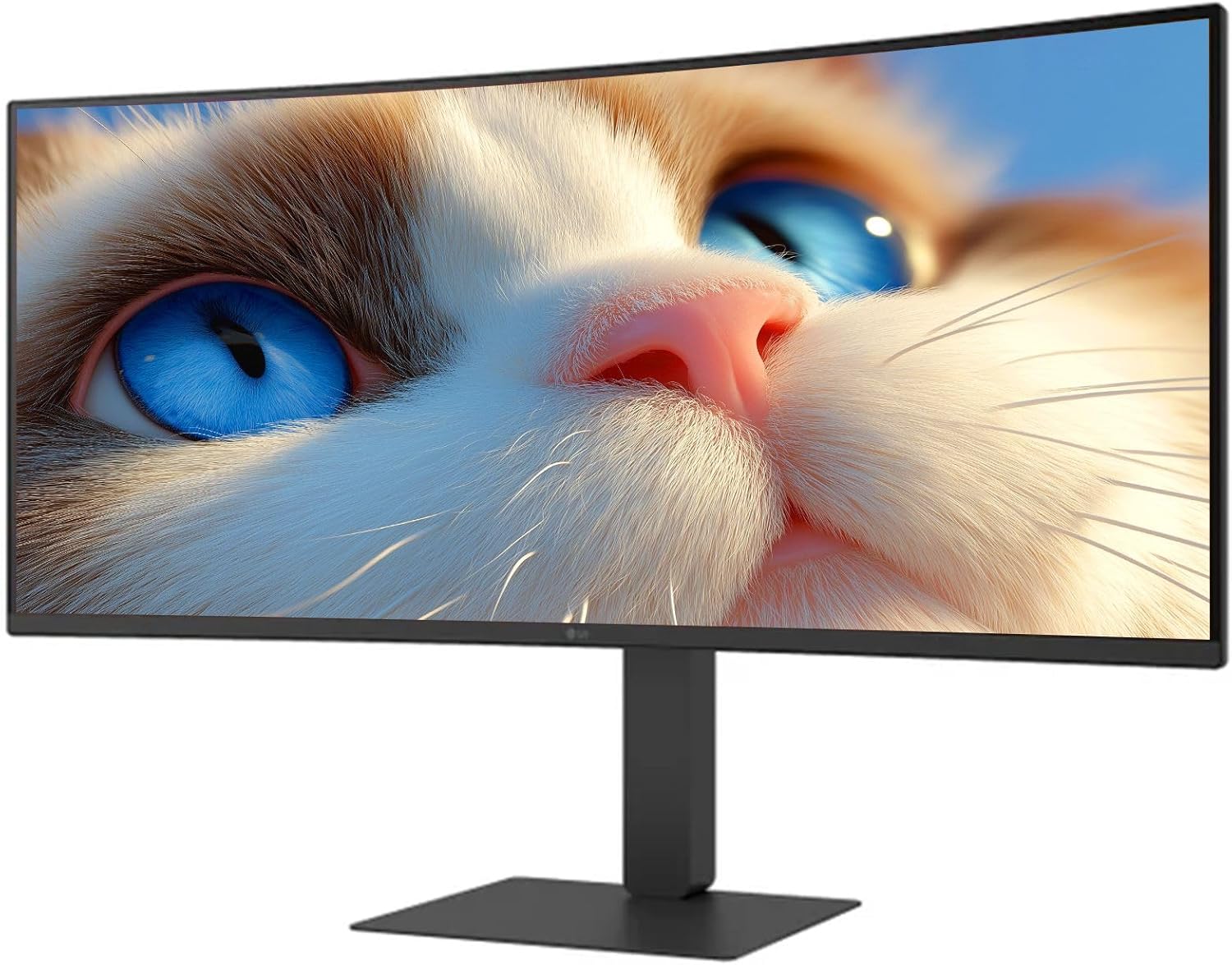
ምስል 1: የፊት view of the LG 34 Inch UltraWide Curved Monitor with stand.

ምስል 2: ጎን view of the LG 34 Inch UltraWide Curved Monitor with stand.
3.2 ተቆጣጣሪውን ማገናኘት
ተገቢውን ገመዶች በመጠቀም ማሳያውን ከኮምፒዩተርዎ ወይም ከሌሎች መሳሪያዎች ጋር ያገናኙ።
- የኃይል ገመዱን ወደ ተቆጣጣሪው የኃይል ግብዓት እና ከዚያ ከኃይል ማሰራጫ ጋር ያገናኙ።
- For video input, connect either an HDMI cable or a DisplayPort cable from your computer's graphics card to the corresponding port on the monitor.
- If your computer supports USB-C, you can use the provided USB-C cable for video, audio, and data transfer.

ምስል 3: የኋላ view of the monitor showing available ports for connectivity.
4. ሞኒተሩን መስራት
4.1 ማብራት / ማጥፋት
Press the power button, usually located on the bottom center of the monitor, to turn the monitor on or off. The power indicator light will illuminate when the monitor is on.
4.2 የማያ ገጽ ላይ ማሳያ (OSD) ምናሌ
The OSD menu allows you to adjust various monitor settings. Use the joystick button (typically located on the bottom center) to navigate the menu.
- የሥዕል ሁኔታ፡- Select from various preset modes (e.g., Custom, Reader, HDR Effect) or customize settings like brightness, contrast, and sharpness.
- ግቤት፡ Manually select the input source (HDMI, DisplayPort, USB-C).
- አጠቃላይ፡ Access settings for language, OSD transparency, and power-saving options.
4.3 መቆሚያውን ማስተካከል
The monitor stand offers ergonomic adjustments for your comfort:
- የከፍታ ማስተካከያ; Gently push or pull the monitor up or down to your desired height.
- የማዘንበል ማስተካከያ፡ Hold both sides of the monitor and tilt it forwards or backwards.
- የማዞሪያ ማስተካከያ፡ ተቆጣጣሪውን በመሠረቱ ላይ ወደ ግራ ወይም ቀኝ አሽከርክር።
5. ጥገና
5.1 መቆጣጠሪያውን ማጽዳት
የማሳያዎ ረጅም ጊዜ እና ጥሩ አፈጻጸም ለማረጋገጥ የሚከተሉትን የጽዳት መመሪያዎች ይከተሉ፡
- ከማጽዳትዎ በፊት ሁልጊዜ መቆጣጠሪያውን ከኃይል ማሰራጫው ያላቅቁት።
- ለስላሳ፣ ከቆሸሸ ነፃ የሆነ ጨርቅ በትንሹ ተጠቀምampበውሃ ወይም በልዩ ማያ ገጽ ማጽጃ የታሸገ።
- ማጽጃውን በቀጥታ በስክሪኑ ላይ አይረጩ።
- Avoid using abrasive cleaners, solvents, or ammonia-based products.
6. መላ መፈለግ
በእርስዎ ማሳያ ላይ ችግሮች ካጋጠሙዎት የሚከተሉትን የተለመዱ መፍትሄዎች ይመልከቱ፡
- ኃይል የለም፡ የኃይል ገመዱ ከሁለቱም ሞኒተሪው እና ከኃይል ማመንጫው ጋር ደህንነቱ በተጠበቀ ሁኔታ መገናኘቱን ያረጋግጡ። የኃይል ማከፋፈያው እየሰራ መሆኑን ያረጋግጡ.
- ምንም ምልክት የለም፡ Verify that the video cable (HDMI, DisplayPort, or USB-C) is correctly connected to both the monitor and your computer. Ensure the correct input source is selected in the OSD menu.
- የሚያብረቀርቅ ስክሪን፡ Check the video cable connection. Try adjusting the refresh rate in your computer's display settings.
- የምስል መዛባት፡ Reset the monitor to factory settings via the OSD menu. Ensure your computer's display resolution matches the monitor's native resolution (3440 x 1440).
- አብሮገነብ ድምጽ ማጉያዎች ምንም ድምፅ የለም; Check the volume settings on both the monitor and your computer. Ensure the audio output is correctly routed to the monitor.
If the problem persists after trying these steps, please contact LG customer support.
7. ዝርዝሮች
| ባህሪ | ዝርዝር መግለጫ |
|---|---|
| የምርት ስም | LG |
| የሞዴል ቁጥር | 195174134092 |
| የስክሪን መጠን | 34 ኢንች |
| ከፍተኛው ጥራት | WQHD (3440 x 1440) |
| የማደስ ደረጃ | 120Hz |
| የምላሽ ጊዜ | 5ሚሴ (GTG) |
| ምጥጥነ ገጽታ | 21፡9 |
| ቀለም ጋሙት | ኤስ.አር.ቢ. 99% |
| የኤችዲአር ድጋፍ | HDR10 |
| Viewማእዘን | 178 degrees (R/L), 178 degrees (U/D) |
| የማሳያ ማያያዣዎች | 1 x HDMI፣ 1 x DisplayPort |
| Eye Relief Features | Low blue light, Flicker-free, Anti-glare, Reader Mode |
| አብሮ የተሰሩ ስፒከሮች | አዎ |
| የምርት ልኬቶች (ከቆመበት ጋር) | 8.7" ዲ x 32.1" ዋ x 19.2" ኤች |
| የምርት ክብደት (ከቆመበት ጋር) | 16.8 ፓውንድ £ |
8. ዋስትና እና ድጋፍ
Your LG 34 Inch UltraWide Curved Monitor comes with a standard manufacturer's warranty. Please refer to the warranty card included in your package for detailed terms and conditions.
For technical support, service, or further inquiries, please visit the official LG website or contact their customer service hotline. Keep your purchase receipt and product serial number (located on the back of the monitor) handy when contacting support.