መግቢያ
The Linksys 5G AX1800 Mobile Hotspot is a portable device designed to provide high-speed 5G and WiFi 6 connectivity for multiple devices. With its ultra-thin design and long battery capacity, it allows you to stay connected on the go. This manual provides essential information for the proper setup, operation, maintenance, and troubleshooting of your mobile hotspot.
ቁልፍ ባህሪያት የሚከተሉትን ያካትታሉ:
- Portable 5G supersonic speed and bandwidth.
- WiFi 6 speeds up to 1.8 Gbps (AX1800).
- Supports connection for 15+ devices simultaneously.
- Ultra-thin and lightweight design for maximum convenience.
- ለረጅም ጊዜ ጥቅም ላይ የሚውል ባትሪ.
- Powered by leading-edge 5G technology by Qualcomm.
ምስል 1: የፊት view of the Linksys 5G AX1800 Mobile Hotspot, showing LED indicators for battery, 5G/LTE, and Wi-Fi status.
ማዋቀር
1. ሲም ካርድ ይጫኑ
The Linksys 5G AX1800 Mobile Hotspot requires a Nano-SIM card for 5G/LTE connectivity. Ensure the device is powered off before inserting the SIM card.
- Locate the SIM card slot cover on the side of the device.
- ሽፋኑን በቀስታ ይክፈቱት።
- Insert the Nano-SIM card into the slot with the gold contacts facing down and the notched corner aligned correctly.
- የሲም ካርዱን ማስገቢያ ሽፋን በጥንቃቄ ይዝጉ።

ምስል 2: ጎን view of the mobile hotspot, highlighting the SIM card slot cover.
2. መሳሪያውን መሙላት
Before first use, fully charge the mobile hotspot. Use the provided charging cable and a compatible USB power adapter.
- Connect one end of the USB cable to the charging port on the device.
- Connect the other end to a USB power adapter or a computer's USB port.
- The battery indicator LED will show charging status. Allow several hours for a full charge.

ምስል 3: ታች view of the mobile hotspot, showing the USB-C charging port.
3. ማብራት / ማጥፋት
To power on the device, press and hold the power button located on the side until the LED indicators light up. To power off, press and hold the power button again until the indicators turn off.

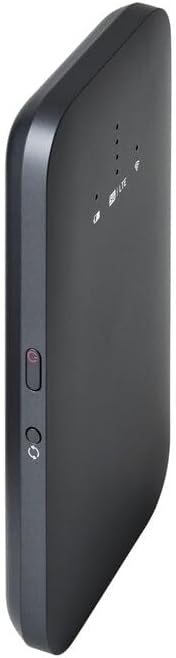
ምስል 4: ጎን view of the mobile hotspot, indicating the location of the power button.
የአሠራር መመሪያዎች
1. መሳሪያዎችን ከ Wi-Fi ጋር ማገናኘት
Once powered on, the mobile hotspot will broadcast a Wi-Fi network. You can connect up to 15+ devices simultaneously.
- በመሳሪያዎ (ስማርትፎን፣ ላፕቶፕ፣ ታብሌት) ላይ የWi-Fi ቅንብሮችን ይክፈቱ።
- ፈልግ የሚገኙ የWi-Fi አውታረ መረቦች።
- Select the network name (SSID) of your Linksys Mobile Hotspot. The default SSID and password are usually found on a sticker inside the device or on its packaging.
- ሲጠየቁ የWi-Fi ይለፍ ቃል ያስገቡ።
- መሣሪያዎ አሁን በሞባይል መገናኛ ነጥብ በኩል ከበይነመረቡ ጋር መገናኘት አለበት።
2. የ LED አመልካቾችን መረዳት
The LED indicators on the front of the device provide important status information:
- የባትሪ አመልካች፡- የአሁኑን የባትሪ ደረጃ እና የኃይል መሙያ ሁኔታን ያሳያል።
- 5G/LTE Indicator: Indicates the mobile network connection status (e.g., solid blue for 5G, solid green for LTE, blinking for searching).
- የWi-Fi አመልካች፡- Shows if the Wi-Fi network is active and broadcasting.
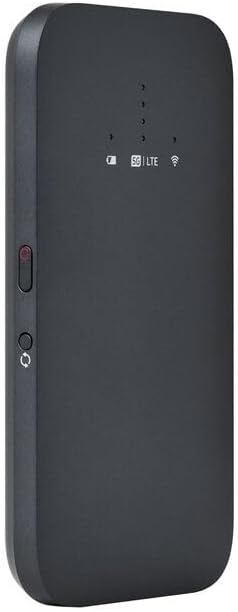
ምስል 5፡ የማዕዘን ፊት view of the mobile hotspot, clearly showing the LED indicators for battery, 5G/LTE, and Wi-Fi.
3. ወደ ላይ መድረስ Web የአስተዳደር በይነገጽ
For advanced settings, such as changing the Wi-Fi name or password, managing connected devices, or checking data usage, you can access the device's web የአስተዳደር በይነገጽ.
- Ensure your device is connected to the mobile hotspot's Wi-Fi network.
- ክፈት ሀ web browser (e.g., Chrome, Firefox, Safari).
- Enter the default IP address for the hotspot (usually
192.168.1.1or192.168.0.1, refer to the device's documentation or sticker for the exact address) into the address bar and press Enter. - Log in using the default username and password (also found on the device sticker or documentation). It is highly recommended to change the default password for security.
ጥገና
1. የባትሪ እንክብካቤ
- መሳሪያውን ለከፍተኛ ሙቀት ከማጋለጥ ይቆጠቡ።
- መሳሪያውን ሙሉ በሙሉ ከተለቀቀ በኋላ ለረጅም ጊዜ አይተዉት.
- ኦሪጅናል ወይም የተረጋገጠ ተኳሃኝ የኃይል መሙያ መለዋወጫዎችን ብቻ ይጠቀሙ።
2. ማጽዳት
Wipe the device with a soft, dry, lint-free cloth. Do not use liquid cleaners or aerosols directly on the device.
3. የጽኑ ዝማኔዎች
የጽኑዌር ዝመናዎችን በየጊዜው በ በኩል ያረጋግጡ web management interface. Keeping the firmware updated ensures optimal performance and security.
መላ መፈለግ
የበይነመረብ ግንኙነት የለም።
- ሲም ካርዱ በትክክል መግባቱን እና በመረጃ እቅድ መስራቱን ያረጋግጡ።
- Check the 5G/LTE indicator on the device. If it's blinking or off, the device may be searching for a network or have no signal.
- Restart the mobile hotspot and your connected device.
- Verify that your data plan has not been exhausted.
ቀርፋፋ የ Wi-Fi ፍጥነት
- Move closer to the mobile hotspot to improve signal strength.
- Reduce the number of connected devices or data-intensive activities.
- በአካባቢዎ ያለውን የአውታረ መረብ መጨናነቅ ያረጋግጡ።
Device Not Connecting to Hotspot
- Ensure the Wi-Fi indicator on the hotspot is active.
- የWi-Fi ይለፍ ቃል ደግመው ያረጋግጡ።
- ሁለቱንም የመገናኛ ነጥብ እና ለመገናኘት እየሞከሩ ያሉትን መሳሪያ እንደገና ያስጀምሩ።
የፋብሪካ ዳግም ማስጀመር
If issues persist, you may perform a factory reset. This will revert all settings to their default values, including Wi-Fi name and password. Refer to the device's specific instructions for the reset procedure, usually involving a small reset button.
ዝርዝሮች
| ባህሪ | ዝርዝር |
|---|---|
| የምርት ስም | ሊንክሲስ |
| የሞዴል ስም | FGHSAX1800 |
| የንጥል ሞዴል ቁጥር | FGHSAX1800-AH |
| የግንኙነት ቴክኖሎጂ | 5G |
| የ Wi-Fi መደበኛ | ዋይፋይ 6 (AX1800) |
| የውሂብ ማስተላለፍ ፍጥነት | በሰከንድ እስከ 1.8 Gigabits |
| ድግግሞሽ ባንድ ክፍል | ባለሁለት ባንድ |
| የአንቴና ዓይነት | ውስጣዊ |
| ልዩ ባህሪያት | የመዳረሻ ነጥብ ሁነታ |
| የተካተቱ አካላት | የሲም ካርድ ማስገቢያ |
| ጥራዝtage | 12 ቮልት |
| የጥቅል ልኬቶች | 14 x 7.5 x 1.55 ሴ.ሜ |
| የእቃው ክብደት | 185 ግ |
ዋስትና እና ድጋፍ
For warranty information and technical support, please refer to the warranty card included with your product or visit the official Linksys support webጣቢያ። በተለምዶ የተደጋጋሚ ጥያቄዎች፣ የአሽከርካሪ ማውረዶች እና የደንበኞች አገልግሎት የእውቂያ መረጃ እዚያ ማግኘት ይችላሉ።
Linksys Official Support: https://www.linksys.com/support


