1. መግቢያ
This manual provides comprehensive instructions for the installation, operation, and maintenance of your TP-Link Archer C5 AC1200 Dual-Band Gigabit Wireless Wi-Fi Router. The Archer C5 is designed to provide seamless Wi-Fi coverage with its dual-band capabilities, offering speeds up to 750Mbps on the 5GHz band and up to 300Mbps on the 2.4GHz band. It features four external antennas for stable wireless connections and full Gigabit ports for high-speed wired connections.
Please read this manual carefully before using the device to ensure proper setup and optimal performance.
2. የጥቅል ይዘቶች
ጥቅልዎ የሚከተሉትን ንጥሎች መያዙን ያረጋግጡ፡-
- TP-Link Archer C5 Router
- Power Adapter (DC Adapter)
- የኤተርኔት ገመድ (RJ45)
- Quick Installation Guide (may be a separate document)
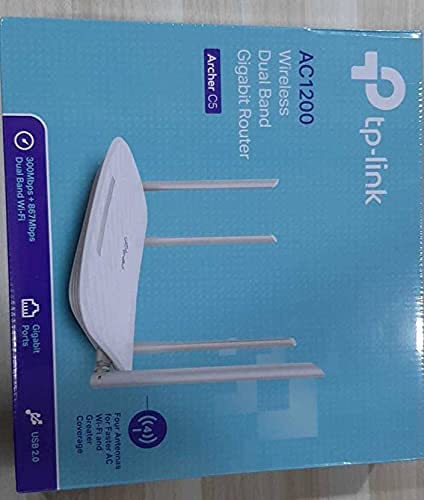
3. ምርት አብቅቷልview
3.1 የፊት ፓነል

The front panel features LED indicators that provide information about the router's status, including power, internet connectivity, Wi-Fi status for both 2.4GHz and 5GHz bands, and LAN port activity.
3.2 የኋላ ፓነል

The rear panel includes all physical connection ports and buttons:
- የኃይል ግቤት፡ ከተሰጠው የኃይል አስማሚ ጋር ይገናኛል.
- የኃይል ቁልፍ፡- ራውተሩን ያበራል ወይም ያጠፋል.
- የዩኤስቢ ወደብ፡ የዩኤስቢ ማከማቻ መሳሪያዎችን ለማጋራት ለማገናኘት fileበአውታረ መረቡ ላይ s.
- WAN ወደብ (ሰማያዊ) Connects to your modem for internet access. This is a Gigabit port.
- የላን ወደቦች (ቢጫ)፦ ባለገመድ መሣሪያዎችን እንደ ኮምፒውተሮች፣ ጌም ኮንሶሎች ወይም ስማርት ቲቪዎች ለማገናኘት አራት ጊጋቢት ኢተርኔት ወደቦች።
- ዳግም አስጀምር አዝራር፡- ራውተርን ወደ ፋብሪካ ነባሪ ቅንጅቶች ለመመለስ ጥቅም ላይ ይውላል.
- የWPS/Wi-Fi አዝራር፡ ለቀላል ግንኙነት WPS (Wi-Fi የተጠበቀ ማዋቀር) ለማንቃት ይጫኑ፣ ወይም Wi-Fiን ለማብራት/ለማጥፋት ይጫኑ እና ይያዙ።
4. የማዋቀር መመሪያ
Follow these steps to set up your TP-Link Archer C5 router:
- የእርስዎን ሞደም ያጥፉ፡- ኃይሉን ከነባር ሞደምዎ ያላቅቁ።
- ራውተርን ያገናኙ;
- Connect one end of the provided Ethernet cable to the WAN port (blue) on your Archer C5 router.
- የኤተርኔት ገመዱን ሌላኛውን ጫፍ ወደ ሞደምዎ ኢተርኔት ወደብ ያገናኙ።
- በመሳሪያዎች ላይ ኃይል;
- የኃይል አስማሚውን ወደ ራውተር የኃይል ግቤት ያገናኙ እና ወደ ኃይል ሶኬት ይሰኩት።
- Power on your modem, then wait for it to fully boot up (usually indicated by stable LED lights).
- Power on the Archer C5 router. Wait for the LED indicators to stabilize, particularly the Internet LED.
- ከራውተሩ የ Wi-Fi አውታረ መረብ ጋር ይገናኙ፦
- በራውተርዎ ግርጌ ላይ ባለው መለያ ላይ የታተመውን የWi-Fi አውታረ መረብ ስም (SSID) እና የይለፍ ቃል ያግኙ።
- On your computer or mobile device, select the router's Wi-Fi network and enter the password to connect.
- ይድረሱበት Web የአስተዳደር በይነገጽ፡
- ክፈት ሀ web አሳሽ (ለምሳሌ Chrome፣ Firefox) እና ይተይቡ
http://tplinkwifi.netor192.168.0.1በአድራሻ አሞሌው ውስጥ. - ነባሪውን የተጠቃሚ ስም እና የይለፍ ቃል በመጠቀም ይግቡ (ብዙውን ጊዜ)
adminለሁለቱም ወይም በራውተር መለያ ላይ እንደተገለጸው)። - Follow the Quick Setup wizard to configure your internet connection and personalize your Wi-Fi network name and password.
- ክፈት ሀ web አሳሽ (ለምሳሌ Chrome፣ Firefox) እና ይተይቡ
- Optional: Use the TP-Link Tether App: Download the TP-Link Tether app from your mobile device's app store for easy setup and management.
5. የአሠራር መመሪያዎች
Once your router is set up, you can manage its functions through the web management interface or the TP-Link Tether app.
5.1 ባለሁለት ባንድ ዋይ ፋይ
The Archer C5 operates on two Wi-Fi bands:
- 2.4 GHz ባንድ፡ ለአጠቃላይ የኢንተርኔት አጠቃቀም እና ለአሮጌ መሳሪያዎች ተስማሚ የሆነ ሰፊ ሽፋን እና ግድግዳዎችን በተሻለ መንገድ ዘልቆ መግባትን ይሰጣል።
- 5 GHz ባንድ፡ Offers faster speeds and less interference, ideal for bandwidth-intensive activities like online gaming and HD video streaming.
You can configure separate SSIDs (network names) and passwords for each band or use a single SSID with Band Steering enabled (if available in your firmware) to allow the router to automatically assign devices to the best band.
5.2 የአውታረ መረብ አስተዳደር
በኩል web በይነገጽ ፣ የሚከተሉትን ማድረግ ይችላሉ-
- Change Wi-Fi settings (SSID, password, security type).
- Set up a Guest Network for visitors.
- Configure parental controls to manage internet access for children.
- Prioritize devices or applications using Quality of Service (QoS).
- የተገናኙ መሣሪያዎችን ያስተዳድሩ።
- Access advanced settings like port forwarding, VPN server, and dynamic DNS.
6. ጥገና
መደበኛ ጥገና የራውተርዎን ረጅም ዕድሜ እና ጥሩ አፈጻጸም ለማረጋገጥ ይረዳል።
- የጽኑዌር ዝማኔዎች ፦ የ TP-Link ኦፊሴላዊውን በየጊዜው ያረጋግጡ website for firmware updates. Updating firmware can improve performance, add new features, and fix security vulnerabilities.
- አካላዊ አቀማመጥ፡- ራውተሩን በማዕከላዊ ቦታ ላይ ያስቀምጡት፣ ከኤሌክትሮማግኔቲክ ጣልቃገብነት እና መሳሪያዎች (ለምሳሌ ማይክሮዌቭ፣ ገመድ አልባ ስልኮች) ራቅ አድርገው። ራውተሩን ከፍ ማድረግ የሲግናል ስርጭትን ሊያሻሽል ይችላል።
- ማጽዳት፡ Keep the router clean and free from dust. Ensure ventilation holes are not blocked to prevent overheating.
- ዳግም በማስነሳት ላይ፡ If you experience slow speeds or connectivity issues, try rebooting the router by unplugging its power adapter for 10 seconds and then plugging it back in.
7. መላ መፈለግ
ይህ ክፍል ከእርስዎ Archer C5 ራውተር ጋር ሊያጋጥሟቸው የሚችሏቸውን የተለመዱ ጉዳዮችን ይመለከታል።
7.1 ምንም የበይነመረብ መዳረሻ የለም
- የኬብል ግንኙነቶችን ይፈትሹ; ከሞደምዎ የሚገኘው የኢተርኔት ገመድ ከራውተሩ ሰማያዊ የWAN ወደብ ጋር ደህንነቱ በተጠበቀ ሁኔታ መገናኘቱን ያረጋግጡ።
- የሞደም ሁኔታ፡- የእርስዎ ሞደም በትክክል እየሰራ መሆኑን እና ንቁ የበይነመረብ ግንኙነት እንዳለው ያረጋግጡ።
- ራውተር LEDs: Check the Internet LED on the router. If it's off or red, there might be an issue with your internet service provider (ISP) or modem connection.
- መሣሪያዎችን ዳግም ማስጀመር; Power cycle your modem and then your router.
- Clone MAC Address: Some ISPs require MAC address cloning. Access the router's web interface and check WAN settings for this option.
7.2 Wi-Fi Signal Drops or is Weak
- ራውተር አቀማመጥ፡- ራውተሩን ወደ ማዕከላዊ ቦታ ያንቀሳቅሱት፣ ከእንቅፋቶች እና ከጣልቃ ገብነት ምንጮች ይርቁ።
- የአንቴና አቅጣጫ፡ ለተመቻቸ የምልክት አቀባበል አራቱን ውጫዊ አንቴናዎች ያስተካክሉ።
- የሰርጥ ጣልቃገብነት፡- በራውተር ውስጥ web interface, try changing the Wi-Fi channel for both 2.4GHz and 5GHz bands to a less congested one.
- የጽኑ ትዕዛዝ ዝመና የራውተርዎ ፈርምዌር የተዘመነ መሆኑን ያረጋግጡ።
7.3 የራውተር መግቢያ የይለፍ ቃል ረስተዋል
ለ የይለፍ ቃሉን ከረሱ web management interface, you will need to reset the router to its factory default settings. Locate the Reset button on the rear panel, press and hold it for about 10 seconds until the LEDs flash, then release. The router will reboot with default settings (usually admin for username and password).
8. ዝርዝሮች
| ባህሪ | ዝርዝር |
|---|---|
| የምርት ስም | TP-Link |
| የሞዴል ስም | ቀስት C5 |
| ሽቦ አልባ መደበኛ | IEEE 802.11ac/n/a 5 GHz፣ IEEE 802.11n/b/g 2.4 GHz |
| የ Wi-Fi ፍጥነት | AC1200 (867 ሜጋ ባይት በ5 GHz፣ 300 ሜጋ ባይት በ2.4 ጊኸ) |
| ድግግሞሽ ባንድ ክፍል | ባለሁለት ባንድ (2.4 GHz እና 5 GHz) |
| የኤተርኔት ወደቦች | 1x ጊጋቢት ዋን ወደብ፣ 4x ጊጋቢት ላን ወደቦች |
| የዩኤስቢ ወደብ | 1 x ዩኤስቢ 2.0 ወደብ |
| አንቴናዎች | 4x ውጫዊ አንቴናዎች |
| የደህንነት ፕሮቶኮል | WPA2-PSK |
| ስርዓተ ክወና | RouterOS (as per product data, typically TP-Link custom firmware) |
| ልዩ ባህሪ | የርቀት መዳረሻ |
| የእቃው ክብደት | 710 ግ |
| የተካተቱ አካላት | Router, DC Adapter, RJ45 Ethernet Cable |
9. ዋስትና እና ድጋፍ
9.1 የዋስትና መረጃ
The TP-Link Archer C5 router typically comes with a የ 1 ዓመት ዋስትና. Please refer to the warranty card included in your product packaging or visit the official TP-Link webለክልልዎ የተወሰኑ የዋስትና ውሎች እና ሁኔታዎች ጣቢያ።
9.2 የቴክኒክ ድጋፍ
For technical assistance, firmware updates, or further information, please visit the official TP-Link support website. You can usually find FAQs, troubleshooting guides, and contact information for customer support there.
የቲፒ-ሊንክ ኦፊሴላዊ Webጣቢያ፡ www.tp-link.com