1. መግቢያ
The HUAWEI MateStation B515 is a compact and powerful desktop PC designed for various computing tasks, from office work to multimedia consumption. It features an AMD Ryzen 5 4600G processor with integrated Radeon Graphics, 8GB of RAM, and a fast 256GB NVMe SSD, providing efficient performance and quick responsiveness. This manual provides essential information for setting up, operating, maintaining, and troubleshooting your MateStation B515.
2. የደህንነት መረጃ
- መሳሪያውን ከመጠቀምዎ በፊት ሁሉንም መመሪያዎች በጥንቃቄ ያንብቡ.
- መሳሪያውን ለከፍተኛ ሙቀት፣ እርጥበት ወይም ቀጥተኛ የፀሐይ ብርሃን አያጋልጡት።
- ከመጠን በላይ ሙቀትን ለመከላከል ትክክለኛ የአየር ዝውውርን ያረጋግጡ. የአየር ማናፈሻ ክፍተቶችን አያግዱ.
- Use only the power adapter and cables provided or approved by HUAWEI.
- በመሳሪያው ላይ ከባድ ነገሮችን ከማስቀመጥ ተቆጠብ።
- መሳሪያውን እራስዎ ለመበተን ወይም ለመጠገን አይሞክሩ. ለእርዳታ የተፈቀደላቸው የአገልግሎት ሰራተኞችን ያነጋግሩ።
- Keep the device away from liquids and corrosive substances.
3. የጥቅል ይዘቶች
ሁሉም እቃዎች በጥቅሉ ውስጥ መኖራቸውን ያረጋግጡ፡-
- HUAWEI MateStation B515 Desktop PC
- የኃይል አስማሚ እና ገመድ
- Wired Keyboard (may vary by region)
- Wired Mouse (may vary by region)
- ፈጣን ጅምር መመሪያ / የዋስትና ካርድ
4. ምርት አብቅቷልview
4.1 የፊት ፓነል

Figure 1: Front Panel of MateStation B515
የፊት ፓነል ለአስፈላጊ ወደቦች እና መቆጣጠሪያዎች ምቹ መዳረሻ ይሰጣል፡
- የኃይል ቁልፍ፡- Press to turn the PC on or off.
- ዩኤስቢ-ኤ ወደብ፡ የዩኤስቢ መሳሪያዎችን ለማገናኘት.
- ዩኤስቢ-ሲ ወደብ የዩኤስቢ-ሲ መሳሪያዎችን ለማገናኘት።
- የጆሮ ማዳመጫ/ማይክሮፎን ጃክ፡ ለድምጽ ግብአት/ውፅዓት።
4.2 የኋላ ፓነል

ምስል 2፡ የኋላ ፓነል ግንኙነት
The rear panel houses the main connectivity options:
- የኤችዲኤምአይ ወደብ ከሞኒተር ወይም ማሳያ ጋር ለመገናኘት።
- ቪጂኤ ወደብ፡ For connecting to older monitors or displays.
- USB-A Ports (Multiple): For connecting various USB peripherals.
- Ethernet (RJ45) Port: ለገመድ አውታረ መረብ ግንኙነት።
- ኦዲዮ ጃክስ፡ መስመር-ውስጥ፣ መስመር-ውጪ፣ ማይክሮፎን።
- Serial (COM) Port: For legacy device connectivity.
- የኃይል ግቤት፡ የኃይል ገመዱን ለማገናኘት.
4.3 ጎን View እና የአየር ማናፈሻ

Figure 3: Side Ventilation
The side panel features ventilation grilles designed to ensure optimal airflow and heat dissipation, maintaining stable performance even under heavy loads.
4.4 Complete Setup Example
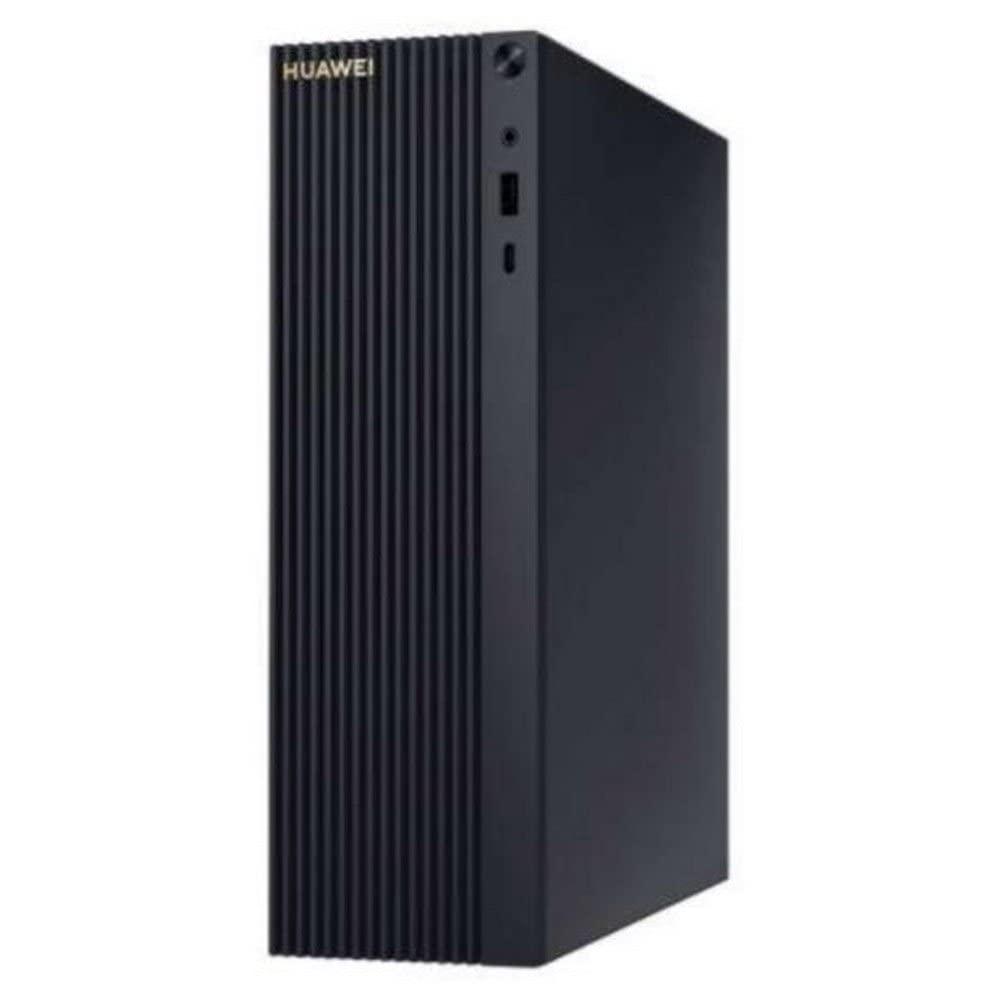
Figure 4: MateStation B515 in a typical desktop environment
This image illustrates a typical setup of the MateStation B515, connected to a monitor and peripherals, ready for use.
5. የማዋቀር መመሪያዎች
5.1 ማገናኛ ፔሪፈራል
- ተያያዥ ሞኒተር፡ Use an HDMI or VGA cable to connect your monitor to the corresponding port on the rear panel of the MateStation B515.
- የቁልፍ ሰሌዳ እና መዳፊት ያገናኙ፡ Plug the USB cables of your keyboard and mouse into any available USB-A ports on the front or rear panel.
- አውታረ መረብን ያገናኙ (ከተፈለገ) For a wired internet connection, connect an Ethernet cable from your router or modem to the RJ45 port on the rear panel. Alternatively, the device supports Wi-Fi.
- ኦዲዮን ያገናኙ (ከተፈለገ) If using external speakers or a headset, connect them to the appropriate audio jacks on the front or rear panel.
5.2 በማብራት ላይ
- የግንኙነት ኃይል; Plug the power cable into the power input on the rear panel of the MateStation B515, then plug the other end into a power outlet.
- አብራ፡ በፒሲው የፊት ፓነል ላይ የሚገኘውን የኃይል አዝራሩን ይጫኑ። የኃይል አመልካች መብራቱ ያበራል።
5.3 የዊንዶውስ የመጀመሪያ ማዋቀር
Upon first boot, the system will guide you through the Windows 10 Pro setup process. Follow the on-screen instructions to configure language, region, network settings, user accounts, and other preferences. Ensure you have an active internet connection for updates and account synchronization.
6. የአሠራር መመሪያዎች
6.1 መሠረታዊ አሠራር
- Starting the PC: የኃይል አዝራሩን ይጫኑ.
- በመዝጋት ላይ ነው, እየዘጋ ነው: በዊንዶውስ ውስጥ የጀምር አዝራሩን ጠቅ ያድርጉ እና ከዚያ ኃይል > ዝጋን ይምረጡ።
- ዳግም ማስጀመር ፦ በዊንዶውስ ውስጥ የጀምር አዝራሩን ጠቅ ያድርጉ እና ከዚያ ኃይል > ዳግም አስጀምር የሚለውን ይምረጡ።
- የእንቅልፍ ሁኔታ: በዊንዶውስ ውስጥ የጀምር አዝራሩን ጠቅ ያድርጉ እና ኃይል > እንቅልፍን ይምረጡ።
6.2 HUAWEI Share
The HUAWEI MateStation B515 supports HUAWEI Share, allowing seamless interaction with compatible HUAWEI smartphones. This feature enables you to:
- Multi-screen Collaboration: Project your phone screen onto the PC for easier file transfer, editing, and app usage.
- File ማስተላለፍ Quickly transfer photos, videos, and documents between your phone and PC.
- Cross-device Editing: አርትዕ files from your phone directly on the MateStation B515, with changes automatically saved to your phone.
To use HUAWEI Share, ensure your HUAWEI smartphone supports the feature and follow the on-screen instructions provided by the HUAWEI PC Manager software on your MateStation B515.
7. ጥገና
7.1 የማቀዝቀዣ ዘዴ
The MateStation B515 features a specially designed cooling system with custom air circulation channels to efficiently dissipate heat from the processor and other components. This ensures stable performance and quiet operation.
- Ensure that the ventilation openings on the device are not obstructed.
- Place the PC on a flat, stable surface with adequate space around it for airflow.
7.2 ጽዳት
- Before cleaning, power off the PC and disconnect it from the power outlet.
- Use a soft, dry, lint-free cloth to wipe the exterior surfaces of the PC.
- ለግትር እድፍ፣ በትንሹ መampጨርቁን በውሃ ወይም መለስተኛ ፣ የማይበላሽ ማጽጃ።
- Do not spray liquids directly onto the PC.
- Use compressed air to gently clear dust from ventilation grilles, holding the can upright to prevent liquid discharge.
8. መላ መፈለግ
If you encounter issues with your MateStation B515, try the following basic troubleshooting steps:
- ኃይል የለም፡ Ensure the power cable is securely connected to both the PC and the power outlet. Try a different power outlet.
- ማሳያ የለም፡ Check that the monitor cable (HDMI/VGA) is securely connected to both the PC and the monitor. Ensure the monitor is powered on and set to the correct input source.
- የማይሰሩ መለዋወጫዎች; Try connecting the keyboard or mouse to a different USB port. Ensure drivers are up to date (check Windows Device Manager).
- ቀርፋፋ አፈጻጸም፡ Close unnecessary applications. Check for background processes using Task Manager. Ensure Windows and drivers are updated. Consider running a disk cleanup.
- የአውታረ መረብ ግንኙነት ጉዳዮች፡- For wired connections, check the Ethernet cable and router. For Wi-Fi, ensure the Wi-Fi adapter is enabled and you are connected to the correct network. Restart your router/modem.
If problems persist, consult the HUAWEI support webጣቢያ ወይም የደንበኛ አገልግሎትን ያነጋግሩ።
9. ዝርዝሮች
| ባህሪ | ዝርዝር መግለጫ |
|---|---|
| የምርት ስም | ሁዋዌ |
| የሞዴል ቁጥር | 53012CPF |
| ስርዓተ ክወና | ዊንዶውስ 10 ፕሮ |
| የሲፒዩ ሞዴል | AMD Ryzen 5 4600G |
| የሲፒዩ ፍጥነት | 4.2 ጊኸ |
| ግራፊክስ ኮፕሮሰሰር | Radeon Graphics (Integrated) |
| ራም | 8 ጊባ |
| ማከማቻ | 256 ጊባ NVMe SSD |
| ጠቅላላ የዩኤስቢ ወደቦች | 6 |
| ግንኙነቶች | ብሉቱዝ ፣ Wi-Fi |
| ልዩ ባህሪያት | የመዳረሻ ነጥብ ሁነታ |
| የምርት ዓይነት | አነስተኛ ፒሲ |
| ቀለም | Multicolour (Chassis is typically black/dark grey) |
| አምራች | ሁዋዌ |
| የትውልድ ሀገር | ቻይና |
10. ዋስትና እና ድጋፍ
10.1 የዋስትና መረጃ
The HUAWEI MateStation B515 typically comes with a manufacturer's warranty. Availability of spare parts is guaranteed for 2 years from the date of purchase. Please refer to your specific purchase documentation for detailed warranty terms and conditions.
10.2 የሶፍትዌር ዝመናዎች
Software updates for the device are guaranteed until April 13, 2030, ensuring continued security and feature enhancements for your Windows 10 Pro operating system.
10.3 የደንበኛ ድጋፍ
For technical assistance, warranty claims, or further inquiries, please visit the official HUAWEI support website or contact your local HUAWEI customer service center. Keep your product model number (B515 or 53012CPF) and proof of purchase handy when contacting support.


