1. Inleiding
This manual provides detailed instructions for the installation, configuration, and operation of the GIGABYTE B860 Gaming X WIFI6E Motherboard. Designed to support Intel Core Ultra Processors (Series 2) with an LGA 1851 socket, this ATX motherboard features DDR5 memory support, multiple M.2 slots, PCIe 5.0 connectivity, USB-C, WIFI6E, and 2.5GbE LAN. Adherence to these instructions will ensure proper setup and optimal performance of your system.
2. Veiligheidsinligting
- Always disconnect the power cord from the electrical outlet before installing or removing any components.
- Dra 'n antistatiese polsbandjie of raak gereeld 'n geaarde metaalvoorwerp aan om statiese elektrisiteit te ontlaai voordat u komponente hanteer.
- Hanteer komponente aan hul kante om sensitiewe onderdele te vermy.
- Sorg vir behoorlike ventilasie binne jou rekenaarkas om oorverhitting te voorkom.
- Hou die moederbord weg van vog en uiterste temperature.
3. Pakketinhoud
Verify that all items are present in the package. If any item is missing or damaged, contact your retailer.
- GIGABYTE B860 Gaming X WIFI6E Motherboard
- Gebruikershandleiding / Vinnige installasiegids
- SATA-datakabels
- Wi-Fi-antenne
- M.2-skroewe en -afstandhouers
- Drywer-CD/USB (of aflaai-instruksies)
4. Moederborduitleg
Maak jouself vertroud met die verskillende komponente en verbindings op die moederbord voor installasie.
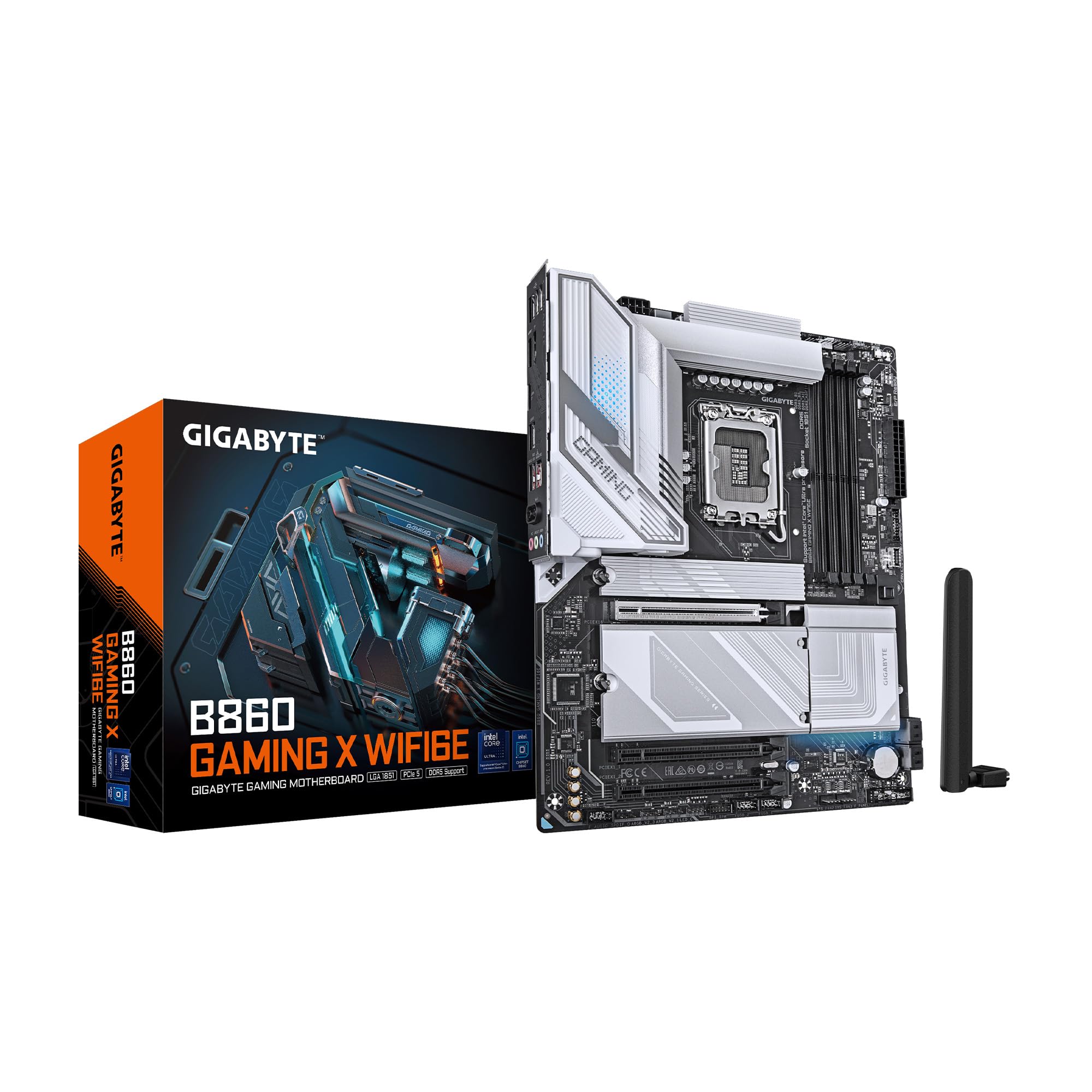
Figuur 4.1: Bo-na-onder view of the GIGABYTE B860 Gaming X WIFI6E Motherboard, showing the CPU socket, DDR5 DIMM slots, PCIe slots, and M.2 slots with heatsinks.

Figuur 4.2: Hoekig view of the GIGABYTE B860 Gaming X WIFI6E Motherboard, highlighting the VRM heatsinks, I/O shroud, and overall board design.
4.1 Agterste I/O-paneel oorview
The rear I/O panel provides various ports for connecting external devices.

Figure 4.3: Rear I/O panel featuring USB ports, HDMI, DisplayPort, 2.5GbE LAN, Wi-Fi antenna connectors, and audio jacks.
- USB-poorte: Various USB 2.0, USB 3.2 Gen1, USB 3.2 Gen2, and USB4 Type-C ports for peripheral connectivity.
- Video-uitsette: HDMI and DisplayPort for integrated graphics output.
- LAN-poort: 2.5 Gigabit Ethernet for high-speed wired network connections.
- Wi-Fi-antennaverbindings: For attaching the included Wi-Fi antenna.
- Oudio-aansluitings: Vir die koppeling van luidsprekers, oorfone en mikrofone.
- BIOS Flash Button: For updating BIOS without a CPU or RAM installed.
5. Installasiehandleiding
5.1 SVE Installasie
- Maak die hefboom van die SVE-sokkel oop en verwyder die beskermende deksel.
- Rig die SVE versigtig met die sok en maak seker dat die driehoekige merk op die SVE ooreenstem met die merk op die sok.
- Plaas die SVE versigtig in die sok sonder om dit te forseer.
- Maak die sokhefboom toe om die SVE vas te maak.
5.2 Geheue (RAM) Installasie
- Maak die knippies aan beide kante van die DDR5 DIMM-gleuwe oop.
- Align the notch on the DDR5 memory module with the key on the DIMM slot.
- Plaas die geheuemodule stewig in die gleuf totdat die knippies vasklik.
- For dual-channel operation, install modules in matching color slots (e.g., A2 and B2).
5.3 Storage (M.2 SSDs, SATA Drives) Installation
- M.2 SSD: Remove the M.2 Thermal Guard. Insert the M.2 SSD into the slot at an angle, then push it down and secure it with the EZ-Latch mechanism or screw. Reattach the Thermal Guard.
- SATA-skywe: Connect one end of the SATA data cable to a SATA port on the motherboard and the other end to your SATA storage device. Connect a SATA power cable from your power supply to the device.
5.4 Expansion Card (PCIe) Installation
- Align your PCIe expansion card (e.g., graphics card) with the desired PCIe slot.
- Druk stewig af totdat die kaart korrek geplaas is en die retensieklip vassluit.
- Bevestig die kaart met 'n skroef aan die onderstel.
5.5 Kragtoevoerverbindings
- Koppel die 24-pen ATX-hoofkragkonnektor van jou kragtoevoer aan die moederbord.
- Koppel die 8-pen (of 4+4-pen) ATX 12V SVE-kragkonnektor aan die moederbord.
5.6 Voorpaneelverbindings
Connect the cables from your PC case's front panel (power button, reset button, USB ports, audio jacks, LED indicators) to the corresponding headers on the motherboard. Refer to the motherboard diagram for exact header locations.
6. Eerste opstart en BIOS-opstelling
6.1 Aanvanklike aanskakeling
After assembling all components, connect your monitor, keyboard, and mouse. Power on your system. The system should display the GIGABYTE splash screen.
6.2 Toegang tot BIOS/UEFI
Druk herhaaldelik tydens die opstartproses op die DEL key to enter the BIOS/UEFI setup utility. Here you can configure system settings, boot order, and monitor hardware status.
6.3 Basic BIOS Settings
- Opstartvolgorde: Set the primary boot device (e.g., M.2 SSD with OS).
- Datum en Tyd: Adjust system date and time.
- Fan beheer: Configure fan speeds for optimal cooling and noise levels.
- XMP Profile: Enable XMP for your DDR5 memory to run at its rated speed.
7. Drywer- en sagteware-installasie
For optimal system performance and stability, install the latest drivers and utilities for your motherboard.
- Chipset-drywers: Noodsaaklik vir behoorlike kommunikasie tussen die SVE en ander komponente.
- LAN-drywers: For the 2.5GbE wired network connection.
- Wi-Fi/Bluetooth Drivers: Vir draadlose konnektiwiteit.
- Oudio-drywers: For sound functionality.
- Nutsagteware: GIGABYTE provides various utilities for system monitoring, RGB control, and BIOS updates.
Drivers can be found on the included CD/USB or downloaded from the official GIGABYTE webwebwerf.
8. Onderhoud
8.1 BIOS-opdaterings
Gaan gereeld die GIGABYTE na website for the latest BIOS versions. BIOS updates can improve system stability, compatibility, and performance. Follow the instructions provided by GIGABYTE for safe BIOS flashing.
8.2 Dryweropdaterings
Hou jou drywers opgedateer om versoenbaarheid met nuwe sagteware en hardeware te verseker, en om voordeel te trek uit prestasieverbeterings en foutherstellings.
8.3 Skoonmaak
Periodically clean your PC to prevent dust buildup, which can lead to overheating. Use compressed air to clear dust from heatsinks, fans, and other components. Ensure the system is powered off and unplugged before cleaning.
9. Probleemoplossing
- Geen krag: Check all power connections (24-pin ATX, 8-pin CPU, GPU power). Ensure the power supply is switched on.
- Geen skerm: Verify monitor connection and input source. Reseat the graphics card and RAM modules. Try booting with only one RAM stick.
- Stelsel begin nie: Check for POST (Power-On Self-Test) error codes or beeps. Reseat all components. Clear CMOS by removing the battery or using the clear CMOS jumper.
- Komponent nie opgespoor nie: Ensure the component is properly seated and connected. Check BIOS settings to confirm it is enabled. Update drivers.
- Oorverhitting: Ensure CPU cooler is properly installed. Check fan connections and fan speeds in BIOS. Clean dust from heatsinks and fans.
10. Spesifikasies
| Kenmerk | Spesifikasie |
|---|---|
| Handelsmerk | GIGABYTE |
| Reeks | B860 GAMING X WIFI6E |
| Item Modelnommer | B860 GAMING X WIFI6E |
| CPU-sok | Intel LGA 1851 |
| Versoenbare verwerkers | Intel Ultra Core Series 2 |
| RAM geheue tegnologie | DDR5 |
| RAM-gleuwe | 4 DIMM's |
| Geheue spoed | 5600 MHz |
| Chipset Tipe | Intel B860 |
| PCIe Slots | PCIe 5.0 (for graphics card) |
| M.2 Slots | 3x M.2-gleuwe |
| USB-verbinding | USB-C and other USB ports |
| LAN | 2.5 GbE LAN |
| Draadlose konneksie | WIFI6E |
| Kragontwerp | 12+1+2+1, 50A PPAK VRM |
| Terme | MOSFET Heatsink, M.2 Thermal Guard |
| Vormfaktor | ATX |
| Produk afmetings | 12 x 9.6 x 1 duim |
| Item gewig | 4.2 pond |
| Platform | Windows 11 |
11. Waarborginligting
GIGABYTE motherboards typically come with a limited manufacturer's warranty. The specific terms and duration of the warranty may vary by region and retailer. Please retain your proof of purchase for warranty claims. For detailed warranty information, refer to the official GIGABYTE webwebwerf of kontak jou aankooppunt.
12. Tegniese Ondersteuning
If you encounter issues that cannot be resolved using this manual or the troubleshooting section, please contact GIGABYTE technical support.
- GIGABYTE Amptelik Webwebwerf: www.gigabyte.com
- Verwys na die ondersteuningsafdeling oor die website for FAQs, driver downloads, and contact information for your region.


