
1. Introduction
The CHUWI Hi10 X1/X2 is a versatile 10.1-inch 2-in-1 tablet PC designed for both productivity and entertainment. Running on Windows 11 and powered by either an Intel Celeron N100 or i3-10100Y processor, it offers a seamless computing experience. This manual provides essential information for setting up, operating, maintaining, and troubleshooting your device.
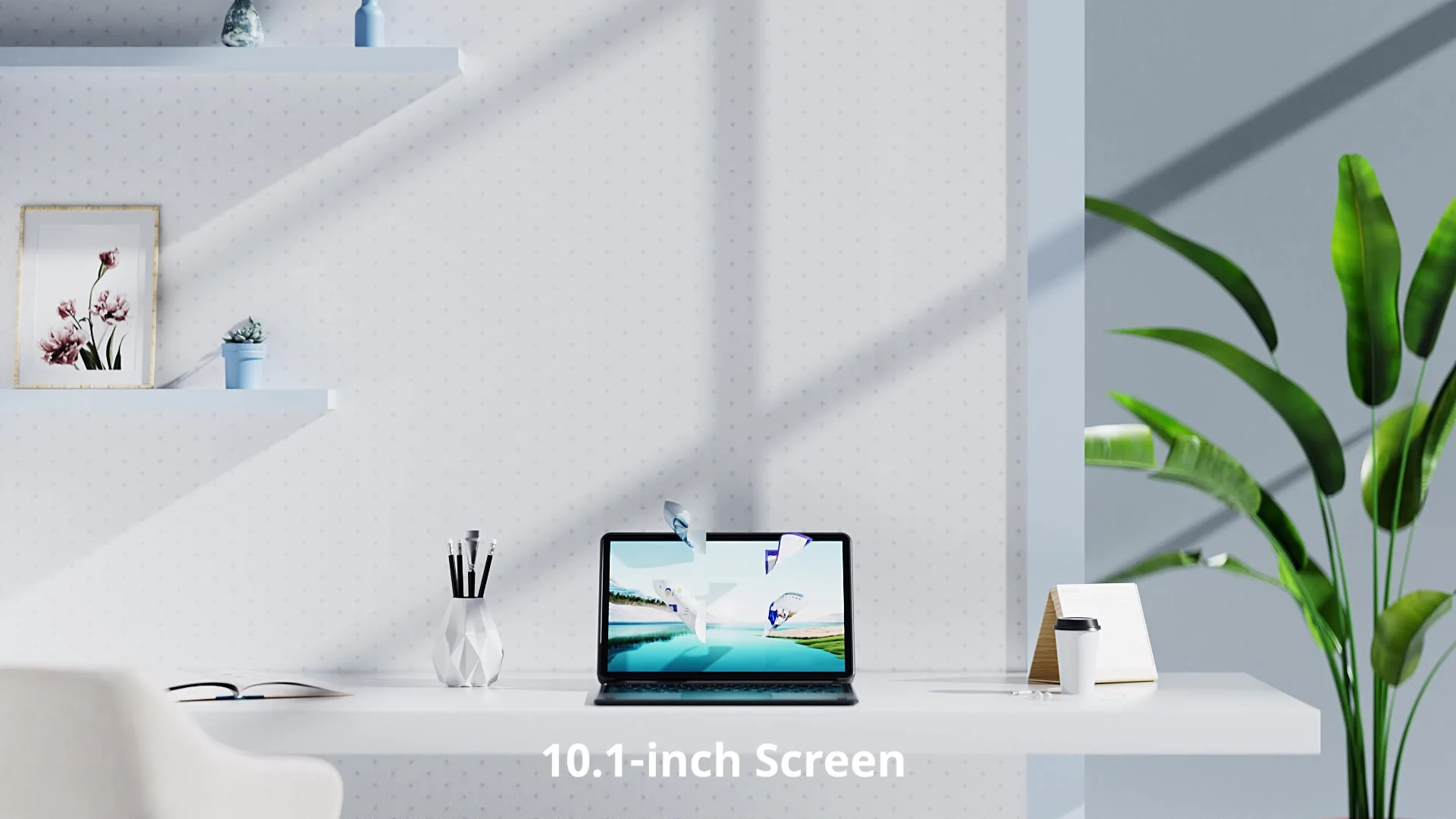
Video: CHUWI Hi10 X1 Product Overview, showcasing design, features, and usage modes.
2. Safety Information
Please read the following safety guidelines carefully before using your device:
- Do not expose the device to extreme temperatures, direct sunlight, or high humidity.
- Avoid dropping or subjecting the device to strong impacts.
- Use only the original charger and accessories provided or approved by CHUWI.
- Keep the device away from water and other liquids.
- Do not attempt to disassemble or repair the device yourself. Refer to qualified service personnel.
- Dispose of the device and its battery responsibly according to local regulations.
3. Package Contents
Upon unboxing, please verify that all items are present:
- 1x CHUWI Hi10 X1/X2 Tablet
- 1x Type-C Charger (12V 2A)
- 1x English Manual
- 1x Warranty Card
- Optional: Magnetic Keyboard (may be included depending on the purchased bundle)
4. Product Overview
Familiarize yourself with the key features and components of your CHUWI Hi10 X1/X2 Tablet.

Image: Overview of the CHUWI Hi10 X1/X2's key features including display, CPU, cameras, storage, OS, dimensions, and connectivity.
4.1 Device Layout and Ports

Image: Diagram illustrating the various ports and buttons on the CHUWI Hi10 X1/X2 Tablet.
- Power Button: Located on the top edge. Press to turn on/off or wake/sleep the device.
- Volume Buttons: Located on the top edge, next to the power button.
- USB-C 2.0 Port: For charging and data transfer.
- Full-featured USB-C Port: Supports data, video output, and charging.
- Micro HDMI Port: For connecting to an external display.
- USB-A 3.2 Gen1 Port: For connecting standard USB devices.
- 3.5mm Audio Jack: For headphones or external speakers.
- Keyboard Connector: Magnetic connector at the bottom for attaching the optional keyboard.
5. Setup
5.1 Initial Charging
- Connect the provided 12V 2A Type-C charger to the USB-C 2.0 port on the tablet.
- Plug the charger into a power outlet.
- Allow the tablet to charge for at least 30 minutes before first use, or until the battery indicator shows sufficient charge.
5.2 Powering On
- Press and hold the Power Button on the top edge of the tablet until the screen lights up.
- Follow the on-screen instructions to complete the initial Windows 11 setup, including language selection, network connection, and user account creation.
5.3 Attaching the Magnetic Keyboard (Optional)
- Align the magnetic connector on the keyboard with the keyboard connector on the bottom edge of the tablet.
- The keyboard will snap into place magnetically.
- The tablet will automatically detect the keyboard and touchpad.
6. Operating Instructions
6.1 Device Modes
The CHUWI Hi10 X1/X2 supports multiple usage modes:

Image: The tablet can be used in Laptop Mode, Stand Mode, and Tablet Mode for various tasks.
- Laptop Mode: Attach the magnetic keyboard for a traditional laptop experience, ideal for typing and productivity.
- Stand Mode: Detach the keyboard or fold it back to use the tablet in a stand, perfect for watching videos or presentations.
- Tablet Mode: Use the device as a standalone tablet for touch-based interactions, browsing, and casual use.
6.2 Windows 11 Features
Your tablet comes with Windows 11 Home pre-installed, offering a modern interface, faster boot times, and enhanced multitasking capabilities. Explore features such as:
- Snap Layouts and Groups: Easily organize your open windows for efficient multitasking.
- Widgets: Access personalized information at a glance.
- Microsoft Store: Download and install a wide range of applications.
- Microsoft Edge: Fast and secure web browsing.
6.3 Camera Usage

Image: The tablet features an 8MP rear camera for capturing moments and a 5MP front camera for video calls and selfies.
The tablet is equipped with an 8MP rear camera and a 5MP front camera. Use the built-in Camera app in Windows 11 to take photos, record videos, and participate in video calls.
7. Connectivity
Your CHUWI Hi10 X1/X2 offers robust connectivity options:

Image: The tablet supports Wi-Fi 6 for fast internet and Bluetooth 5.2 for connecting peripherals.
- Wi-Fi: Supports Wi-Fi 6 (802.11ax) for fast and stable wireless internet connection on both 2.4G and 5G bands.
- Bluetooth: Integrated Bluetooth 5.2 allows you to connect wireless peripherals such as keyboards, mice, and headphones.
- External Displays: Use the Micro HDMI port or the full-featured USB-C port (with a compatible adapter) to connect to external monitors or TVs.
- USB Devices: Connect USB drives, external hard drives, or other USB accessories via the USB-A 3.2 Gen1 port or a USB-C hub.
8. Maintenance
8.1 Cleaning
- Use a soft, lint-free cloth to clean the screen and body of the tablet.
- For stubborn smudges, slightly dampen the cloth with water or a screen cleaner.
- Avoid using harsh chemicals, abrasive materials, or aerosol sprays.
8.2 Storage
- Store the tablet in a cool, dry place away from direct sunlight and extreme temperatures.
- If storing for an extended period, ensure the battery is charged to around 50-70% to prolong its lifespan.
8.3 Battery Care
- To optimize battery life, adjust screen brightness, close unused applications, and enable power-saving modes in Windows settings.
- Avoid completely draining the battery frequently.
9. Troubleshooting
- Device won't turn on: Ensure the tablet is sufficiently charged. Connect the charger and try again. If it still doesn't turn on, press and hold the power button for 10-15 seconds.
- Wi-Fi connection drops frequently: Check your Windows power settings to ensure Wi-Fi is not being turned off to save power. Ensure you are within range of your router.
- Slow performance: Close unnecessary applications, check for Windows updates, and ensure you have sufficient free storage space.
- Cannot charge with a standard USB charger: The tablet requires a 12V Type-C charger. Standard 5V USB chargers are not compatible for charging this device.
- Stylus not working (if applicable): Ensure the stylus is charged. Press and hold the buttons on the stylus until an indicator light appears. Sometimes pressing the tip firmly against the screen can help activate it.
- External USB devices not recognized: Ensure the device is properly connected to the USB-A port or a compatible USB-C hub. Check device drivers in Windows Device Manager.
- No sound: Check volume levels in Windows, ensure headphones are properly connected (if used), and verify audio drivers are up to date.
10. Specifications

Image: Detailed specifications table for the CHUWI Hi10 X1/X2 Tablet.
| Category | Specification |
|---|---|
| Brand | CHUWI |
| Model | Hi10 X1 / Hi10 X2 |
| Operating System | Windows 11 |
| CPU | Intel Celeron N100 (Quad Core, 0.8GHz-3.4GHz) / Intel Core i3-10100Y (Quad Core) |
| GPU | Intel UHD Graphics for 12th Gen |
| RAM | 8GB LPDDR5 |
| ROM | 256GB SATA SSD |
| Display Size | 10.1 inch (diagonal) |
| Display Resolution | 1280x800 |
| Panel Type | IPS, Capacitive (10-Point), 16:10 Aspect Ratio |
| Display Refresh Rate | 60Hz |
| Front Camera | 5.0MP |
| Rear Camera | 8.0MP |
| Wi-Fi | 2.4G/5G, WiFi6 802.11ax |
| Bluetooth | BT5.2 |
| Ports | 2x Type-C (1x USB 2.0, 1x Full-featured USB 3.2), 1x Micro HDMI, 1x USB-A 3.2 Gen1, 1x Docking Connector, 1x 3.5mm Headphone Jack, 1x M.2 slot (internal) |
| TF Card Slot | No (External TF card readers via USB/Type-C are supported) |
| Battery | 3400mAh / 7.6V / 25.84Wh |
| Sensors | G-sensor, Magnetic Sensor |
| Microphone | Dual mic |
| Dimensions | 228.6mm x 143mm x 2.45mm (Tablet only) |
| Net Weight | About 500g (Tablet only) |
| Features | Ultra Slim, Dual Cameras |
| Certification | CE |
| Supported Languages | English, Russian, Spanish, Swedish, Portuguese, Turkish, Italian, German, Chinese, French, Japanese, Polish, Ukrainian, Greek, Hebrew, Dutch, and more. |
| Warranty | 1 year |
11. User Tips
- Keyboard Layouts: If your keyboard layout is not in your preferred language, consider purchasing keyboard stickers for customization.
- Screen Protection: To prevent scratches, it is recommended to use a screen protector.
- Performance for Daily Tasks: The tablet performs well for web browsing, Microsoft Office applications, video playback, and light multitasking.
- Battery Optimization: Adjust screen brightness and close background apps to extend battery life, especially when away from a charger.
- External Peripherals: You can connect a Bluetooth mouse and keyboard for a more traditional desktop experience, even without the official magnetic keyboard.
12. Warranty & Support
Your CHUWI Hi10 X1/X2 Tablet comes with a 1-year warranty. For detailed warranty terms, service, and technical support, please refer to the included Warranty Card or the official CHUWI support channels. A comprehensive user manual in PDF format is also available for download from the manufacturer's website or can be referenced via the following link: User Manual (PDF).
13. Frequently Asked Questions (FAQ)
- Q: Which type of wireless technology does it support?
- A: It supports Wi-Fi 6 (802.11ax) for network communication and Bluetooth 5.2.
- Q: What's the processor core number?
- A: It has a Quad Core processor (Intel Celeron N100 or Intel Core i3-10100Y).
- Q: How much storage does it have?
- A: It has an internal storage capacity of 256GB SATA SSD.
- Q: Does it come with any additional features?
- A: Yes, it features Dual Cameras (8MP rear, 5MP front) and an Ultra Slim design.
- Q: Can it be in English language?
- A: Yes, it supports multiple languages including English, Russian, Spanish, and more.
- Q: Can it be charged with a regular 5V USB charger?
- A: No, it requires the provided 12V 2A Type-C charger for proper charging.
- Q: Can I install Windows 7?
- A: The device comes with Windows 11 pre-installed. Windows 7 is not officially supported by Microsoft for this hardware.
- Q: Can I add more RAM or a larger disk?
- A: RAM is integrated and cannot be upgraded. The internal storage is 256GB, and it has an M.2 slot for potential internal storage expansion (check compatibility with CHUWI support). External storage can be connected via USB or Type-C ports.
- Q: Does it have a SIM card slot?
- A: No, this tablet does not have a built-in SIM card slot for cellular connectivity.
- Q: How long does the battery last?
- A: The 25.84Wh battery is designed for all-day use, but actual battery life varies significantly based on usage, screen brightness, and running applications. Users report around 4-6 hours with moderate use.
- Q: Can I connect a mouse?
- A: Yes, you can connect a mouse via Bluetooth or a USB adapter (using a Type-C hub if needed).
- Q: Is the keyboard backlit?
- A: No, the optional magnetic keyboard does not feature backlighting.
- Q: Can I use the tablet as an external monitor?
- A: Yes, it can be used as an external monitor.
- Q: Can it run Photoshop or 3D software?
- A: It can run applications like Photoshop (e.g., CC2018) and some 3D software like Blender for basic tasks. Performance for demanding professional use may be limited due to its specifications.
- Q: Does it support Android?
- A: No, this tablet runs exclusively on the Windows 11 operating system.