
1. Introduction
The Surecom SR-629 is a versatile Duplex Repeater Controller designed to extend the range of two-way radio communication. It functions as a cross-band, cross-radio full duplex repeater, allowing two handheld radios to operate as a single repeater system. This device is ideal for enhancing communication coverage in various environments.
The SR-629 features two modes of operation: a basic relay mode and a full cross-band duplex mode, providing flexibility for different communication needs. It is powered via a Micro-USB port, making it convenient for portable use.
2. Package Contents
Please check the package for the following items:
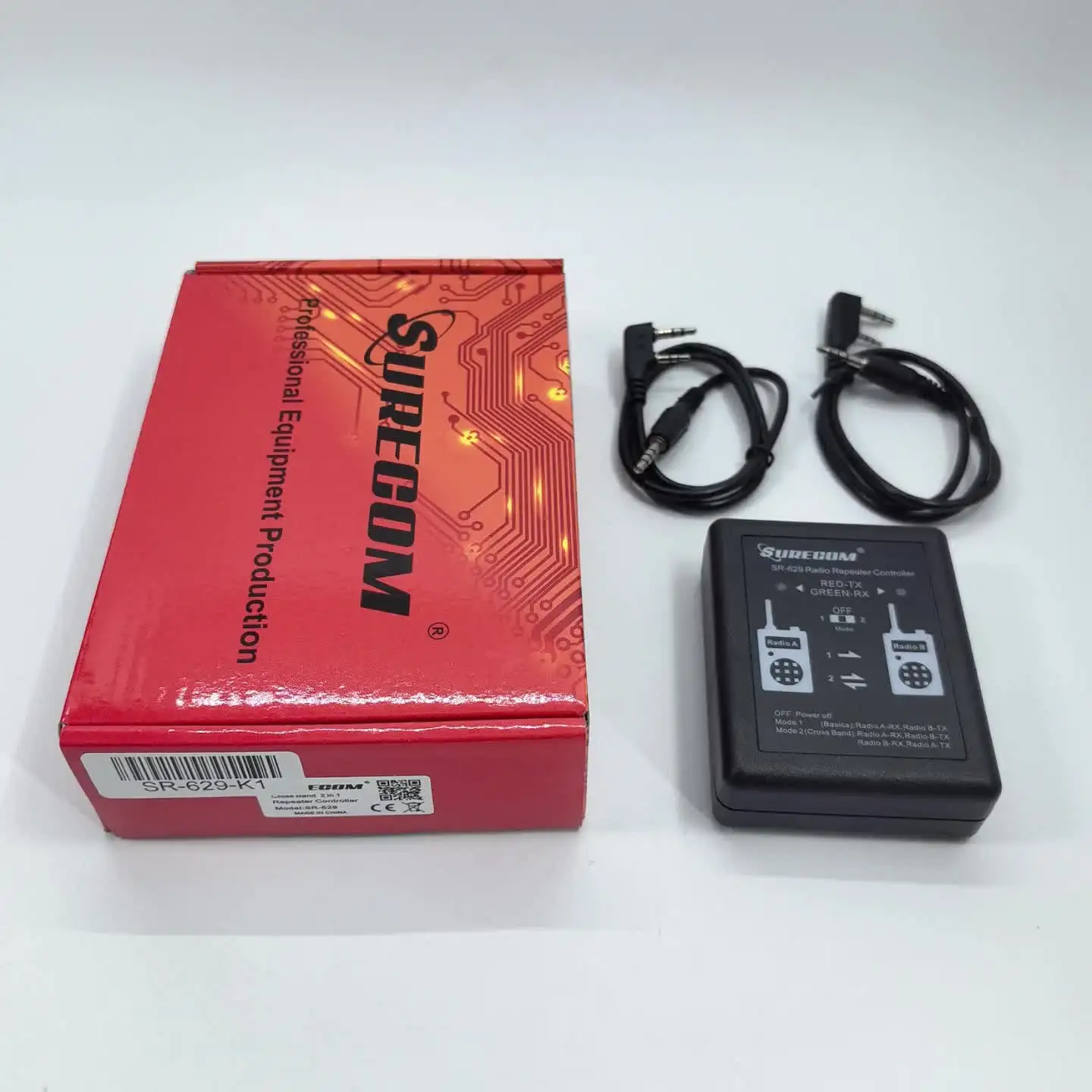
- Surecom SR-629 Duplex Repeater Controller
- Two (2) K-type connection cables (for connecting two radios)
- USB Power Cable
- User Manual (this document)

3. Device Overview
Familiarize yourself with the various components and indicators of the SR-629 Repeater Controller.

- Power/Mode S.W.: Slide switch to turn the device ON/OFF and select operating mode (Mode 1 or Mode 2).
- Radio A Port (Green): Input/output port for Radio A.
- Radio B Port (Yellow): Input/output port for Radio B.
- Micro-USB Port: For power supply.
- LED Status TX (RED): Red indicator light for transmit activity.
- LED Status RX (Green): Green indicator light for receive activity.

4. Setup
- Prepare Radios: Ensure both two-way radios (Radio A and Radio B) are fully charged and configured to the desired frequencies and settings.
- Connect Radio A: Connect one end of a K-type connection cable to the green port labeled 'Radio A' on the SR-629. Connect the other end of the cable to the audio/mic jack of your first two-way radio (Radio A).
- Connect Radio B: Connect the second K-type connection cable to the yellow port labeled 'Radio B' on the SR-629. Connect the other end of this cable to the audio/mic jack of your second two-way radio (Radio B).
- Power Supply: Connect the USB power cable to the Micro-USB port on the SR-629. Connect the other end to a suitable USB power source (e.g., USB wall adapter, power bank, computer USB port).
- Power On: Slide the Power/Mode switch to either '1' or '2' to power on the device and select the desired operating mode.

4.1. Setup Demonstration Video
Watch this video for a visual guide on connecting the SR-629 to your radios and powering it on.
5. Operating Instructions
The SR-629 offers two operating modes:
- OFF: The device is powered off.
- Mode 1 (Basics): In this mode, the repeater operates as a basic relay. When Radio A receives a signal (RX), Radio B will transmit (TX). When Radio B receives a signal (RX), Radio A will transmit (TX). This creates a simple two-way relay.
- Mode 2 (Cross Band): This mode enables full cross-band duplex repeating. When Radio A receives a signal (RX), Radio B will transmit (TX). Simultaneously, when Radio B receives a signal (RX), Radio A will transmit (TX). This allows for simultaneous two-way communication across different frequency bands or radios.
5.1. LED Indicators
- RED-TX (Red LED): Illuminates when the repeater is transmitting a signal through either connected radio.
- GREEN-RX (Green LED): Illuminates when the repeater is receiving a signal from either connected radio.
Observe the LED indicators to confirm proper operation and signal flow.
6. Maintenance
- Cleaning: Use a soft, dry cloth to clean the exterior of the device. Do not use liquid cleaners or solvents.
- Storage: Store the device in a cool, dry place away from direct sunlight and extreme temperatures when not in use.
- Cable Care: Handle connection cables with care to prevent damage to the connectors or wiring.
7. Troubleshooting
| Problem | Possible Cause | Solution |
|---|---|---|
| Device does not power on. | No power supply or faulty cable. | Ensure USB power cable is securely connected and the power source is active. Try a different USB cable or power source. |
| No signal repeating. | Incorrect radio connection or configuration. | Verify that both K-type cables are correctly plugged into the SR-629 and the radios. Ensure radios are on the correct frequencies and channels. Check the SR-629 mode switch. |
| One radio transmits but the other does not receive/transmit. | Cable issue or radio settings. | Check the specific cable for the non-functioning radio. Ensure both radios are set to compatible frequencies and have sufficient battery. |
| Poor repeater range. | Antenna placement or environmental factors. | Adjust the position of the radios and their antennas. Consider higher elevation or clearer line-of-sight. |
8. Specifications
| Feature | Detail |
|---|---|
| Item Type | Repeater Controller |
| Model Number | SR-629 |
| Brand Name | Surecom |
| Wireless Function | Yes |
| Origin | Mainland China |
| Certification | None |
| Package Dimensions (L x W x H) | 10 cm x 10 cm x 10 cm (approx.) |
| Package Weight | 0.3 kg (approx.) |
| Power Input | Micro-USB |
9. User Tips
- Antenna Placement: The effective range of the repeater is highly dependent on the antenna installation location of the connected radios. For optimal performance, place antennas in clear, elevated positions.
- Radio Compatibility: Ensure your two-way radios are compatible with K-type (2-pin) connectors for proper audio and PTT functionality.
- Power Source: Use a stable 5V USB power source to ensure consistent operation of the repeater.
10. Warranty and Support
For warranty information, technical support, or service inquiries, please contact your original point of purchase or the manufacturer directly. Keep your purchase receipt as proof of purchase.