
1. Introduction
The Rii X8 is a portable 2.4GHz Mini Wireless Keyboard with an integrated touchpad mouse, designed for versatile use across various devices. It features an 8-color RGB LED backlight, multimedia control keys, and a rechargeable lithium-ion battery. This manual provides detailed instructions for setting up, operating, and maintaining your Rii X8 keyboard.
2. Package Contents
Please check the box for the following items:
- 1 x Rii X8 Mini Wireless Keyboard
- 1 x 2.4G USB Receiver
- 1 x Li-ion Battery (BL-5B)
- 1 x Micro USB Charging Cable
- 1 x User Manual
3. Specifications
| Feature | Description |
|---|---|
| Model No. | X8 |
| Product Name | 2.4G Mini Wireless Keyboard Touchpad Combo |
| Brand | Rii |
| Connect Port | USB 2.0 or above |
| Processor (MCU) | BK2535 |
| Input Voltage | 3.7-4.2V |
| Working Current | ≤56mA |
| Sleeping Current | ≤12uA |
| Unit Packing Size | 180*105*25mm |
| Unit Packing Weight | 183g |
| Transmission Mode | GFSK 2.4GHz wireless |
| Wireless Range | Up to 10 meters |
| Backlight Type | Multicolor (8-Color RGB) |
| Keyboard Standard | Mini Keyboard |
| Operation Style | Conductive Rubber |
| Supported Languages | Russian, French, English, German, Korean |
| Application | Tablet, Desktop, Laptop |
| Full Size Keyboard | No |
| Wrist Support | No |
| Package | Yes |
| Battery Included | Yes |
| Origin | Mainland China |
4. Setup
4.1. Initial Setup
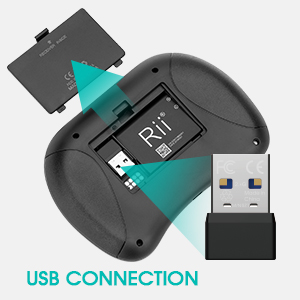
- Locate the USB Receiver: The 2.4G USB receiver is stored inside the back cover of the keyboard. Gently open the battery compartment cover to retrieve it.
- Insert Battery: Ensure the included BL-5B Li-ion battery is correctly inserted into the battery compartment.
- Plug in Receiver: Insert the USB receiver into an available USB 2.0 port (or above) on your device (PC, Laptop, Android TV Box, etc.). No driver installation is needed; it's plug-and-play.
- Power On: Turn on the keyboard using the power switch. The blue LED indicator should stay on, indicating successful pairing.

4.2. Pairing (If Not Automatically Paired)
If the blue LED does not stay on and keeps flashing, the keyboard was not paired with your device. Follow these steps to pair it manually:
- Press and hold the ESC button and then turn on the keyboard simultaneously.
- Release the ESC button. The blue LED will flash rapidly.
- Plug the USB dongle into your device. The flashing blue LED will become solid within 60 seconds, indicating successful pairing.
5. Operating Instructions
5.1. Keyboard Layout and Function Keys
The Rii X8 features a QWERTY full-function mini keyboard. Many keys have secondary functions accessed by holding the Fn key.

Common Fn key combinations:
- Fn + ESC = F1
- Fn + 1 = F2
- … and so on for F3 through F12
- Fn + BACK = DEL
- Fn + ENTER = CTRL + ALT + DEL
- Fn + Space = Overdrive the mouse (adjust touchpad speed)
5.2. Touchpad Functions
The ultra-sensitive touchpad supports multi-finger gestures:
- Left Mouse Click: Single finger click.
- Right Mouse Click: Two-finger click.
- Scrolling: Double finger drag (vertical or horizontal). This also functions as Page Up/Page Down.
- Sliding Pointer: Single finger movement.
- Adjust Touchpad Speed: Press Fn + Space.

5.3. Backlight Control
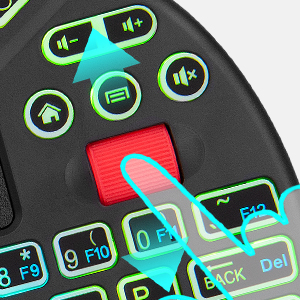
The keyboard features an 8-color RGB backlight. To change the backlight color or switch it off, press the Fn + Win keys simultaneously.

5.4. Voice Search
Press the dedicated voice button on the keyboard to activate voice input on compatible devices.
6. Charging the Keyboard
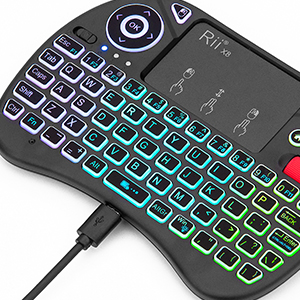
The Rii X8 uses a built-in rechargeable lithium-ion battery. To charge the device, connect the provided Micro USB charging cable to the charging port on the keyboard and plug the other end into a USB power source (e.g., computer USB port, USB wall adapter).
7. Auto Sleep and Wake-up Function
To conserve battery life, the keyboard features an auto sleep function. If there is no operation for 3 minutes, the keyboard will automatically enter sleep mode, and all LED indicators will turn off. To wake it up, simply press any button.
8. Compatibility
The Rii X8 is ideal for use with a wide range of devices, including:
- PC (Windows)
- Laptops
- Raspberry Pi 2
- Mac OS
- Xbox 360
- Xbox One
- PS3
- PS4
- Google Android TV Box
- HTPC (Home Theater PC)
- IPTV
Special Notice for Amazon Fire TV: To use this keyboard with Amazon Fire TV 4K and Amazon Fire Stick, you will need to prepare a Micro USB host OTG cable (not included).

9. Troubleshooting
- Keyboard not pairing / Blue LED flashing: Follow the manual pairing steps in Section 4.2. Ensure the USB receiver is securely plugged into your device.
- Cannot change keyboard language (e.g., stuck on English): For Android TV boxes (like mibox4s), you may need to install a specific keyboard layout application or adjust language settings within your device's operating system. Some users report success with Shift + Alt after installing an app.
- Keyboard not working with iPhone/Smartphone: This keyboard is generally not compatible with iPhones or standard smartphones. It is designed for devices with a USB port for the 2.4GHz receiver.
- Voice search not working on Smart TV: While the keyboard may function with Smart TVs, the voice search feature might not be supported by all TV models, including some LG Smart TVs.
- Touchpad scrolling speed: You can adjust the touchpad speed by pressing Fn + Space.
- Backlight color options: The keyboard offers 8 simple RGB colors. It does not support gradient or custom color mixing beyond these predefined options. The selected backlight color should remain when the device is turned off.
- Lost or broken USB receiver: If your USB receiver is lost or broken, please contact Rii customer support for assistance with obtaining a replacement.
10. User Tips
- Battery Life: To extend battery life, especially during long usage sessions, consider turning off the LED backlight when not needed.
- Gaming Compatibility: While suitable for many applications, some devices (e.g., miboxS) may not recognize the keyboard as a gamepad, which could affect compatibility with certain games. Verify device-specific gaming support if this is a primary use case.
11. Maintenance
- Cleaning: Use a soft, dry cloth to clean the keyboard surface. For stubborn dirt, a slightly damp cloth can be used, ensuring no moisture enters the device.
- Storage: Store the keyboard in a cool, dry place away from direct sunlight and extreme temperatures.
- Battery Care: Avoid fully discharging the battery frequently. Charge the keyboard regularly to maintain battery health.
12. Warranty and Support
For warranty information, technical support, or service inquiries, please refer to the contact information provided with your purchase or visit the official Rii website. Keep your proof of purchase for warranty claims.