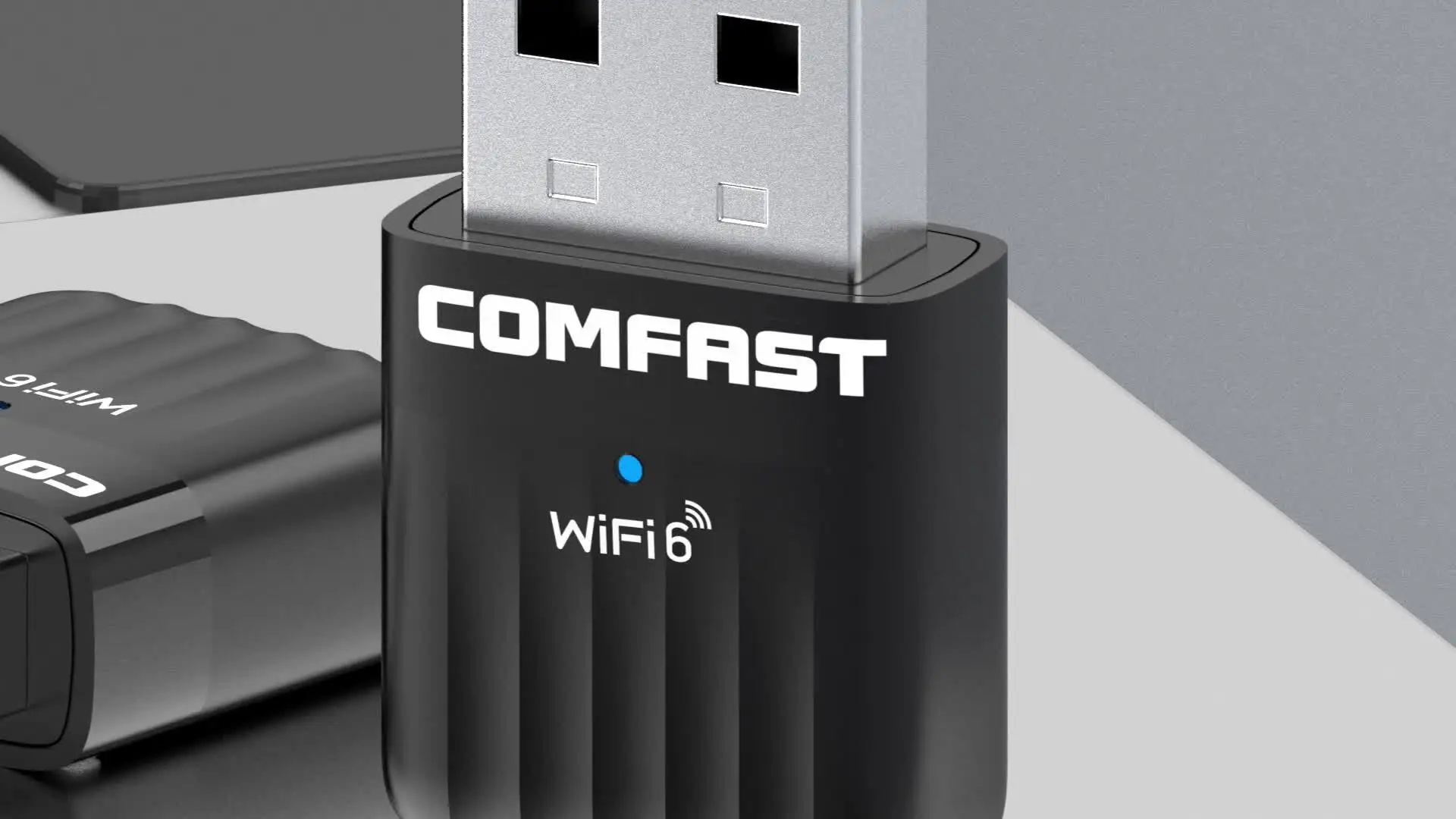
1. Product Overview
The COMFAST CF-941AX is a compact, driver-free WiFi 6 USB adapter designed to provide fast and stable wireless internet access for your PC or laptop. It supports dual-band frequencies (2.4GHz and 5.8GHz) and features a built-in 2dBi antenna for enhanced signal reception.


This adapter is ideal for upgrading older devices to WiFi 6 capabilities or for replacing a broken internal wireless card.
2. Setup and Installation
2.1 Driver-Free Installation (Windows 10/11)
The CF-941AX is designed for plug-and-play operation on Windows 10 and Windows 11. No manual driver download or CD installation is typically required.
- Insert the COMFAST CF-941AX USB adapter into an available USB 2.0 port on your desktop or laptop.
- The operating system (Windows 10/11) should automatically detect the device and install the necessary drivers.
- Once installed, the adapter will be ready for use.


2.2 Manual Driver Installation (If Needed)
In some cases, or for operating systems other than Windows 10/11, manual driver installation might be required. The product includes an auto-installation feature via a virtual CD-ROM.
- Insert the wireless adapter into the computer.
- Open "This PC" or "My Computer".
- Locate and double-click the "CD COMFAST" drive (or similar virtual drive) to start the self-drive function.
- Follow the on-screen instructions to complete the installation.
For the latest drivers or if you encounter issues, please visit the COMFAST official website: www.comfast.com.cn.
3. Operating Instructions
3.1 Connecting to a Wireless Network
After successful driver installation:
- Click the wireless network icon in your system tray (usually in the bottom-right corner of the screen).
- A list of available WiFi networks will appear.
- Select your desired WiFi network and click "Connect".
- If prompted, enter the network security key (password) and click "Next" or "OK".
- Your device should now be connected to the internet.
3.2 Dual-Band Operation
The CF-941AX supports both 2.4GHz and 5.8GHz frequency bands. You can choose the band that best suits your needs:
- 2.4GHz Band: Offers longer range and better penetration through walls, suitable for general browsing and devices further from the router.
- 5.8GHz Band: Provides faster speeds and less interference, ideal for online gaming, streaming, and high-bandwidth applications when closer to the router.

3.3 AP Emulation (WiFi Sharing)
The adapter supports an analogue AP (Access Point) function, allowing you to share your computer's internet connection as a Wi-Fi hotspot for other wireless devices (e.g., mobile phones, tablets).
- Ensure your computer is connected to the internet (e.g., via Ethernet or another WiFi connection).
- Refer to the full user manual (PDF) or COMFAST website for detailed instructions on enabling and configuring the AP function, as it may require specific driver settings or software.
- Once configured, other devices can connect to the Wi-Fi hotspot created by your computer.

4. Maintenance
- Keep the adapter clean and free from dust.
- Avoid exposing the adapter to extreme temperatures or humidity.
- Do not attempt to disassemble or repair the adapter yourself.
- Ensure the USB head is protected from physical damage to maintain its rust-proof and durable properties.
5. Troubleshooting
5.1 Adapter Not Detected / No Internet Connection
- Check USB Port: Try plugging the adapter into a different USB port on your computer.
- Reinstall Driver: If automatic installation failed, try the manual driver installation steps (Section 2.2).
- Restart Computer: A simple restart can often resolve detection issues.
- Check Device Manager: In Windows, open Device Manager and check if the wireless adapter is listed without any error symbols.
5.2 Slow Connection Speed
- Signal Strength: Ensure your device is within a good range of your WiFi router. The built-in antenna provides a powerful signal, but obstacles can still affect performance.
- Frequency Band: If you are close to your router, try connecting to the 5.8GHz band for potentially faster speeds and less interference. If you are further away or have many obstacles, the 2.4GHz band might be more stable.
- Router Settings: Ensure your router supports WiFi 6 (802.11ax) for optimal performance with this adapter.
- Interference: Other electronic devices can cause interference. Try to minimize their proximity to the adapter or router.
6. Specifications
| Attribute | Value |
|---|---|
| Model | CF-941AX |
| Chipset | AIC8800M40B |
| Wireless Standard | IEEE 802.11a/b/g/n/ac/ax |
| Wireless Transmission Rate | 2.4GHz: 286Mbps; 5.8GHz: 286Mbps (Total AX600) |
| Frequency | 2.412-2.472GHz; 5.180-5.825GHz |
| Antenna | Built-in 2dBi Antenna |
| Interface Type | USB 2.0 |
| Supported OS | Windows 10/11 (Driver-free) |
| Features | MU-MIMO, OFDMA, AP Function |
| Material | Imported ABS |
| Dimensions (L x W x H) | 30.7mm x 16.9mm x 7.9mm |
| Working Temperature | 0℃ ~ 40℃ |
| Storage Temperature | -40℃ ~ 70℃ |
| Working Humidity | 10% ~ 90%RH Non-condensing |
| Storage Humidity | 5% ~ 90%RH Non-condensing |

7. User Tips
- Optimal Placement: For best signal reception, try to place your computer or laptop in an open area, away from large metal objects or other interfering electronics.
- Router Compatibility: To fully utilize the WiFi 6 (802.11ax) capabilities and speeds of this adapter, ensure your wireless router also supports WiFi 6.
- Compact Design: The mini hidden design allows the adapter to be integrated with your laptop/desktop without taking up much space, making it convenient for travel or permanent installation.
- Driver Updates: While driver-free for Windows 10/11, periodically check the COMFAST official website for any firmware or driver updates that might improve performance or add new features.

8. Warranty and Support
For detailed warranty information, technical support, and further assistance, please refer to the official COMFAST website or the comprehensive user manual PDF.
Official User Manual (PDF): You can view or download the full user manual for more in-depth instructions and information: COMFAST CF-941AX User Manual (PDF)
COMFAST Official Website: www.comfast.com.cn
9. Product Video
Watch this video for a visual overview of the COMFAST CF-941AX WiFi 6 USB Adapter's features and ease of use.