
Introduction
Thank you for purchasing the SOYTO SY-G50 Cat Ear Gaming Headset. This headset is designed to provide an immersive audio experience with comfortable wear and stylish aesthetics, perfect for gaming and multimedia use. Please read this manual carefully to ensure proper setup and optimal performance.

Figure 1: SOYTO SY-G50 Cat Ear Gaming Headset
Key Features
- Eye-Catching LED Lighting: Vibrant RGB lighting effects on the earcups enhance the gaming atmosphere.
- Customized Gaming Sound Effects: Specially tuned audio with 3D surround sound for precise sound field positioning, emphasizing footsteps and environmental sounds.
- Exceptional Noise Isolation: High-precision 40mm dynamic coil drivers deliver immersive soundscapes and clear audio.
- Omnidirectional Microphone: Features a 360° adjustable, ENC noise-cancelling microphone for clear communication, with a convenient volume control flywheel and one-key mic mute button.
- Comfortable Wear: Ergonomically designed with a lightweight double-suspended floating head beam, multi-level adjustable headband, and skin-friendly protein cotton earmuffs for extended comfort.
- Chic & Elegant Design: Available in multiple stylish colorways with removable cat ear design.
- Wide Compatibility: Compatible with various devices including PC, PS4, PS5, Nintendo Switch, Xbox One, and mobile phones.

Figure 2: Key Features Overview

Figure 3: Design Features
Setup Instructions
1. Connecting the Headset
The SY-G50 headset offers versatile connectivity options. Identify your device's audio ports to choose the correct connection method.
1.1. 3.5mm 4-PIN (Single Plug) + USB Headset
This configuration is suitable for devices with a single 3.5mm audio jack that supports both audio input and output, such as laptops, tablet PCs, mobile phones, PS4/5, and Nintendo Switch.
- Plug the 3.5mm 4-PIN jack directly into your device's combined audio port.
- For LED lighting, plug the USB connector into an available USB port on your device. Note: The USB connection is solely for powering the LED lights and does not affect microphone or sound functionality.
- For desktop computers, an additional 1-to-2 adapter cable (not included) is required. Connect the headset's 3.5mm plug to the adapter's combined jack. Then, connect the adapter's red microphone plug to the computer's microphone port and the black audio plug to the computer's audio output port.
1.2. 3.5mm 3-PIN (Dual Plug) + USB Headset
This configuration is primarily for desktop computers with separate microphone and audio jacks.
- Plug the 3.5mm microphone jack (often red/pink) into your computer's microphone input port.
- Plug the 3.5mm audio jack (often green) into your computer's audio output port.
- For LED lighting, plug the USB connector into an available USB port on your computer. Note: The USB connection is solely for powering the LED lights and does not affect microphone or sound functionality.
1.3. USB Headset
This connection type is for devices that support USB audio, such as laptops, desktop computers, and PS4/5 consoles.
- Plug the USB connector directly into an available USB port on your device.

Figure 4: Connection Diagram for Various Devices
2. Adjusting for Comfort
The SY-G50 headset features an adjustable design for a comfortable fit.
- Headband Adjustment: The multi-level adjustable headband allows you to extend or retract the earcups to fit your head size.
- Microphone Positioning: The 360° omnidirectional hose microphone can be freely adjusted to the optimal position for clear voice pickup.
- Detachable Cat Ears: The cat ears are removable, allowing for customization of your headset's appearance.

Figure 5: Comfort and Adjustability Features

Figure 6: Detachable Cat Ear Design
Operating Instructions
1. Audio Controls
The headset features integrated controls for convenient audio management.
- Volume Control: Use the flywheel volume control located on the earcup to adjust the audio output level.
- Microphone Mute: Press the microphone on/key button to quickly mute or unmute your microphone.

Figure 7: Headset Controls
2. LED Lighting
The RGB lighting on the earcups is powered via the USB connection.
- Ensure the USB connector is plugged into a powered USB port for the lights to function.
- The lighting effect is a gradual breathing with dazzling light, creating an immersive gaming atmosphere.

Figure 8: RGB Gaming Atmosphere Lighting Effect
3. Enhanced Sound Experience
The SY-G50 is engineered for an optimized audio experience, especially in gaming.
- 3D Surround Sound: Provides a panoramic listening experience, allowing for precise sound field positioning.
- Sound Engineering: Features specially tuned esports-grade sound effects to strengthen the optimization algorithm for low-frequency footsteps and assist in identifying direction for gunshots, enhancing your in-game awareness.

Figure 9: Sound Engineering for Gaming
Maintenance
To ensure the longevity and optimal performance of your SOYTO SY-G50 headset, follow these maintenance guidelines:
- Cleaning: Use a soft, dry cloth to wipe down the earcups and headband. Avoid using harsh chemicals or abrasive materials.
- Storage: Store the headset in a cool, dry place away from direct sunlight and extreme temperatures. When not in use, consider placing it on a headset stand to maintain its shape and prevent cable tangling.
- Cable Care: Avoid sharply bending or pulling the braided cable to prevent internal damage.
- Detachable Parts: Handle the detachable cat ears with care when attaching or removing them.
Troubleshooting
If you encounter any issues with your SY-G50 headset, please refer to the following common problems and solutions:
1. No Sound or Distorted Audio
- Check Connections: Ensure all 3.5mm jacks and USB cables are securely plugged into the correct ports on your device.
- Volume Levels: Verify that the headset's volume control flywheel is turned up and that your device's audio output is not muted or set too low.
- Device Settings: Check your device's sound settings to ensure the headset is selected as the default audio output device.
- Adapter Use: If using a 1-to-2 adapter for a desktop PC, ensure it is correctly connected (red for mic, black for audio).
2. Microphone Not Working
- Check Microphone Mute: Ensure the microphone on/key button is not activated (unmuted).
- Microphone Connection: If using a dual 3.5mm plug, ensure the microphone jack is correctly inserted into the microphone input port.
- Device Settings: Check your device's sound settings to ensure the headset microphone is selected as the default input device and that its input volume is not muted or too low.
- Application Settings: Verify microphone settings within your gaming application or communication software.
3. LED Lights Not Working
- USB Connection: Confirm that the USB connector is firmly plugged into a functional USB port. The LED lights require USB power to operate.
- Power Source: Ensure the USB port provides sufficient power. Try a different USB port if available.
4. FCC Warning and Modifications
WARNING: Changes or modifications not expressly approved by the manufacturer responsible for compliance could void the user's authority to operate the equipment.
This equipment has been tested and found to comply with the limits for a Class B digital device, pursuant to Part 15 of the FCC Rules. These limits are designed to provide reasonable protection against harmful interference in a residential installation. If this equipment does cause harmful interference to radio or television reception, which can be determined by turning the equipment off and on, the user is encouraged to try to correct the interference by one or more of the following measures:
- Reorient or relocate the receiving antenna.
- Increase the separation between the equipment and receiver.
- Connect the equipment into an outlet on a circuit different from that to which the receiver is connected.
- Consult the dealer or an experienced radio/TV technician for help.
Specifications

Figure 10: Headset Dimensions
| Feature | Specification |
|---|---|
| Brand Name | Soyto |
| Model | SY-G50 |
| Material | ABS |
| Style | Wired headphone & headset |
| Communication | Wired |
| Connectors | 3.5 MM (plus USB for LED) |
| Vocalism Principle | Dynamic |
| Active Noise-Cancellation | Yes |
| Volume Control | Yes |
| Control Button | Yes |
| Sensitivity | 110 ± 3 dB |
| Frequency Response Range | 20 - 20000 Hz |
| Line Length | 2m |
| Waterproof | No |
| With Microphone | Yes (Omnidirectional, ENC Noise Cancelling) |
| Features | With microphone, Active Noise Cancelling |
| Driver Diameter | 40mm |
| Magnet Type | Other |
| Headphone Pads Material | Memory Foam / Protein Cotton |
| Number Of Drivers | 2 |
| Category | Earphones & Headphones |
| Sound Isolating | Yes |
| Voice assistant built-in | No |
| Weight | 280g |
| Height | 220mm |
| Depth | 190mm |
| Width | 100mm |
| LED Working Voltage | DC5V ± 5% |
| Microphone Size | 6.0x5.0mm |
| Microphone Sensitivity | -38 ± 3dB |
| Microphone Impedance | 2.2K Ω |
| Wire Material | Woven wire (Braided Cable) |
| Certification | CE, FCC, RoHS |

Figure 11: Detailed Microphone and Speaker Parameters

Figure 12: Product Packaging Information
User Tips
- For optimal comfort during long gaming sessions, take advantage of the multi-level adjustable headband to find the perfect fit.
- Experiment with the microphone's flexible hose to position it closest to your mouth for the clearest voice pickup, especially when using the noise-cancelling feature.
- If you prefer a more subtle look, the cat ears are easily detachable.
- When connecting to a desktop computer, remember to use the provided 1-to-2 splitter cable (if included, or purchase separately) to ensure both audio and microphone functions work correctly.
- The USB connection is only for the RGB lighting. If you don't need the lights, you don't need to plug in the USB.
Warranty and Support
For warranty information, technical support, or any inquiries regarding your SOYTO SY-G50 headset, please contact your retailer or the manufacturer's customer service. Keep your purchase receipt as proof of purchase.
You may also refer to the official user manual PDF for additional details: View User Manual (PDF)
Product Video
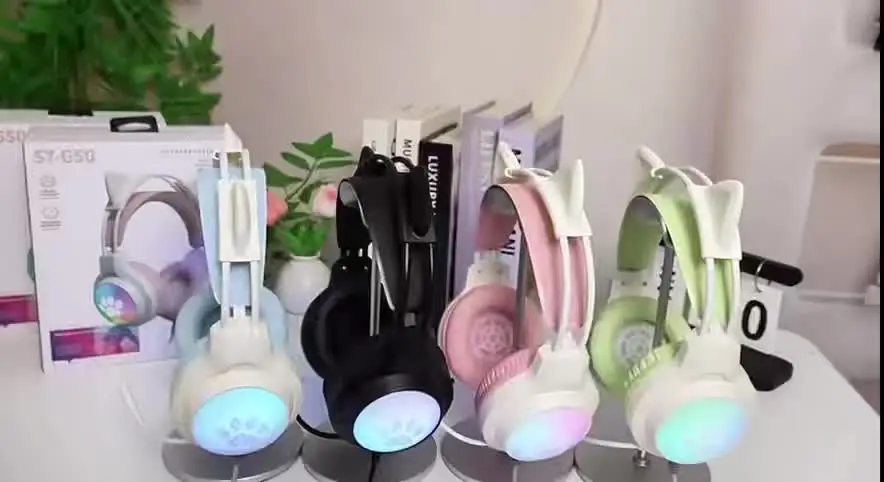
Video 1: Showcase of the SOYTO SY-G50 Cat Ear Gaming Headset in various colors and lighting modes.