1. Introduction
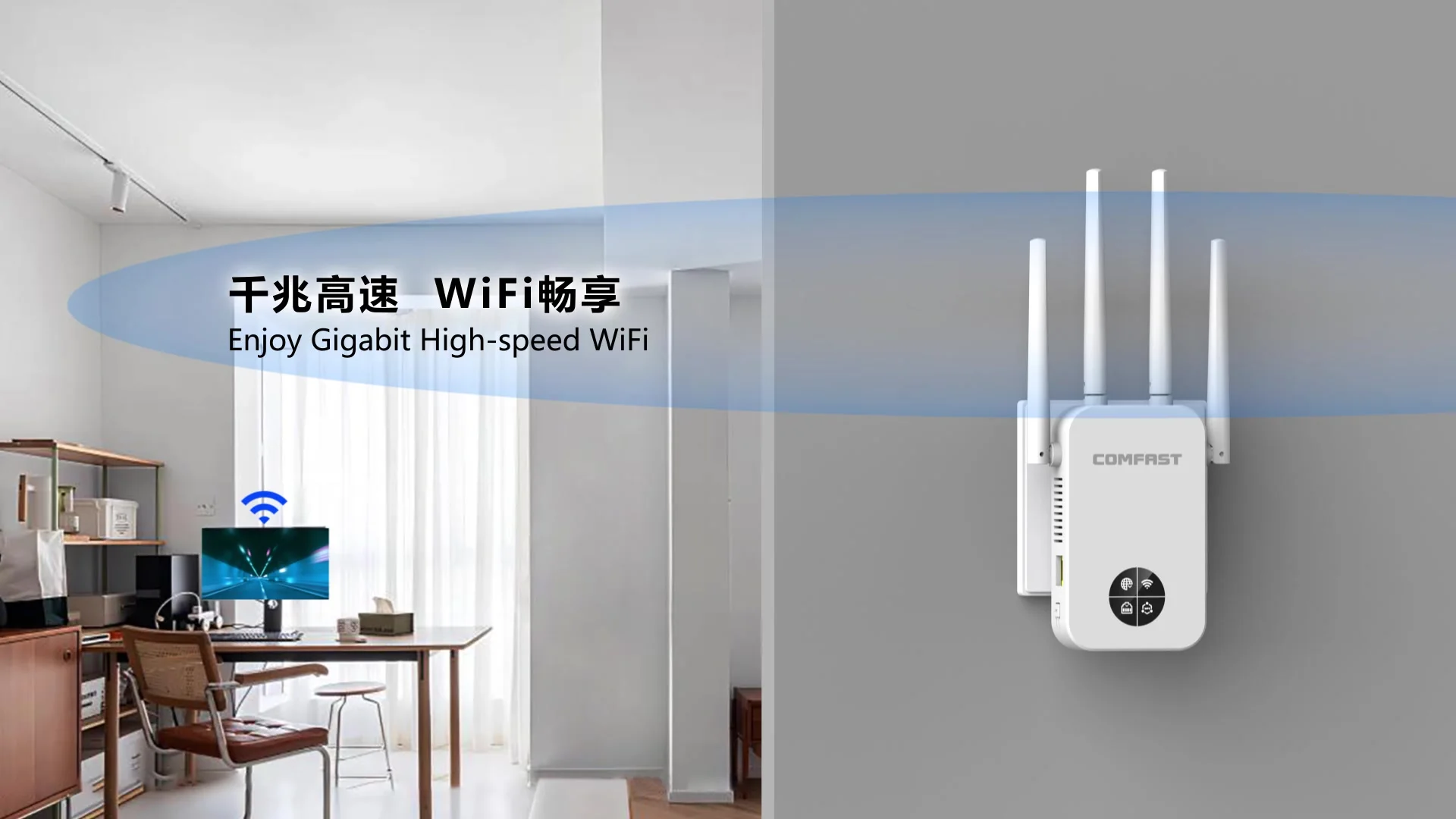
The COMFAST CF-WR762AC is a dual-band WiFi extender designed to expand the coverage of your existing wireless network. It features an OLED display for clear status indication and four external antennas for improved signal strength and penetration.
1.1 Product Structure
Familiarize yourself with the components of your WiFi extender:

- Vents: For efficient heat dissipation.
- WAN/LAN Port: For wired network connections.
- Reset/WPS Button: Used for resetting the device or initiating WPS connection.
- LCD Screen: Displays working status and signal information.
2. Indicator Lights
The device features an OLED display and indicator lights to show its current status.
2.1 Power On/Reboot Indication
When powering on or rebooting, all icons on the screen will illuminate for approximately 3 seconds, then flash 3 times before settling into their operational state.
2.2 Network Indication
| Mode | Status (Success) | Status (Failure/Issue) |
|---|---|---|
| Repeater | Setting is successful. | Setting is failed. Check password; check if the superior device is working. |
| Bridge | Setting is successful. | Setting is failed. Check password; check if the superior device is working. |
| AP | Wired network is effective. | No network cable is connected. |
| Router | Wired network is effective and can surf the Internet. If not, check the network status of the superior device. | Wired network is invalid. Check the network cable; check if the superior device has network. |
2.3 Wi-Fi Indication
This indication is primarily for Repeater/Bridge mode. In other modes, indicators remain on. The Wi-Fi indicator is off if Repeater/Bridge mode setting fails.
- (Weak Signal Icon): Weak Wi-Fi signal.
- (Medium Signal Icon): Medium Wi-Fi signal.
- (Strong Signal Icon): Strong Wi-Fi signal.
2.4 Network Port Indication
- (Network Cable Icon): Network cable is connected.
- (Network Cable Disconnected Icon): Network cable is disconnected.
2.5 WPS Indication
When the device attempts to connect via WPS, the WPS icon will remain on and the Wi-Fi indicator will be off. Once WPS setting is successful or after waiting for 2 minutes, the WPS icon will turn off and the Wi-Fi indicator will turn on.
3. Simple Installation Steps
Follow these steps for a quick and easy setup:
- Plug in the power supply. Verify that all patterns are displayed on the screen.
- Wait approximately 60 seconds. Connect to the WiFi network named "COMFAST_XXXX_2G" or "COMFAST_XXXX_5G" from your mobile device.
- Click on the WiFi signal "COMFAST_XXX_2G" or "COMFAST_XXX_5G". The login interface will appear. Enter the default password "admin" in the password box and click "Set Password".
Tip: If the login interface does not pop up automatically (e.g., due to mobile phone limitations or after initial setup), open your mobile browser and manually enter "192.168.10.1" in the address bar.
- After setting the password for the first time, the device will automatically enter the repeater scanning page. Select the desired network (trunk), choose the SSID of the repeater, enter the password of your main router, and click "Save" to complete the setup. Reconnect to the new wireless network. The expanded signal will have a suffix like "-2G / 5G" after the original WiFi name.

3.5 WiFi Configuration Options
After initial setup, you may encounter options for how the extended WiFi network behaves:
- Combine WiFi: If this option is enabled, the extender will automatically switch between 2.4GHz and 5GHz bands for optimal performance.
- Sync Your Device: If this option is enabled, the extended WiFi network will use the same SSID and password as your main router, eliminating the need to reconnect devices.

4. Operating Modes
The COMFAST CF-WR762AC supports four main working modes:
- Repeater Mode: Extends the WiFi signal of your main router wirelessly, eliminating dead spots.
- Bridge Mode: Connects to an existing WiFi network and provides a wired connection for devices.
- AP Mode (Access Point): Converts a wired network connection into a wireless access point.
- Router Mode: Functions as a primary router, supporting PPPoE dial-up, Static IP, or Dynamic IP connections.
4.1 Repeater Mode (Wireless to Wireless)
This mode extends the WiFi signal from your main router to areas with weak or no signal, such as bedrooms or bathrooms. It amplifies the existing signal to provide wider coverage.

4.2 AP Mode (Wired to Wireless)
In AP mode, the device uses a network cable to connect to your existing network and then broadcasts a new WiFi signal. This is useful for converting a wired connection into a wireless one.
AP Mode Settings:
- Access the software management page and select AP mode.
- The IP address and default gateway configured should be within the same IP segment as your main router, ensuring no IP conflicts.
- After configuration, the device's WAN port can access the external network.
- You can set separate 2.4G and 5.8G wireless SSID names and passwords.
- Connect the prepared WAN port to the external network. Other mobile devices can then connect to the new SSID using the set password.

4.3 Bridge Mode (Wireless to Wired)
This mode allows the extender to receive a wireless signal from your router and convert it into a wired connection for devices like desktops, laptops, or smart TVs that benefit from a stable wired connection.

4.4 Router Mode
To configure Router Mode, navigate to the software management page and select "Router Mode". You can choose from three ways to get online:
- PPPoE Dial-up Mode: Requires you to enter the Internet account and password provided by your network service provider. You can also set the 2.4G/5.8G wireless SSID name and password.
- Static IP Mode: Requires you to manually enter the IP address, Subnet mask, Gateway, and main DNS address provided by your network service provider. You can also set the 2.4G/5.8G wireless SSID name and password.
- Dynamic IP Mode: The WAN port is assigned an IP address automatically by the superior network device. You can set the 2.4G/5.8G wireless SSID name and password.

5. Specifications
| Feature | Detail |
|---|---|
| Model Name | CF-WR762AC |
| Wireless Standard | IEEE802.11ac/a/b/g/n (802.11.n, 802.11ac) |
| Frequency Band Class | Dual-Band (2.4G & 5G) |
| Frequency | 2.412~2.472GHz, 5.180~5.825GHz (5 GHz) |
| Wireless Transmission Rate | 1200Mbps (2.4GHz: 300Mbps; 5.8GHz: 867Mbps) |
| Wired Transfer Rate | 10/100Mbps |
| Max. LAN Data Rate | 100Mbps |
| WAN Ports | 1 x 10/100Mbps RJ45 Ethernet Port |
| LAN Ports | 1 |
| Antennas | 4*3dBi External Antennas |
| Button | 1*WPS/RST Button |
| Display | OLED Screen (WPS / RJ45 port / Wi-Fi / network status) |
| Power | 100~240V, 50/60Hz |
| Output Power (Max) | 126mW (≈21dBm) |
| Working Mode | AP/ Repeater/ Router Mode |
| Supports WPS | Yes |
| Supports WDS | No |
| Function | Firewall |
| With Modem Function | No |
| Number of USB Interfaces | None |
| Application | Home |
| Certification | CE, FCC |
| Dimensions (W*L*H) | 197mm * 62mm * 45mm (Including antenna) |
| Working Temperature | 0°C~40°C |
| Storage Temperature | -40°C~70°C |
| Working Humidity | 10%~90%RH Non-condensing |
| Storage Humidity | 5%~90%RH Non-condensing |

6. Troubleshooting (FAQ)
- Q: What is the role of a WiFi extender?
- A: A WiFi extender boosts the range of your existing WiFi network, creating a stronger signal in hard-to-reach areas. Please note that it does not increase your router's internet speed; the speed of the extended WiFi will be reduced compared to the main router due to the nature of signal repetition.
- Q: Where should I place the WiFi extender?
- A: After successful setup, place the WiFi extender approximately halfway between your main router and the area with weak signal. The chosen location must be within the range of your existing WiFi router network to receive a stable signal to extend.
- Q: How do I reset the WiFi extender?
- A: Press and hold the WPS/Reset button on your extender for about 10 seconds. Wait for the indicator lights to turn off and then light up again, indicating that factory settings have been restored. You can then proceed with setting it up again.
- Q: Why does the WiFi keep disconnecting?
- A: We recommend resetting the WiFi extender to its factory settings and reconfiguring it. Ensure it is placed in an optimal location with a stable signal from your main router.
For more questions or advanced support, please visit the official website: www.szcomfast.com.
7. Maintenance Regulations
To protect your rights, please read the following maintenance regulations. The company provides paid service for issues not covered by free maintenance.
Exclusions from Free Maintenance:
- Product failure or damage due to improper installation, use, maintenance, or storage not in accordance with the installation manual.
- Damage occurring beyond the limited warranty period.
- Unauthorized alteration, or tampering with the product bar code.
- Unauthorized changes to settings files or inherent disassembly.
- Product damage caused by unexpected factors or human actions, such as improper input voltage, extreme temperatures, water damage, mechanical breakage, rust, or serious oxidation.
- Quality problems not inherent to the product itself, but caused by design, technology, manufacturing, or other quality issues of third-party components leading to failure damage.

8. Warranty and Support
Product specifications and information in this manual are for reference and subject to updates without notice. This manual serves as a user guide, and its contents do not constitute a formal guarantee unless otherwise specified.
For detailed warranty information, please refer to the "Maintenance Regulations" section. The warranty period is limited, and certain conditions may void the warranty.
A comprehensive user manual is also available in PDF format. You can access it here: User Manual (PDF).
Manufacturer Information:
Manufacturer: Shenzhen Four Seas Global Link Network Technology Co., Ltd.
Address: 9th Floor, Building H, Huanan Digital Valley, No. 1 Huanan Road, Longhua District, Shenzhen, China
Hotline: 4009-001-766
Website: www.comfast.cn / www.szcomfast.com
9. User Tips
- Users have reported stable connections, high speeds, and a greater range compared to other extenders.
- Ensure the password for the repeater is the same as your main router for seamless integration.
- Avoid poor signal connections, as this can lead to slow speeds or dropped connections.
- When setting passwords, ensure they are a maximum of 32 characters and do not contain special characters like spaces.