
Product Overview
The LK-007 is a versatile digital camera designed for capturing high-quality photos and videos. It features a 48-megapixel sensor for still images, 4K video recording capabilities, and a convenient 2.4-inch HD rotating screen for easy framing and viewing.

Figure 1: LK-007 Digital Camera (Pink variant) and included accessories.
Key Features:
- 4K Video Recording: Capture videos in stunning 4096x2160 resolution.
- 48 Megapixels: High-resolution sensor for detailed still images.
- 2.4-inch HD Rotating Screen: Flexible screen for various shooting angles, ideal for selfies and vlogging.
- Autofocus: Quick and accurate focusing for sharp images.
- Beauty Function: Enhance your portraits with built-in beauty modes.
- 800mAh Battery: Provides extended usage time.
- Digital Zoom: 8x electronic zoom to capture distant details.

Figure 2: LK-007 Digital Camera Feature Highlights.
Setup Guide
What's in the Box:
- LK-007 Digital Camera
- T-flash Card (MicroSD)
- Card Reader
- Type-C Adapter
- Charging Cable (Type-C)
- Sling/Strap
- Decorative Decals
- User Manual (this document)
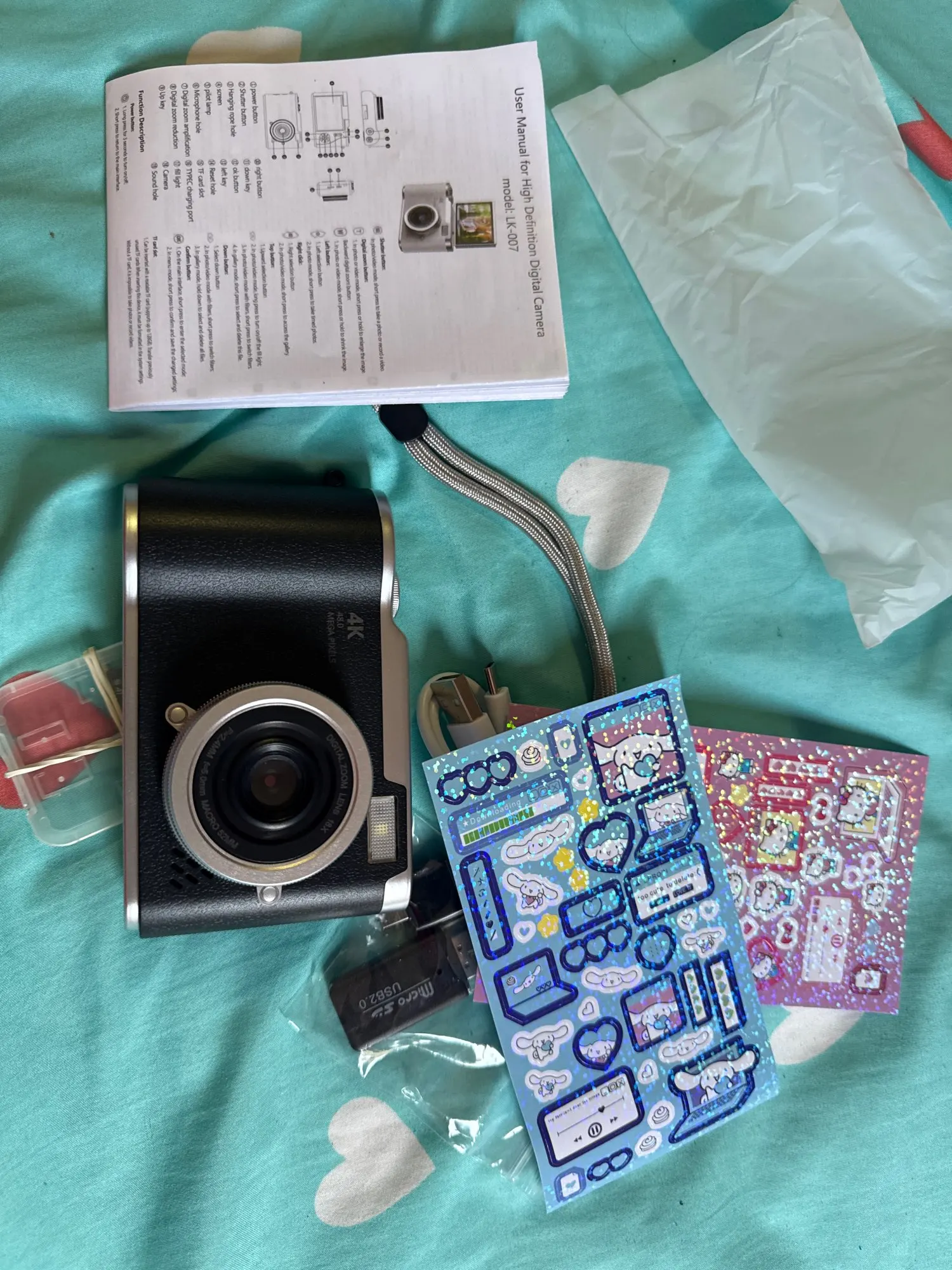
Figure 3: Included accessories with the LK-007 Digital Camera.
Camera Parts:
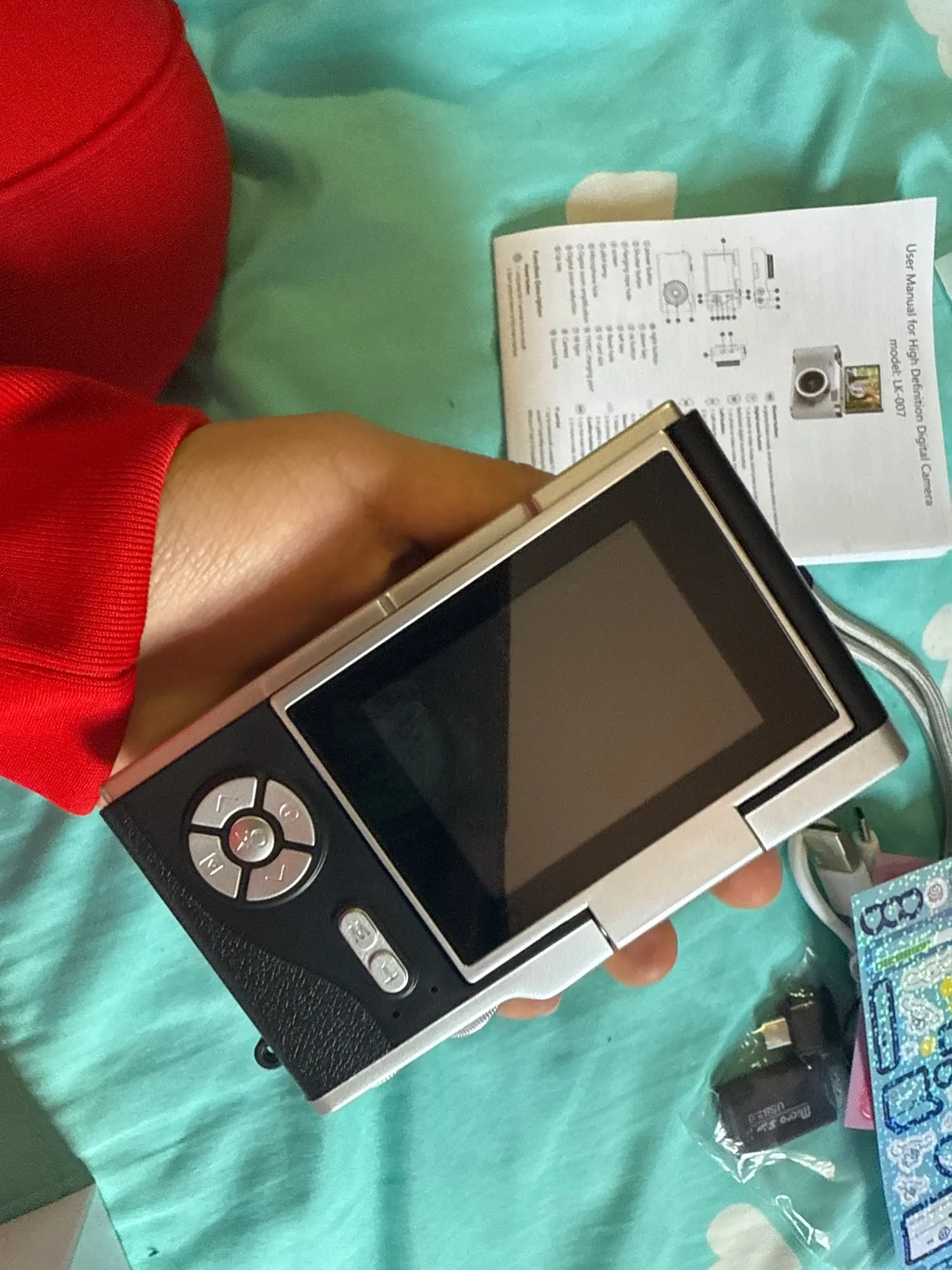
Figure 4: Rear view of the camera with control buttons.
- Shutter Button: Press to take photos.
- Power Button: Press and hold to turn the camera on/off.
- Flash Light: Provides illumination in low-light conditions.
- Lens: The primary optical component for capturing images.
- Screen: 2.4-inch HD rotating display.
- OK Button: Confirms selections in menus.
- Up/Zoom In Button: Navigates up in menus or zooms in during photo/video mode.
- Down/Zoom Out Button: Navigates down in menus or zooms out during photo/video mode.
- Left/Mode Button: Navigates left in menus or changes shooting modes.
- Right/Delete Button: Navigates right in menus or deletes files in playback mode.
- Menu Button: Accesses the camera's main menu.
- Playback Button: Enters playback mode to view photos and videos.
- Speaker: For audio playback.
- Microphone: For recording audio with videos.
- TF Card Slot: Insert your MicroSD/TF card here.
- TYPE-C Charging Port: Connect the Type-C cable for charging and data transfer.
- Strap Hole: Attach the included sling/strap.
- Reset Hole: Use a thin pin to reset the camera if it malfunctions.
First-Time Use:
- Charge the Battery: Connect the camera to a USB power source using the provided Type-C cable. The charging indicator will light up. Charge fully before first use (approx. 2-3 hours).
- Insert TF Card: Open the TF card slot cover and insert the MicroSD/TF card with the metal contacts facing down/towards the front of the camera until it clicks into place. Ensure the card is properly formatted (see 'Maintenance' section).
- Attach Strap: Securely attach the camera sling to the strap hole to prevent accidental drops.
- Power On: Press and hold the Power button for a few seconds until the screen lights up.
- Set Date and Time: Upon first power-on, you may be prompted to set the date and time. Navigate using the directional buttons and confirm with the OK button.
Operating Instructions
Basic Operation:
- Power On/Off: Press and hold the Power button.
- Mode Selection: Press the Left/Mode button to cycle through different modes (Photo, Video, Playback, Settings, etc.).
- Menu Navigation: In any mode, press the Menu button to access settings. Use the directional buttons to navigate and OK to select.
Taking Photos:
- Switch to Photo mode.
- Frame your shot using the screen. You can rotate the screen for selfies or unique angles.
- Use the Up/Down buttons to zoom in or out (digital zoom).
- Press the Shutter button halfway to focus (if autofocus is active), then press fully to take the picture.
Recording Videos:
- Switch to Video mode.
- Frame your subject.
- Press the Shutter button once to start recording. A red indicator will usually appear on the screen.
- Press the Shutter button again to stop recording.
Playback:
- Press the Playback button to enter playback mode.
- Use the Left/Right directional buttons to browse through your photos and videos.
- Press OK to play a video.
- To exit playback mode, press the Playback button again or the Mode button.
Using the Rotating Screen:
The 2.4-inch screen can be flipped out and rotated 180 degrees, allowing you to view the screen from the front of the camera, which is ideal for vlogging or taking selfies.

Figure 5: Camera design highlights including the flip screen and various functions.
Product Demonstration Video:
Video 1: A short demonstration of the LK-007 camera's physical features and menu navigation.
Care and Maintenance
- Cleaning: Use a soft, dry cloth to clean the camera body. For the lens and screen, use a specialized lens cleaning cloth and solution. Do not use abrasive cleaners or solvents.
- Storage: Store the camera in a cool, dry place away from direct sunlight, dust, and moisture. Remove the battery if the camera will not be used for an extended period.
- Battery Care: Avoid fully discharging the battery frequently. Charge it regularly, even if not in use, to maintain battery health.
- TF Card Formatting: It is recommended to format your TF card periodically (especially when using a new card or experiencing issues) through the camera's settings menu. This will erase all data on the card, so back up important files first.
- Avoid Drops: The camera is not shockproof. Avoid dropping it or subjecting it to strong impacts.
- Water Resistance: This camera is not waterproof. Do not expose it to water or high humidity.
Troubleshooting
| Problem | Possible Cause | Solution |
|---|---|---|
| Camera does not power on | Battery is low or dead; Battery not inserted correctly; Camera frozen. | Charge the battery; Reinsert the battery; Press the Reset button with a thin pin. |
| Cannot take photos/record videos | TF card is full; TF card is not inserted; TF card error; Low battery. | Delete some files or replace TF card; Insert TF card; Format TF card; Charge battery. |
| Images are blurred | Lens is dirty; Insufficient light; Subject too close/far; Camera shake. | Clean the lens; Use flash or brighter environment; Ensure subject is within focus range; Hold camera steady. |
| Camera freezes | Software glitch; TF card error. | Press the Reset button with a thin pin; Reformat or replace TF card. |
| Cannot connect to computer | Cable issue; Driver issue; Incorrect mode. | Try another USB cable/port; Ensure camera is in Mass Storage mode (if applicable); Check computer drivers. |
Specifications

Figure 6: Detailed product parameters.
| Feature | Detail |
|---|---|
| Model Number | LK-007 |
| Image Sensor | CMOS Sensor |
| Effective MegaPixel | < 12MP (Advertised 48MP for marketing) |
| Display | 2.4-inch HD Rotating Screen |
| Lens | Fixed Lens (F=2.4mm, f=5.0mm) |
| Digital Zoom | 8x |
| Image Resolution | Up to 48MP (Interpolated) |
| Video Resolution | 4K (4096*2160) |
| Storage Media | MicroSD / TF Card (up to 32GB, Class 10 recommended) |
| File Format | Image: JPEG; Video: AVI |
| USB Port | Type-C |
| Power Supply | 800mAh Rechargeable Lithium Battery |
| Special Features | Beauty Make-up Mode, Autofocus |
| Supporting Languages | Multi-language support (Japanese, French, German, Italian, Spanish, Portuguese, Russian, English, etc.) |
| Certification | CE |
| Dimensions | Approx. 100 x 60 x 25 mm |
| Weight | Approx. 150g (without battery/card) |
User Tips
- Retro Aesthetic: Many users appreciate the