
1. Product Overview
The Abay Ok-WC2K WiFi Window Camera is a versatile indoor/outdoor security camera designed for comprehensive home surveillance. It features high-definition video, two-way audio, motion detection, and advanced night vision capabilities to keep your property secure and allow you to monitor loved ones or pets.

Figure 1: Abay Ok-WC2K WiFi Window Camera highlighting key features like motion detection, starlight technology, and two-way audio, compatible with 2.4G and 5G WiFi.
What's in the Box

Figure 2: Package contents including the Window Camera, USB Cable, 2 Mounting Stickers (Front & Back), and 2 Camera Stands.
- 1 x Abay Ok-WC2K Window Camera
- 1 x USB Cable
- 2 x Mounting Stickers (Front & Back)
- 2 x Camera Stands
- 1 x User Manual (this document)
Note: This product does not include a power adapter. You will need to purchase one separately (DC5V).
2. Setup Guide
2.1. Download the App
- Scan the QR code below to download the O-KAM PRO app.
- Alternatively, search for "O-KAM PRO" in your device's app store (Google Play for Android, App Store for iOS).
Figure 3: QR code for O-KAM PRO app download.
2.2. App Account Registration
- Open the O-KAM PRO app.
- Click "Register now" at the login interface.
- Select your country/region and enter your phone number.
- Obtain and enter the verification code sent to your phone.
- Set a password for your account and click "Finish".
2.3. Connect Camera to Power
- Connect the camera to a DC5V power source using the included USB cable and a compatible power adapter (not included).
2.4. Add Camera to App

Figure 4: Easy setup in minutes: Connect to power, download O-KAM Pro APP, connect camera to Wi-Fi, and start viewing.
- Ensure your phone's Bluetooth function is turned on.
- Log in to the O-KAM PRO app.
- Click the "Add" button found at the "Home" interface or the "+" icon in the upper right corner.
- The app will automatically detect new devices through Bluetooth. Select your camera from the list.
- Follow the on-screen prompts to connect the camera to your 2.4GHz or 5GHz Wi-Fi network. No QR code scanning is required for this step.
- Once connected, you can start viewing the live feed and playback.

Figure 5: Two types of connections: Bluetooth Quick Pairing and Wi-Fi Connection.
2.5. Installation
The camera supports multi-scenario installation with included dual brackets and self-adhesive stickers.

Figure 6: Multi-scenario installation showing reverse installation (for walls, shops, offices) and forward installation (for glass surfaces like kitchens, balconies, main doors, windows).
Self-Adhesive Installation (Window/Glass)

Figure 7: Steps for easy and fast self-adhesive installation: 1. Clean both inside and outside of the window, 2. Peel off the mounting sticker, 3. Install the sticker onto the window, 4. Power on the camera with the included USB adapter and cable.
- Clean Window: Clean both the inside and outside surfaces of the window where the camera will be mounted.
- Peel off Mounting Sticker: Carefully peel off one of the included mounting stickers.
- Install the Sticker: Firmly apply the sticker onto the clean window surface.
- Attach Camera: Attach the camera firmly onto the installed mounting sticker.
Bracket Installation (Wall/Other Surfaces)
Use the included camera stands/brackets for mounting on walls or other suitable surfaces. Secure the brackets with appropriate screws (not included) and then attach the camera.
3. Operating Instructions
3.1. Live View and Playback
- Open the O-KAM PRO app and select your camera to view the live feed.
- Use the app interface to access recorded footage for playback.
Video 1: Demonstration of the camera's day and night vision capabilities, viewed remotely on a smartphone.
3.2. Two-Way Audio
The camera features a built-in microphone and speaker, enabling real-time two-way voice communication.
- From the live view in the O-KAM PRO app, tap the microphone icon to speak through the camera.
- Listen to audio from the camera's surroundings through your phone.

Figure 8: Image demonstrating 2-way audio, allowing communication with individuals near the camera, such as a delivery driver.
3.3. Motion Detection & Alerts
The camera is equipped with smart motion and sound detection. When motion or sound (e.g., baby crying) is detected, you will receive real-time alerts on your phone.
- Configure detection sensitivity and alert preferences within the O-KAM PRO app settings.
- The camera supports humanoid tracking, framing detected human shapes and automatically tracking them.
- Intelligent alarm sounds can be set based on different scenarios.

Figure 9: Diagram illustrating smarter detection and faster alerts, showing a person detected with viewing angle (60°) and detection angle (105°).

Figure 10: Diagram explaining accurate detection zones, including "TRIPWIRE" (trigger an event anytime a human or vehicle crosses the set tripwire line) and "INTRUSION" (be alerted anytime a human or vehicle crosses the intrusion area) alerts.
3.4. Night Vision
The camera offers both full-color night vision and infrared night vision, providing clear video in low-light conditions up to 33 feet (10-20m).
- The default setting supports full-color night vision.
- Switch between night vision modes in the app settings if desired.
3.5. Continuous Recording
The camera supports 24/7 continuous recording to a local microSD card (up to 128GB, sold separately).

Figure 11: Image showing 24/7 continuous recording and an app alert for abnormal activity detected by monitoring.
3.6. AP Hotspot Function
The camera has a built-in AP hotspot, allowing you to connect directly to the camera's Wi-Fi for local viewing even without an internet connection.
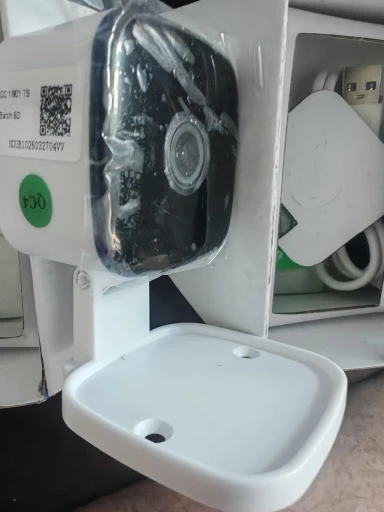
Figure 12: Image illustrating the built-in AP hotspot, enabling direct connection to the camera's WiFi for monitoring anytime, anywhere.
3.7. Multi-Device Viewing
Monitor your camera feed from multiple devices simultaneously, such as your smartphone, tablet, or computer.
Figure 13: Examples of multi-device viewing, showing the camera mounted in various locations like a window, cupboard, fish tank, and office glass wall.
4. Maintenance
4.1. Cleaning
- Gently wipe the camera lens and body with a soft, dry cloth to remove dust and smudges.
- Avoid using harsh chemicals or abrasive cleaners, as these can damage the camera's finish or lens.
- For outdoor installations, periodically check for dirt buildup on the lens and clean as necessary to maintain clear image quality.
4.2. Storage
- The camera supports local storage via a microSD card (up to 128GB). Ensure the card is properly inserted and formatted.
- Cloud storage options may also be available through the O-KAM PRO app (may require subscription).
5. Troubleshooting
5.1. Connection Issues
- Cannot connect to Wi-Fi: Ensure your Wi-Fi network is 2.4GHz or 5GHz. Check that the camera is within range of your router. Restart your router and the camera.
- Incorrect App Download: If you scanned a QR code and downloaded an app for couriers (e.g., "Canino"), delete it immediately. Ensure you download the official "O-KAM PRO" app from your device's app store or by scanning the correct QR code provided in this manual.
- Bluetooth Pairing Failure: Ensure Bluetooth is enabled on your phone and the camera is powered on and in pairing mode. Try restarting both devices.
5.2. Image/Video Quality Issues
- Blurry image: Clean the camera lens with a soft cloth. Check for condensation on the lens if installed outdoors.
- Poor night vision: Ensure there are no obstructions blocking the camera's view. Check app settings for night vision mode.
5.3. Installation Concerns
- Camera not sticking to window: Ensure the window surface is thoroughly clean and dry before applying the adhesive sticker. Apply firm pressure for several seconds.
- Brackets not included/different: The product package should include two camera stands/brackets and two mounting stickers. If these are missing or different from what is described, please contact customer support.
6. Specifications

Figure 14: Overview of camera features including dual-band WiFi, SD card storage, cloud storage, color night vision, anti-glare, recording options, resolution, and remote viewing.
| Feature | Description |
|---|---|
| Brand Name | abay |
| Model Number | Ok-WC2K |
| High Definition | 5.0 Megapixels |
| Megapixels | 5 MP |
| Connectivity | Wifi (2.4G & 5G) |
| Lens (mm) | 3.6mm |
| Viewing Angle | 107° |
| IR Distance (m) | 10-20m |
| Color Night Vision | Yes (default full-color night vision) |
| Minimum Illumination | 0.8Lux/F1.4 (color mode), 0.3Lux/F1.4 (black and white mode) |
| Video Compression Format | MJPEG, H.264, H.265 |
| Audio Output | Two Way Audio |
| AI Functions | Motion Detection, Humanoid tracking, Intelligent alarm sound |
| TF Card Support | Up to 256GB (options for 128GB) |
| Power Supply | Normal (DC5V) |
| Operating Temperature | -10°C to 60°C |
| Installation | Stick (self-adhesive), Wall-mounted (with brackets) |
| Shell Material | Plastic |
| Supported Mobile Systems | Android, iOS |
| App Name | O-KAM Pro (for 5MP), SQCOM (for 2MP) |
| Certification | CE |
7. User Tips
- Verify App: Always ensure you download the correct "O-KAM PRO" app. Double-check the app icon and developer name in your app store to avoid installing incorrect or malicious software.
- Power Adapter: Remember that a DC5V power adapter is required and not included in the package. Use a reliable adapter to ensure stable camera operation.
- Mounting Options: The camera comes with both self-adhesive stickers for glass surfaces and brackets for wall mounting. Choose the method best suited for your installation location.
- Night Vision Lights: While the camera offers advanced night vision, some models might have small, visible indicator lights. If you prefer complete stealth, check the app settings for options to disable status lights, if available.
- SD Card: For continuous recording, install a high-quality microSD card (up to 128GB or 256GB depending on model variant). Format the card through the app for optimal performance.
8. Warranty and Support
For detailed warranty information and technical support, please refer to the official user manual PDF or contact the seller directly.
A comprehensive user manual in PDF format is available for download:
Disclaimer
⚠️ Camera products can only be used for purposes permissible under applicable law and regulations. Misuse of the product for any illegal activities is strictly forbidden. Please comply with the applicable laws and regulations in your country/area.