
Product Overview
The AUTOABC Wireless CarPlay Android Auto 2-in-1 Adapter is designed to convert your car's existing wired CarbitLink or Easy Connection system into a wireless Apple CarPlay and Android Auto experience. This plug-and-play device offers seamless integration, allowing you to access your smartphone's features directly on your car's display without the need for cables.

Figure 1: Product overview with compatibility details.

Figure 2: Key features: 2-in-1 Wireless CarPlay & Android Auto Adapter, No disassembly required, Plug and Play, No-Sensing Connection.
This adapter supports a wide range of features including phone calls, messaging, online navigation, online music, and voice assistants, enhancing your driving experience with smart connectivity.
Compatibility
This device is specifically designed for cars equipped with CarbitLink, Smart Link, Phone Link, or Easy Connection functions. It is crucial to ensure your car's CarbitLink version is 6.0 or above for optimal performance. Please note that this adapter is not compatible with 2025 model year cars.
Compatible Car Models:
- Changan Car Series: CS35 (2021-2024), CS15 (2021-2023), CS85 (2021-2023), Alsvin (2020-2023), Hunter (2019-2023).
- Geely Car Series: Tugella (2022-2024), Monjaro (2023-2024), GX3 Pro (2023-2024), Emgrand (2022-2024), Azkarra (2022-2024), Atlas Pro (2022-2024).
- Other compatible models include: Chery Jetour X70, X70S, X90, X95, CX62B, Tiggo 3, Tiggo 3x, Tiggo 5, Arrizo 5, Jetour T1K, MMV33, Little Ant, Karry X3; Changan C589, Transcend Star, Yuexiang, S302, B311, CS55, CS75, CS75PLUS, CS75P, S401, CS85, CS95; Geely KC-2, GX11, NL-3B, NL-3JA, SX-11, Boyue NL-3 RA, Panda, Panda mini, Emgrand, Vision, Maxus D90, Maxus SV91; Wuling Xingchen, Jiachen, Brilliance Renault F70, Dongfeng Yuedung, Aeolus G35, Aeolus D53, Dongfeng Xiaokang S560, Neta U, Yutong QM013, Hanteng X7, Hanteng Shao E10X, Fiat X6H, Toyota Yaris (Southeast Asia), Honda Civic (Pakistan).
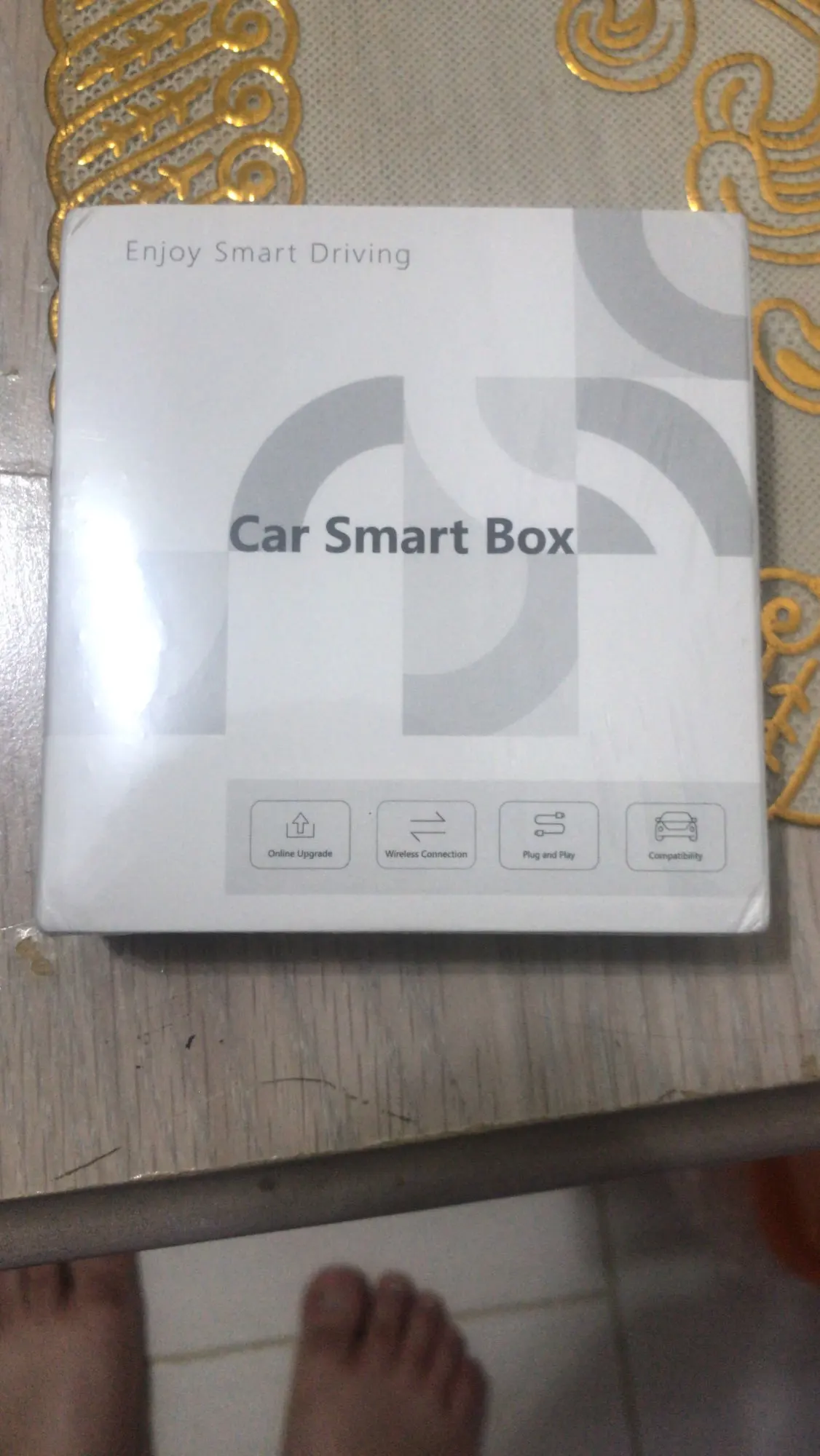
Figure 3: CarbitLink version compatibility details.
Setup Instructions
1. Initial Connection
- Connect the adapter to your car's original USB port.
- On your car's display, navigate to the "Easy Connection" or "Mobile Connect" option.
Video 1: Product demonstration showing CarPlay and Android Auto connection, online maps, phone support, and music.
2. Wireless CarPlay Connection (for iPhone)
- Ensure the adapter is connected to the car's USB port.
- On your car's display, click on "Mobile Connect" to enter the CarPlay connection interface.
- On your iPhone, go to Settings > Bluetooth.
- Find the device named "Carplay&Auto_XXXX" (where XXXX is a unique identifier) and tap to connect.
- Confirm the Bluetooth pairing request on your iPhone.
- After successful connection, the CarPlay interface will automatically appear on your car's screen.

Figure 4: Visual guide for CarPlay connection steps.
3. Wireless Android Auto Connection (for Android Phones)
- Ensure the adapter is connected to the car's USB port.
- On your car's display, click on "Mobile Connect" to enter the Android Auto connection interface.
- On your Android phone, go to Settings > Bluetooth.
- Find the device named "Carplay&Auto_XXXX" and tap to connect.
- Confirm the Bluetooth pairing request on your Android phone.
- After successful Bluetooth matching, the original Bluetooth will automatically connect, and the Android Auto interface will appear on your car's screen.
4. Bluetooth Audio Connection (Crucial for Sound)
After connecting CarPlay or Android Auto for the first time, you must connect your phone's Bluetooth audio to the original car system. Without this step, the device will not produce any sound.
- On your car's display, click on "OEM Bluetooth Music" to enter the OEM Music interface.
- On your phone, turn on Bluetooth and find the device name (e.g., "Carplay&Auto_34B3") and connect to pair.
- CarPlay/Android Auto audio will then be output through the original car's Bluetooth channel with lossless sound quality.
Operating Instructions
Once connected, the adapter allows you to use various smartphone functions directly on your car's display:
- Navigation: Utilize online map applications like Google Maps, Waze, 2GIS, Yandex Maps, etc.
- Communication: Make and receive phone calls, send and read messages.
- Entertainment: Stream online music and other audio content.
- Voice Assistants: Use your phone's voice assistant (e.g., Siri, Google Assistant) for hands-free control.
- App Integration: Access over 100 different kinds of apps (excluding YouTube and other video apps) from your CarPlay or Android Auto interface.

Figure 5: Apple CarPlay interface in use.

Figure 6: Internal chip for fast and stable wireless connections.
Maintenance
To ensure the longevity and optimal performance of your adapter, follow these general maintenance guidelines:
- Keep the device clean and free from dust and debris.
- Avoid exposing the device to extreme temperatures or direct sunlight for prolonged periods.
- Do not attempt to disassemble or repair the device yourself, as this will void the warranty.
- Handle the USB cable and adapter gently to prevent damage to the connectors.
Troubleshooting
Common Issues and Solutions:
- No Sound: Ensure your phone's Bluetooth is connected to the car's original Bluetooth system for audio output. Refer to the "Bluetooth Audio Connection" section in Setup.
- Connection Issues: Verify that your car's CarbitLink/Easy Connection version is 6.0 or above. Some older versions (e.g., 5.1 for CS35, GX3) may not be compatible.
- Device Not Recognized: Ensure the adapter is firmly plugged into the car's original USB port. Try a different USB port if available.
- CarPlay/Android Auto Not Launching: After connecting via Bluetooth, make sure to select the "Mobile Connect" or equivalent option on your car's screen to initiate the CarPlay/Android Auto interface.
- Product Not Working for 2025 Model Year Cars: This adapter is explicitly stated not to work with 2025 model year vehicles.
Online Firmware Upgrade:
If you experience persistent issues or new features are released, a firmware upgrade might be necessary. Only upgrade if instructed by support or if you are experiencing issues. Do NOT upgrade if the product is working normally.
- On your iPhone, open Wi-Fi settings and connect to the adapter's Wi-Fi network. The network name will be "Carplay&Auto-XXXX" (where XXXX is a unique identifier) and the password is 12345678.
- Open a web browser on your iPhone and enter the following address:
http://192.168.40.1:8083/autoUpgrade.html. - On the webpage, click the "Upgrade" button. You can also scan a QR code provided on the car's screen for an alternative upgrade method.
- The upgrade process is expected to take approximately 8-10 minutes. The standby light on the adapter will flash quickly during the upgrade. Wait for the process to complete.
Specifications
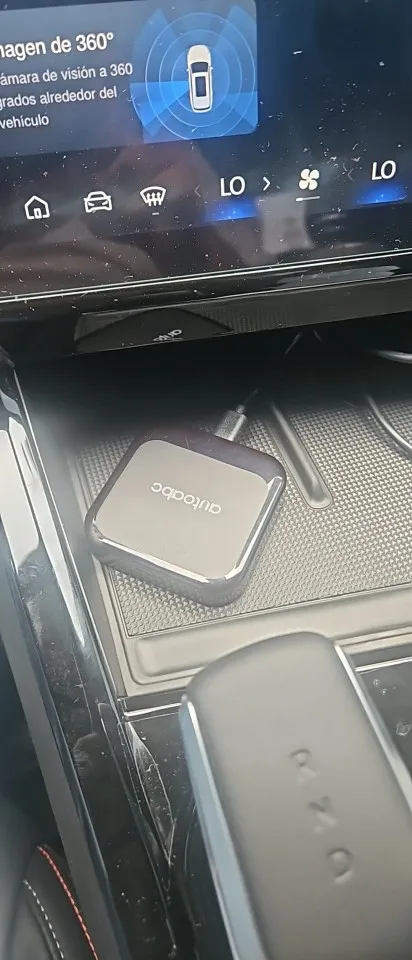
Figure 7: Product Specifications.
| Feature | Specification |
|---|---|
| Size | 2.36 x 2.36 x 0.63 inches (17 x 15 x 4 cm package dimensions) |
| Voltage | 5V |
| Power | 0.75~1W |
| Operating Temperature | -20°C ~ 60°C |
| Connectivity | Wi-Fi 2.4/5GHz, Bluetooth 5.1 |
| Package Contents | Box*1, Line*2, User Manual*1 |
User Tips
- Many users have reported excellent performance with Changan CS15 (2021 models) and Geely Azkarra, noting a smooth interface and convenient, small device size.
- Always ensure your car's CarbitLink/Easy Connection system is updated to version 6.0 or above for the best experience.
- Remember to connect your phone's Bluetooth directly to the car's system for audio to function correctly after establishing the CarPlay/Android Auto connection.
Support & Contact Information
If you encounter any problems with the product, please contact us as soon as possible. To help us provide a quick solution, please provide your car model and production year when contacting, along with a detailed description of the issue.
Our services include after-sales installation guidance, product setup, upgrading, and assistance with exchanges or returns.
Contact Details:
- Email: support@autoabc.shop
- WhatsApp: +86 13798355286 (Note: Due to time differences, video calls may require advance booking. We are in the UTC+8 timezone.)
We strive for a 100% message response rate and typically reply within one hour if the time difference is not significant.
For additional information, you may refer to the User Manual (PDF).