
1. Introduction
Welcome to the R36S Retro Handheld Game Console user manual. This guide provides essential information on setting up, operating, maintaining, and troubleshooting your device. The R36S is a portable gaming device designed for retro gaming enthusiasts, featuring a 3.5-inch IPS screen and a vast library of pre-installed games.

Figure 1: R36S Retro Handheld Game Console overview
2. Safety Information
- Keep the device away from water and moisture.
- Avoid exposing the device to extreme temperatures.
- Do not attempt to disassemble or repair the device yourself. Refer to qualified personnel.
- Use only the provided charging cable and a compatible 5V/2A power adapter.
- Keep out of reach of small children due to small parts.
3. Package Contents
Please check the box for the following items:
- 1x R36S Retro Handheld Game Console
- 1x User Manual
- 1x Type-C Charging Cable
- 1x Tempered Glass Screen Protector
4. Product Overview
Familiarize yourself with the various components and controls of your R36S console.

Figure 2: Front and back view of the R36S console highlighting key features.
4.1 Controls and Ports
- D-Pad: Directional Pad for movement.
- A/B/X/Y Buttons: Action buttons.
- Select Button: Used for various in-game functions and menu navigation.
- Start Button: Used for various in-game functions and menu navigation.
- FN Button: Function button for key combinations.
- R1/R2, L1/L2 Buttons: Shoulder buttons for additional controls.
- Left Joystick (L3): Analog stick for movement.
- Right Joystick (R3): Analog stick for camera control or other functions.
- Power Button: To turn the device on/off.
- Reset Button: To restart the device.
- Volume Keys: Adjust audio volume.
- TF1-OS Slot: For the system operating system card.
- TF2-GAME Slot: For the game data card.
- DC Port: Type-C port for charging.
- OTG Port: USB On-The-Go port.
- 3.5mm Interface: Headphone jack.

Figure 3: Double Joystick feature for enhanced control.

Figure 4: Upgraded L/R buttons for improved gaming experience.

Figure 5: Exquisite details including 3D Hall-effect joystick and high-fidelity stereo speakers.
5. Initial Setup
5.1 TF Card Usage
- System Card Insertion: Ensure the system card is properly inserted into the TF1-OS slot before powering on the device.
- Game Card Insertion: Insert the TF card containing your copied game data into the TF2-GAME slot.
- Power On: Press the Power button to start the device and access the system.
- Accessing Games: After booting into the system, navigate to OPTIONS > ADVANCED > SWITCH TO SD2 FOR ROMS. This action will display the contents of your game card.
Important Notes:
- If you power on the device without a system card, it will only display a yellow light without any screen. In this case, insert the system card and press the Reset button to access the system.
- If you have selected SD2 in the software settings and then remove the TF2-GAME card before booting, the system will also not start.
6. Operating the Console
6.1 Key Functions (in-game combinations)
- Adjust Brightness: Right Joystick (R3) + Up/Down on the D-Pad
- Save Game: Select Button + R1
- Load Game: Select Button + L1
- Save Position: Select Button + Up/Down on the D-Pad
- Exit Game: Select Button + Start Button
- Access RetroArch Menu: FN + Right Joystick (R3) click
- Pause Game: Select Button + A Button
- Restart Game: Select Button + B Button
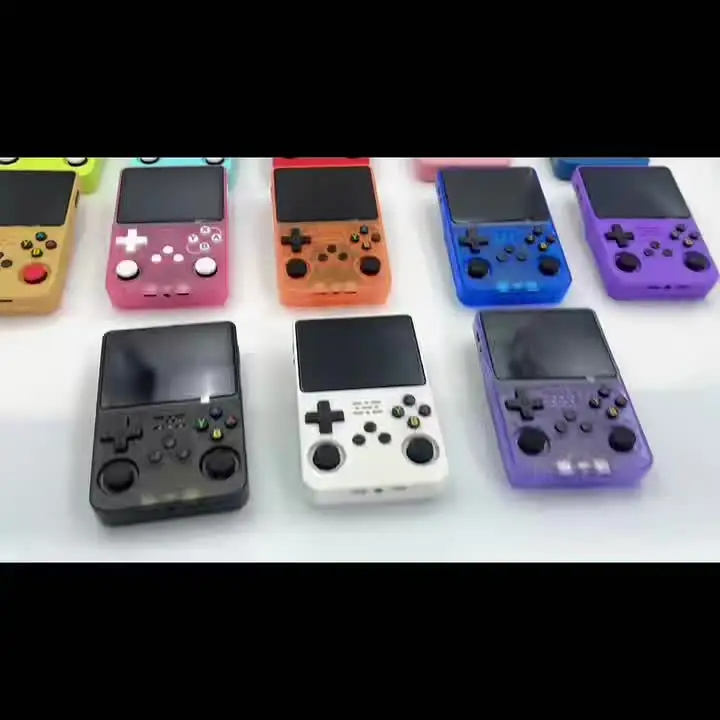
Video 1: Overview of the R36S Retro Handheld Game Console, showcasing various color options and features.
7. Charging Instructions
- When the console's red light starts blinking, it indicates that the battery is low and it's time to charge the device.
- Connect the provided Type-C charging cable to the DC port on the console and plug the other end into a compatible 5V/2A power adapter. The indicator light will turn solid red during charging.
- If you neglect to charge the device when the red light begins blinking and it eventually runs out of power after approximately 1 hour, the console will automatically shut down. To restart, press and hold the power button for 12 seconds until the green light goes off. Then, charge it for about an hour before you can power it on again. It is important to charge it promptly to avoid complete discharge.

Figure 6: Illustration of the R36S's powerful battery life and internal components.
8. Maintenance and Care
- Clean the console regularly with a soft, dry cloth. Do not use liquid cleaners.
- Store the device in a cool, dry place when not in use.
- Avoid dropping the device or subjecting it to strong impacts.
- Apply the included tempered glass screen protector to prevent scratches.
9. Troubleshooting
9.1 Common Issues and Solutions
- Device does not turn on: Ensure the system card is correctly inserted into the TF1-OS slot and the battery is charged. If completely drained, follow the charging instructions in Section 7.
- Yellow light only, no screen: This indicates the system card is missing or not properly inserted. Insert the system card and press the Reset button.
- Games not appearing: Ensure the game data TF card is inserted into the TF2-GAME slot and you have selected 'SWITCH TO SD2 FOR ROMS' in the system settings.
- Controls unresponsive: Try restarting the device using the Reset button. If the issue persists, ensure no debris is obstructing the buttons or joysticks.
10. Specifications

Figure 7: High-resolution IPS screen for clear visuals.
| Feature | Detail |
|---|---|
| CPU | 64-bit, Quad-Core A35, up to 1.5GHz |
| GPU | Mali-G31MP2, 520MHz |
| Input | 5V/2A |
| Battery Capacity | 3200 mAh |
| Operating Temperature | 5°C-35°C (41°F-95°F) |
| Screen | IPS, 3.5 inches, full lamination process, 640x480 pixel resolution |
| Max Storage | Up to 256GB |
| Operating System | Linux Open Source |
| Games Included | 15000+ |
| Supporting Languages | French, Italian, Spanish, Portuguese, Russian, English, Swedish, Polish, Greek, Turkish, Dutch, Latin American Spanish, Brazilian Portuguese, Simplified Chinese |
Design and specifications are subject to change without notice.
11. User Tips
- For optimal performance, ensure your system and game cards are from reputable brands and are formatted correctly.
- Always fully charge the device before its first use to calibrate the battery.
- Regularly back up your game saves from the TF2-GAME card to prevent data loss.
- Explore the system settings for customization options, including display and control configurations.
12. Warranty and Support
For any product-related inquiries, technical support, or warranty claims, please contact the seller or manufacturer directly. Keep your proof of purchase for warranty validation.
13. Additional Resources
For a comprehensive user manual and further details, you can refer to the official PDF document: R36S User Manual (PDF).