
Introduction
The X10 PRO GameStick is a mini video game console designed to bring back the nostalgia of classic gaming. It comes pre-loaded with over 50,000 games and supports more than 40 emulators, offering a wide variety of retro titles. This plug-and-play device provides 4K HD output, making it compatible with projectors, TVs, and displays for an immersive gaming experience.

Package Contents
Please check the box for the following items:
- 1 x Game Stick Console
- 1 x HD Cable
- 2 x Wireless Gamepads
- 1 x USB Wireless Receiver
- 1 x USB Power Cable
- 1 x User Manual (PDF version available online)
- 1 x TF Card (128GB, pre-installed with games)

Setup Instructions
- **Install Controller Batteries**: Each wireless controller requires two AAA batteries (not included). Install the batteries into each controller, then flip the switch on the bottom of the controller to power it on and pair it.
- **Connect USB Wireless Receiver**: Plug the USB wireless receiver into one of the USB ports on the Game Stick console.
- **Connect Power**: Plug the provided USB power cable into the Game Stick and connect it to a 5V 2A power source (e.g., a USB wall adapter, not included).
- **Connect to TV**: Connect the HD cable from the Game Stick to an available HDMI port on your television.
- **Select TV Input**: Set your TV's input source to the corresponding HDMI port where the Game Stick is connected. If your TV has multiple HDMI ports, ensure you select the correct one.


Operating Instructions
Controller Button Functions:
- **X Button**: Press to search for games.
- **Start Button (on homepage)**: Press to call out the settings page.
- **Start + Select Buttons (pressed twice simultaneously)**: Quickly exit the current game and return to the game list.
- **Dual Joystick (pressed simultaneously)**: Call out the quick menu for options like closing the game, saving, or loading game states.
- **Y Button (press and hold)**: Add games to your favorites list.
The specific functions of the remaining buttons may vary depending on the game being played and are not designed by the native hardware.
Detachable Arrow Keys:
The controller features detachable arrow keys. By default, round arrow keys are installed. Cross-shaped arrow keys are included in the package and can be swapped to suit your preference. When replacing, gently pull out the current keys and insert the desired ones. Avoid forceful disassembly to prevent damage.

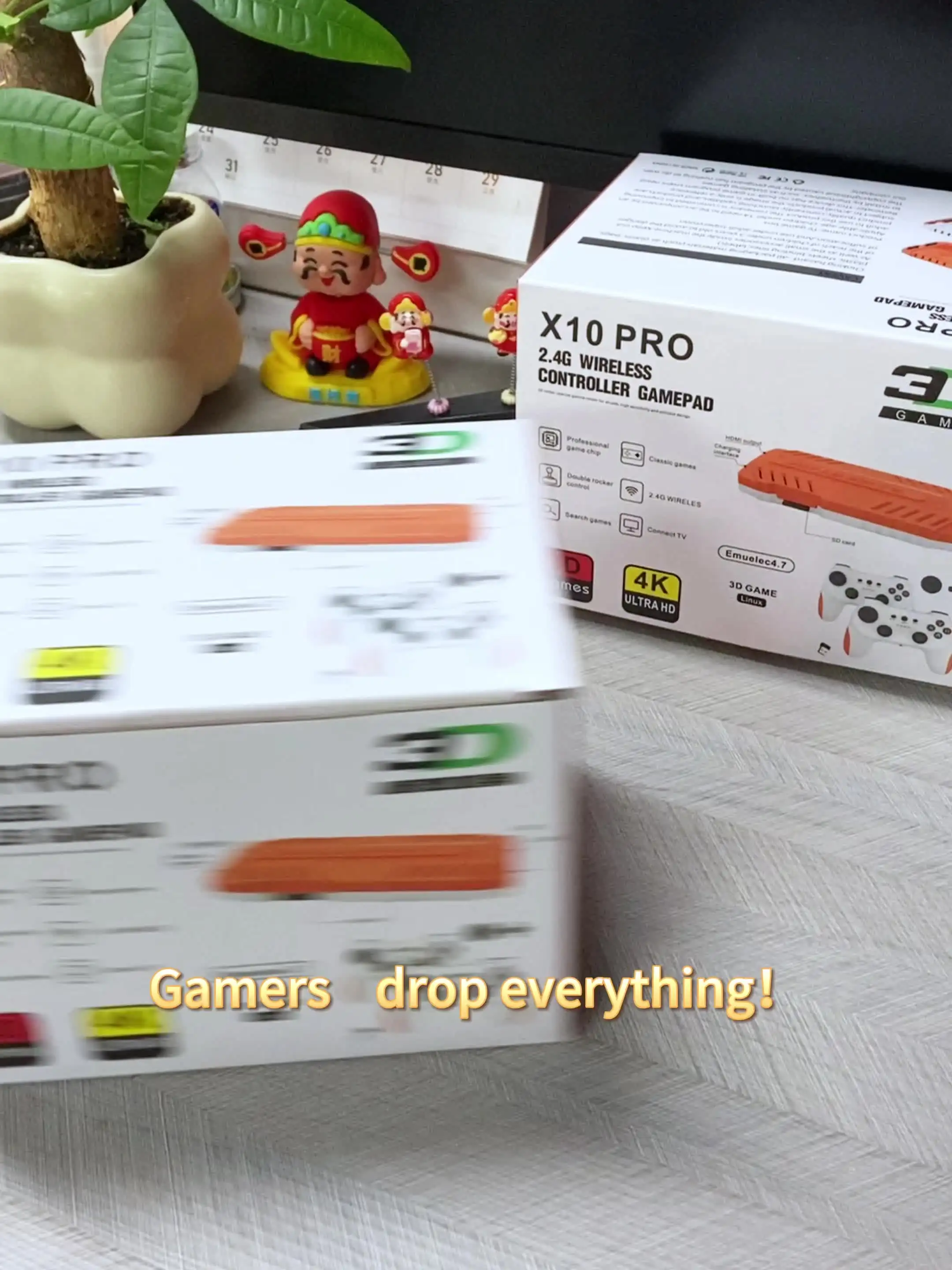
Product Overview Video:
Maintenance
- Keep the device clean and dry. Use a soft, dry cloth to wipe surfaces.
- Avoid exposing the console and controllers to extreme temperatures, humidity, or direct sunlight.
- Do not attempt to disassemble the console or controllers beyond user-serviceable parts like batteries. Unauthorized disassembly may void any potential warranty.
- Store the Game Stick and controllers in a safe place when not in use to prevent damage.
Troubleshooting
If you encounter any issues, please refer to the table below for common problems and their solutions:
| Fault | Inspection and Treatment Method |
|---|---|
| No image |
|
| Picture is achromatic |
|
| No Sound |
|
| Picture is chaotic | The power of the adapter is insufficient; replace the power supply. |
Specifications
| Feature | Detail |
|---|---|
| Model | X10 Pro Game Stick 4K |
| Brand Name | Sup boom box |
| CPU | S905X3 |
| Architecture | EmuELEC |
| Operating System | EmuELEC 3.9, Linux 3.14.29 |
| ROM Storage | 128GB (TF Card) |
| Games Included | 50000+ |
| Emulators Supported | 40+ (including for PSP, PS1, MD, MAME, NES, SNES, GB, GBA, Arcade) |
| HD Output | 1080P/720P (4K Ultra HD compatible) |
| Controllers | Dual 2.4G Wireless Gamepads |
| Controller Battery | 2 x AAA batteries per controller (not included) |
| Bluetooth-compatible | Yes |
| WIFI | No |
| Size (Game Stick) | 9.5cm x 5cm (3.74in x 1.96in) |
| Size (Controller) | 16cm x 11.5cm (6.29in x 4.52in) |
| Weight | 0.48kg |
| Supporting Language | English |
| Certification | CE |
User Tips
- **Verify Specifications**: While the manual states specific components like the CPU, it's always a good practice to verify the actual specifications of your device upon receipt, as components can sometimes vary.
- **Game Content**: If you are looking for specific Capcom fighting games (CPS1, CPS2, CPS3), be aware that some folders might be rough or missing. Some titles may be available through MAME emulators.
- **Detachable Keys**: Handle the detachable arrow keys with care when swapping them to avoid damaging the controller.
Warranty and Support
For detailed warranty information, technical assistance, or customer support, please refer to the seller's official policies or contact their customer service directly.
A PDF version of this user manual is available for download: X10 PRO GameStick User Manual (PDF).