
Introduction
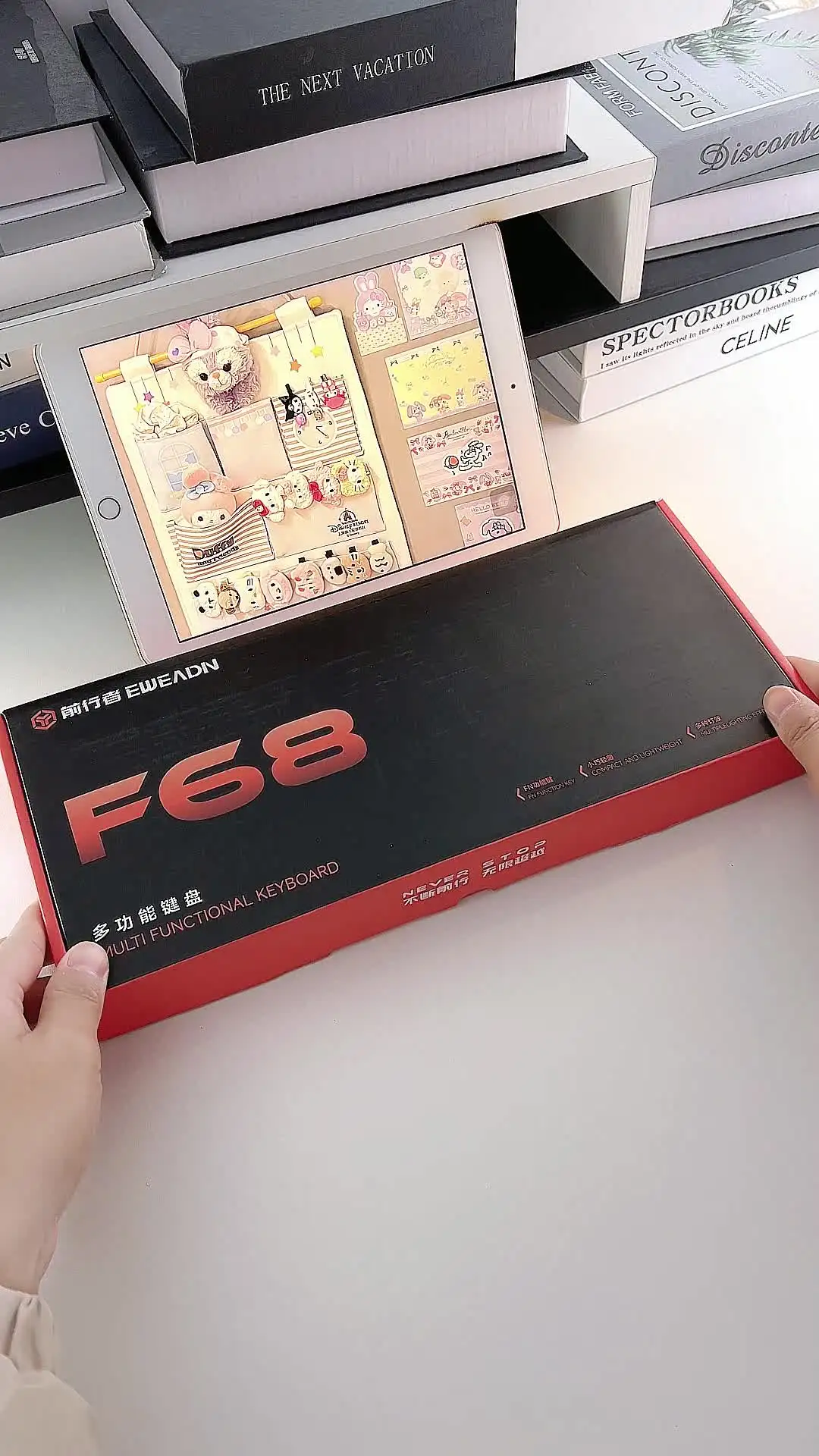
This manual provides detailed instructions for the EWEADN F61/F68 Wireless Mechanical Keyboard. Please read this manual thoroughly before using the product to ensure proper operation and to maximize your user experience. The EWEADN F61/F68 is a versatile mechanical keyboard designed for both gaming and office use, featuring multiple connectivity options and customizable RGB lighting.
Safety Information
- Keep the keyboard away from liquids to prevent damage.
- Avoid extreme temperatures and direct sunlight.
- Do not attempt to disassemble or repair the keyboard yourself. Contact support if issues arise.
- Use only the provided or recommended charging cable.
Package Contents
Please check the package for the following items:
- EWEADN F61/F68 Mechanical Keyboard
- User Manual (this document)
- Type-C Data Cable
- 2.4G USB Receiver (may be stored in the keyboard's magnetic compartment)
Product Features
- ABS Translucent Keycaps: Smooth texture, durable for long-term use.
- Quiet Keystrokes: Comfortable feel with reduced noise.
- Compact 61-Key Layout: Space-saving design without compromising functionality.
- Ergonomic Design: Dual-stage foot support for adjustable, comfortable typing angles.
- RGB Backlighting: Vibrant RGB backlight with multiple cool lighting effects (10+ options), freely switchable.
- Triple-mode Connectivity: Supports 2.4G Wireless, Bluetooth, and Type-C Wired connections.
- System Compatibility: Multi-system support for Windows, macOS, iOS, and Android devices.
- Long Battery Life: Built-in 1500mAh battery with auto-sleep function for extended use.
- Dustproof and Splashproof: Designed to withstand accidental water droplets.
- Full-key Anti-ghosting: Ensures simultaneous keystrokes are registered accurately.

Setup and Connection
1. Wired Connection
- Insert the Type-C data cable into the keyboard's Type-C port.
- Connect the other end of the cable to your computer's USB port.
- Short press Fn + V to switch to wired mode. The keyboard will be ready for use.
2. 2.4G Wireless Connection
- Locate the 2.4G USB receiver, usually stored in a magnetic compartment on the back of the keyboard.
- Plug the 2.4G receiver into an available USB port on your computer.
- Short press Fn + B to enter 2.4G mode.
- For pairing, long press Fn + B for 2 seconds. The mode indicator light will flash green rapidly.
- The keyboard will automatically connect. If not, ensure the receiver is properly inserted and the keyboard is in pairing mode. Pairing time is approximately 30 seconds. If no connection is made within 10 seconds, the keyboard will exit pairing mode.

3. Bluetooth Connection
The keyboard supports connecting up to three Bluetooth devices.
- Pairing Bluetooth Device 1:
- Short press Fn + Z to switch to Bluetooth 1 mode.
- Long press Fn + Z to enter pairing mode. The mode indicator light will flash blue.
- On your device (computer, tablet, phone), search for Bluetooth devices and select "EWEADN-F68".
- Once connected, the indicator light will stop flashing.
- Pairing Bluetooth Device 2:
- Short press Fn + X to switch to Bluetooth 2 mode.
- Long press Fn + X to enter pairing mode. The mode indicator light will flash purple.
- On your device, search for Bluetooth devices and select "EWEADN-F68".
- Once connected, the indicator light will stop flashing.
- Pairing Bluetooth Device 3:
- Short press Fn + C to switch to Bluetooth 3 mode.
- Long press Fn + C to enter pairing mode. The mode indicator light will flash cyan.
- On your device, search for Bluetooth devices and select "EWEADN-F68".
- Once connected, the indicator light will stop flashing.

4. Ergonomic Adjustment
The keyboard features dual-stage foot support. Adjust the feet on the underside of the keyboard to achieve your preferred typing angle for ergonomic comfort.

Operation
1. Lighting Effects Control
- Backlight On/Off: Press Fn + BACKSPACE.
- Select Lighting Effect: Press Fn + DEL to cycle through various static and dynamic effects.
- Static Effects: Red, Yellow, Green, Cyan, Blue, Purple, White, Mixed color.
- Dynamic Effects: Breathing, Colorful, Marquee, Tide, Streamer (default), Ripple, Cartoon, Collision.
- Adjust Brightness: Press Fn + ↑ (increase) or Fn + ↓ (decrease).
- Adjust Speed: Press Fn + ← (decrease) or Fn + → (increase).

2. Multimedia Combination Keys (Windows System)
| Combination Key | Function |
|---|---|
| Fn + 1 | F1 |
| Fn + 2 | F2 |
| Fn + 3 | F3 |
| Fn + 4 | F4 |
| Fn + 5 | F5 |
| Fn + 6 | F6 |
| Fn + 7 | F7 |
| Fn + 8 | F8 |
| Fn + 9 | F9 |
| Fn + 0 | F10 |
| Fn + - | F11 |
| Fn + = | F12 |
3. Multimedia Combination Keys (MAC System)
| Combination Key | Function |
|---|---|
| Fn + < | End |
| Fn + K | Home |
| Fn + ESC | |
| Fn + Q | Switch Window |
| Fn + W | Microphone |
| Fn + E | Multimedia |
| Fn + R | Previous Track |
| Fn + T | Next Track |
| Fn + A | Play/Pause |
| Fn + S | Stop |
| Fn + D | Mute |
| Fn + F | Volume Down |
| Fn + G | Volume Up |
Note: Press Fn + Tab to switch between F1-F12 and their secondary functions. Press again to switch back.
Maintenance
- Cleaning: Use a soft, dry cloth to wipe the keyboard surface. For deeper cleaning, use a slightly damp cloth with mild soap, ensuring no liquid enters the key switches or internal components.
- Dust and Spill Protection: The keyboard is designed to be dustproof and splashproof. While it can withstand accidental water droplets, avoid submerging it in liquid or exposing it to heavy spills. If a spill occurs, immediately disconnect the keyboard and allow it to dry completely before reuse.
- Storage: Store the keyboard in a cool, dry place away from direct sunlight and extreme temperatures.

Troubleshooting
- Keyboard not responding:
- Ensure the keyboard is charged or connected via cable.
- Check if the correct connection mode (Wired, 2.4G, Bluetooth) is selected.
- For 2.4G, ensure the USB receiver is properly inserted and paired.
- For Bluetooth, ensure the keyboard is in pairing mode and your device's Bluetooth is on and connected.
- Try restarting your computer or device.
- 2.4G receiver missing/not found:
- The 2.4G USB receiver is typically stored in a magnetic compartment on the back of the keyboard for safekeeping. Please check this location.
- Ensure the receiver is fully inserted into the USB port of your device.
- RGB lighting not working:
- Ensure the backlight is turned on using Fn + BACKSPACE.
- Check brightness settings using Fn + ↑/↓.
- Keys not registering or ghosting:
- Ensure the keyboard is clean and free of debris under the keycaps.
- Try connecting the keyboard via a different method (e.g., wired if using wireless) to rule out connection issues.
Specifications
| Attribute | Value |
|---|---|
| Brand Name | EWEADN |
| Model | F61/F68 |
| Interface Type | USB, Type-C, Bluetooth / USB (2.4G Receiver) |
| Operation Style | Mechanical |
| Language | English |
| Keyboard Standard | 61 Keys |
| Application | Desktop, Laptop, Number, Tablet |
| Type | Wired, Wireless (2.4G, Bluetooth) |
| Battery Included | No (refers to user-replaceable, but it has a built-in 1500mAh battery) |
| Package | Yes |
| Length | 35 cm |
| Width | 15 cm |
| Height | 4 cm |
| Weight | 0.73 kg |
| Certification | CE |
User Tips
- Hidden Receiver: If you're looking for the 2.4G USB receiver, check the magnetic storage compartment on the underside of the keyboard. It's designed to be discreetly stored there when not in use.
- Multi-Device Use: Take advantage of the triple-mode connectivity (2.4G, Bluetooth, Type-C) to seamlessly switch between different devices like your PC, laptop, tablet, or smartphone. This is particularly useful for users who frequently switch between work and personal devices.
- Gaming & Office: The keyboard's mechanical switches and anti-ghosting features make it excellent for gaming, while its compact size and multi-device support also make it a productive tool for office tasks.
Warranty and Support
For any warranty claims, technical support, or product inquiries, please contact the seller or manufacturer directly. Keep your proof of purchase for warranty validation.
You can also refer to the official PDF user manual for additional details: View User Manual (PDF)