
1. Product Overview
The Srnubi Portable Multimedia Player is a versatile device designed to enhance your driving experience with numerous entertainment and connectivity functions. Featuring a high-definition IPS screen, it delivers clear and vibrant visuals. The unit supports FM wireless transmission and AUX audio output, allowing flexible sound integration with your vehicle's audio system. Its portable design ensures easy installation without requiring modifications to your car's interior. Additionally, it can play movies and music directly from a TF card, providing entertainment on the go.

Device Ports and Controls
- Power Button: Used to turn the device on/off.
- MIC: Integrated microphone for voice commands and calls.
- AUX: Audio input/output port.
- TF Card Slot: For inserting a TF (MicroSD) card to play media.
- Rear Camera Hole: Connection point for an optional rear camera.
- Power Hole: Power input port.
2. Product Composition List
The following items are included in your product package:

| Name | Description | Quantity |
|---|---|---|
| The Host | FHD display / touch control / Bluetooth / Wi-Fi / FM Transmitter / Type-C interface power supply | 1 |
| The Power Cord | Type-C power cable / 7V-32V / 3A current / integrated line / cigarette lighter | 1 |
| Monitor Base (Optional) | To support the display and fix it on the center console | 1 |
| Monitor Base | In combination with the display, attach the display to the windshield of the car | 1 |
| AUX Cable | Audio signal transmission cable / 3.5mm jack | 1 |
| Bracket Fixing Sticker | For fixing the monitor | 1 |
| User Manual | Quick guidance on how to use CarPlay | 1 |
3. Specifications
Product Parameters
| Parameter | Value |
|---|---|
| Name | Carplay Screen |
| Chip | High-performance SOC |
| Wireless System | Apple CarPlay / Android Auto / Apple Airplay / Mirror Cast |
| Screen | IPS material |
| Storage Expansion | Class10 TF Card ≤ 128G |
| Wireless Module | Wi-Fi, BT, FM Launch module |
| Built-in Speaker | 2 W speaker |
| FM Launch | Adjustable frequency 87MHz-108MHz |
| Reverse Image | Automatic reversing video display |
| Operating Voltage | 7V-32V Adaptive |
| Working Power | Less than 10W |
| Size | 182*116*66mm |
| Weight | Approximately 300g including bracket |
| Material | ABS/PC |
General Performance Indicators
| Project | Function | Performance Indicators |
|---|---|---|
| System | Language | Simplified Chinese / Traditional Chinese / English / Russian / Spanish / French / German / Japanese / Korean |
| Operation Interface | Graphical menu operation | |
| Mode of Operation | Touch | |
| Real-time Display | Supported | |
| Video Display | Screen Saver | Settings: 1min / 2min / 3min |
| Smart Connected | Supports Apple CarPlay / Android Auto / Apple AirPlay / Mirror Cast | |
| Bluetooth | Music Playback | Support Bluetooth music playback |
| FM | FM Transmitter | Support, connected to the car radio |
| Video Store | TF Card | Play movies, music, and video (TF card not included) |
| Audio Part | Microphone | Support voice control, menu can be set to turn off |
| Power Part | Power Input | Voltage drop line supports 7V~32V wide voltage, with power protection circuits (surge, overload, overvoltage, undervoltage, short circuit) |
| Other | Working Temperature | -4~149 °F |
| Cooling Way | Passive cooling |
4. Setup and Installation
4.1 TF Card Requirements (Not Included)
A TF (MicroSD) card can be used to store movies and music for playback on the device. Ensure you use TF cards from reputable brands such as SanDisk, Kingston, Toshiba, and Samsung. The speed certification must be at least Class 10 for optimal performance.
4.2 Wiring Instructions
The device is powered directly via the cigarette lighter port in your vehicle.


- Type-C Interface: Connect the monitor power supply interface to the device.
- Cigarette Charger: The product comes with a standard cigarette charger. Use this to power the device directly from your car's cigarette lighter socket.
Important Note: Only use the original cigarette charger provided. Using a non-compliant or low-quality charger may damage the device or cause other issues due to insufficient voltage and heat. The FM Transmitter function may also not work correctly with an incompatible charger.
5. Operating Instructions
5.1 Interface Specification
The main interface provides access to various functions and settings:

- Screen Off: Tap to turn off the screen.
- Brightness: Tap to adjust screen brightness.
- FM Transmitter: When enabled, the device transmits audio to your car's radio.
- Volume: Click to adjust the audio volume.
- Screen Rotation: Click to enter the settings interface for screen rotation.
- Previous Song: Click to go to the previous song.
- Play/Pause: Tap to play or pause music.
- Next Song: Click to go to the next song.
- CarPlay: Special connector for iPhone.
- Mirrorcast: Android phone screen mirroring.
- Android Auto: Special connector for Android mobile phone.
- Audio Out: FM Transmitter. When enabled, audio transmits to the car's audio system.
- AirPlay: Apple mobile phone screen mirroring.
- Media Player: Click to play video and music.
5.2 Apple CarPlay
To use Apple CarPlay, click the [Apple CarPlay] button on the main interface. Ensure your iPhone's Wi-Fi and Bluetooth are turned on. Select the [Apple CarPlay] option, then click [BT Manage] to connect via Bluetooth. Once connected, the application will open. The device will automatically attempt to connect to the last paired iPhone upon power-on.
Note: Apple CarPlay only supports iPhones. To disconnect, turn off your iPhone's Wi-Fi and Bluetooth. Simply turning off Wi-Fi alone may cause the device to continuously try to reconnect.
5.3 Android Auto
To use Android Auto, click the [Android Auto] button on the main interface. Turn on your Android phone's Wi-Fi and Bluetooth. Select the [Android Auto] option, then click [BT Manage] to connect via Bluetooth. Once connected, the application will open. The device will automatically attempt to connect to the last paired Android phone upon power-on.
Note: Android Auto only supports Android phones. To disconnect, turn off your phone's Wi-Fi and Bluetooth. Replacing your mobile phone will erase the connection data of the previous device.

5.4 AirPlay
AirPlay allows you to transmit video, audio, and pictures from your iPhone to the car equipment. AirPlay uses Wi-Fi for transmission, which is different from Bluetooth wireless.
- Ensure your iPhone is connected to Wi-Fi.
- On your iPhone, open the Control Center and select "SmartScreen" under Screen Mirroring.
Note: AirPlay is only supported for iPhones.
5.5 Mirror Cast
Mirror Cast enables screen mirroring from your mobile phone to the car display.
Miracast Connection Guide:
- Open your Android phone and navigate to system settings.
- Select "More Connections" and tap on the phone screen labeled F80091174704.
- Wait for Miracast to scan, then click to connect.
- Your connection is now complete.
Note: Mirror Cast is only supported for Android phones.
5.6 Bluetooth Music
To play music via Bluetooth, turn on your mobile phone's Bluetooth and select the [Bluetooth Music] option on the device. Click the [BT Manage] option to connect to your phone and start playing music.
The playback controls on the screen correspond to: Previous Song, Play/Pause, and Next Song. You can also click the Lyrics button to display lyrics (if supported by the music player app).
5.7 Media Player (TF Card)
Click the [Media Player] button to access the movie and music playing interface. You can select media from the TF card.
The lower-left buttons control Play/Pause and Next Track. Use the Return button in the top right corner to go back to the main interface. Adjust the volume using the bar in the lower right corner.
Supported Video Formats:
| Video Support Format | Coding Format |
|---|---|
| F4V | AVC (H.264) |
| MOV | AVC (H.264) |
| MP4 | AVC (H.264) |
| TS | AVC (H.264) |
Audio Format Support: MP3 / WAV
5.8 FM Transmitter
The FM Transmitter function allows the device to broadcast its audio to your car's radio, playing through your car's speakers. When the FM Transmitter is active, the monitor's built-in speaker will be muted.
- Click the [FM Transmitter] button to activate the function.
- Select a frequency band to be emitted (e.g., FM 106.0 MHz).
- Tune your car radio to the same frequency (e.g., FM 106.0 MHz).
- Once connected, all audio will be sent to your car's speakers.
Note: In FM transmission mode, adjust the volume using your car's volume control button. Not using the original power cord may cause the FM Transmitter signal to deteriorate or prevent the function from working.
5.9 Bluetooth (General Connection)
To connect your phone via Bluetooth for general functions (e.g., calls), click the Bluetooth button to switch it on. The device name (e.g., T86-1CCCOC) will be displayed. You can click the Modify button to change the device's Bluetooth name.
Once successfully connected, your phone's name will appear. You can then play mobile phone music and use the call function.
5.10 Settings
Access various device settings through the settings menu:
- Auxiliary Buttons: Toggle On/Off.
- Screen Saver: Set to off, 1 min, 2 min, or 3 min. The screen will automatically extinguish after the set time. Tap the screen or press the power button to reactivate.
- Driving Position: Select Left Driver or Right Driver, which may affect display configurations and controls.
- Language: Choose from Simplified Chinese, Traditional Chinese, English, Russian, Spanish, French, German, Japanese, Korean.
- Clear Connection History: Deletes all past Bluetooth, Wi-Fi, or screen casting connections.
- Touch Sound Effect: Enables or disables audio feedback (a sound) when you touch the screen.
- Restore Factory Settings: Resets the CarPlay system to its original factory settings.
- Firmware Version: Click to view the current firmware version.
5.11 Screen Rotation
The device supports screen rotation, allowing you to switch between landscape and portrait modes for optimal viewing.

6. Maintenance
- Cleaning: Use a soft, dry cloth to clean the screen and exterior. Avoid abrasive cleaners or solvents.
- Temperature: Operate the device within the specified working temperature range (-4~149 °F). Avoid prolonged exposure to direct sunlight or extreme heat, as this can cause overheating and system issues.
- Power Supply: Always use the original power cord and cigarette charger to prevent damage.
- Storage: When not in use for extended periods, store the device in a cool, dry place.
7. Troubleshooting
| Problem | Solution |
|---|---|
| Unable to start (Player supports 7V-32V car use, high voltage cannot be used) |
|
| Touch screen function failure |
|
| FM transmitter failed to connect |
|
| The system is stuck or Player overheating |
|
| CarPlay connection failed |
|
| Android Auto connection failed |
|
| The Bluetooth music mode does not support music playback |
|
Reminder: Please ensure that there is no obstruction between the mobile phone and the device, and the Wi-Fi/Bluetooth signal communication is smooth, otherwise the product functions cannot be used smoothly.
8. User Tips
- For optimal performance with CarPlay/Android Auto, ensure your phone's operating system and the respective apps are updated to their latest versions.
- If experiencing connectivity issues, try clearing the device's connection history and restarting both the multimedia player and your mobile phone.
- When using the FM Transmitter, experiment with different frequencies to find the clearest signal in your area, especially if you encounter static or interference.
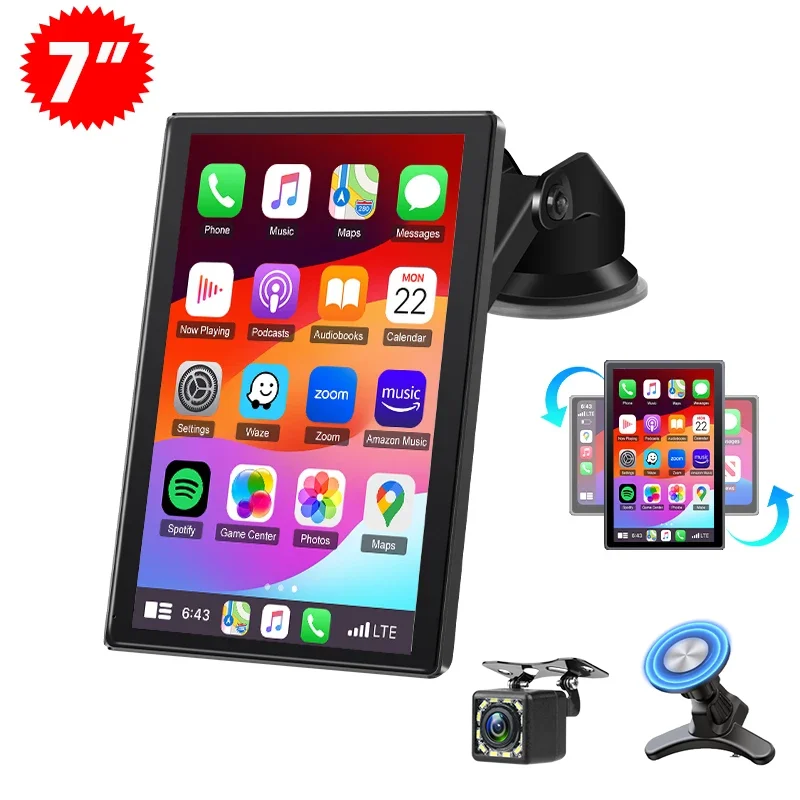
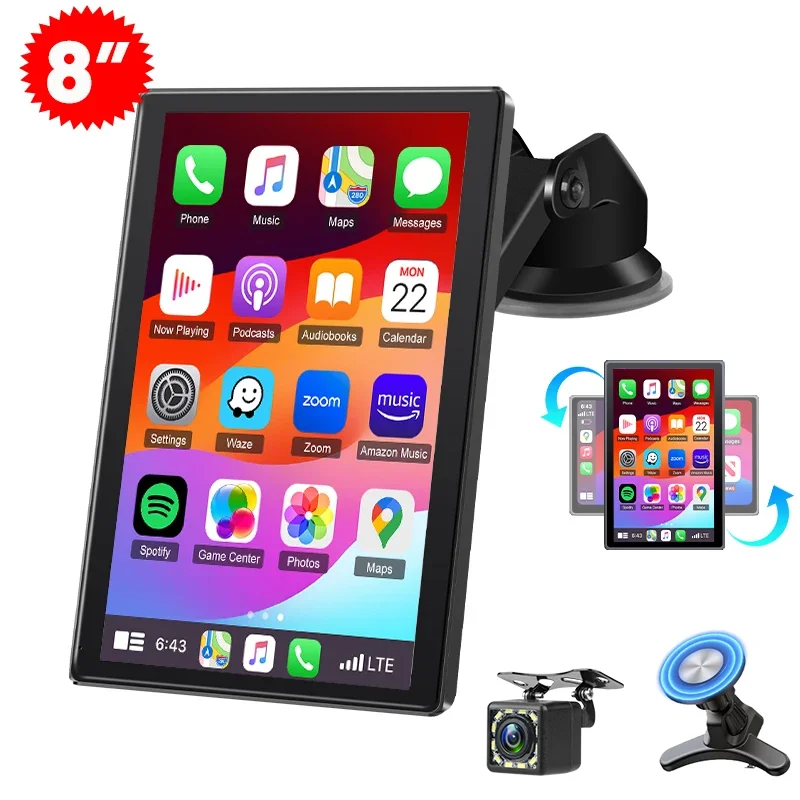
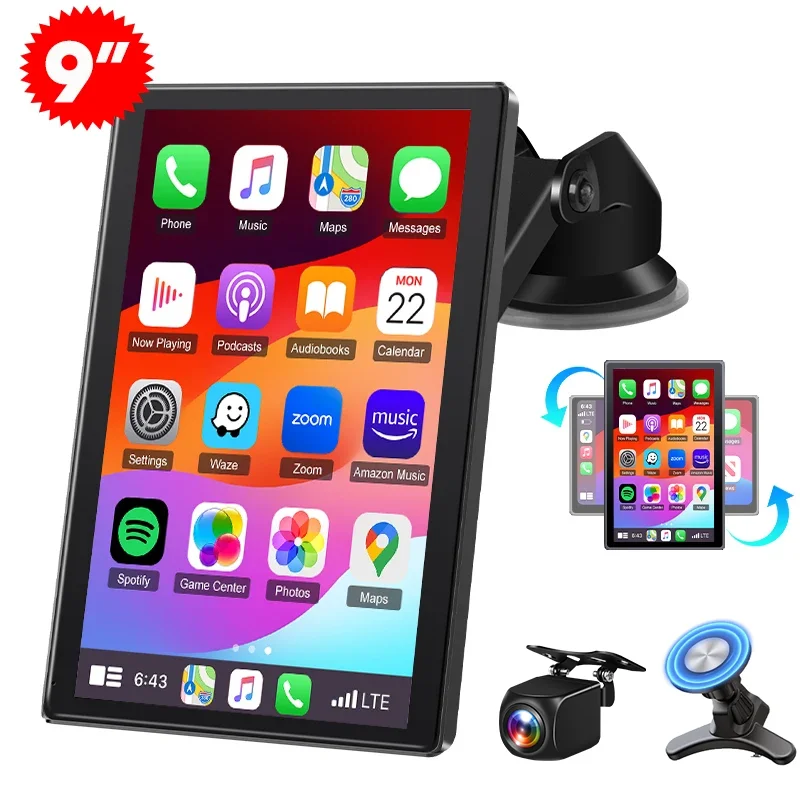
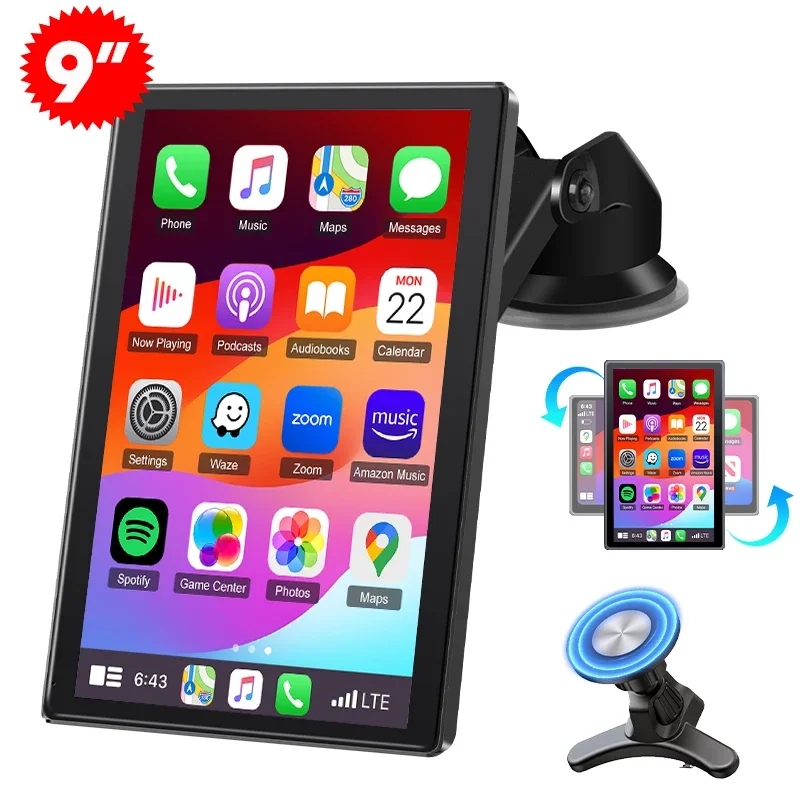
- Consider the screen size (7, 8, or 9-inch) that best fits your vehicle's dashboard and your viewing preference before purchase.
9. Warranty and Support
For warranty information, technical support, or service inquiries, please refer to the seller's official website or contact their customer service directly. Keep your purchase receipt as proof of purchase for any warranty claims.
A detailed user manual in PDF format is available for download. You can access it via the following link: User Manual (PDF)