
Product Overview
The SOYTO SY-G50 Wired Cat Ear Gaming Headset is designed for an immersive gaming experience, featuring a noise-cancelling microphone, LED lighting, and comfortable ear cushions. It is compatible with various devices including PCs, laptops, and gaming consoles.

Figure 1: SOYTO SY-G50 Pink Cat Ear Gaming Headset
The headset offers multiple stylish colorways to match your personal aesthetic.

Figure 2: Available headset colors
Setup Instructions
Please follow the instructions below to connect your headset to your device.
3.5mm 4-Pole (1 Plug) + USB Headset Connection
- Applicable to 3.5mm 4-pole single plug audio devices such as laptops, tablet PCs, mobile phones, PS4/5, Nintendo Switch, etc.
- For desktop computers with separate microphone and audio jacks, a 1-to-2 adapter cable (extra purchase) is required.
- The USB connection is solely for LED lighting and does not affect the microphone or sound functionality. Headsets without LED lighting do not include a USB connector.
- The headset features a flywheel volume control and a one-key microphone mute switch.
- When using with a desktop computer and an adapter: Insert the headset's 3.5mm plug into the adapter's jack. Connect the adapter's red microphone plug to the computer's microphone port (usually red or pink, or marked with a microphone icon). Connect the adapter's black audio plug to the computer's audio output port (usually green, or marked with a headphone icon).

Figure 3: Headset dimensions and connection types (Note: The image provided in the OCR for wiring diagrams is not directly embeddable as a separate URL, but its content is described in the text.)
USB Headset Connection
- Applicable to USB interface audio devices such as laptops, desktop computers, PS4/5 consoles, etc.
3.5mm 3-Pole (2 Plug) + USB Headset Connection
- Applicable to 3.5mm triple dual plug audio devices such as desktop computers.
- For devices like laptops, PS4/5, or Nintendo that require a single 3.5mm jack for both audio and mic, a 2-to-1 adapter cable (extra purchase) may be needed.
- The headset features a flywheel volume control.
- The microphone plug (with microphone pattern) must be plugged into the device's microphone interface, and the audio plug (with audio pattern) into the audio interface. For desktop PCs, the front panel microphone interface has a mic icon, and the audio interface has a headphone icon. On the rear panel, the microphone interface is typically red or pink, and the audio interface is green.
- The USB connection is solely for LED lighting and does not affect the microphone or sound functionality. Headsets without LED lighting do not include a USB connector.
Operating Instructions
- Volume Control: Adjust the audio volume using the integrated flywheel control located on the headset.
- Microphone Mute: Use the one-key switch to quickly mute or unmute the microphone.
- LED Lighting: The headset's LED lights are powered via the USB connection. Ensure the USB cable is connected to an active USB port for the lights to function.
- Noise-Cancelling Microphone: The 360° omnidirectional hose microphone features ENC (Environmental Noise Cancellation) technology to provide clear voice communication by suppressing background noise.

Figure 4: ENC Noise Cancelling Microphone

Figure 5: Key features of the SY-G50 headset
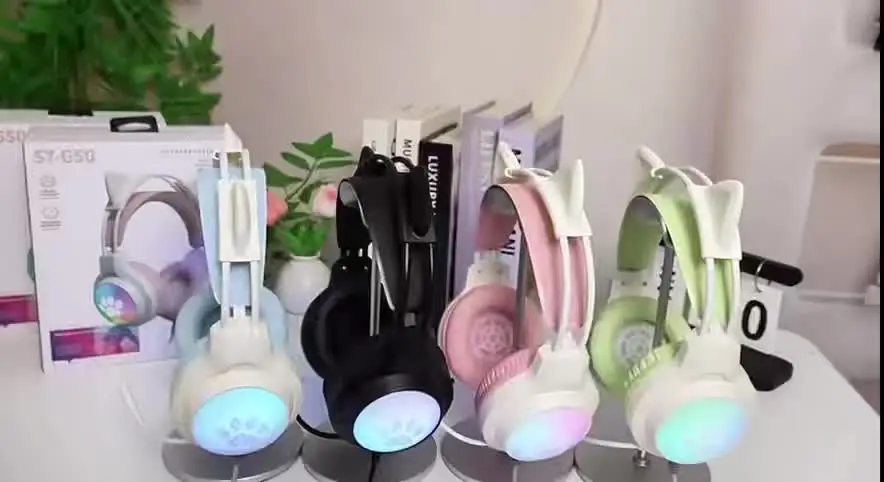
Video 1: Product showcase of the SOYTO SY-G50 headset in various colors.
Maintenance
- Keep the headset dry and away from extreme temperatures.
- Clean the ear cushions and headband with a soft, dry cloth.
- Avoid exposing the headset to liquids or excessive moisture.
- Store the headset in a safe place to prevent physical damage to the cables or components.
Troubleshooting
General Issues
- No Sound / Microphone Not Working:
- Ensure all 3.5mm plugs (audio and mic, if applicable) are fully and correctly inserted into their respective ports or adapter.
- Check your device's audio settings to ensure the headset is selected as the input/output device.
- Verify the headset's volume control is not at minimum and the microphone is not muted.
- If using an adapter, ensure it is functioning correctly.
- Inspect the cables for any visible damage.
- LED Lights Not Working:
- Ensure the USB cable is securely connected to an active USB port on your device.
- Confirm that your headset model includes LED lighting (some versions may not).
- Intermittent Audio/Mic:
- Check for loose connections. Gently wiggle the plugs to see if the connection stabilizes.
- Try connecting the headset to a different device to determine if the issue is with the headset or the original device's port.
FCC Compliance Warning
This equipment has been tested and found to comply with the limits for a Class B digital device, pursuant to Part 15 of the FCC Rules. These limits are designed to provide reasonable protection against harmful interference in a residential installation. This equipment generates, uses, and can radiate radio frequency energy and, if not installed and used in accordance with the instructions, may cause harmful interference to radio communications.
However, there is no guarantee that interference will not occur in a particular installation. If this equipment does cause harmful interference to radio or television reception, which can be determined by turning the equipment off and on, the user is encouraged to try to correct the interference by one or more of the following measures:
- Reorient or relocate the receiving antenna.
- Increase the separation between the equipment and receiver.
- Connect the equipment into an outlet on a circuit different from that to which the receiver is connected.
- Consult the dealer or an experienced radio/TV technician for help.
Important:
Change or modifications not expressly approved by the manufacturer responsible for compliance could void the user's authority to operate the equipment.
Specifications
| Feature | Detail |
|---|---|
| Brand Name | Soyto |
| Model | SY-G50 |
| Material | ABS |
| Category | Earphones & Headphones |
| Style | Wired headphone & headset |
| Origin | Mainland China |
| Certification | CE, FCC, RoHS |
| Weight | 280g |
| Width | 100mm |
| Depth | 190mm |
| Height | 220mm |
| Vocalism Principle | Dynamic |
| Number Of Drivers | 2 |
| Driver Diameter | 40mm |
| Frequency Response Range | 20 - 20000Hz |
| Sensitivity | 110dB |
| Impedance Range | up to 32 Ω |
| Total Harmonic Distortion | 0.1% |
| Sound Isolating | Yes |
| Active Noise-Cancellation | Yes |
| Headphone Pads Material | Memory Foam |
| Earpiece/Earmuff Material | Protein Cotton |
| Magnet Type | Other |
| With Microphone | Yes |
| ENC Noise Cancelling Microphone | Yes |
| Communication | Wired |
| Connectors | 3.5 MM, USB (for LED) |
| Is wireless | No |
| Line Length | 2m |
| Plug Type | Line Type |
| Headphone Cable Material | Braided Cable |
| Volume Control | Yes |
| Control Button | Yes |
| Voice assistant built-in | No |
| Waterproof | No |
| LED Light Up | Yes |
| Function / Usage | For Internet Bar, for Video Game, For Mobile Phone, HiFi Headphone, For Office, For DJ, For Study, Gaming & Multimedia Headphone |
Warranty and Support
For detailed warranty information and support, please refer to the official product documentation.
A comprehensive user manual in PDF format is available for download: Download User Manual (PDF)
For further assistance, please contact the seller or manufacturer's customer support.
User Tips
- Ensure Secure Connections: If you experience intermittent audio or microphone issues, double-check that all cables are firmly plugged into their respective ports. Sometimes a slight wiggle can indicate a loose connection.
- Verify Audio Settings: If the headset lights up but you hear no sound or the microphone isn't picking up, check your device's sound settings to confirm the headset is selected as the primary audio output and input device.
- Adapter Use: For desktop PCs with separate audio and microphone jacks, using the correct 1-to-2 adapter is crucial for full functionality. Ensure the adapter's plugs are correctly matched to your PC's ports.