
Product Overview
The VIVO GPS Tracking Waterproof Smart Watch is designed for children, offering features such as two-way calling, GPS tracking, a built-in camera, and SOS emergency calls. This manual provides instructions for setup, operation, maintenance, and troubleshooting to ensure optimal use of your device.

Figure 1: VIVO GPS Tracking Waterproof Smart Watch (Blue and Pink variants)
1. Setup
1.1 Package Contents
- VIVO Smart Watch
- Charging Cable
- User Manual (this document)
1.2 Initial Charging
Before first use, fully charge the watch. Connect the magnetic charging cable to the magnetic point on the back of the watch and plug the USB end into a standard 5V USB power adapter (not included) or a computer USB port. The watch will indicate charging status on its screen.

Figure 2: Watch Components and Charging Direction. Ensure correct SIM card size is used (indicated by green checkmark).
1.3 SIM Card Installation
- Ensure the watch is powered off.
- Locate the SIM card slot on the side of the watch (refer to Figure 2).
- Carefully open the SIM card slot cover.
- Insert a compatible 4G Nano-SIM card into the slot with the metal contacts facing up, ensuring it is correctly oriented.
- Close the SIM card slot cover securely to maintain water resistance.
Note: The watch supports 4G network mode. Ensure your SIM card is activated and has a data plan for full functionality.
1.4 Power On/Off
- To Power On: Press and hold the Power/SOS Key (refer to Figure 2) for a few seconds until the screen lights up.
- To Power Off: Press and hold the Power/SOS Key for a few seconds. A power-off option will appear on the screen; select it to shut down.
1.5 Language Settings
You can change the watch's language through the settings menu.
- From the watch face, swipe to access the main menu.
- Tap on the 'Settings' icon.
- Scroll down and select 'Language'.
- Choose your preferred language from the list (e.g., English, Spanish, Arabic, etc.).
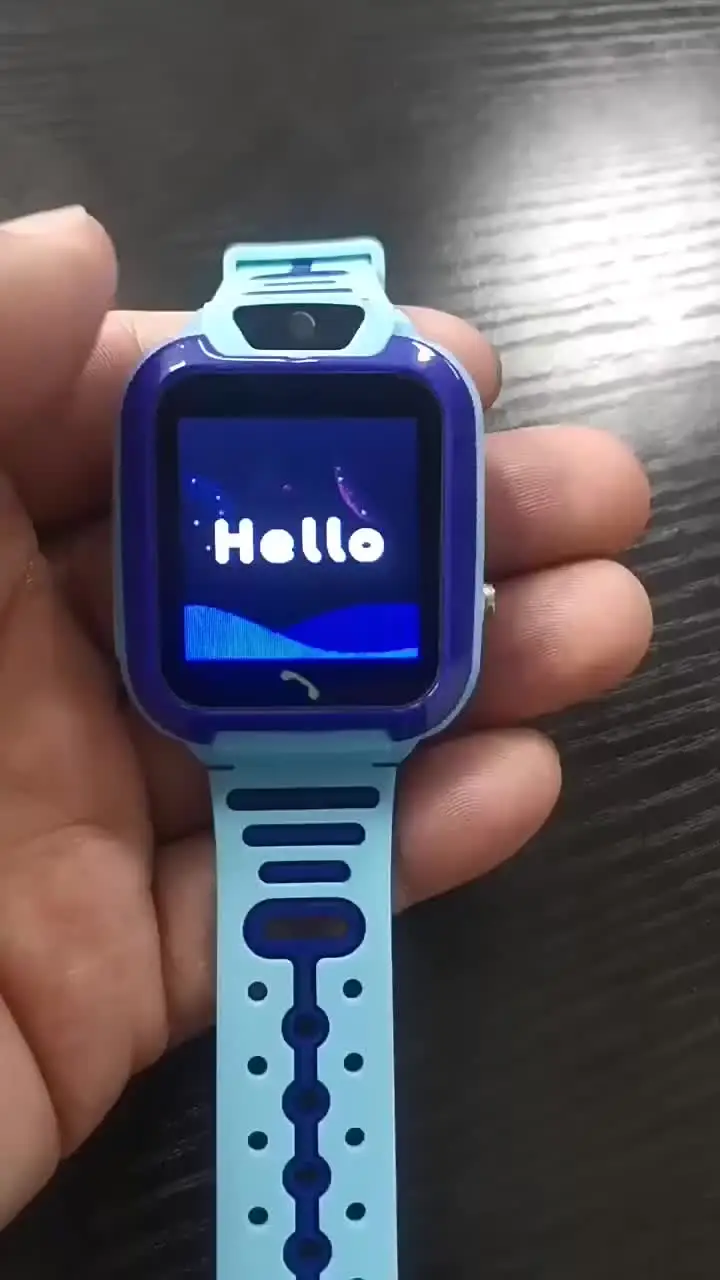
Video 1: VIVO Smart Watch User Interface Demonstration, including language selection.
2. Operating Instructions
2.1 Basic Navigation
- Swipe Left/Right: Navigate between different app screens or menus.
- Tap: Select an icon or option.
- Return Key: Press the Return Key (refer to Figure 2) to go back to the previous screen or watch face.
2.2 Two-Way Calling
The watch supports two-way communication, allowing pre-approved contacts to call the watch and the watch to call pre-approved contacts.
- Ensure a SIM card is installed and has network coverage.
- Access the 'Phone' or 'Contacts' app from the main menu.
- Select a contact to dial or use the dial pad to enter a number.
- To answer an incoming call, tap the green answer icon on the screen.

Figure 3: Two-Way Calling in action.
2.3 Camera Functions
The watch features a built-in camera for taking photos.
- Selfie with Watch: Open the 'Camera' app and tap the shutter button to take a photo.
- Remote Photos: (Requires companion app on parent's smartphone, if available) Parents can remotely trigger the watch's camera to take photos, providing supplementary location information.

Figure 4: Taking photos with the VIVO Smart Watch.
2.4 SOS Emergency Call
In an emergency, the watch can initiate an SOS call to pre-set guardians.
- Press and hold the Power/SOS Key (refer to Figure 2) for a few seconds.
- The watch will automatically dial the three guardians in turn and inform them via text message.

Figure 5: One-click SOS Emergency Call for Help.
2.5 GPS Tracking
The watch is equipped with GPS to help track the wearer's location. This feature typically requires a companion app installed on a parent's smartphone, which connects to the watch via the SIM card's data connection.
2.6 Other Functions
The watch includes various other applications accessible from the main menu:
- Alarm Clock: Set alarms for reminders.
- Math Game: An educational game.
- Stopwatch: For timing activities.
- Calculator: Basic arithmetic functions.
- Gallery: View photos taken with the watch.
- Chat: (If supported by companion app) For messaging.
- QR Code: For pairing or other functions.
3. Maintenance
3.1 Water Resistance (IP67)
The VIVO Smart Watch is IP67 waterproof. This means it is protected from dust and can withstand immersion in water up to 1 meter for up to 30 minutes. It is suitable for splashes, rain, and brief accidental immersion. However, it is not recommended for swimming, bathing, or prolonged water activities, as water pressure or chemical exposure (e.g., chlorine) can compromise the seals.

Figure 6: IP67 Waterproof rating for daily use.
3.2 Charging Guidelines
- Always use the provided charging cable.
- Use a standard 5V/1A USB power adapter. Avoid fast chargers (e.g., 9V) as they can damage the watch.
- Ensure the charging contacts on the watch and cable are clean and dry before charging.
3.3 Battery Care
To prolong battery life:
- Avoid extreme temperatures.
- If the watch will not be used for an extended period, charge it to about 50% and store it in a cool, dry place. Recharge it every three months to prevent deep discharge.
4. Troubleshooting
- Watch not turning on: Ensure the watch is fully charged. Try pressing and holding the Power/SOS Key for a longer duration (10-15 seconds).
- No SIM card detected: Power off the watch, re-insert the SIM card correctly, and power it back on. Ensure the SIM card is active and compatible (4G Nano-SIM).
- Cannot make/receive calls: Check SIM card installation, network signal strength, and ensure contacts are properly saved. Verify the SIM card has an active calling plan.
- GPS not updating: Ensure the watch has a clear view of the sky and the SIM card has an active data plan. Check settings in the companion app.
- Screen unresponsive: Try restarting the watch. If the issue persists, ensure the screen is clean and dry.
5. Specifications
| Feature | Specification |
|---|---|
| Brand Name | VIVO |
| Bluetooth-compatible Version | 5.3 |
| Category | Smart Watches |
| Application Age Group | Child |
| Screen Shape | SQUARE |
| Screen Material | LED |
| Waterproof Grade | Professional Waterproof (IP67) |
| SIM Card Available | Yes |
| GPS | Yes |
| Network Mode | 4G |
| Rear Camera | 13mp |
| ROM | 32 GB |
| RAM | > 2 GB |
| System Compatibility | Android Wear, iOS |
| Compatibility | All Compatible |
| Language Support | English, Russian, Spanish, Polish, Portuguese, Turkish, Italian, French, German, Norwegian, Korean, Japanese, Ukrainian, Hebrew, Dutch, Arabic, Indonesian, Greek |
| Functions | Call Reminder, Answer Call, Dial Call, 24 hour instruction, Alarm Clock, DIVER, Noctilucent |
| Battery Capacity | 300-450mAh |
| Battery Life | 12h (typical usage) |
| Origin | Mainland China |
| Certification | CE |
6. User Tips
- SOS Button: The watch features a dedicated SOS button (Power/SOS Key) for emergencies. Ensure emergency contacts are set up in the companion app.
- Calling & Messaging: Yes, the watch supports two-way calling. Messaging functionality typically relies on a companion app for parents to send messages to the watch.
- Language Support: The watch supports a wide range of languages, including Arabic. You can change this in the settings menu.
- SIM Card: A 4G Nano-SIM card is required for calling, GPS tracking, and other network-dependent features.
- Power Off: To turn off the watch, press and hold the Power/SOS Key until the power-off option appears on the screen, then confirm.
- Water Use: While IP67 rated, the watch is best suited for splashes and rain. Avoid submerging it for long periods, swimming, or bathing to prevent damage.
7. Warranty and Support
This product comes with a standard manufacturer's warranty. For warranty claims, technical support, or service inquiries, please contact the seller or refer to the warranty information provided at the time of purchase. Keep your proof of purchase for warranty validation.