
Introduction
This manual provides detailed instructions for setting up, operating, and maintaining your Blurams Lumi Security Camera A31C. This indoor camera offers 4MP resolution, one-click call functionality, two-way audio, and supports both 2.4G and 5G WiFi for comprehensive home monitoring.
Package Contents
- 1 × Blurams Lumi Security Camera
- 1 × USB cable & Power adapter
- 1 × Screw accessory pack
- 1 × Plotting sheet
- 1 × User Manual (this document)
Product Overview
Familiarize yourself with the components of your Blurams Lumi Security Camera.

Figure 1: Front and Side View of Camera Components
- Spotlight: Provides illumination for enhanced night vision.
- Lens: Captures video footage.
- Microphone: Records audio and enables two-way communication.
- Micro SD card slot: For local storage of recordings.
- Indicator light: Displays camera status.
- Reset and Call Button: Used for device reset and one-touch calls.

Figure 2: Bottom View of Camera Components
- Charging Port: Connects to the power adapter.
- Speaker: Outputs audio for two-way communication and alerts.
Setup Guide
1. Powering Up Your Camera
Connect the provided USB cable to the camera's charging port and plug the power adapter into a power outlet. For optimal performance, always use the original items included in the package.

Figure 3: Quick and Easy Setup Steps
2. Downloading the Blurams App
The Blurams app is essential for controlling and monitoring your camera. You can download it by:
- Searching for "blurams" in the App Store (iOS) or Google Play Store (Android).
- Alternatively, scan the QR code below using a QR scanner app on your smartphone to directly install the app.

Figure 4: Blurams App QR Code
3. Adding Your Camera to the App
- Open the Blurams App.
- Sign up for a free Blurams account or log in if you already have one.
- On the home page, tap the "+" icon located in the top right corner.
- Select your camera model (Lumi Security Camera A31C) from the list.
- Follow the on-screen instructions within the app to complete the camera setup and connection process.
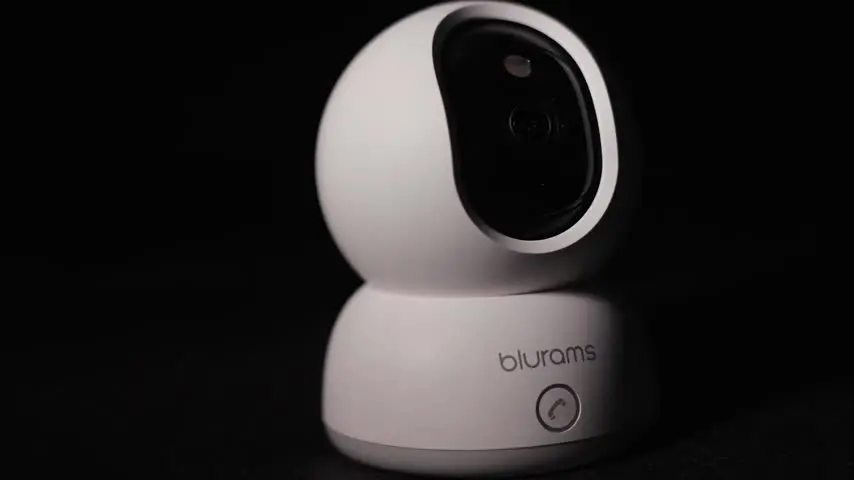
Video 1: Demonstrates the setup process and two-way communication feature of the Blurams Lumi Security Camera.
Operation
Indicator Light Status
- Steady Red Light: The camera is connected to the power supply and is starting up.
- Red Light Flashing: The system has started successfully and is waiting for Wi-Fi configuration.
- White Light Flashes: The QR code has been recognized, and the camera is attempting to connect to Wi-Fi.
- Steady White Light: The camera has successfully connected to the server.
Button Settings
- One-Touch Call: Short press the button on the camera.
- Reset Device: Long press the button for more than 6 seconds.
Web Interface Access
You can access your camera's live feed and settings via a web browser (Chrome, Firefox, Edge) after initial setup with the mobile app.
- Open your web browser and navigate to: https://client.blurams.com/login
- Enter your registered email address, password, and any required verification code.
- Click on your camera from the dashboard to view the live image.
- To change settings or view recordings, click the gear symbol in the top right corner of the camera's interface.
Key Features
- 4MP High Definition: Enjoy clear and detailed video monitoring.
- 360° Pan & Tilt: Remotely adjust the camera's viewing angle to cover all areas of your room.

Figure 5: Real-time Remote Viewing from All Angles
- Two-Way Audio: Communicate with family members or pets directly through the camera using the app.
Figure 6: Two-Way Audio Communication with a Baby
Figure 7: Two-Way Audio for Remote Interaction
- Smart Tracking & Motion Detection: The camera can automatically detect and track movement, sending you instant notifications. It supports various AI functions including pet detection and package detection.

Figure 8: Motion Tracking Detection

Figure 9: Person Detection Notification

Figure 10: App Interface with Various Detection Types
- Color Night Vision: The camera provides clear color night vision, enhanced by a spotlight, to monitor in low-light conditions.

Figure 11: Color Night Vision with Spotlight

Figure 12: Night Vision in Action
- One-Touch Call: Allows for instant communication with a single press of the camera's call button.

Figure 13: One-Touch Call Feature
- Privacy Mode: Configure the camera to turn off or stop streaming during specific times for privacy.

Figure 14: Privacy Mode Settings
- Smart Home Integration: Compatible with popular smart home platforms like Alexa, Google Assistant, and IFTTT.

Figure 15: Smart Home Integration
Maintenance
- Cleaning: Use a soft, dry cloth to clean the camera lens and body. Avoid using harsh chemicals or abrasive cleaners.
- Environmental Conditions: Do not expose the camera to extreme temperatures (outside -10°C to 50°C), strong direct sunlight, or excessively wet environments.
- Power Supply: Always use the provided power adapter and USB cable. If using a third-party charger, ensure it provides DC 5V/1A output and is CE approved.
- Firmware Updates: Regularly check the Blurams app for firmware updates to ensure optimal performance and security.
Troubleshooting
If you encounter any issues, please refer to the following common solutions:
- Camera not powering on: Ensure the power adapter is securely plugged into both the camera and a working power outlet. Use the original power adapter.
- Cannot connect to Wi-Fi (Red Light Flashing):
- Ensure your Wi-Fi network is 2.4GHz or 5GHz (the camera supports both).
- Verify your Wi-Fi password is correct.
- Move the camera closer to your Wi-Fi router.
- Reset the camera by long-pressing the Reset button for more than 6 seconds, then try the setup process again.
- QR code not recognized (White Light Flashes):
- Ensure your phone screen is clean and bright.
- Adjust the distance between your phone and the camera lens.
- Avoid glare on your phone screen.
- No live image/offline: Check your internet connection. Restart the camera and your router.
- Poor video quality: Ensure a stable Wi-Fi connection. Check for obstructions around the camera lens.
- Two-way audio issues: Ensure microphone and speaker permissions are granted to the app on your phone. Check camera volume settings.
For further assistance, please refer to the "Mine > Help And Feedback" section within the Blurams app or contact support at support@blurams.com.
Specifications
| Feature | Specification |
|---|---|
| Brand Name | blurams |
| Model Number | A31C |
| High Definition | 3.0 Megapixels (4MP) |
| Lens (mm) | 4mm |
| Viewing Angle | 360° |
| Movement Range (Pan) | 0°-360° |
| Movement Range (Tilt) | 0°-360° |
| Connectivity | WIFI (2.4GHz & 5GHz) |
| Power Supply | Normal, Mains Electricity |
| Power Supply (V) | DC 5V |
| Power Consumption (W) | 5W |
| Operating Temperature | -10°C to 60°C |
| Color Night Vision | Yes |
| IR Distance (m) | 8M |
| Audio Output | Two Way Audio |
| Video Compression Format | H.265 |
| AI Functions | Smart Tracking, pet detection, package detection |
| Alarm Type | telefon Alarm, Local Alarm, FTP Photo, Email Photo |
| Supported Mobile Systems | Symbian, Windows Mobile, Android, iOS |
| Supported Operating Systems | Windows 7, macOS, Windows 10 |
| Installation | Normal, Wall Mounted |
| Shell Material | Plastic |
| Color | WHITE |
| Certifications | CE, FCC, RoHS, UL, WEEE |
| Product Dimensions (approx.) | Length: 17cm, Width: 20cm, Height: 10cm |
| Product Weight (approx.) | 0.8 kg |
RF Exposure Information: The Maximum Permissible Exposure (MPE) level has been calculated based on a distance of d=20cm between the device and the human body. To maintain compliance with RF exposure requirements, use the product while maintaining a 20cm distance between the device and your body.
User Tips
- Ensure a stable Wi-Fi connection for optimal performance and real-time monitoring.
- Regularly check the Blurams app for firmware updates to access new features and improvements.
- When setting up, ensure the camera is placed within a good range of your Wi-Fi router for consistent connectivity.
- Utilize the two-way audio feature to check in on family or pets, or to deter unwanted visitors.
- For privacy, remember to use the device on/off and scheduled recording features available in the app.
Warranty and Support
Blurams strives to provide high-quality products and user experience. If you have any questions, feedback, or require support, please use the following resources:
- In-App Support: Navigate to "Mine > Help And Feedback" within the Blurams mobile application.
- Email Support: Contact us directly at support@blurams.com.
- Website: Visit www.blurams.com for more information and resources.
Compliance Information
FCC Statement: This equipment has been tested and found to comply with the limits for a Class B digital device, pursuant to part 15 of the FCC rules. Operation is subject to the following two conditions: (1) This device may not cause harmful interference, and (2) This device must accept any interference received, including interference that may cause undesired operation. Any changes or modifications not expressly approved by the party responsible for compliance could void the user's authority to operate this equipment. For full details, refer to the FCC Statement in the original PDF manual.
EU Compliance: This product can be used across EU member states.
WEEE Directive: This product and its accessories are recyclable. Please dispose of them responsibly at designated collection points. Prioritize repair or donation of your device.

Figure 16: Compliance and Recycling Information