
1. Introduction
The MINI HDMI to AV Converter is designed to convert high-definition HDMI signals into standard-definition analog audio and video (AV/RCA) signals. This allows modern HDMI-enabled devices to connect to older televisions, VCRs, or projectors that only support AV inputs. It supports upscaling to 720P or 1080P resolution for enhanced picture clarity and ensures synchronous audio and video transmission without delay.
Key Features:
- Converts HDMI input to AV (CVBS + L/R) output.
- Supports 720P or 1080P high-definition output resolution.
- Synchronous audio and video transmission.
- Compact, portable design with a frosted texture shell for efficient heat dissipation.
- USB-powered for versatile power supply options (USB adapter, computer USB port).
- Plug-and-play operation, no driver installation required.
2. Package Contents
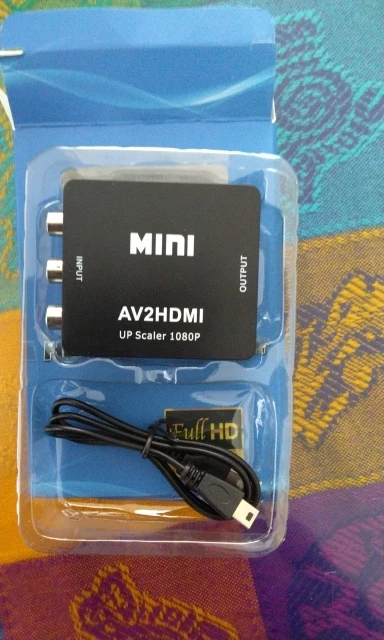
- MINI HDMI to AV Converter Unit
- USB Power Cable
- User Manual (this document)

3. Device Layout and Interfaces
Familiarize yourself with the converter's input and output ports before setup.
Interface Descriptions:
- AV Input Interfaces (Yellow, White, Red): RCA connectors for CVBS video (Yellow), Left channel audio (White), and Right channel audio (Red). Connect these to your AV source device (e.g., DVD player, VCR).
- HDMI Output Interface: Standard HDMI port for connecting to your high-definition display device (e.g., HDTV, monitor).
- USB Power Interface: Mini-USB port for connecting the provided USB power cable to a power source.
- Resolution Switch (720P/1080P): A toggle switch to select the desired output resolution (720P or 1080P) based on your display's capabilities.
4. Setup and Connection
Follow these steps to connect your devices to the HDMI to AV Converter:
- Connect AV Source: Use an AV (RCA) cable (not included) to connect the video/audio output ports of your AV source device (e.g., DVD, VCR, game console) to the corresponding AV input ports on the converter (Yellow to Yellow, White to White, Red to Red).
- Connect Display: Use an HDMI cable (not included) to connect the HDMI output port of the converter to the HDMI input port on your display device (e.g., HDTV, monitor).
- Connect Power: Connect one end of the provided USB power cable to the converter's USB Power Interface and the other end to a suitable USB power source (e.g., USB wall adapter, computer USB port, TV USB port).
- Set Resolution: Adjust the resolution switch on the converter to either 720P or 1080P, depending on the resolution supported by your display device.
- Power On: Turn on your AV source device and your display device. The converter will automatically begin the signal conversion process.
- Select Input: On your display device, select the correct HDMI input source to view the content from your AV device.
5. Operating Instructions
Once all connections are made and devices are powered on, the converter operates automatically. Ensure the resolution switch is set correctly for your display.
- Resolution Selection: Use the 720P/1080P switch to match your display's optimal resolution. If you experience issues, try switching to the other resolution.
- Audio and Video Synchronization: The converter is designed to output synchronized audio and video signals to your HDMI display.
6. Troubleshooting
If you encounter issues, please refer to the following common solutions:
- No Picture or Distorted Picture:
- Ensure all AV and HDMI cables are securely connected to their respective ports.
- Verify that the USB power cable is connected and the converter is receiving power.
- Try switching the resolution mode (720P/1080P) on the converter. Your display might not support the selected resolution.
- Confirm that your display is set to the correct HDMI input source.
- Test with different cables if possible, to rule out faulty cables.
- No Audio:
- Check the white and red RCA audio cables are correctly connected.
- Ensure the volume on your display or audio system is turned up and not muted.
- Converter Not Working:
- Ensure the power source for the USB cable is functional. Try a different USB port or power adapter.
- Remember, this converter only supports AV to HDMI conversion, not the reverse (HDMI to AV).
7. Specifications
| Feature | Description |
|---|---|
| Input Ports | 1x RCA (Yellow, White, Red) for CVBS video and L/R audio |
| Output Ports | 1x HDMI |
| HDMI Output Resolution | 720P / 1080P (switchable) |
| Power Supply | USB 5V (via Mini-USB port) |
| Application | Connects AV devices to Computers, Monitors, HDTVs |
| Dimensions (Approx.) | 15 cm (L) x 11 cm (W) x 3 cm (H) |
| Weight (Approx.) | 0.066 kg |
| Origin | Mainland China |
8. Maintenance
- Cleaning: Use a soft, dry cloth to clean the converter. Do not use liquid cleaners or aerosols.
- Environment: Avoid exposing the device to high temperatures, humidity, or strong magnetic fields.
- Handling: Do not drop, disassemble, or modify the product. Unauthorized modifications can cause damage and void any potential warranty.
- Connections: Periodically check that all cable connections are secure to prevent signal interruptions.
9. User Tips
- Always ensure your TV or monitor is set to the correct HDMI input channel after connecting the converter.
- If the picture quality is not as expected, double-check the resolution switch on the converter and try the alternative setting.
- For best results, use high-quality AV and HDMI cables.
10. Warranty and Support
For warranty information, please refer to the terms provided by your retailer at the time of purchase. If you require technical support or have further questions, please contact the seller or the point of purchase.
This user manual provides essential information for the safe and effective use of your MINI HDMI to AV Converter. Please retain it for future reference.