
Introduction
The Khadas xPlay (referred to as "xPlay") is a lightweight, portable display designed for on-the-go productivity and entertainment. With its built-in 4150mAh battery, microphone, camera, speakers, and adjustable stand, xPlay is ready for mobile work, video calls, and more—anytime, anywhere.
It connects seamlessly with Khadas Mind series computers via Mind Link, and can be paired with the xPlay Keyboard for smooth typing and touch control. Beyond Mind integration, xPlay also supports USB-C expansion, working with laptops, desktops, and smartphones as either a main or extra screen to boost productivity.
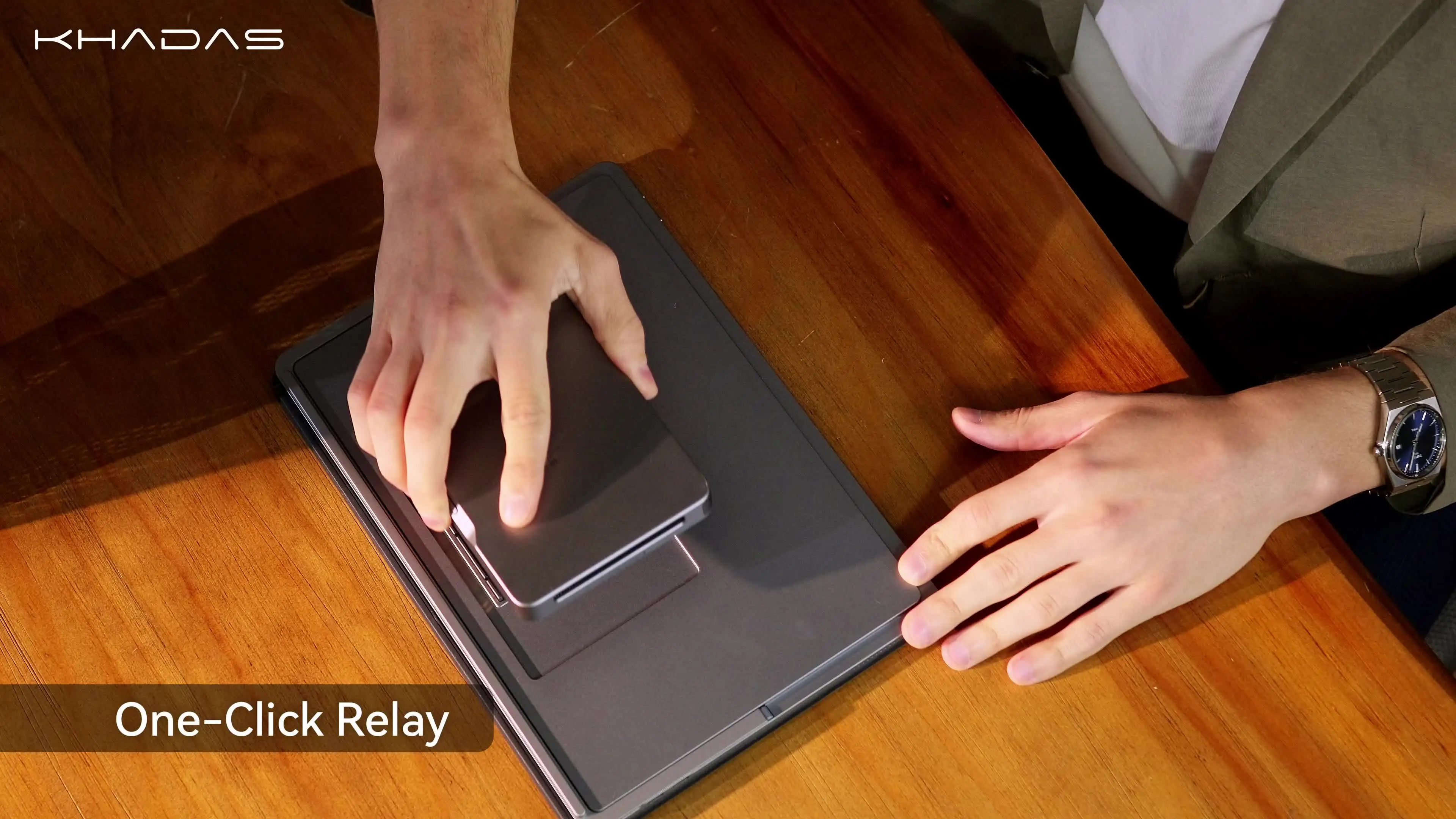
Video: Overview of the Khadas xPlay Portable Monitor, demonstrating its features like one-click relay, adjustable stand, and integrated mobility.
Safety Guidelines
To ensure the best experience and avoid potential injury or damage, please read and follow these safety guidelines carefully:
- Use this product in environments between 10°C to 35°C. Store the product and accessories between -10°C to 45°C. Extreme temperatures may cause malfunction or damage.
- Do not use unapproved or incompatible power adapters, chargers, or batteries. Doing so may lead to fire, explosion, or other hazards.
- Always power the device using a charger or adapter with legitimate safety certification.
- If not in use for an extended period, disconnect the charger and unplug the power cord.
- The screen is fragile. Avoid impact, sharp objects, or drops from height to prevent cracks or breakage.
- Do not charge in damp environments (such as bathrooms or near showers/bathtubs). Avoid plugging or unplugging the charger with wet hands.
- The built-in battery is non-removable. Do not attempt to disassemble or replace it yourself, as this may damage the product or battery.
- Keep the device away from heat sources, direct sunlight, or open flames (such as heaters, ovens, stoves, water heaters, or fireplaces). Overheating may cause the battery to explode.
- Do not throw the battery into fire, dismantle, drop, crush, modify, or immerse it in liquid. Avoid puncturing it with sharp objects or allowing foreign materials inside.
- Dispose of this product (including the battery and accessories) in accordance with local regulations. Never treat the battery as household waste, as improper disposal may cause explosion or environmental harm.
Product Overview: Buttons & Ports
Familiarize yourself with the physical components of your xPlay portable monitor.
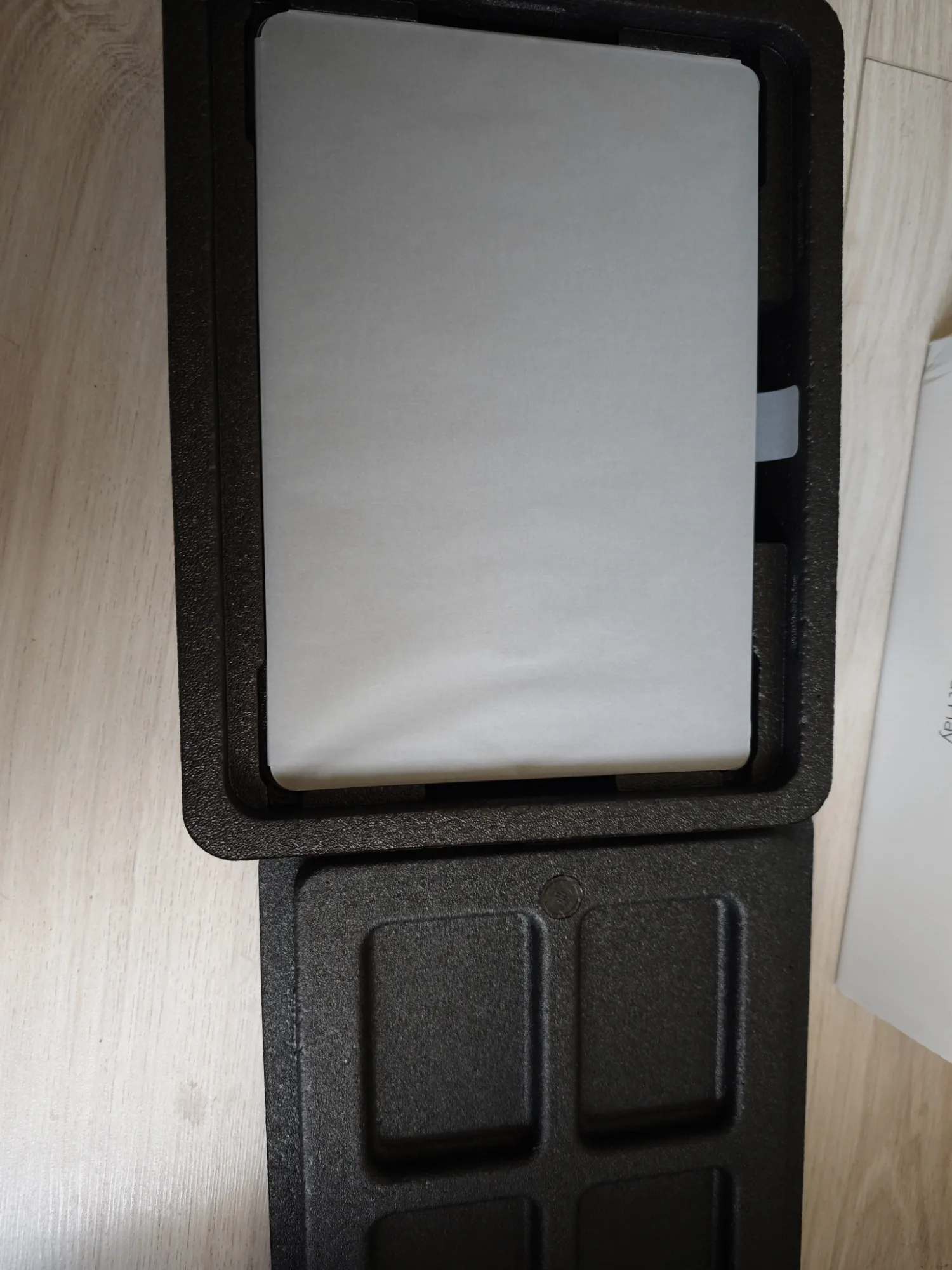
Image: Diagram illustrating the location of buttons and ports on the Khadas xPlay.
Button & Port Functions
| Icon/Port | Function | Description |
|---|---|---|
| ⏻ | Power Button | Press and hold for 1.5 seconds to power on/off. Short press for screen on/off. |
| + | Volume Up Button | Short press to increase volume. Long press for continuous increase. |
| - | Volume Down Button | Short press to decrease volume. Long press for continuous decrease. |
| ⏴ | USB-C Input Port | Connects to computers, laptops, or smartphones for video and audio transmission. Also powers xPlay and Mind (Khadas original adapter recommended). |
| ⏵ | USB-C Output Port | Connects to an external display for extended screens. Powers xPlay and Mind (Khadas original adapter recommended). Data transfer up to 5 Gbps. Power delivery up to 5V/3A. |
| ⌨ | Keyboard Port | Connects to the official xPlay Keyboard. |
| ⛜ | Mind Link Port | Dedicated port for connecting Mind series computers to transmit video and audio. Supports power sync (Mind powers on automatically when xPlay is powered on), force shutdown (hold power button for 10s to shut down both xPlay and Mind), and wake-up (wake Mind from sleep via xPlay power button or keyboard). |
Setup
Connecting to Mind via Mind Link
The xPlay is designed for seamless integration with Khadas Mind series computers (Mind 1, Mind 2, Mind 2s). It is not compatible with Mind 2 AI Maker Kit.
- Align the Mind's bottom Mind Link port with the Mind Link port on the back of xPlay.
- Gently snap it into place. The Mind will securely attach to the back of xPlay.
- Press and hold the xPlay power button for 1.5 seconds. xPlay will power on and automatically connect to Mind.
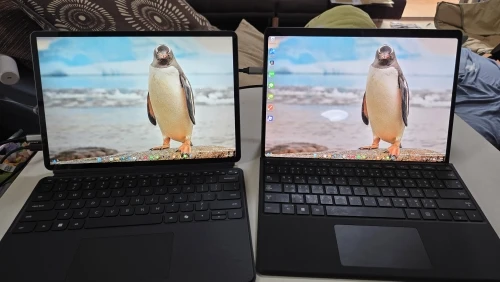
Image: Illustration of a Khadas Mind computer being attached to the xPlay via the Mind Link port.
Connecting to Third-party Devices via USB-C
The xPlay can also function as an external display for other devices with DP display output.
- Ensure your device (computer, laptop, smartphone) is powered on.
- Connect one end of a Thunderbolt 4 or USB4 data cable to the xPlay USB-C input port.
- Connect the other end of the data cable to your device's DP display output port.
- Press and hold the xPlay power button for 1.5 seconds. xPlay will power on and automatically connect.
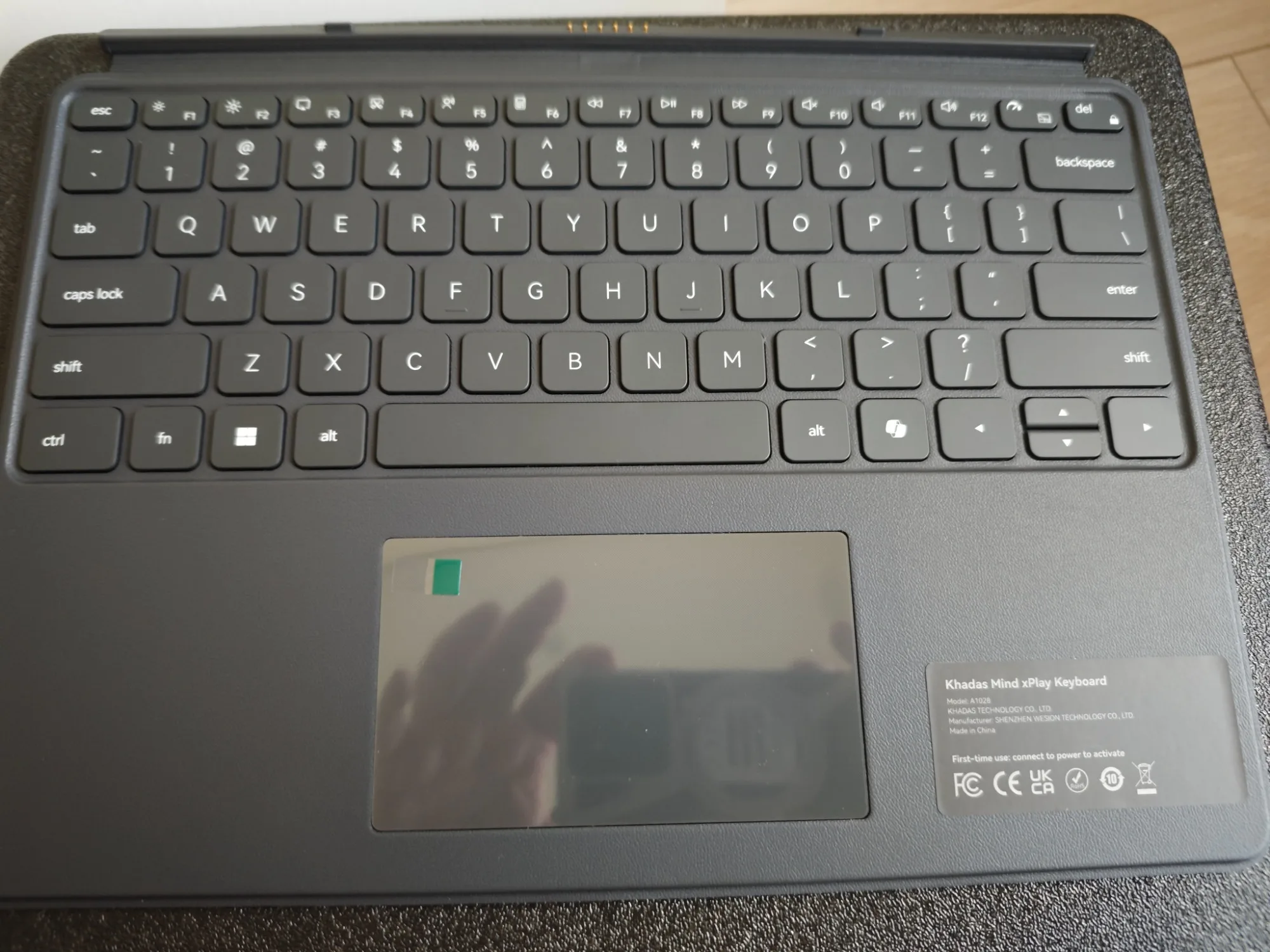
Image: Diagram showing how to connect the xPlay to various third-party devices like laptops, smartphones, and desktop computers using a USB-C cable.
Using with xPlay Keyboard
The official xPlay Keyboard (included in selected bundles or sold separately) provides keyboard input and a responsive touchpad. It is compatible with Mind 1, Mind 2, and Mind 2s, but not with Mind 2 AI Maker Kit.
- Align the keyboard connector with the keyboard port at the bottom of xPlay.
- Match the keyboard's pins with the mounting holes on the xPlay.
- Gently push in until it clicks into place. The keyboard will be firmly attached and ready to use.
- Adjust the xPlay's built-in stand (0°-120°) for a comfortable viewing angle.
Image: Diagram illustrating the magnetic attachment of the xPlay Keyboard to the portable display.
Operating Instructions
Fn Key Functions (xPlay Keyboard)
The xPlay Keyboard features Fn keys for quick access to various functions.
Image: Diagram detailing the functions of the Fn keys on the xPlay Keyboard, including brightness control, screen projection, volume, and custom keys.
Function Mode:
- Press a function key directly (e.g., F1) to activate its corresponding function (e.g., lower screen brightness).
Standard Mode:
- Hold the 'Fn' key while pressing a function key (e.g., Fn + F1) to activate the F1 key's standard function.
Custom Key:
- The Custom Key can be personalized via the Mind App. Functions include switching power modes (when connected to a Mind computer), creating shortcut combinations, or opening specific apps/files.
- The Copilot Key (if supported in your region) launches the Copilot AI Assistant. If not available, it defaults to Ctrl.
Touchpad (xPlay Keyboard)
The xPlay Keyboard includes a multi-gesture touchpad for precise mouse control and quick navigation gestures.
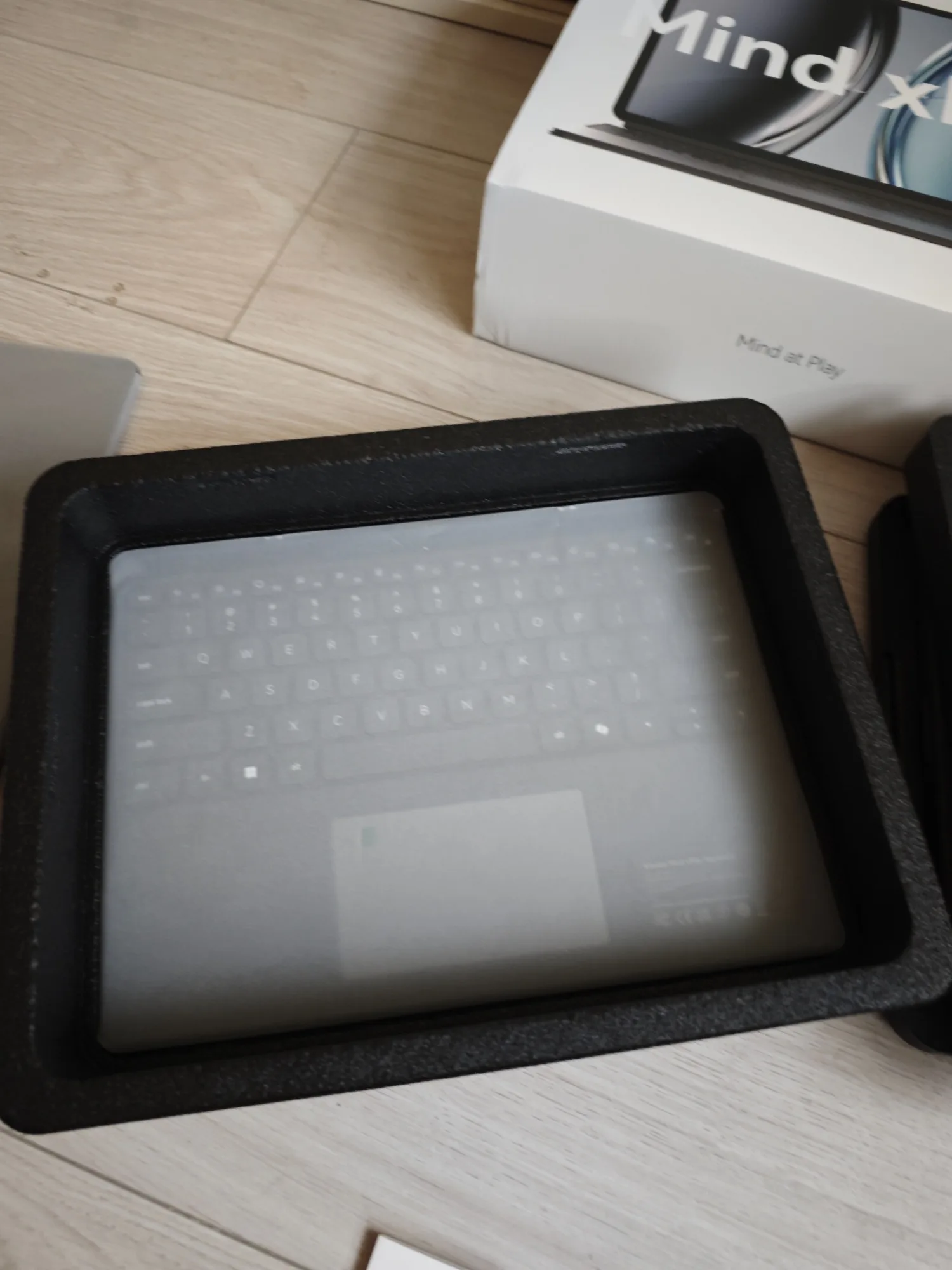
Image: Illustrations demonstrating multi-finger gestures for the touchpad, such as two-finger scrolling and pinch-to-zoom.
Maintenance
Precautions
- Store the product in a dry, room-temperature environment to prevent moisture damage.
- When cleaning the keyboard surface, use a cloth lightly dampened with water or alcohol. Do not immerse the keyboard directly in liquid.
- Dispose of this product and its accessories according to local regulations. Do not discard them as household waste.
Troubleshooting
- No Display/Power: Ensure the device is charged or connected to a power source (≥65W PD adapter recommended). Check all cable connections.
- Connection Issues (Mind Link): Verify the Mind computer is securely snapped into the xPlay's Mind Link port. Ensure the xPlay power button is held for 1.5 seconds to initiate connection.
- Connection Issues (USB-C): Confirm the third-party device supports DP display output via USB-C. Use a Thunderbolt 4 or USB4 data cable.
- Keyboard/Touchpad Not Responding: Ensure the xPlay Keyboard is correctly aligned and clicked into the keyboard port. Restart the xPlay.
- Audio/Video Problems: Check volume settings on both xPlay and the connected device. Ensure cables are fully inserted.
Specifications
| Feature | Specification |
|---|---|
| Display Size | 13 inches |
| Resolution | 2880 x 1920 (2.8K) |
| Screen Type | LCD |
| Refresh Rate | 60 Hz |
| Color Gamut | 100% sRGB |
| Brightness | 500 cd/m² (500 nit peak) |
| Aspect Ratio | 3:2 |
| Response Time | 30ms |
| Horizontal Viewing Angle | 135° |
| Built-in Speaker | Yes (Dual Speakers, 2W x 2) |
| Microphone | Dual Microphones (pickup up to 2m) |
| Camera Resolution | 2 MP (Front-facing) |
| Battery Capacity | 4150 mAh (47.94 Wh) |
| Power Input | Up to 20V/5A (max) |
| Interface Type | USB-C (Input/Output), Mind Link Interface, Keyboard Port |
| Adjustable Stand | 0° to 120° |
| Size | 290.5 x 199.95 x 9.5 mm |
| Weight | 820g (Display only) |
| Keyboard Layout | 79 keys |
| Touchpad | High-precision touchpad (polling rate > 120 Hz) |
| Connection (Keyboard) | Magnetic attachment |
| Certification | CE, FCC, RoHS, KC, pse |
User Tips
- Color Accuracy: Users report excellent color reproduction, comparable to high-end devices. The 100% sRGB color gamut ensures vibrant and accurate visuals.
- Portability: The modular design with Mind Link allows for quick setup and breakdown, making it ideal for mobile work in various environments like meeting rooms or cafes.
- Weight Consideration: Be aware that the combined weight of the monitor, keyboard, and a Khadas Mind computer can be substantial (approximately 1.7-1.8kg). Plan accordingly for transport.
- Cable Compatibility: For connecting to third-party devices via USB-C, ensure you use a Thunderbolt 4 or USB4 data cable for optimal performance and display output.
- Keyboard Layout: By default, orders come with an English keyboard layout. If a Korean layout is needed, specify this during purchase.
Warranty & Support
Warranty Information
Khadas warrants the included hardware product and accessories against defects in materials and workmanship for one year from the date of the original retail purchase. This warranty does not cover normal wear and tear, or damage caused by accident or abuse.
To obtain Khadas warranty service, visit a Khadas-owned retail (online) store or an authorized service provider. Service options may vary by country and may be restricted to the original country of sale. International shipping charges may apply.
For full terms and detailed information, visit www.khadas.com/policies or contact technical support at support@khadas.com.
Khadas offers continuous security-related updates and upgrade support for the provided software until the official discontinuation of such services.
Item Guides & Documents
A user manual in PDF format is available for download: Khadas xPlay User Manual (PDF)
List of Hazardous Substances
This table has been prepared in accordance with SJ/T 11364.
| Hazardous Substances | Component Name (Device) | Component Name (PCBA) |
|---|---|---|
| Pb (Lead) | X | X |
| Hg (Mercury) | O | O |
| Cd (Cadmium) | O | O |
| Cr6+ (Hexavalent Chromium) | O | O |
| PBB (Polybrominated Biphenyls) | O | O |
| PBDE (Polybrominated Diphenyl Ethers) | O | O |
| DIBP | O | O |
| DEHP | O | O |
| BBP | O | O |
| DBP | O | O |
Key:
- O: Indicates that the content of the hazardous substance in all homogeneous materials of the component is below the limit specified in EN62321.
- X: Indicates that the hazardous substance is present in at least one homogeneous material of the component at a level exceeding the limit specified in EN62321 because there is no proven alternative in the industry that meets the environmental requirements of the EU RoHS directive.
This product has a 10-year environmentally-friendly use period (EPUP) under normal conditions. For accessories, the EPUP on the label prevails.