
1. Introduction
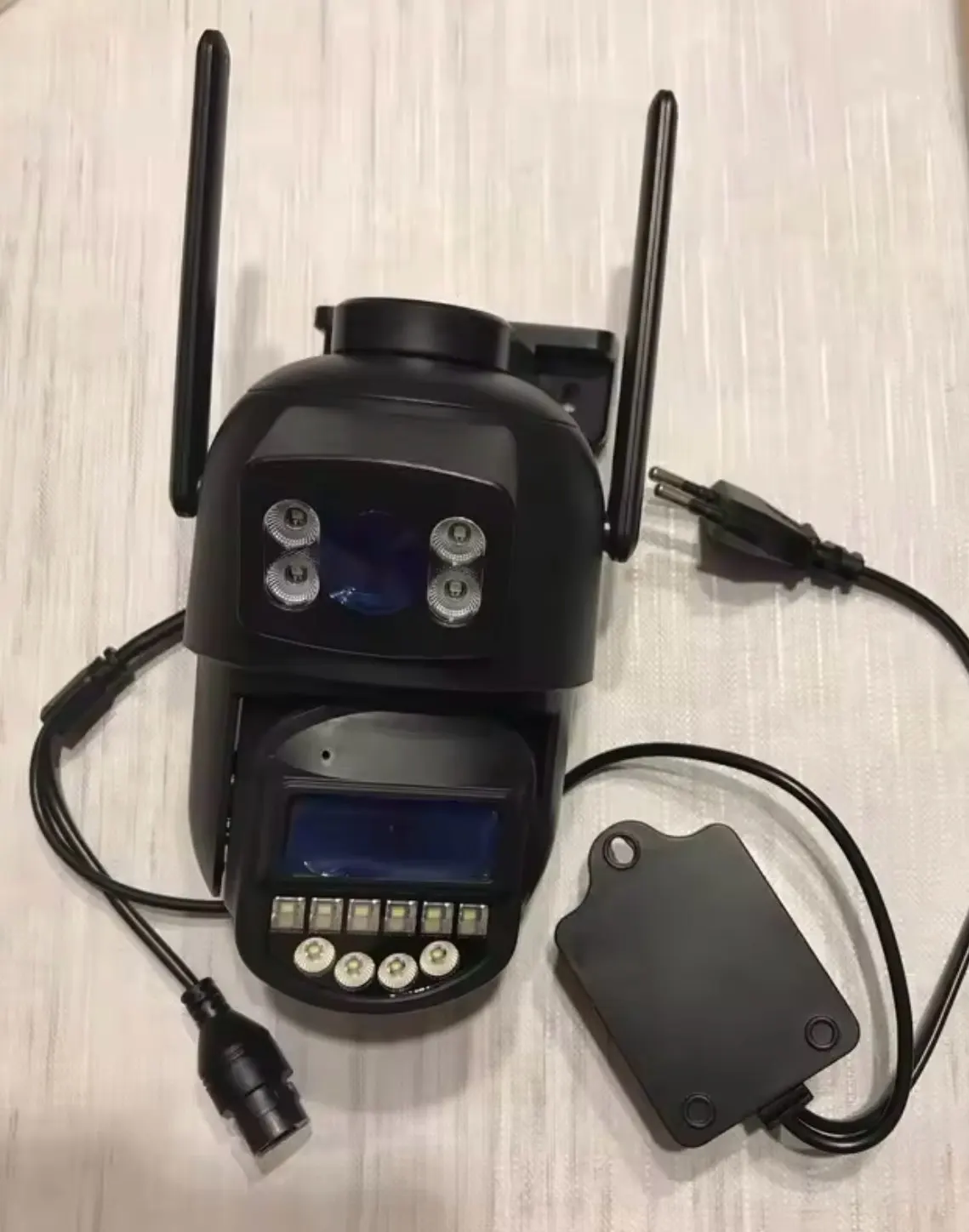
Thank you for choosing the TahLiTech V380PRO 3-Lens WiFi Solar Security Camera. This advanced security camera features a unique three-lens design, offering a comprehensive 15MP Ultra HD view across multiple screens. Powered by solar energy and equipped with a built-in rechargeable battery, it provides reliable outdoor surveillance with features like two-way audio, motion detection, and versatile pan-tilt capabilities. This manual will guide you through the setup, operation, and maintenance of your new security camera.

2. Safety Information
⚠️ Camera products can only be used for purposes permissible under applicable law and regulations. Misuse of the product for any illegal activities is strictly forbidden. Please comply with the applicable laws and regulations in your country/area.
Always handle the camera with care. Do not expose it to extreme temperatures beyond its operating range (-10°C to 60°C). Ensure all connections are secure and waterproof where applicable. Keep out of reach of children.
3. Package Contents
Please check the package for the following items:
- V380PRO 3-Lens WiFi Solar Camera Unit
- Solar Panel (10W)
- USB Charging Cable
- Mounting Bracket
- Screws and Wall Plugs
- User Manual (this document and a more detailed PDF version)
4. Specifications
| Feature | Specification |
|---|---|
| Brand Name | TahLiTech |
| Model Number | WIFI IP solar camera (V380PRO) |
| Resolution | 15MP (5MP+5MP+5MP) |
| High Definition | 1080P(Full-HD) |
| Lens Quantity | Tri-Lens |
| Lens (mm) | 4mm |
| Viewing Angle | 180° |
| Zoom Type | Digital zoom (10X) |
| Pan-Tilt Movement Range | 355° Horizontal, 90° Vertical |
| Connectivity | WIFI (2.4GHz) |
| Power Mode | Solar Powered, Battery Powered |
| Solar Panel Power | 10W |
| Battery Capacity | Built-in 8000mAh battery |
| Power Supply (V) | 5V |
| Operating Temperature | -10°C to 60°C |
| IP Rating | IP66 (Waterproof / Weatherproof) |
| Night Vision | Full color night vision, IR Distance 15m-20m |
| AI Functions | Motion Detection, PIR + Radar dual induction detection |
| Audio | Two-Way Audio, 1CH RCA Audio Output |
| Video Compression Format | H.265 |
| TF Card Support | Up to 128G |
| Remote APP | V380 Pro |
| Supported Mobile Systems | Android, iOS |
| Installation | Ceiling, Side, Normal |
| Certifications | CE, FCC, RoHS |
5. Setup Guide
5.1 Charging the Battery
Before initial use, fully charge the camera's built-in 8000mAh battery using the provided USB cable. Connect the USB cable to the camera's charging port and a 5V power adapter (not included). The solar panel will continuously charge the battery when exposed to sunlight.
5.2 Installation
Choose a suitable location for installation, ensuring good WiFi signal coverage and sufficient sunlight exposure for the solar panel. The camera is designed for both indoor and outdoor use and can be installed on ceilings or walls (side mounting).
- Attach the mounting bracket to your desired surface using the provided screws and wall plugs.
- Securely mount the camera unit onto the bracket.
- Adjust the solar panel to an angle that maximizes sunlight exposure throughout the day.

5.3 App Download and Connection
The camera operates with the V380 Pro mobile application, available for Android and iOS devices.
- Download the "V380 Pro" app from your device's app store.
- Register for an account or log in if you already have one.
- Power on the camera.
- In the app, follow the on-screen instructions to add a new device. This typically involves scanning a QR code on the camera or connecting to the camera's temporary WiFi hotspot.
- Connect the camera to your home 2.4GHz WiFi network. Note: This camera supports 2.4GHz WiFi only and does not support local SIM cards.
6. Operating Instructions
6.1 Live View and Multi-Screen Display
Once connected, you can access the live feed from your camera through the V380 Pro app. The camera's three lenses provide multiple views simultaneously on your screen, enhancing your surveillance coverage.

6.2 Pan and Tilt Control
The camera offers extensive pan (horizontal) and tilt (vertical) movement, controllable directly from the V380 Pro app. You can remotely adjust the camera's viewing angle to cover a 355° horizontal range and a 90° vertical range.

6.3 Two-Way Audio
Utilize the built-in microphone and speaker for two-way communication. This allows you to listen to the environment around the camera and speak through the camera from your mobile device.

6.4 Motion Detection and Alarms
The camera features PIR + Radar dual induction detection for accurate motion sensing. When motion is detected, the camera can send humanoid alarm image pushes to your mobile device, ensuring you are immediately notified of any activity.
6.5 Night Vision Modes
The V380PRO camera supports multiple night vision modes, including full-color night vision and infrared light, providing clear surveillance even in complete darkness.

6.6 Video Playback
The camera supports local storage via a TF card (up to 128GB) and cloud storage (subscription may be required). You can review recorded footage through the V380 Pro app.

Video 1: Demonstration of V380PRO camera features including multi-lens view, pan/tilt, mobile detection alarm, two-way audio, and waterproof design.
7. Maintenance
7.1 Cleaning
Regularly clean the camera lenses and the solar panel to ensure optimal performance. Use a soft, damp cloth to gently wipe away dust and dirt. Avoid using harsh chemicals or abrasive materials that could scratch the surfaces.
7.2 Battery Care
The built-in 8000mAh battery is designed for long-term use. Ensure the solar panel receives adequate sunlight to keep the battery charged. In prolonged periods of low sunlight, you may need to manually charge the camera using the USB cable to maintain continuous operation.
7.3 Firmware Updates
Check the V380 Pro app periodically for firmware updates. Keeping your camera's firmware up-to-date ensures you have the latest features and security enhancements.
8. Troubleshooting
- Camera not connecting to WiFi: Ensure your WiFi network is 2.4GHz. The camera does not support 5GHz networks. Check your WiFi password and signal strength.
- Blurry image: Clean the camera lenses. Check if the protective film has been removed from the lenses. Ensure the camera is securely mounted and not vibrating. If the issue persists, the lens might be damaged.
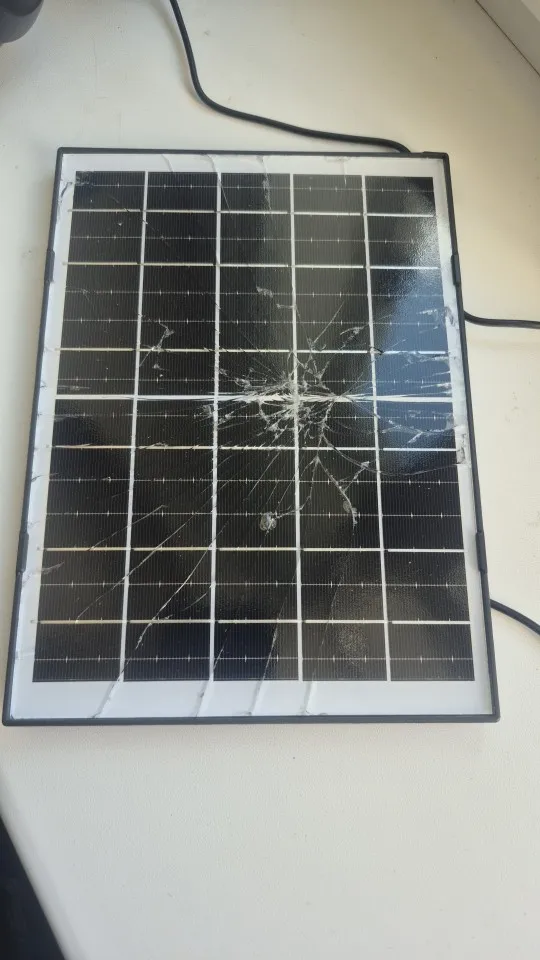
- Solar panel not charging: Ensure the solar panel is clean and free from obstructions. Verify it is positioned to receive direct sunlight for several hours a day. Check the connection cable between the solar panel and the camera.
- No motion detection alerts: Verify that motion detection is enabled in the V380 Pro app settings. Check the sensitivity levels and ensure the camera's field of view is clear.
- No audio or poor audio quality: Ensure the microphone and speaker are not obstructed. Check audio settings in the V380 Pro app.
- Camera offline: Check your WiFi connection. Restart the camera and your router.
9. User Tips
- For optimal solar charging, position the solar panel facing south (in the Northern Hemisphere) or north (in the Southern Hemisphere) at an angle that maximizes direct sunlight exposure throughout the day.
- Regularly check the battery level in the V380 Pro app, especially during cloudy periods, to ensure continuous operation.
- Experiment with the different multi-screen display modes in the app to find the best view for your surveillance needs.
- Utilize the two-way audio feature to communicate with visitors or deter unwanted guests.
10. Frequently Asked Questions (FAQ)
- Q: What app should I use for this camera?
- A: You should use the "V380 Pro" app, available on Android and iOS.
- Q: Can this camera connect via WiFi or only 4G?
- A: This camera connects via 2.4GHz WiFi. It does not support 4G or local SIM cards.
- Q: What is the shooting quality like?
- A: The camera offers 15MP (5MP+5MP+5MP) resolution and 1080P Full-HD video quality.
- Q: What is the "par code"?
- A: This likely refers to the pairing code or QR code used during the initial setup process to connect the camera to the V380 Pro app. Refer to the app's instructions for adding a new device.
11. Warranty and Support
For detailed warranty information and customer support, please refer to the official product documentation or contact the seller directly. A comprehensive user manual in PDF format is also available for download from the product page or by contacting support.
You can find the user manual (PDF) here: View User Manual (PDF)