
1. Introduction
Thank you for purchasing the Tahlitech 8K IP Camera Tester. This comprehensive device is designed for the maintenance and installation of various camera types, including IP cameras, analog cameras, TVI, CVI, AHD, and SDI/EX-SDI cameras. It supports testing of 4K H.264 / 8K H.265 cameras via mainstream video. The 5.4-inch IPS touch screen with 1920x1152 resolution ensures high-resolution display for both network and analog HD cameras. The unit features extensive ONVIF PTZ and analog PTZ control capabilities, combining a user-friendly touch screen interface with physical buttons for efficient operation. This manual provides detailed instructions for safe and effective use of your device.
2. Safety Information
Please read the following safety guidelines carefully before using the IP camera tester to ensure proper and safe operation.
- The tester must be used in compliance with local electrical regulations. Avoid using it in environments where electrical devices are restricted, such as hospitals or gas stations.
- To prevent functional degradation or failure, do not expose the product to water or damp conditions.
- Keep exposed parts of the tester free from dust and liquids.
- During transportation and use, avoid violent collisions and vibrations to prevent damage to components.
- Do not leave the tester unattended while charging. If the battery becomes severely hot, immediately disconnect the tester from the power source. Do not charge the tester for more than 6 hours.
- Do not use the tester in high humidity environments. If the tester becomes damp, power it off immediately and disconnect all connected cables.
- The tester should not be used in environments containing flammable gases.
- Do not disassemble the instrument. No internal components are user-serviceable. For necessary repairs, contact our technical department.
- Avoid using the instrument in environments with strong electromagnetic interference.
- Do not touch the tester with wet hands or water-soaked objects.
- For cleaning, use a dry cloth. If dirt is stubborn, a soft cloth dampened with water or a neutral detergent (ensure the cloth is thoroughly wrung out) can be used.
3. Packing List
The following items are included in your product package:
- CCTV Tester Unit
- DC12V 1A Adaptor
- Network Cable Tester
- Lithium-ion Battery (7.4V DC 3350mAh)
- BNC Cable
- RS485 Cable
- RJ45-BNC Converter (for Cable Tracer function)
- Output Power Cable
- Audio Cable
- Safety Cord
- Wrist Belt
- Tool Bag
- User Manual
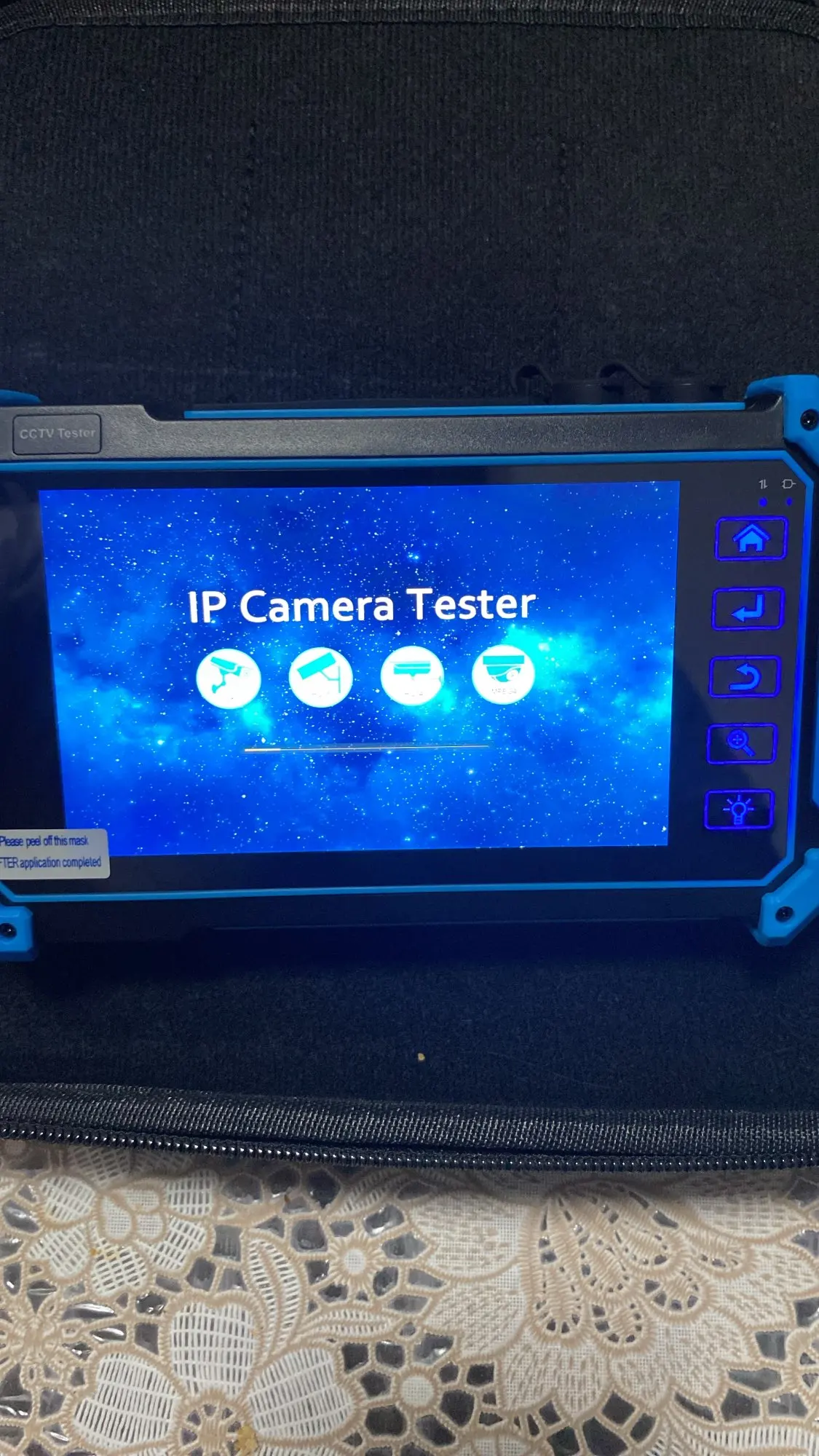
Image: Package Contents

Video: Unboxing the Tahlitech 8K IP Camera Tester
4. Product Overview
4.1. Function Interface (Buttons)
The tester features a user-friendly interface with both touch screen and physical buttons:
- Menu Key: Accesses the main menu.
- Confirm Key: Confirms selections or actions.
- Return Key: Returns to the previous screen or cancels current settings.
- 4x Zoom: Magnifies the image display by 4 times.
- LED: Indicates various statuses.
- RS485 Indicator: Lights red during RS485 data transmission or reception.
- Power Indicator: Lights red when the tester is powered by the adapter.

Image: Main Screen and Buttons
4.2. Ports and Connectors
The device is equipped with various ports for comprehensive testing:
- Video Input (BNC): For AHD, TVI, CVI, and CVBS analog camera signals.
- SDI Input (BNC): (Optional) For SDI camera signals.
- HDMI IN: (Optional) For HDMI video input.
- PoE Power Supply Output/LAN Test Interface: For network connections and PoE power.
- DC12V 3A Power Output: For provisional DC power supply to cameras.
- Micro SD Card Slot: Supports up to 32GB (default 8GB).
- LED Lamp: Provides illumination.
- RS485 Interface: For PTZ communication.
- Audio Input: For audio signal testing.
- UTP Cable Port: For UTP cable testing and cable tracing.
- VGA Input: (Optional) For VGA video input.

Image: IPC-5100/5100C Plus Ports

Image: IPC-5200/5200C Plus Ports
5. Setup
5.1. Installing the Battery
The tester comes with a built-in lithium-ion polymer rechargeable battery. For safety during transportation, the battery cable inside the battery compartment is disconnected. Before initial use, ensure the battery cables are properly connected inside the battery cabin.
- Connect Battery: Open the battery compartment and connect the battery cables.
- Power On/Off: Press and hold the power key (usually indicated by a power symbol) continuously to power the tester on or off.
- Charging: Always use the original adapter and connected cable provided with the device. The battery charging is complete when the battery icon is full or the charge indicator turns off automatically.
- Charge Indicator: When the charge indicator turns off, the battery is approximately 90% charged. The charging time can be extended for about 1 hour, and charging within 12 hours will not damage the battery.
- Restore Default Settings: If the instrument malfunctions, press and hold the power key for several seconds to restore default settings.
- Charging Safety: Always supervise the device while it is charging.
6. Operation
6.1. IP Camera Testing
6.1.1. Power Camera
Cameras can be powered directly from the tester using the DC 12V/3A output or via Power over Ethernet (PoE).
6.1.2. IPC Test Pro
The "IPC Test Pro" application integrates multiple functions to streamline camera testing:
- Multi-segment IP Address Scan: Automatically scans IP addresses across different network segments.
- Visual Display: Displays camera manufacturer information. Click an IP address to view the camera's image.
- PoE Power Supply: Can supply power to PoE cameras.
- Network Status: Real-time display of network port connection status.
- Browser Login: Allows direct login to camera configuration via a browser.
- Batch Activation: Supports batch activation of Hikvision and Dahua cameras.
- Test Tools: Provides quick access to ONVIF interface and other test tools.

Image: IPC Test Pro Screen
6.1.3. IP Discovery
The IP Discovery function auto-scans the network for devices and adjusts the tester's IP address to match the scanned camera's network segment.
- Local IP: The tester's IP address, which can be auto-modified to match the scanned camera's IP.
- Discovery IP: Displays the IP address of the connected device.
- PING Function: Use the "Start" button to PING a camera's IP.
- ONVIF: Rapid ONVIF Quick link.
- IPC TEST: IPC TEST Quick link, Non-Onvif IP camera test.

Image: IP Discovery Screen
6.1.4. Rapid ONVIF Test
This feature allows for quick testing of ONVIF-compatible cameras:
- Video Display: Displays 8K H.265/4K H.264 camera images via mainstream.
- Auto-Scan: Automatically scans all ONVIF cameras in different network segments.
- Auto Login: The tester can automatically log in to cameras and display images. Default password is "admin" unless modified.
- Settings: Access settings for cross-network scanning, auto login, and video transmission protocols (UTP/TCP).

Image: ONVIF Main Stream Display
6.1.5. Lens Simulation
Simulate different lens display areas (2.8/3.6/4/6/8/12/16/25mm) to choose the most suitable camera lens for your installation.

Image: Lens Simulation Screen
6.1.6. OSD Menu
The OSD (On-Screen Display) menu allows configuration of various display parameters, including time, channel name, display position, and font size.

Image: OSD Settings Screen
6.1.7. PTZ Control
Control Pan-Tilt-Zoom (PTZ) cameras by setting and calling preset positions, and adjusting horizontal and vertical speed.
6.1.8. Test Reports (Doc)
Automatically generate test reports for camera configurations and tests. Click "Create Document" to generate and "Preview" to view.

Image: Test Report Screen
6.1.9. Non-ONVIF IP Camera Test
The IPC Test App supports specific IP camera brands like ACTI, AXIS, Dahua, Hikvision, and Samsung. For non-integrated cameras, use ONVIF or RTSP apps.

Image: Non-ONVIF Test Screen
6.2. Analog Camera Testing
6.2.1. Analog Camera Test
Perform analog camera tests and PTZ control. Ensure protocols, address, interface, and baud rates match the dome camera.
6.2.2. AutoHD
Automatically recognizes the resolution and displays images from Analog and HD cameras. Supports coaxial PTZ, OSD menu calls, snapshots, video recording, playback, and full-screen display.
6.2.3. CVI Camera Test
Displays HD CVI signal input resolution (up to 3840 x 2160P 12.5/15 FPS) and supports PTZ control.

Image: HD Coaxial 4.0 Test and Resolution Table
6.2.4. TVI Camera Test
Displays HD TVI signal input resolution (up to 3840 x 2160P 12.5/15 FPS) and supports coaxial camera menu settings via the "UTC" icon.
6.2.5. AHD Camera Test
Displays AHD signal input resolution (up to 3840 x 2160P 15 FPS) and supports coaxial PTZ control. If "PTZ" control fails, try "PTZ-2".
6.2.6. SDI/EX-SDI Camera Test (*Optional)
Displays SDI camera images and supports resolutions up to 8MP.
6.3. Video Signal Input
6.3.1. HDMI IN (*Optional)
Supports HDMI input up to 4K 30FPS. Features include video display, recording, playback, snapshot, and photo viewing.

Image: 4K HDMI Input Screen
6.3.2. VGA IN (*Optional)
Supports VGA input with various resolutions, including 1280x1024P. Useful for debugging DVR/NVRs and set-top boxes.

Image: VGA Input Screen
6.4. Other Functions
6.4.1. Network Tool
A suite of network debugging tools:
- IP Address Scan: Scans for IP addresses within a specified range.
- PING Test: Verifies network connectivity and IP address correctness.
- Network Test (Bandwidth): Requires two testers (Server and Client) on the same network segment.
- Port Flashing: Makes the connected LAN port flicker to identify cables.
- DHCP Server: Configures dynamic IP addresses for network devices.
- Trace Route: Determines the path of IP packet access.
- Link Monitor: Checks if an IP address is occupied by other devices.

Image: Network & Cable Tester Screen
6.4.2. RJ45 Cable TDR Test
Tests cable pair status, length (up to 180m), attenuation, reflectivity, impedance, and skew. Can generate test reports.

Image: RJ45 Cable TDR Test Screen
6.4.3. Cable Test
Tests continuity, cable sequence, and identifies fault locations in network cables.

Image: UTP Cable Test Screen
6.4.4. Cable Tracer (*Optional)
Helps locate connected cables within a bundle using audio tones. Features include non-contact electrical testing, neutral/live wire identification, power failure detection, and an LED light.

Image: Cable Tracer + Electroscope Diagram
6.4.5. PoE Power / DC12V 3A Power Output
Provides 48V PoE power output (max 30W) and DC12V/3A power to connected cameras. Ensure the IP camera supports PoE before enabling this function.

Image: PoE Power Output Screen
7. Maintenance
7.1. Software Update
Keep your tester up-to-date with the latest features and improvements:
- Local Update: Copy downloaded update files to the "update" directory on the SD card and select "Local Update" from the Update menu.
- Online Update: Connect to the internet and select "Online Update" to check for and install the latest application versions.
- App Management: Install or uninstall Android applications.
7.2. File Explorer
The File Explorer allows you to manage various media and document files on the tester's internal or external storage, including music, videos, pictures, documents, and zip files.
7.3. System Settings
Configure various aspects of your tester's operation:
- Language: Select your preferred language (English, Chinese, Korean, Russian, Italian, Polish, Spanish, French, Japanese).
- Typewriting: Choose typewriting options or install additional ones.
- Date/Time: Set the system date and time.
- IP Setting: Manually configure IP address, subnet mask, default gateway, and DNS, or use DHCP for dynamic allocation.
- WLAN Net: Turn Wi-Fi on/off and connect to available wireless networks.
- Wi-Fi Hotspot: Create a Wi-Fi hotspot by entering SSID and password.
- Brightness: Adjust screen brightness and sleep time settings.
- Volume: Set the audio volume level.
- SD Card: View SD card capacity, format, or unmount it.
- FTP Server: Enable FTP to access SD card files from a computer over the network.
- Version Information: Displays application version details.
- Screen Display Rotation: Flips the display 180 degrees for convenience.
- PTZ Address Scan: Toggle PTZ address scan on/off.
- Lock Screen: Configure screen lock options (password, pattern, or none).
- Restore Factory Settings: Resets the tester to its original factory state, removing all personal files and apps.
- Power Off: Manually set hibernation time (0-23h 59min).
- Button Mode Selection: Select different button modes.
8. Troubleshooting
If you encounter issues with your Tahlitech IP Camera Tester, refer to the following common troubleshooting steps:
- Battery Overheating: If the battery becomes severely hot during charging, immediately power off the device and disconnect it from the power source.
- Damp Tester: If the tester becomes damp, power it off immediately and disconnect all connected cables to prevent damage.
- Abnormal Operation: If the instrument works abnormally, try restoring the default settings by pressing and holding the power key for several seconds.
- PoE Power Output Issues: Ensure the tester is fully charged (or above 80%) before using PoE power output. Verify that the connected IP camera supports PoE. If the camera's power consumption exceeds 3A, the tester may enter protection mode; disconnect all connections and reconnect with the power adapter to resume.
- RTSP "Auto Match" Failure: If the RTSP auto-match function fails, manually select the stream code.
- AHD PTZ Control Issues: If PTZ control for an AHD camera is not working with the "PTZ" option, try selecting "PTZ-2".
- S/N Label: Ensure the S/N label is intact for warranty service. Products without an S/N label will be charged for repair.
9. User Tips
Here are some general tips to enhance your experience with the Tahlitech 8K IP Camera Tester:
- Regularly check for software updates to ensure optimal performance and access to new features.
- Utilize the screen display rotation feature for comfortable viewing when connecting cables to the bottom ports.
- When performing cable tests, ensure proper connection of the remote kit for accurate results.
- Familiarize yourself with the various network tools like PING and Port Flashing to quickly diagnose network issues.
10. Specifications
| Feature | Description |
|---|---|
| Model | IP Camera Tester |
| Display | 5.4 inch IPS touch screen, 1920*1152 resolution |
| Network Port | 10/100/1000M auto adjust, RJ45 |
| WIFI | Built-in WIFI, 150M speeds, display wireless camera image |
| H.265 Main Stream Test | New hardware decoding, 8K H.265/4K H.264 camera image display |
| IP Discovery | Auto-scan whole network segment camera IP |
| Rapid ONVIF | Search camera quickly, auto log in, display image, create testing report, activate Hikvision camera |
| Hik Test Tool | Batch activate Hikvision cameras, modify Channel, IP, username, password |
| DH Test Tool | Batch activate Dahua cameras, modify IP, Channel, username, password |
| IP Camera Type Support | ONVIF, ONVIF PTZ, Dahua IPC-HFW2100P, Hikvision DS-2CD864-E13, Samsung SNZ-5200, Tiandy TD-NC9200S2, Kodak IPC120L, Honeywell HICC-2300T, RTSP Viewer |
| AutoHD | Auto-recognize Analog/HD camera type/resolution, coaxial PTZ, OSD menu, CVBS, 8MP TVI/CVI/AHD |
| HD-SDI/EX-SDI Camera Test (*Optional) | 1 channel SDI in (BNC), 8MP: 720p 60fps / 1080p 60fps/1080i 60fps, EX-SDI: 2560x1440P/25/30FPS, 3840 x 2160P 25/30 FPS |
| CVI Video Signal Test | 1 channel CVI input (BNC), 8MP: 3840 x 2160P 12.5/15 FPS, 2880x1920P 20FPS, 2592x1944P 20FPS, 2560x1440p 25/30fps, 1920x1080p 25/30fps, 1280x720p 25/30/50/60fps, UTC control, OSD menu |
| TVI Video Signal Test | 1 channel TVI input (BNC), 8MP: 3840 x 2160P 12.5/15 FPS, 2592x1944p12.5/20fps, 2688x1520p 15fps, 2560x1440P 18/25/30fps, 2048x1536p 18/25/30fps, 1920x1080p 25/30fps, 1280x720p 25/30/50/60fps, UTC control, OSD menu |
| AHD Video Signal Test | 1 channel AHD input (BNC), 8MP: 3840 x 2160P 15 FPS, 2592x1944p12.5/20fps, 2560x1440p 18/25/30fps, 2048x1536p 18/25/30fps, 1920x1080p 25/30fps, 1280x720p 25/30/50/60fps, UTC control, OSD menu |
| Analog Video Test | 1 channel BNC Input, NTSC/PAL (Auto adapt) |
| Snapshot, Video Record and Playback | Capture current images and record live video as JPG file. Media player will view photos and playback video |
| HDMI IN* (Optional) | Support 4K 30FPS, 3840x2160P 30FPS, various resolutions up to 1920x1080P/60fps |
| VGA IN* (Optional) | 1 channel VGA Input, various resolutions up to 1920x1200P 60FPS |
| HDMI Output* | 1 channel HDMI output, up to 1080P (some models) |
| TesterPlay | Screen projection (tester, mobile, PC) |
| 12V/3A Power Output | DC12V/3A power to camera |
| PoE Power Output | 48V PoE, Max 25.5W |
| Theme | Self-define icons, desktop, application interface |
| Audio Test | 1 channel audio signal input |
| PTZ Control | RS485, Baud 600-115200bps, >30 protocols (PELCO-D/P, Samsung, Panasonic, Lilin, Yaan) |
| Data Monitor | Captures/analyzes command data, send hexadecimal |
| UTP Cable Tester | Test UTP cable connection status, display on screen |
| Cable Tracer* (Optional) | Find connected cable from bundle using audio tones |
| Power Supply | DC 12V 1A |
| Battery | Built-in 7.4V Lithium ion battery, 3350mAh |
| Rechargeable | After charging 3-4 hours, normal working time 5 hours |
| Operation Setting | OSD menu, select language (English, Chinese, Korean, Russian, Italian, French, Polish, Spanish, Japanese) |
| Auto Off | 1-30 (mins) |
| Working Temperature | -10°C to +50°C |
| Working Humidity | 30%-90% |
| Dimension/Weight | 183mm x 110mm x 36.5mm / 0.32kg |
11. Warranty and Support
Your Tahlitech 8K IP Camera Tester comes with the following service commitments:
- 7-Day Free Replacement: Enjoy 7 days free replacement from your receipt of products. The buyer should return products in original conditions and bear shipping cost for return.
- 12-Month Free Maintenance: Enjoy 12 months free maintenance for any quality problem. The buyer should return products in original conditions and bear shipping cost for return, and pay for any necessary replaced parts.
- Serial Number (S/N) Label: Please keep the S/N label intact for after-sale service within the warranty period. Products without a valid S/N label will be subject to charges for repair services.
- Technical Assistance: If you have any questions or encounter problems while using the IP camera tester, or if any damages occur to the product, please contact our technical department for assistance.