
1. Introduction
The aMagisn BT5.1 Bluetooth Remote Controller is designed to provide convenient wireless control for your action cameras and smartphones. With its robust Bluetooth 5.1 connectivity, you can remotely start/stop recording, switch modes, and capture moments from a distance of up to 50 meters. Its waterproof design ensures reliable performance in various outdoor conditions.
2. Safety Information
WARNING: Please be aware of potential fire hazards and strictly follow the instruction manual for charging and storage.
- Do not expose the device to extreme temperatures.
- Use only the provided charging cable or a certified equivalent.
- Keep out of reach of children.
- Avoid disassembling or modifying the device.
3. Package Contents
Verify that all items are present in your package:
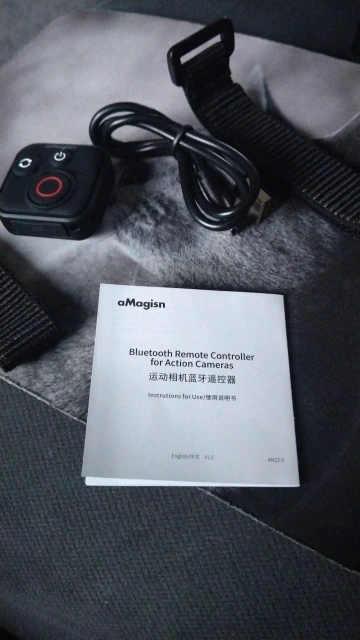
- 1 x Remote Controller
- 1 x Charging cable
- 1 x Long Wrist Strap
- 1 x Short Wrist Strap

4. Specifications
| Feature | Detail |
|---|---|
| Product Name | Bluetooth Remote Control |
| Brand | aMagisn |
| Model Number | AM22 |
| Material | ABS |
| Type | Action Camera Remote Controls |
| Bluetooth Version | BT5.1 |
| Remote Distance | Approximately 50m |
| Waterproof Design | Yes (Rain-resistant, Surf-ready) |
| Package Length | 10 cm |
| Package Width | 9 cm |
| Package Height | 3 cm |
| Package Weight | 0.071 kg |
5. Compatibility
The aMagisn Bluetooth Remote Controller is compatible with a wide range of action cameras and smartphones:
Insta360 Series:
- X4 Air, X5, X4, X3, X2
- Ace Pro 2, Ace Pro, Ace
- GO 3S, GO 3
- ONE RS, ONE R
GoPro Hero Series:
- Hero 13, Hero 12, Hero 11, Hero 10, Hero 9, Hero 8
- Max, Mini
Smartphones:
- iOS devices
- Android devices
6. Setup
6.1. General Power On/Off
- To Power On: Briefly press the power button on the remote control.
- To Power Off: Press and hold the power button for three seconds.
6.2. Connecting to GoPro Cameras
- Briefly press the power button on the remote control to turn it on.
- Enable the camera's Wi-Fi or Bluetooth connection.
- Press and hold the mode button on the remote for 3 seconds. If the blue indicator light remains illuminated, the connection is successful.
6.3. Connecting to Insta360 Cameras
- Turn on Bluetooth on your Insta360 camera and press the power button on the remote control to power it on.
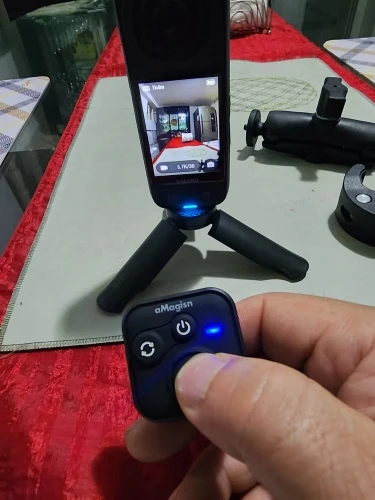
- Press and hold the mode button on the remote for 3 seconds. At this point, all three indicator lights on the remote control will illuminate simultaneously, indicating entry into pairing mode.
- Select the device named "Insta360 GPS Remote" in your camera's Bluetooth list to complete pairing.
6.4. Connecting to Smartphones (iOS & Android)
- Ensure Bluetooth is enabled on your smartphone.
- Briefly press the power button on the remote control to turn it on.
- Press and hold the mode button on the remote for 3 seconds until all three indicator lights illuminate, indicating pairing mode.
- On your smartphone, go to Bluetooth settings and search for available devices. Select "aMagisn" or a similar device name to pair.
7. Operating Instructions
Once connected, you can use the remote control to manage your camera's functions:
- Power On/Off: Press the power button to turn the remote on or off (hold for 3 seconds to power off). For Insta360, simultaneously power on/off both the remote and camera.
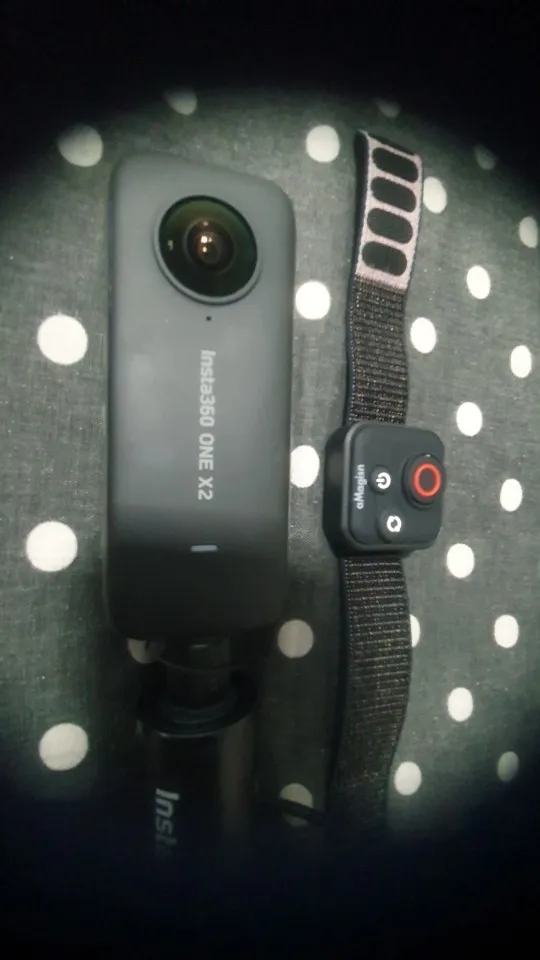
- Mode Switching: Press the mode button (circular arrow icon) to cycle through camera modes (e.g., main mode, sub-mode).
- Start/Stop Recording: Press the shutter button (red circle icon) to start recording. Press it again to stop recording.
- Add HiLights (GoPro): For GoPro Hero series cameras, the remote can be used to add HiLights during recording.

8. Connecting a New Device
If you wish to connect the remote control to a different device, follow these steps:
- You must pair the remote control with the new device.
- If connecting to a camera, remove the original camera's battery (if applicable) to ensure the remote control does not reconnect to it.
- Navigate to the Bluetooth settings page of the new camera or smartphone and delete all previously paired remote controllers.
- Press and hold the mode button on the remote for 3 seconds. At this point, all three indicator lights on the remote control will illuminate simultaneously, indicating entry into pairing mode.
- Select the device named "Insta360 GPS Remote" (for Insta360) or "aMagisn" (for smartphones) in the device's Bluetooth list.
9. Maintenance
9.1. Waterproof Design
The remote features a waterproof build and sealed USB port, making it suitable for use in rainy conditions or near water (surf-ready). However, it is not designed for full submersion. Always ensure the USB port cover is securely closed when exposed to moisture.
9.2. Cleaning and Storage
- Wipe the remote control with a soft, dry cloth. Avoid using harsh chemicals or abrasive cleaners.
- Store the device in a cool, dry place away from direct sunlight and extreme temperatures.
10. Troubleshooting
- Remote not turning on: Ensure the remote is charged. Connect it to a power source using the provided USB cable.
- Connection issues:
- Verify that Bluetooth is enabled on both the remote and your camera/smartphone.
- Ensure the remote is in pairing mode (indicator lights should be active).
- Delete any previous pairings for the remote on your camera/smartphone and attempt to re-pair.
- Make sure the remote is within the effective operating range of approximately 50 meters.
- Specific functions not working: Refer to the compatibility list (Section 5) to ensure your camera model supports the desired function with this remote. Some older camera models or specific functions might not be fully supported.
- Re-pairing after power cycle: Some users have noted that turning the remote off and on again may require re-pairing. This is generally a quick process.
11. User Tips
- Easy Pairing: The pairing instructions are generally straightforward and easy to follow.
- Mode Switching: Once paired, you can often swap between various camera modes directly using the remote, which is very convenient.
- Visual Indicators: The LED indicator lights help distinguish between shooting mode and standby mode, providing clear status feedback.
- Motorcycle Routes: This remote is highly recommended for motorcycle routes due to its ease of use and reliable connection with compatible cameras like the Insta360 X2.
12. Frequently Asked Questions (FAQ)
- Q: Does it work with Insta360 Go Ultra?
- A: Based on the compatibility list, only Insta360 GO 3S and GO 3 are explicitly supported. Insta360 Go Ultra is not listed.
- Q: Can 2 cameras be paired at the same time?
- A: Bluetooth devices typically establish a one-to-one connection. Simultaneous pairing with two cameras is generally not supported by this remote controller.
- Q: Is it compatible with GoPro Hero5?
- A: The compatibility list specifies GoPro Hero 8 through 13, as well as Max and Mini models. GoPro Hero5 is not listed as compatible.
- Q: Is this compatible with the DJI Osmo Action 4/5?
- A: No, the remote controller is designed for Insta360, GoPro, and general iOS/Android smartphone compatibility. DJI Osmo Action cameras are not supported.
- Q: Can this controller be submerged under water?
- A: The remote features a waterproof design suitable for rain and surf. However, it is not explicitly rated for full submersion. It is recommended to avoid submerging the device to prevent damage.
13. Warranty and Support
The aMagisn Bluetooth Remote Controller comes with a 90-day limited warranty. This warranty covers free repair for defects not caused by misuse.
For further assistance or to view the official user manual in PDF format, please refer to the manufacturer's documentation. A PDF user manual is available at: User manual (PDF).