
Introduction
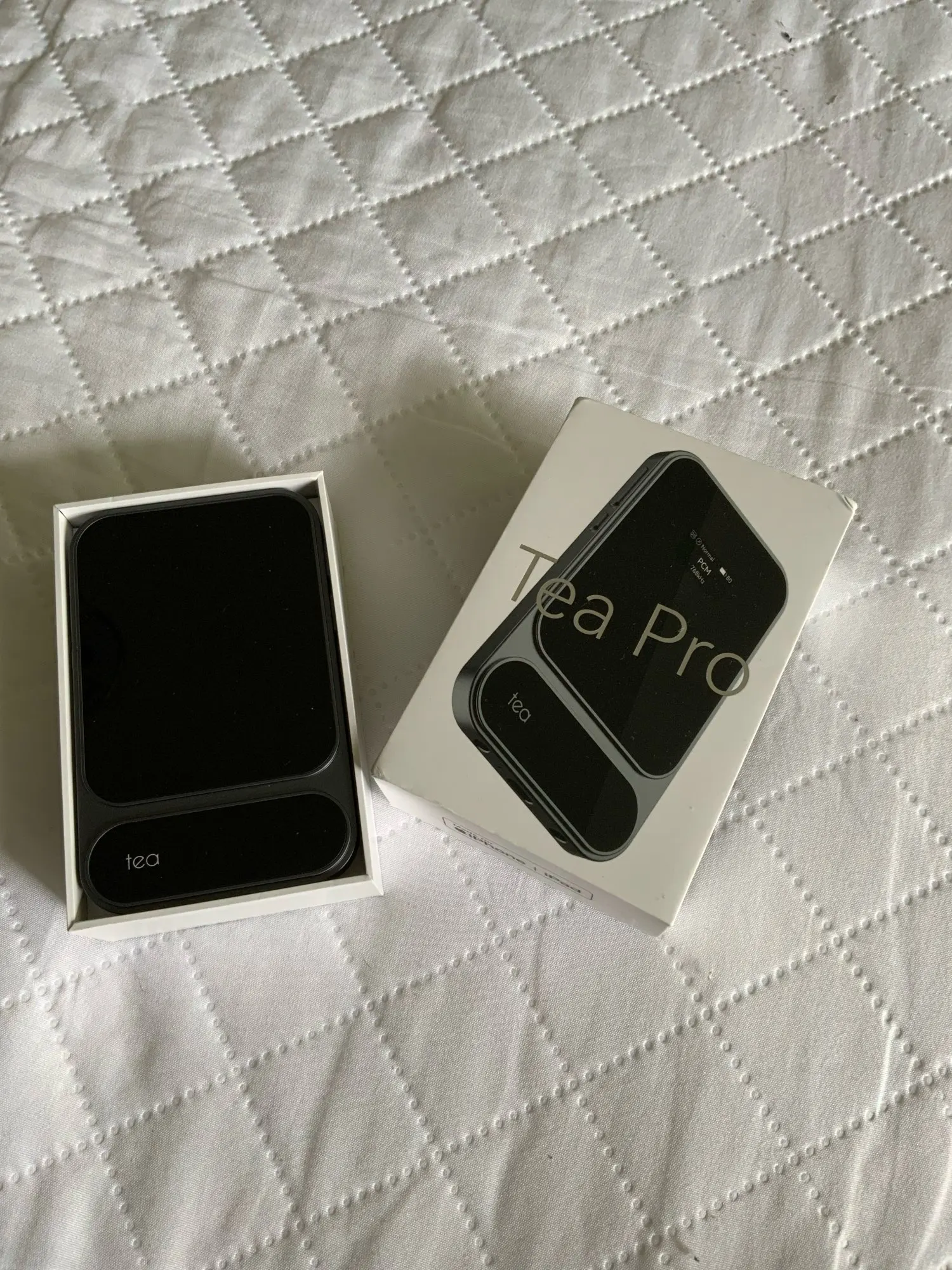
The Khadas Tea Pro is a magnetic USB Bluetooth DAC headphone amplifier designed to deliver an immersive and detailed listening experience. It is powered by the high-performance XMOS XU316-1024 audio DAC chip, ensuring exceptional sound quality. Its built-in magnets allow it to snap seamlessly onto MagSafe-compatible iPhones, and with MFi certification, it works flawlessly with Apple devices. Featuring a large-capacity battery for extended playtime and a color display for intuitive controls, Tea Pro lets you enjoy your music with style and ease—anytime, anywhere.

Product Diagram
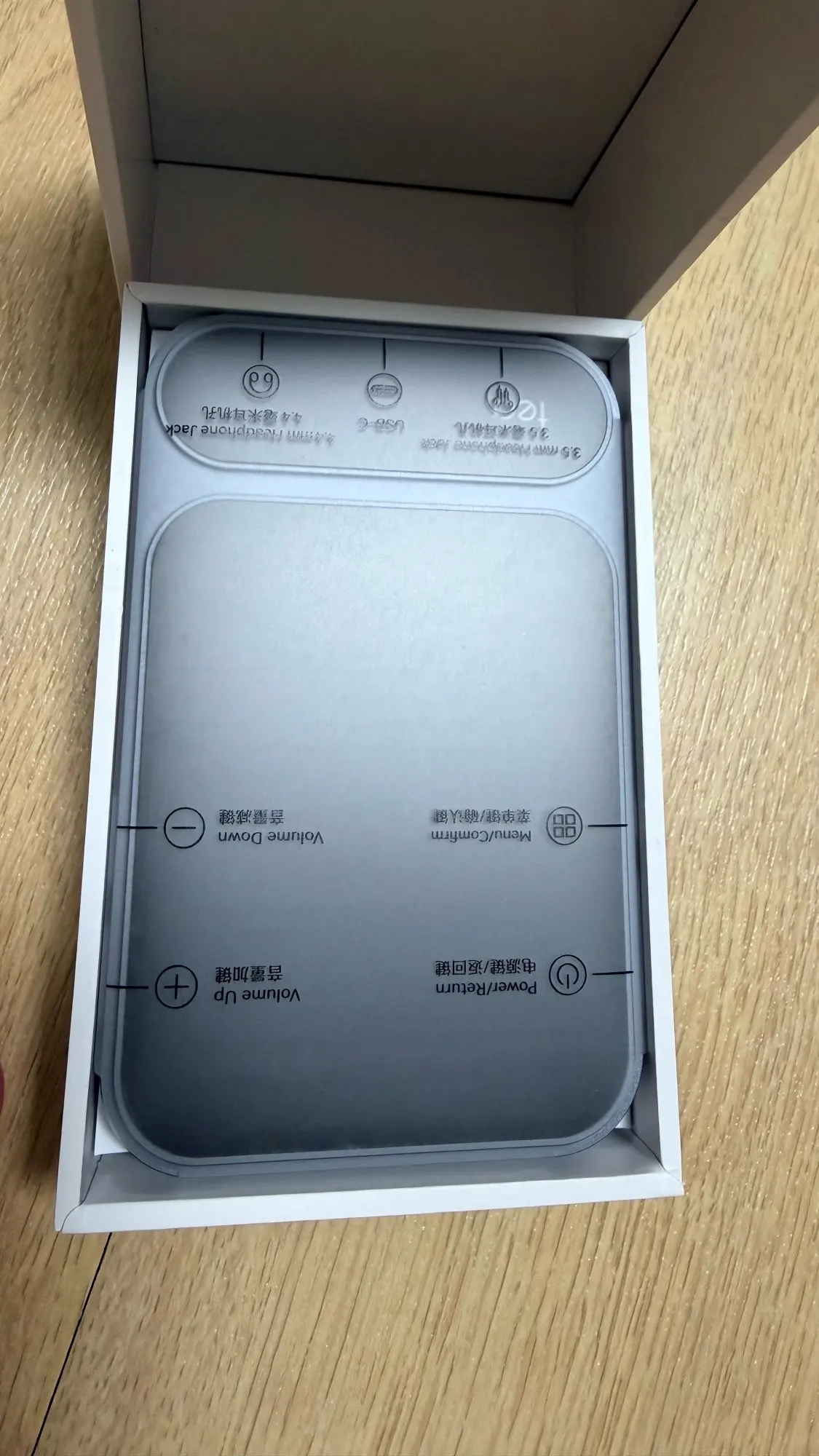
Familiarize yourself with the components and controls of your Tea Pro.
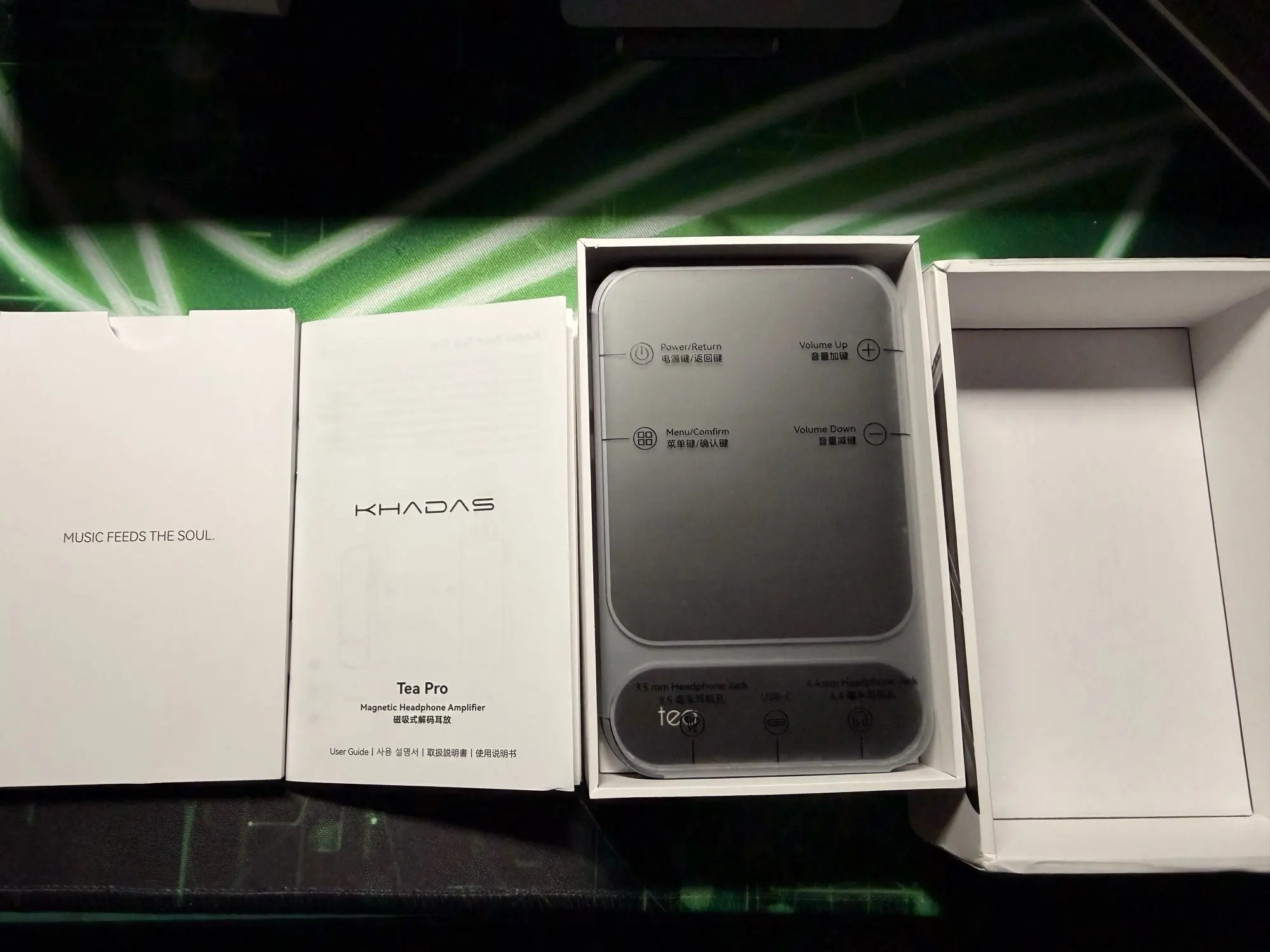
1. Power Button
2. Color Screen
3. Menu Button
4. Volume Up Button
5. Volume Down Button
6. 3.5 mm Headphone Jack
7. USB-C Port
8. Microphone
9. 4.4 mm Headphone Jack
Setup
01 Connect to Tea Pro
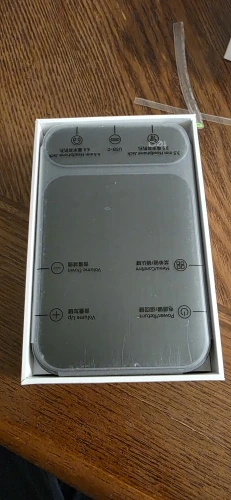
The Tea Pro supports both Bluetooth and USB-C audio input. After turning on the Tea Pro by pressing and holding the power button, connect in one of the following ways:
Bluetooth Connection
On your phone, tablet, or computer, turn on Bluetooth, then search and connect to the device named "Tea Pro".

USB-C Connection
Use the included USB-C data cable to connect Tea Pro to your phone, tablet, or computer.
Connection Priority
By default, USB has a higher priority than Bluetooth. If Tea Pro is connected to a device via Bluetooth, it will automatically switch to USB input when a USB device is connected.
02 Enjoy Hi-Fi Music
After connecting your audio input device to Tea Pro, simply insert your 3.5 mm or 4.4 mm headphones to enjoy superb high-fidelity music produced by Tea Pro's exceptional audio decoding capabilities.
Operating Your Tea Pro
Basic Operations
| Function | Action |
|---|---|
| Power On | Press and hold for 1 second to power on. Press to activate the screen if it is off. |
| Power Off | Press and hold for 1 second to power off. |
| Return (from menu) | In the menu list, press to return to the previous menu list. |
| Open Menu | From the home screen, press once to open the menu list. |
| Confirm (menu selection) | Press to confirm menu selection. |
| Previous Menu Option | In the menu list, press once to highlight the previous option. |
| Next Menu Option | In the menu list, press once to highlight the next option. |
When Playing Music
| Function | Action |
|---|---|
| Pause and Play | Press once to pause and press once again to resume. |
| Increase Volume | Press once. |
| Lower Volume | Press once. |
| Previous Song | Press and hold for 1 second. |
| Next Song | Press and hold for 1 second. |
When Receiving a Call
| Function | Action |
|---|---|
| Answer Call | When connected to a mobile phone via Bluetooth, press once to answer an incoming call. |
| Reject Call | When connected to a mobile phone via Bluetooth, press once to reject an incoming call. |
| Hang Up | During a call, press once to hang up. |
Additional Features
- Activate Siri: When connected to an Apple device via Bluetooth, press and hold for 2 seconds whilst on the home screen to activate Siri.
- Turn Charging From Audio Input Devices On and Off: Press the Menu Button and Volume Down Button at the same time to turn on USB-C charging. To turn it off, press the Menu Button and Volume Down Button together again.
USB-C Charging From Audio Input Devices
This function is disabled by default. You can turn it on or off by pressing the Menu Button and Volume Down Button at the same time. When enabled, your audio input device will use its own battery to charge Tea Pro via the USB-C connection, and Tea Pro can continue to play music whilst it is being charged.
| Tea Pro State | ON | ||
|---|---|---|---|
| Connection Type | USB-C to USB-A | USB-C to USB-C | USB-C to Lightning |
| Android Devices | YES | YES | N/A |
| Apple Devices | YES | YES | NO |
| Windows PC | YES | YES | N/A |
* YES: Will charge. NO: Will not charge.
Notes:
- If you wish to charge Tea Pro whilst it's turned off, plug it into a power adapter using the included USB-C cable.
- Some devices may continue to use their internal battery to charge Tea Pro even if it has been turned off. If you don't need this feature, disconnect the USB cable.
Built-in Microphone
Tea Pro has a built-in microphone, allowing for Bluetooth voice calls even if your headphones do not have a built-in microphone.
Bluetooth Unpairing
You can unpair your Tea Pro by doing any of the following:
- On Tea Pro, go to Menu > Unpair Device.
- On your phone, tablet, or computer, go to the Bluetooth settings screen, select Tea Pro, then tap on Unpair or Forget to unpair it.
Display (Home)
1. Bluetooth/USB-C Connection Status
2. Gain Status
3. EQ Mode
4. Audio Format
5. Battery Status
6. Sample Rate
Maintenance and Care
Precautions
- This product needs to be used with either 3.5 mm or 4.4 mm wired headphones.
- The operating temperature of this product is from 0°C-35°C. Avoid using it when the ambient temperature exceeds this range, as it may cause damage to the product or injury to the user.
- This product has a built-in battery. Do not throw it into a fire or place it in a high-temperature environment, as a fire, explosion, and injury could occur. After disposal, it must be handled in accordance with local environmental regulations.
- This product is not water-resistant. Do not use it in a humid environment, such as a pool, bathtub, bathroom, etc.
- Please store this product in a cool and dry place.
Troubleshooting
Common Issues and Solutions
- No Sound: Ensure your headphones are properly plugged into either the 3.5mm or 4.4mm jack. Check that the Tea Pro is powered on and connected to your audio source (Bluetooth or USB-C). Verify volume levels on both the Tea Pro and your source device.
- Magnetic Attachment Issues: The magnetic force may vary depending on your phone case. For optimal attachment, ensure a MagSafe-compatible phone or case is used.
- 4.4mm Connector Not Fitting Snugly: Some thicker 4.4mm connectors might not sit perfectly flush due to the slim design. Ensure the connector is fully inserted.
- Device Not Charging: If the Tea Pro is not charging from your audio source, ensure the USB-C charging from audio input devices feature is enabled (see Operating section). If charging when off, use a power adapter.
Specifications
| Feature | Specification |
|---|---|
| Product Name | Tea Pro Magnetic Headphone Amplifier |
| Model Number | K1017 |
| Brand Name | Khadas |
| Type | Portable |
| D/A Converter | ESS ES9039Q2M |
| USB Decoder Chip | XMOS XU316-1024 |
| Bluetooth Decoder Chip | Qualcomm QCC5181 |
| Bluetooth | Yes |
| Input Format | SBC/AAC/LDAC/aptX/aptX HD/aptX Adaptive |
| Inputs | USB Type-C |
| Outputs | 3.5 mm, Balanced Out (4.4 mm) |
| PCM Sampling Frequencies | 768 kHz |
| PCM Word Length | 32-bit |
| DSD Sampling Frequencies | 22.5792 MHz (DSD512) |
| Screen | 0.95" AMOLED color display (120*240RGB Resolution) |
| Battery Capacity | 2100 mAh |
| Input Power | 5V/1.5A |
| Weight | 96 g |
| Size | 102*64*7mm (7.85mm thickness) |
| Material | Metal (Premium wear-resistant leather back panel) |
| USB Compatibility | Windows 7, Windows 8, Windows 8.1, Windows 10, IOS, Android, OSX |
| Compatibility | iOS, Android, iPadOS, macOS, Windows 7, 8, 10, 11 (Khadas USB ASIO driver required) |
| Certification | CE, FCC, RoHS, KC |
User Tips
- Explore EQ and Filter Settings: The Khadas Audio app allows customization of EQ, gain, and filter settings. Experiment with these to tailor the sound to your preferences.
- Magnetic Attachment for Portability: Utilize the MagSafe compatibility for convenient, thin attachment to your phone, making it easy to carry in your pocket without extra bulk.
- Wired vs. Wireless: While both wired and wireless connections offer excellent sound quality, a wired connection (USB-C) can provide the full audio rate for the highest fidelity.
- Small Screen for Control: The 0.95-inch AMOLED display is useful for monitoring volume levels and other settings on the go.
- Consider Accessories: If you experience weaker magnetic attachment with certain phone cases, consider dedicated MagSafe-compatible accessories or a thinner case.
Warranty and Support
Warranty Information
Khadas warrants the included hardware product and accessories against defects in materials and workmanship for one year from the date of original retail purchase. Khadas does not warrant against normal wear and tear, nor damage caused by accident or abuse. To obtain Khadas warranty service, visit a Khadas owned retail (online) store or a Khadas authorized service provider. Service options depend on the country where service is requested and may be restricted to the original country of sale. International shipping charges may apply depending on location. Subject to the full terms and detailed information on obtaining service, which is available at https://www.khadas.com/policies, or by contacting our official technical support email (support@khadas.com), upon submitting a valid claim under this warranty, Khadas will, at its discretion, either replace, repair, or refund your Khadas branded product(s). Warranty benefits are in addition to rights provided under local consumer laws. You may be required to furnish proof of purchase details when making a claim under this warranty.
Khadas Audio App
Take control of your Khadas audio devices with the Khadas Audio app. Customize button functions, adjust gain, equalizer, and filter settings to create a Hi-Fi music experience perfectly tailored to your needs. Supports Android and iOS devices.
Download the App:
Scan the QR codes below to download the app for your device:

Further Information & Support
For more product information and support, please visit the official Khadas website: www.khadas.com/tea-pro.
You can also contact technical support via email: support@khadas.com.