
1. Product Overview
The TahLiTech Network Cable Test Box is a compact and essential tool for network professionals and CCTV installers. It is designed to efficiently test various cable types, including UTP, BNC, telephone, and shielded cables, for sequence and continuity. This device excels at identifying fault points such as near-end, mid-end, and far-end issues within RJ45 cable connectors. It functions as a remote unit, compatible with a range of CCTV camera testers.


2. Setup Instructions
- Ensure you have a compatible CCTV camera tester (e.g., 9800Plus, 5100/5200, X7, X9, 1800, 1900/1910 series).
- Connect one end of the network cable (RJ45) to the Network Cable Test Box.
- Connect the other end of the network cable to the appropriate RJ45 port on your CCTV camera tester.
- If using multiple remote units for testing, ensure each remote unit is clearly labeled (e.g., No.001, No.002, etc.) to match the display on your main tester.
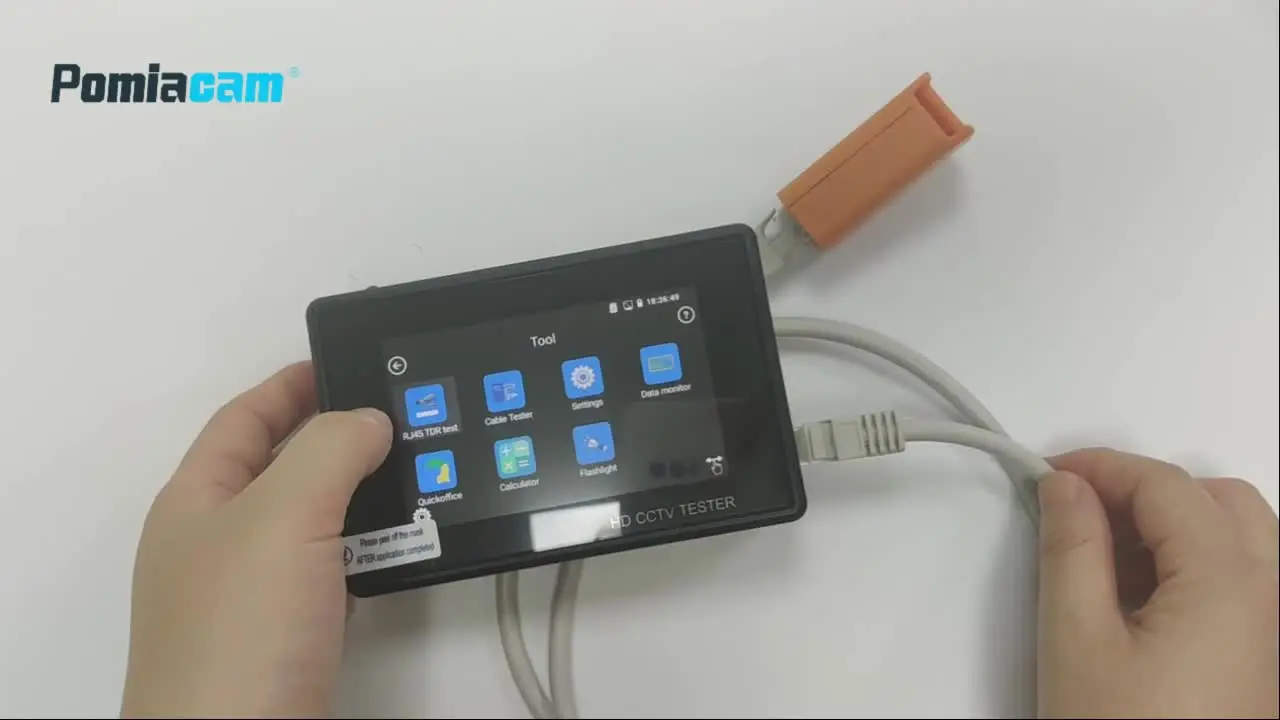
3. Operating Instructions
Follow these steps to perform a network cable test using the Network Cable Test Box and a compatible CCTV tester:
- After connecting the cable as described in the Setup section, power on your CCTV camera tester.
- Navigate to the 'Tool' menu on your CCTV tester's interface.
- Select 'Cable Tester' from the options.
- The tester will display the UTP cable sequence test results, showing the connection status on the screen.
- Observe the screen to read the remote kit number (e.g., 'Remote kit#: 255') and the cable type (e.g., '1000M Through').
- The display will indicate the status of each wire pair, allowing you to quickly detect if the RJ45 cable plug has a correct sequence, a wrong sequence that is still available, or a completely wrong sequence.
- The tester can identify various fault points, including continuity issues, breakpoints, and short circuits in the cable.
- You may have options to display cable diagrams, test port connections, and create test reports directly from your CCTV tester.


4. Maintenance
To ensure the longevity and optimal performance of your Network Cable Test Box, please follow these maintenance guidelines:
- Keep the device clean and free from dust and debris. Use a soft, dry cloth for cleaning.
- Avoid exposing the device to extreme temperatures, humidity, or direct sunlight.
- Store the test box in a safe place when not in use to prevent physical damage.
- Do not attempt to disassemble or repair the device yourself, as this may void any potential warranty and cause further damage.
5. Troubleshooting
If you encounter issues while using the Network Cable Test Box, consider the following:
- No Test Results Displayed: Ensure both ends of the network cable are securely connected to the Network Cable Test Box and the main CCTV tester. Verify the CCTV tester is powered on and the 'Cable Tester' function is selected.
- Incorrect Sequence Indication: Review the cable crimping on both ends of the network cable. Refer to standard wiring diagrams (T568A/T568B) to ensure correct pinout.
- Continuity/Breakpoint/Short Circuit: These indicate a physical fault in the cable. Inspect the cable for visible damage, kinks, or cuts. If possible, try testing with a known good cable to isolate the issue.
- Remote Kit Not Detected: Ensure the remote unit is properly connected and functioning. If using multiple numbered remote units, confirm the correct number is displayed on the main tester.
6. Specifications
| Feature | Specification |
|---|---|
| Brand Name | TahLiTech |
| Model Number | Network Cable Test Box |
| Dimensions (L x W x H) | 5 cm x 3 cm x 2 cm (approx. 2 in x 1.18 in x 0.78 in) |
| Cable Types Supported | UTP cable, BNC cable, telephone cable, shield cable |
| Test Functions | Sequence test, continuity test, near-end fault detection, mid-end fault detection, far-end fault detection (for RJ45 connectors) |
| Origin | Mainland China |

7. User Tips
- Always ensure a firm connection between the cable, the test box, and the main tester for accurate results.
- If testing multiple cables or remote points, utilize the numbered remote units (e.g., No.001-No.008) to keep track of specific test locations.
- For best results, perform tests in a well-lit environment to clearly see the display on your main CCTV tester.
- Keep the test box and cables organized to prevent tangles and potential damage during storage or transport.
8. Warranty and Support
For detailed information regarding warranty coverage and technical support, please refer to the official documentation provided by the seller or contact the seller directly. A comprehensive user manual in PDF format may also be available for download, which can provide additional guidance and troubleshooting steps. You can typically find this under 'Item guides & documents' on the product page.
A user manual in PDF format is available: View User Manual (PDF)