
Introduction
The KANAVI G96 Q2 TV Stick is a portable streaming media player designed to transform your television into a smart Android TV. Featuring Android 13.0, a powerful Allwinner H313 Quad Core processor, 4K resolution support, and dual-band Wi-Fi, it provides access to a wide range of streaming services, apps, and games through Google Play. With built-in Google Assistant and Chromecast, it offers a versatile and user-friendly entertainment experience.

Image: The G96 Q2 TV Stick and its remote, showcasing the Android TV interface with popular streaming apps and highlighting features like Android 13.0, BT5.0, Allwinner H313 CPU, 8K Video Decoding, 2.4G/5.8G WiFi, and HDR 10+.
Package Contents
Please check the box for the following items:
- G96 TV Stick
- Remote Control
- Power Adapter
- HD TV Cable (HDMI extension cable)
- IR Extender Cable (for remote sensor)

Image: A visual representation of the G96 TV Stick, remote control, power adapter, and HD TV cable included in the package.
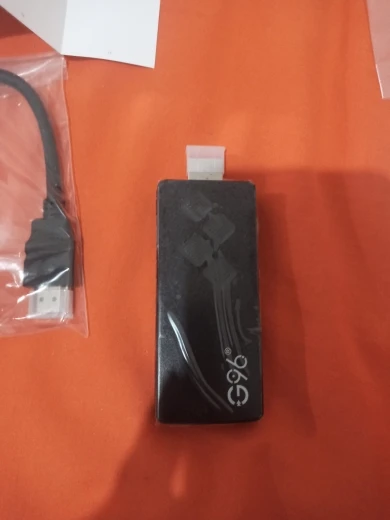
Image: All package components including the TV stick, remote, IR extender cable, HDMI extension cable, and USB power cable laid out on a surface.
Setup Guide
-
Connect the TV Stick: Plug the G96 TV Stick directly into an available HDMI port on your television. If space is limited, use the provided HDMI extension cable.
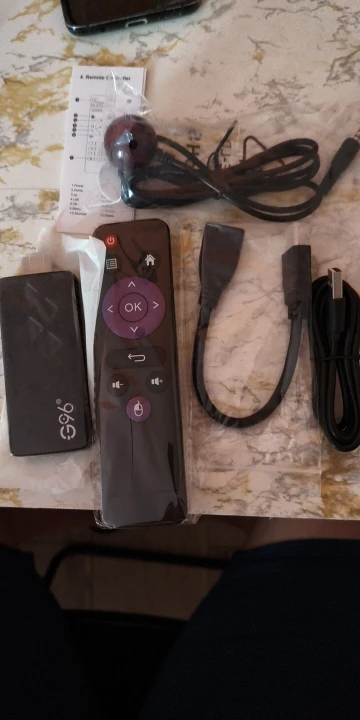
Image: A close-up view of the G96 TV Stick, showing its compact design and HDMI connector.
- Connect Power: Connect the provided Power Adapter to the TV Stick's power input port, then plug the adapter into a wall outlet. Important: Always use the provided power adapter for stable operation. Using a TV's USB port for power may lead to insufficient power supply and device malfunction or looping issues.
-
Connect IR Extender (Optional): If the TV Stick is hidden behind the TV and the remote control signal is obstructed, plug the IR Extender Cable into the TV Stick's IR port. Position the IR sensor in a location where it has a clear line of sight to your remote control.
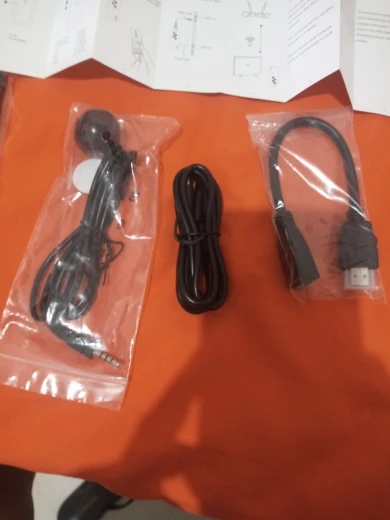
Image: Close-up of the accessories, including the IR extender cable, USB power cable, and HDMI extension cable.
- Select HDMI Input: Turn on your TV and use your TV remote to select the correct HDMI input source to which the G96 TV Stick is connected.
- Initial Setup: Follow the on-screen instructions to complete the initial setup, including connecting to your Wi-Fi network, logging into your Google account, and setting up Google Assistant.
Operating Instructions
Remote Control
The included remote control allows you to navigate the Android TV interface. It supports voice control via Google Assistant.
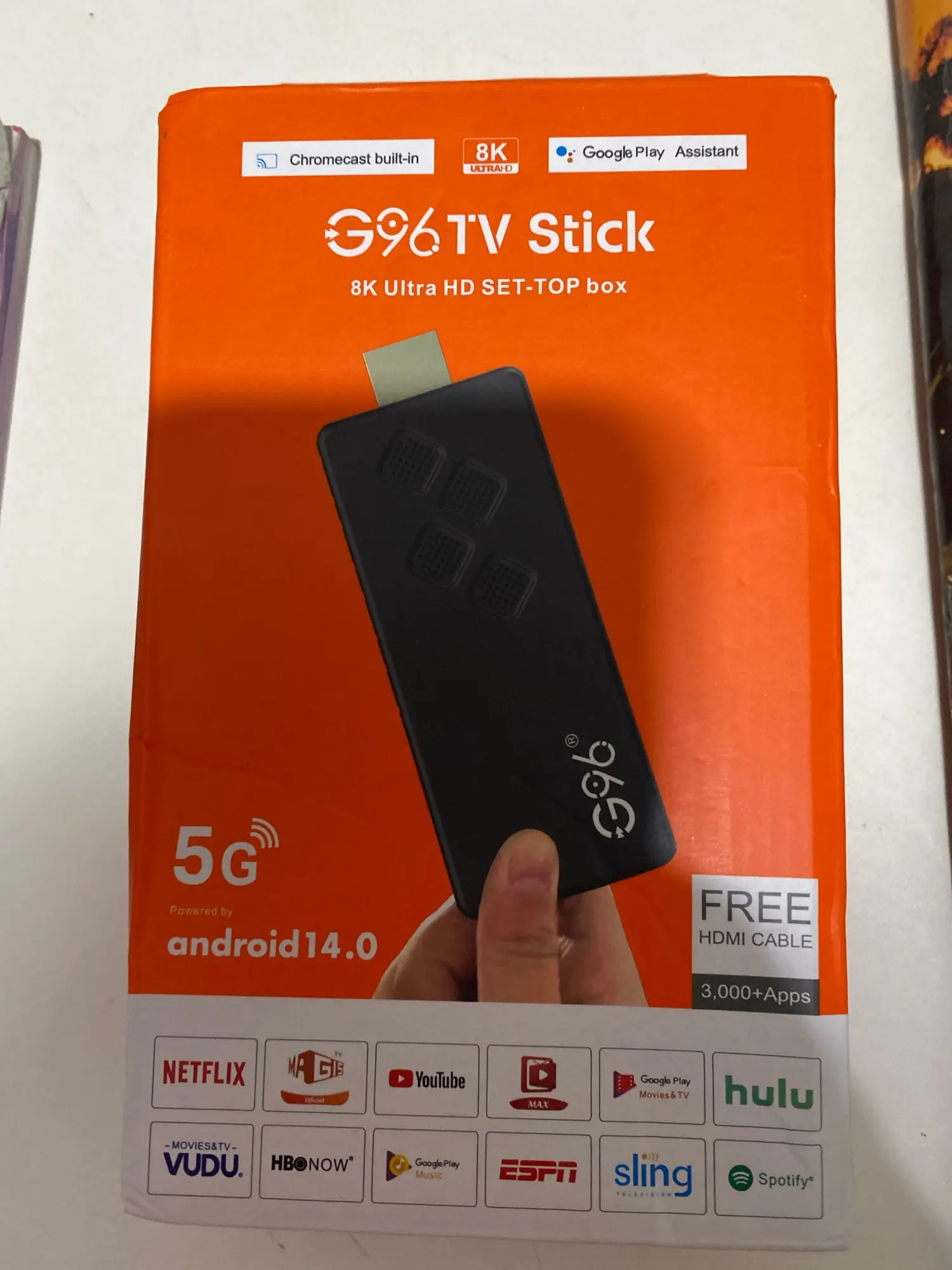
Image: A detailed view of the G96 TV Stick remote control, showing its buttons and layout.
Android TV Interface
The G96 Q2 runs on Android 13.0, providing a user-friendly interface for accessing various applications and content. You can download additional apps from the Google Play Store.

Image: Diagram illustrating the main functions: Netflix/Tele Latino 4K streaming, Allwinner H313 chipset, phone streaming via Chromecast, BT5.0/WiFi 5.8/LAN support, AV1/4K HDR video decoding, and Google Assistant voice control.
Streaming and Media Playback
- Apps: Access popular streaming services like Netflix, YouTube, Prime Video, and many others available on Google Play.
- Chromecast Built-in: Stream content directly from your smartphone, tablet, or computer to your TV using the built-in Chromecast feature.
- Media Formats: The device supports a wide range of video formats including AVI, DivX, MKV, DAT, VOB, MPG, MPEG, MOV, MP4, RM, RMVB, WMV, and picture formats like BMP, JPEG. It also supports AV1 and 4K HDR video decoding.
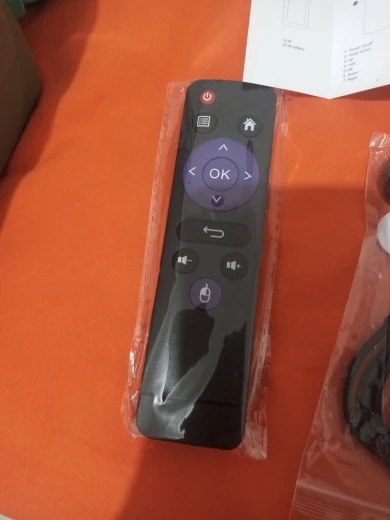
Image: A diagram demonstrating how to use Chromecast to cast content from a mobile phone to the TV via the G96 TV Stick.
Network Connectivity
The G96 Q2 features dual-band Wi-Fi (2.4GHz and 5GHz) for optimal network performance and smoothness. It also supports Bluetooth 5.0 for connecting peripherals.

Image: A diagram illustrating the benefits of dual-band Wi-Fi (2.4GHz for refreshing, 5GHz for smoother performance) and Bluetooth 5.0 connectivity.
Maintenance
- Cleaning: Use a soft, dry cloth to clean the device. Do not use liquid cleaners or aerosols.
- Storage: Store the device in a cool, dry place away from direct sunlight and extreme temperatures.
- Software Updates: Periodically check for system updates in the device settings to ensure optimal performance and access to the latest features and security patches.
- Avoid Obstructions: Ensure the TV stick has adequate ventilation and is not covered, especially if using the IR extender, to prevent overheating.
Troubleshooting
- Device does not power on or keeps looping:
- Ensure you are using the provided power adapter and it is plugged into a functional wall outlet. Using a TV's USB port for power may not provide sufficient current, leading to instability.
- Screen turns green or displays no signal:
- First, try unplugging and replugging the HDMI cable from both the TV Stick and the TV. Ensure the TV is set to the correct HDMI input. If the issue persists, try restarting the TV Stick by unplugging and replugging its power adapter.
- Netflix, Disney+, or other apps are not working or loading:
- Ensure the device has a stable internet connection. Check if the apps need to be updated via the Google Play Store. Sometimes, clearing the app's cache and data in the device settings (Settings > Apps > [App Name] > Storage > Clear Cache/Clear Data) can resolve issues. Ensure the app version is compatible with Android 13.0.
- Remote control is unresponsive:
- Check the batteries in the remote control and replace them if necessary. Ensure there are no obstructions between the remote and the TV Stick (or its IR extender). If using the IR extender, ensure it is properly connected and positioned.
- Wi-Fi connection issues:
- Verify your Wi-Fi password. Try restarting your Wi-Fi router. Ensure the TV Stick is within the Wi-Fi range (up to 10m). Consider switching between 2.4GHz and 5GHz networks if your router supports both, as 5GHz often provides a smoother experience.
Specifications
| Feature | Detail |
|---|---|
| Brand | KANAVI |
| Model Number | Q2 |
| Operation System | Android 13.0 |
| CPU | Allwinner H313 Quad Core ARM Cortex-A35 |
| GPU | Mali-G31 MP2 |
| RAM | 2GB |
| ROM (Internal Storage) | 8GB or 16GB (SKU dependent) |
| Resolution | 4K (Supports 8K Video Decoding) |
| Wi-Fi Frequency | 2.4GHz & 5GHz (Dual Band) |
| Wi-Fi Range | 10m |
| Bluetooth | BT5.0 |
| Connectors | HDMI-Compatible |
| Antenna Type | Internal |
| Transmission Distance | <50m |
| Video Format Support | AVI, DivX, MKV, DAT, VOB, MPG, MPEG, MOV, MP4, RM, RMVB, WMV, AV1, 4K HDR |
| Picture Format Support | BMP, JPEG |
| Recording | No |
| Remote Control | Included |
| Certifications | CE, FCC, RoHS |
| Dimensions (L x W x H) | 19 cm x 10 cm x 4 cm |
| Weight | 0.19 kg |
User Tips
- For optimal performance and to avoid power-related issues, always use the dedicated power adapter provided with the TV stick. Avoid powering it directly from your TV's USB port.
- If you experience screen issues like a green screen or no signal, try disconnecting and reconnecting the HDMI cable and the power adapter. This often resolves temporary display glitches.
- Keep your streaming applications and the Android TV operating system updated through the Google Play Store and system settings to ensure compatibility and access to the latest features.
- If an app is not functioning correctly, try clearing its cache and data from the Android TV settings. This can resolve many common app-related problems.
Frequently Asked Questions (FAQ)
- Q: Does it allow installation of other apps from the Play Store?
- A: Yes, the G96 Q2 runs on Android 13.0 and has full access to the Google Play Store, allowing you to download and install a wide variety of compatible applications.
- Q: Does it work with Netflix?
- A: Yes, the device supports Netflix and other popular streaming services. Ensure the app is updated to the latest version for optimal performance.
- Q: Does it work with the Apple TV application?
- A: As an Android TV device, it should support the Apple TV app if it is available on the Google Play Store for Android TV and compatible with Android 13.0.
- Q: Does this device have root access?
- A: The device is shipped with a standard Android TV operating system and does not typically come with pre-enabled root access.
- Q: Does this device work with Steam Link?
- A: If the Steam Link application is available on the Google Play Store for Android TV and is compatible with Android 13.0, then it should work.
Warranty and Support
For detailed warranty information and further support, please refer to the official product documentation. A comprehensive user manual in PDF format is available for download:
The KANAVI G96 Q2 TV Stick is certified with CE, FCC, and RoHS standards, ensuring compliance with relevant safety and environmental regulations.