
1. Introduction
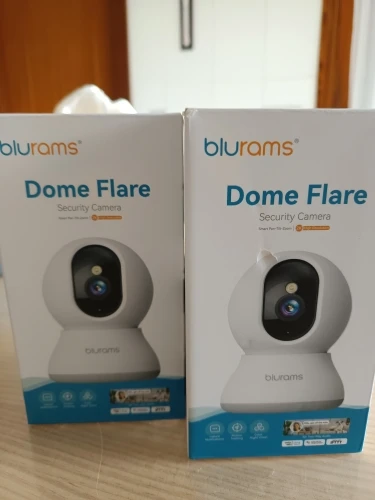
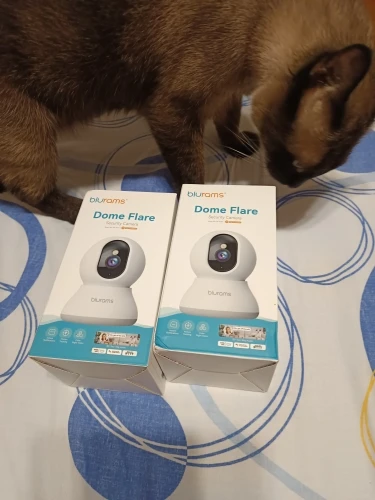
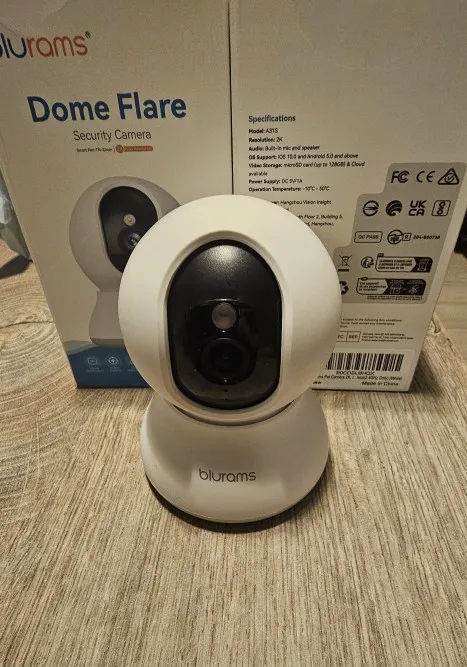
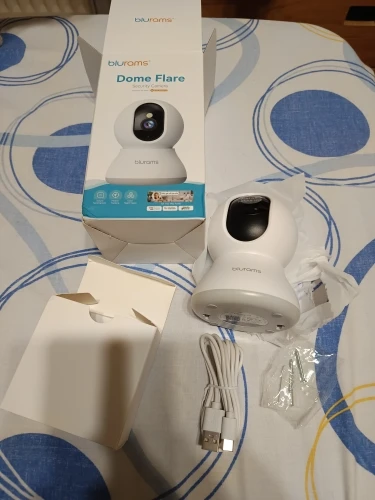
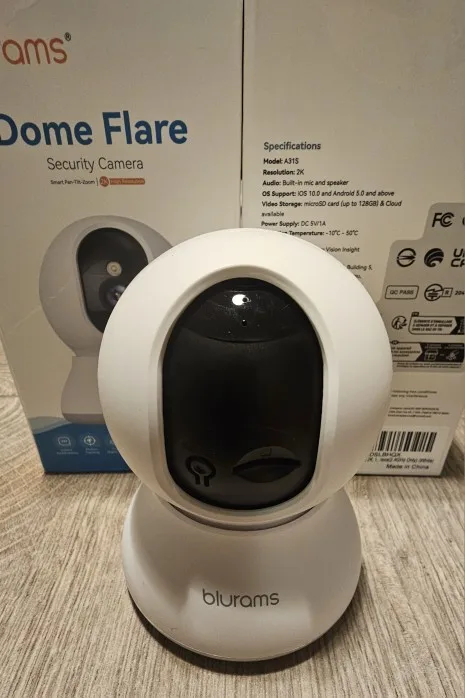
Thank you for choosing the Blurams Indoor Security Camera 2K. This camera is designed to provide high-definition surveillance for your home, allowing you to monitor pets, elders, or general home security with features like motion tracking, two-way audio, and night vision. This package includes two cameras (A31S-2K).
2. Package Contents
- 2 x Blurams Indoor Security Camera (Model A31S-2K)
- 2 x USB Cable
- 2 x Mounting Accessories (screws)
- User Manual (this document)
Note: Power adapters are not included and must be purchased separately. You will need a standard 5V power adapter for each camera.
3. Specifications
| Feature | Specification |
|---|---|
| Model Number | A31S-2K |
| High Definition | 3.0 Megapixels (2K Resolution) |
| Lens (mm) | 4mm |
| Viewing Angle | 360° |
| Movement Range (Pan) | 0°-360° |
| Connectivity | 2.4G/5G Wi-Fi |
| AI Functions | Motion Detection |
| Color Night Vision | Yes |
| Audio Output | Two Way Audio |
| Power Mode | Mains Electricity |
| Power Supply (V) | 5V |
| Power Consumption (W) | 5W |
| Sensor | CMOS |
| Shell Material | Plastic |
| Installation | Ceiling, Wall Mounted |
| Operating Temperature | -10°C ~ 50°C |
| Local Storage | 8-128GB Micro SD Card |
| Supported Operating Systems | Windows 7, Mac OS, Windows 10 |
| Smart Home Integration | Amazon Alexa, Google Home/Assistant, IFTTT |
4. Setup Guide
4.1. Download the 'BoyKeep' App
- Scan the QR code below or search for 'BoyKeep' in the App Store (iOS) or Google Play (Android) to download the latest version of the app.
Scan this QR code to download the BoyKeep app.
Note: The app requires iOS 10.0 or later / Android 5.0 or later.
4.2. Log In to the App
- Enter your username and password, then click 'Log in'. If you are a new user, please register an account first.
BoyKeep App login interface.
4.3. Add Device by Scanning Code (Recommended)
- Select the correct device model (e.g., Indoor Camera).
- Enter your Wi-Fi network name and password. Ensure they are correct.
- Place the QR code displayed on your phone screen 4 to 12 inches (10-30 cm) in front of the camera lens. Move it back and forth slowly until you hear a 'beep-beep' sound from the camera.
- Wait patiently for 1 to 2 minutes until you hear 'Network connection successful'. If you hear 'Network connection failed', double-check your Wi-Fi network name and password and try again.
Device selection and Wi-Fi input in the BoyKeep app.
Scan the QR code with the camera lens.
4.4. Add Device by AP Hotspot (Alternative Method)
- Select the correct device model you want to add.
- Click "Go to Phone Settings", connect to the Wi-Fi network named "CAM_AP_XXXX" (where XXXX is a unique identifier for your camera), then return to the BoyKeep app.
- Back in the app, enter your home Wi-Fi network name and password correctly.
- For iOS 14 and later, ensure you select "OK" in the permission dialog that appears.
- Wait patiently for 1 to 2 minutes until you hear 'Network connection successful'. If you hear 'Network connection failed', double-check your Wi-Fi network name and password and try again.
Note: Please grant all permission requests when adding a device; otherwise, the connection may fail.
4.5. Reset Button and SD Card Slot Location
Location of the Reset button and Micro SD card slot. Push up the camera head to access.
- Reset: Press and hold the "Reset" button until you hear a sound. After the reset is done, connect to the app when prompted by the sound. This is useful if you need to change the camera's Wi-Fi connection or encounter a connection failure.
- SD Card: Insert the TF (Micro SD) card as indicated by the icon. The memory card supports up to 128GB and must be formatted in FAT32. Power off the device before inserting or removing the SD card to ensure proper recognition.
5. Operating Instructions
5.1. App Interface Overview
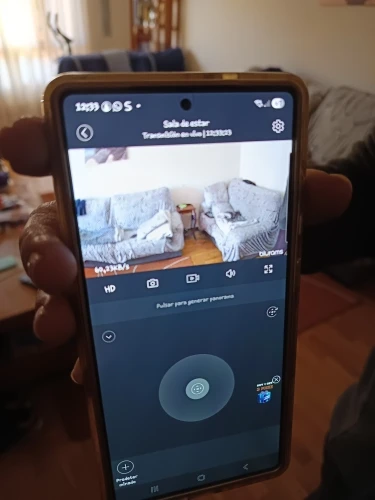
Main features of the BoyKeep app interface.
The app interface provides access to various functions:
- Device Name and Play Time: Displays the camera's name and current live view time.
- More Options: Access additional settings and features.
- Snapshot: Capture a still image from the live feed.
- Mute: Mute the audio from the camera.
- Image Quality: Adjust the video resolution (e.g., HIGH for 2K).
- Full Screen: View the live feed in full-screen mode.
- Save Recorded Video: Save video clips to your phone's gallery.
- Playback Timeline: Review recorded footage from your Micro SD card or cloud storage.
- Alarm: Manage alarm settings and notifications.
- Two-Way Audio: Engage in real-time conversation through the camera.
- PTZ Controller: Control the camera's Pan, Tilt, and Zoom (PTZ) functions for 360° rotation.
5.2. Key Features in Action

Demonstration of Blurams camera features including setup, motion tracking, Alexa integration, and night vision with pet detection.
- Motion Tracking: The camera can automatically detect and follow moving objects, such as pets or people, ensuring they remain in view.

The camera's motion tracking feature actively follows movement within its field of view.
- 360° Rotation: Control the camera's pan and tilt remotely via the app to get a full 360-degree view of your room.

Remote control of the camera's 360-degree rotation via the mobile app.
- IR Night Vision: The camera provides clear black and white video even in complete darkness, ensuring continuous monitoring.

Infrared night vision provides clear monitoring in low-light conditions.
- Two-Way Talking: Use the built-in microphone and speaker to communicate with family members or pets from anywhere.

Engage in two-way communication with the camera's built-in speaker and microphone.
5.3. Mounting Options
The camera offers flexible installation options:
- Normal Mounted: Place the camera on a flat surface like a table or shelf.
- Wall Mounted: Secure the camera to a wall using the provided accessories.
- Reverse Mounting (Ceiling): Mount the camera upside down on the ceiling. The app allows you to flip the video feed for correct orientation.

Various mounting options for the Blurams camera: normal, wall, and reverse (ceiling).
6. Maintenance
- Cleaning the Lens: To ensure optimal image quality and successful QR code scanning, keep the camera lens free of dust and smudges. Use a soft, dry cloth for cleaning.
- SD Card Handling: Always power off the device before inserting or removing the Micro SD card to prevent data corruption or damage to the card/device.
7. Troubleshooting (FAQs)
- Q: The device prompts "Network connection failed" when adding.
A: Make sure the entered Wi-Fi name and password are correct. If you need to change the camera's Wi-Fi connection, press and hold the reset button until you hear "reset successfully". - Q: The device frequently appears offline.
A: Consider replacing the power adapter and positioning the device closer to your Wi-Fi router. Minimize obstructions such as solid walls, metal door frames, etc., between the camera and router to ensure optimal network signal strength. - Q: A memory card is inserted but not recognized.
A: The device supports Micro SD cards up to 128GB. Format the memory card to FAT32 on your computer before inserting it into the device. Always insert the card before powering on the camera. - Q: Is the camera rotating?
A: Yes, the camera supports 360° pan rotation, controllable via the app. - Q: Does it have night vision?
A: Yes, it features IR night vision and color night vision capabilities. - Q: Does it connect to Wi-Fi?
A: Yes, it supports 2.4G/5G Wi-Fi connectivity. - Q: Can it be seen from outside the house?
A: Yes, as long as the camera is connected to the internet and your phone has internet access, you can view the live feed remotely via the BoyKeep app. - Q: How long does it record? Can I record to a PC?
A: Recording duration depends on the Micro SD card capacity (up to 128GB) or your cloud storage plan. Direct recording to a PC is not typically supported; footage is accessed via the app. - Q: Which app does it work with?
A: The camera works with the 'BoyKeep' app. - Q: Do 256 GB micro SD cards fit?
A: No, the device supports Micro SD cards up to 128GB. - Q: Does it have to be continuously plugged into the power grid?
A: Yes, the camera operates on mains electricity and requires continuous power.
8. User Tips
- Easy Setup: Many users find the camera easy to install and set up using the BoyKeep app.
- Good Image Quality: The 2K resolution provides clear and good image quality for monitoring.
- Essential Accessories: Remember that power adapters and Micro SD cards are often sold separately, so plan to acquire these if not already owned.
- Feature-Rich: The camera offers a wide field of view, minimal image/sound delay, and useful features like alarm and recording options without necessarily needing premium upgrades.
- Smart Home Integration: The camera supports Amazon Alexa and Google Home/Assistant for voice control and viewing.
9. Important Notes & Safety
- Environmental Conditions: Avoid using the device in extreme weather conditions, such as extremely high or low temperatures, direct strong sunlight, or heavy rain for extended periods. The recommended operating temperature range is -10°C to 50°C.
- FCC Compliance: This device complies with Part 15 of the FCC Rules. Operation is subject to the following two conditions: (1) this device may not cause harmful interference, and (2) this device must accept any interference received, including interference that may cause undesired operation. Any changes or modifications not expressly approved by the party responsible for compliance could void the user's authority to operate the equipment.
- RF Exposure: To maintain compliance with FCC's RF Exposure guidelines, this equipment should be installed and operated with a minimum 20cm distance between the radiator and your body. Use only the supplied antenna.
10. Support & Contact Information
For any questions or support, please contact:
- Email: support@boykeep.com
- Website: www.boykeep.com
- Company: Hangzhou Kua Shi Technology Co., Ltd
- Address: Room 602, No.186 Huayuangang Street, Gongshu District, Hangzhou, Zhejiang, China
You can also refer to the official user manual PDF for additional details: View User Manual (PDF)