
1. Product Overview
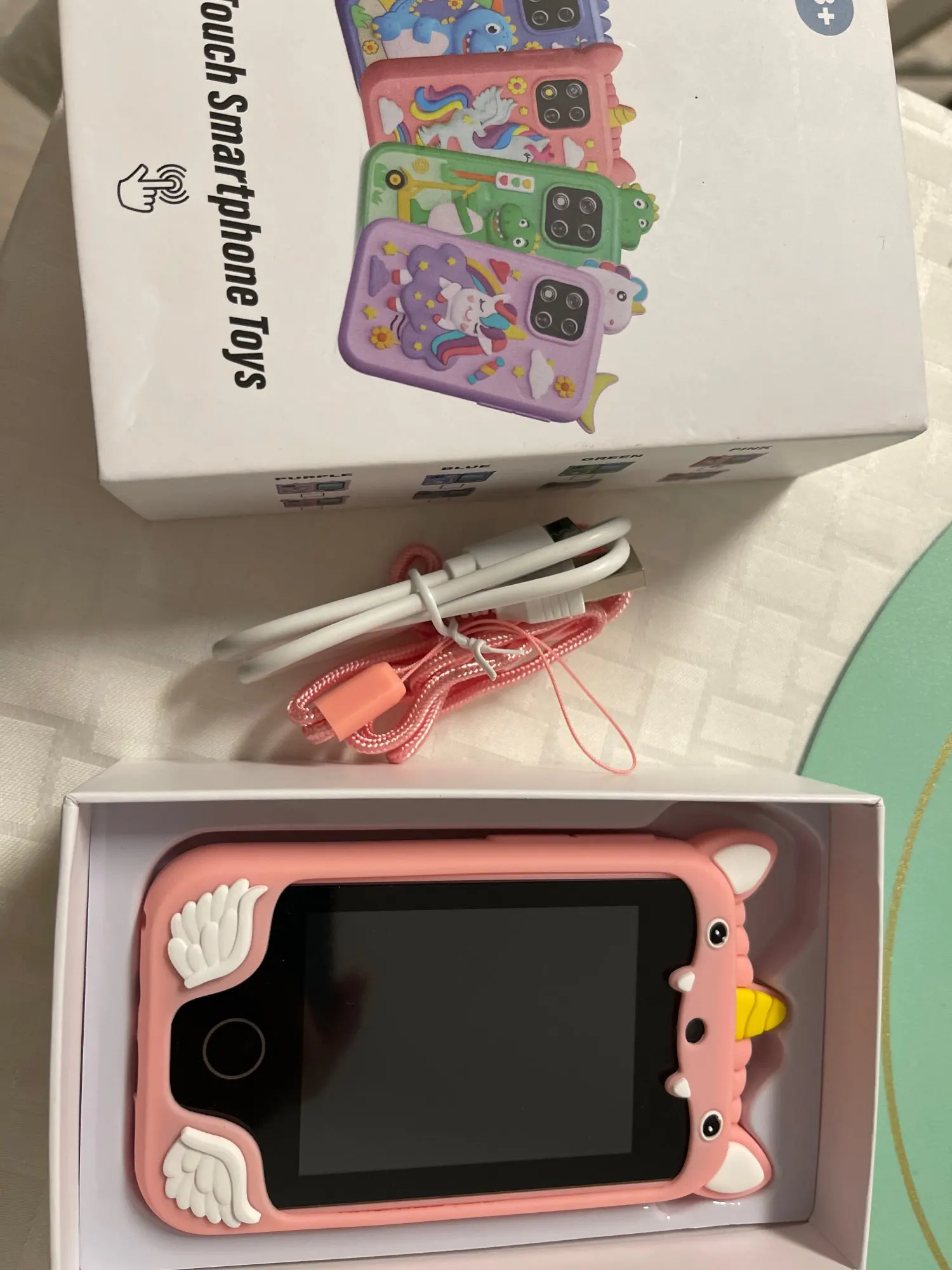
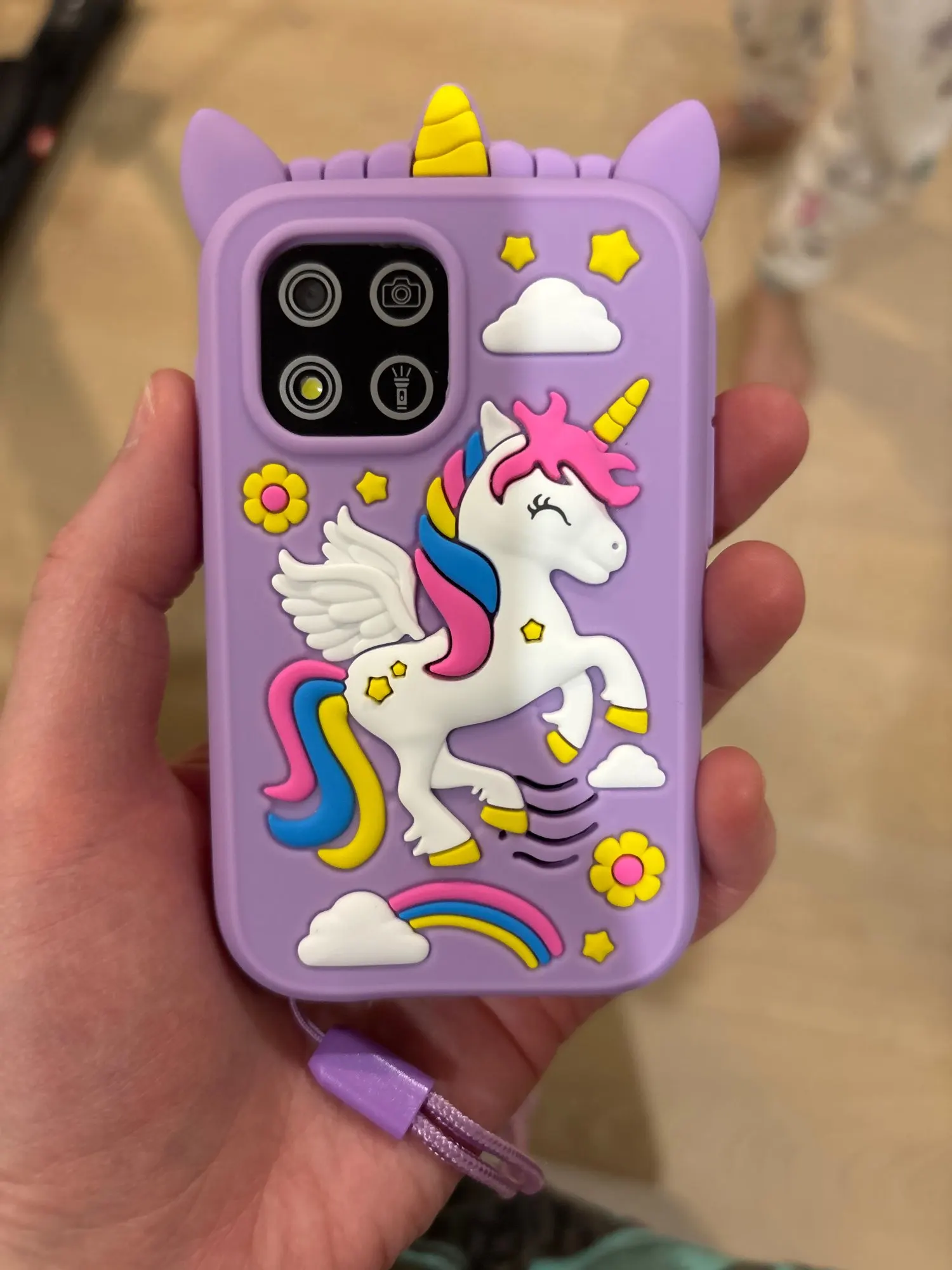
The AMORUS Z10 Kids Smart Phone Camera Toy is a multifunctional educational device designed for children aged 3-8. It features a touchscreen, dual cameras, MP3 player, games, and various utility apps, all housed in a durable silicone case.
This diagram illustrates the key physical features of the device, including buttons, ports, and camera locations.
Component Identification:
- ON/Off Button
- Volume Up & Down Buttons
- Front Camera
- TF Card Slot
- Reset Switch
- Microphone (Mic)
- 3.5mm Headphone Connector
- Home Button
- Type-C Port (Charging)
- Hanging Rope Hole
- Loud Speaker
- Rear Camera
- Flashlight
2. Setup
2.1 Package Contents
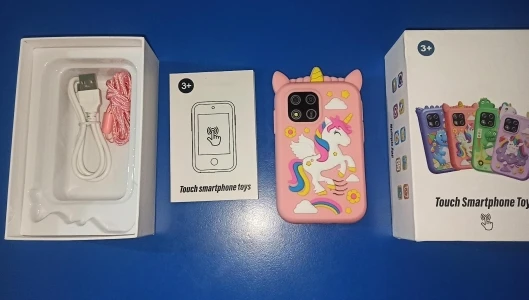
Before using the device, please ensure all items are present in the package:
- AMORUS Z10 Smart Phone Camera Toy
- USB Type-C Charging Cable
- Lanyard
- 8GB TF (MicroSD) Card (pre-installed or included separately)
- User Manual (this document)
The image displays the main device and its accompanying accessories.
2.2 Initial Charging
The device comes with a built-in 600 mAh Lithium rechargeable battery. For first-time use, fully charge the device:
- Connect the provided USB Type-C charging cable to the device's Type-C Port (9).
- Connect the other end of the USB cable to a 5V1A adapter (not included) or a computer's USB port.
- Charging duration is approximately 3-4 hours for a full charge.
- Do not use the product while charging.
2.3 TF Card Installation
The device supports TF cards with a capacity range of 4GB-32GB. An 8GB TF card is typically included.
- Locate the TF card slot (4) on the side of the device.
- Gently insert the TF card into the slot until it clicks into place.
- To remove, push the card slightly inward until it springs out.
2.4 Language Settings
The device supports multiple languages, including English, French, Spanish, Italian, German, Chinese, and Russian.
- From the main interface, tap the 'Settings' icon (gear icon).
- Swipe left/right to navigate through setting options.
- Tap the 'Advanced' option.
- Select 'Language' and choose your preferred language.
- Tap the 'Home button' (8) to return to the main interface.
3. Operating Instructions
3.1 Basic Controls
- ON/Off (1): Long press for 2 seconds to turn the device on/off. Short press once to lock or unlock the screen.
- Volume Up & Down (2): Press the volume button once to raise or lower the volume.
- Reset Switch (5): Move the switch up to turn on the power and down to reset the device.
- Home Button (8): Tap to return to the main interface from any application.
3.2 Applications and Features

The device offers a variety of applications and customizable wallpapers.
3.2.1 Camera Mode
The camera mode allows for taking photos with various options.
- Tap the 'Camera' icon to enter photography mode.
- Tap the frame/filter icon (top left) to apply frames or filters. Tap again to cancel.
- Tap the capture button (center bottom) to take a photo.
- Tap the album icon (bottom right) to switch to the album. Swipe left/right to view photos/videos. Tap 'Options' to delete a single item or 'Delete All'.
- Tap the camera switch icon (bottom left) to switch between the front and rear cameras.
- Tap the 'Home button' to return to the main interface.
3.2.2 Video Mode
The video mode allows for recording and managing video clips.
- Tap the 'Video' icon to enter video mode.
- Tap the record button (center bottom) to start recording. Tap again to stop recording and save automatically.
- Tap to play or pause a video.
- Tap the album icon (bottom right) to switch to the album. Swipe left/right to view photos/videos. Tap 'Options' to delete a single item or 'Delete All'.
- Tap the 'Home button' to return to the main interface.
3.2.3 Music Mode

The device includes a music player with a 3.5mm headphone jack and a high-quality speaker.
- Tap the 'Music' icon to enter music mode.
- To play music, you need to put 'mp3' format songs into the 'MP3' folder on the TF card.
- Tap to switch to the previous or next track.
- Tap to play or pause songs.
- Music playback is only available within the music interface.
- Tap the 'Home button' to return to the main interface.
3.2.4 Games

The device comes pre-loaded with 10 entertaining puzzle games.
- Tap the 'Games' icon to enter game mode.
- Select from the available games (e.g., 2048, Basketball, Flyball, Gold coins).
- Tap the 'Home button' to return to the main interface.
3.2.5 Other Applications
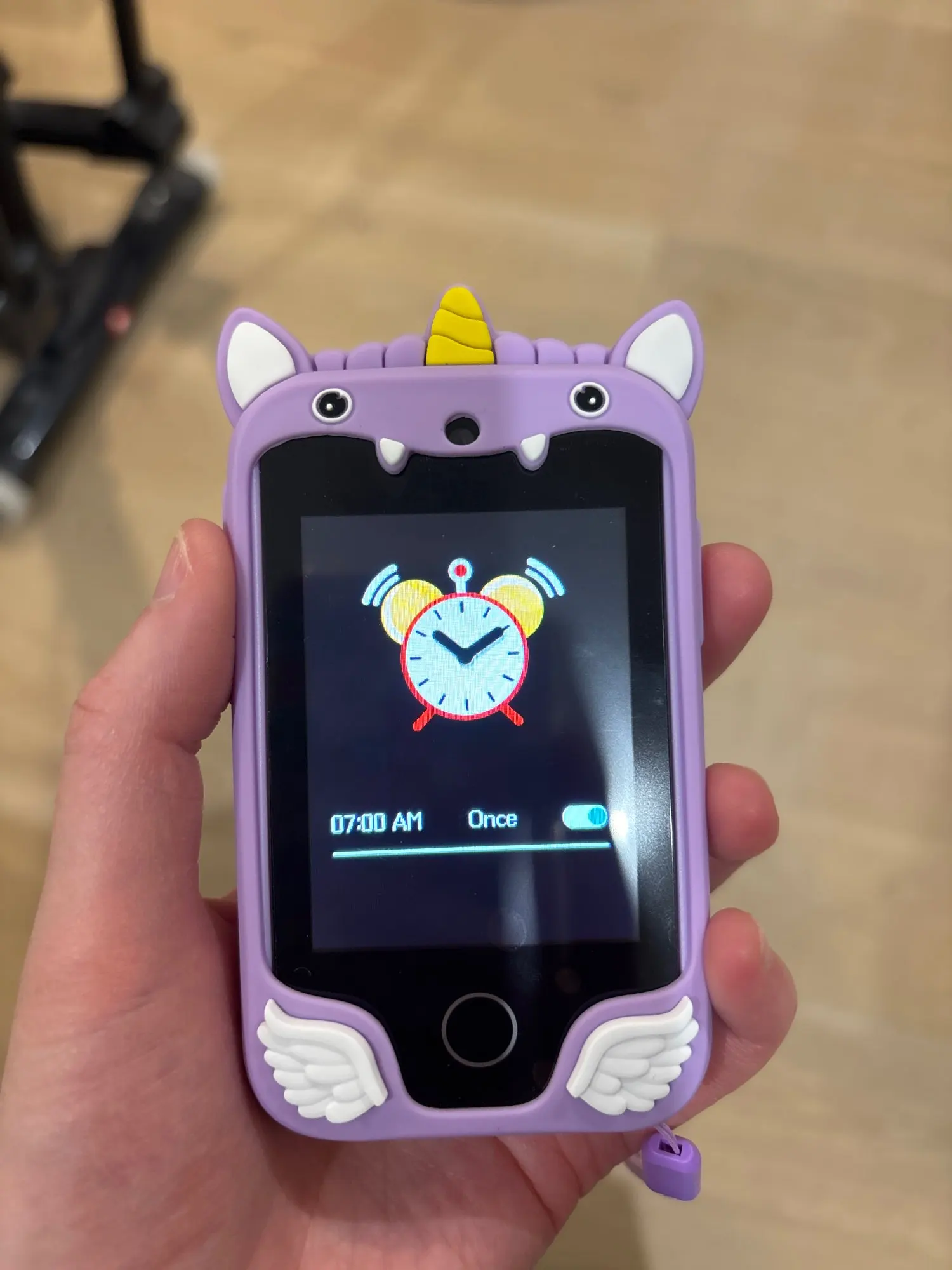
- Alarm Clock: Tap the 'Alarm' icon. Set up to 4 different alarms by tapping on '12:00 AM' to select time, 'Once' for reminder period, and use the 'swipe switch' to turn on/off.
- Photos Album: Tap the 'Photos' icon. Toggle up/down or swipe left/right to view photos/videos. Tap 'delete' for single deletion or 'delete all'. You can also play/pause videos here.
- Recording: Tap the 'Recorder' icon. Click the red dot to start/pause/save recordings. Switch between files, play/pause, delete, and set recording quality (high/low).
- Calculator: Tap the 'Calculator' icon. Perform calculations using the numeric keypad.
- Calendar: Tap the 'Calendar' icon. Swipe left/right to switch dates.
- Timer: Tap the 'Timer' icon. Tap 'Start' to begin, tap again to stop. Tap 'Reset' to clear the time.
- Torch (Flashlight): Tap the 'Torch' icon. Tap 'OFF' or 'ON' to control the flashlight.
- Player (Video Player): Tap the 'Player' icon. Select a video to play.
- Theme: Tap the 'Theme' icon. Select a theme to apply.
- Habits: Tap the 'Habits' icon. Select from 4 plans to set reminder times.
- Story: Tap the 'Story' icon. Select a story for playing.
- Wonders: Tap the 'Wonders' icon. Swipe left/right to switch between world landmarks and click play to hear their names.
- Tools (Stopwatch): Tap the 'Tools' icon to access the stopwatch function.
- Learn Card: Tap the 'Learn Card' icon to learn letter and word pronunciation.
For all applications, tap the 'Home button' (8) to return to the main interface.
4. Maintenance
4.1 Cleaning
To keep your device clean and functioning properly:
- Wipe the screen and body with a soft, dry, lint-free cloth.
- Avoid using abrasive cleaners, solvents, or aerosol sprays.
- Do not immerse the device in water or any other liquids.
4.2 Battery Care
The device contains a Lithium Battery. Follow these guidelines for optimal battery life and safety:
- Charge the device fully before first use.
- Avoid completely draining the battery frequently.
- Do not expose the device to extreme temperatures.
- If the device will not be used for an extended period, charge it to about 50% before storing.
4.3 Storage
Store the device in a cool, dry place away from direct sunlight and moisture when not in use.
5. Troubleshooting
Common Issues and Solutions:
- Device not turning on: Ensure the battery is charged. If it's still unresponsive, try using the Reset Switch (5).
- Screen unresponsive: Try restarting the device using the ON/Off button or the Reset Switch.
- Sound issues: Check the volume level. Ensure headphones are properly connected if in use.
- Cannot save photos/videos: Ensure the TF card is properly inserted and has sufficient free space.
- Music not playing: Verify that MP3 files are correctly placed in the 'MP3' folder on the TF card.
User Tips:
- The device does not support SIM cards or cellular calls, nor does it have internet access or Bluetooth. It functions as a standalone educational toy.
- Videos can be downloaded from a computer and played on the device.
- While the menu supports multiple languages, some pre-installed games or applications might only be available in English or other primary languages.
- The camera quality is basic, similar to early smartphones, but sufficient for children's play and exploration.
- Consider purchasing a screen protector for added durability, although the device is designed for children's use.
6. Specifications
| Feature | Description |
|---|---|
| Model Number | Z10 |
| Screen Size | 2.8" IPS Screen 240*320 |
| Video Resolution | VGA/720P/1080P |
| Video/Audio Format | AVI. / mp3. |
| Photo Resolution | VGA/2M/3M/5M/8M/12M/16M |
| Battery Capacity | 600 mAh Lion Rechargeable Battery |
| Charging Duration | 3-4 Hours |
| Battery Life | 2-3 Hours (usage dependent) |
| Input | DC 5V (Type-C) |
| Output | 2W |
| Product Material | ABS Plastic |
| Games Included | 2048, Basketball, Flyball, Gold coins, and more. |
| Supported Languages | English, Chinese, German, French, Spanish, Italian, Russian, Moldovan |
| Photo Quality | 1M-48 (various settings) |
| Features | Battery Operated, Educational, Flashing, Sounding |
| Recommended Age | 3-6Y, 6-12Y |
For a detailed user manual in PDF format, please refer to the official document available at: User Manual (PDF)
7. Safety Information

Attention:
- Children 0-3 years old should use this product under the supervision of their parents.
- Do not use while charging.
- Do not put the product near fire.
WARNING: CHOKING HAZARD
Small parts not for children under 3 years or any individuals who have a tendency to place inedible objects in their mouths.
This product complies with ASTM, FCC, UKCA, and CE standards.
8. Warranty and Support
For any product inquiries, technical support, or warranty claims, please contact the seller or retailer from whom you purchased the AMORUS Z10 Kids Smart Phone Camera Toy. Please retain your proof of purchase for warranty purposes.