
1. Introduction
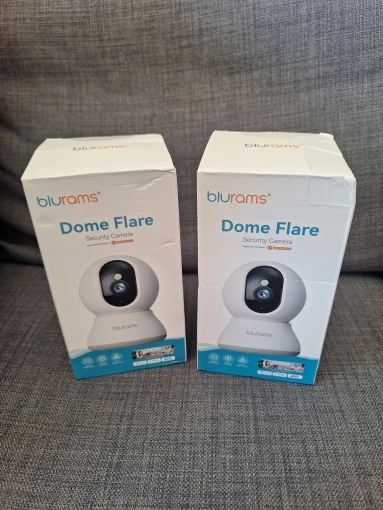
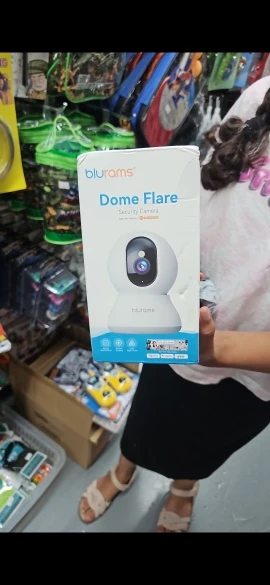
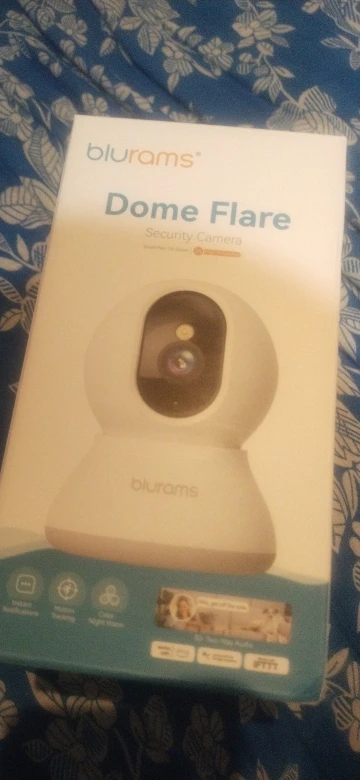
Thank you for choosing the blurams Pet Camera. This indoor security camera, model A31S (also known as Dome Flare), offers 2K resolution, 360° pan and tilt capabilities, motion tracking, two-way audio, and advanced night vision to help you monitor your home and pets. This manual provides detailed instructions for setup, operation, maintenance, and troubleshooting to ensure optimal performance and a seamless user experience.

2. Packing List
Please check the contents of your package. If any items are missing or damaged, contact customer support.
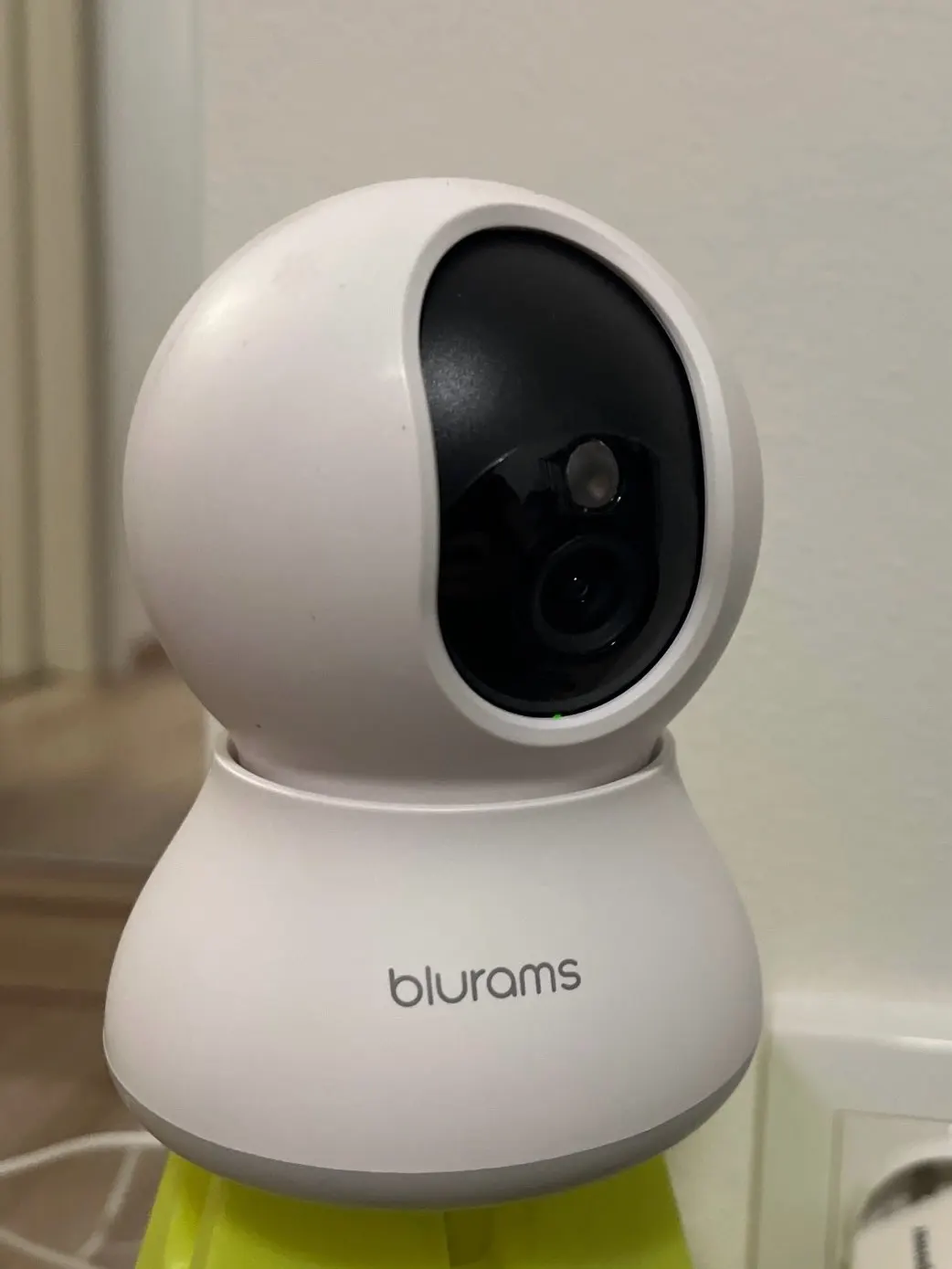
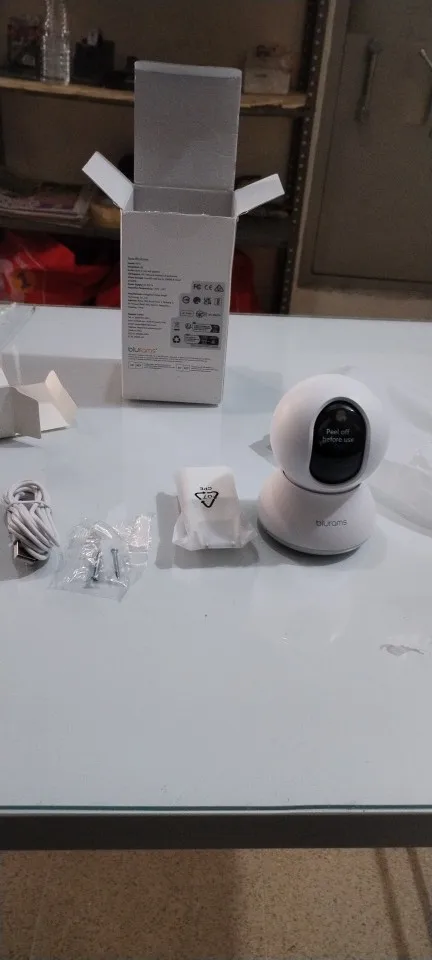
- Camera
- USB cable & Power adapter (Note: Some packages may only include the USB cable. A DC 5V/1A power adapter is required.)
- Screw accessory pack
- Plotting sheet
- User Manual (PDF version available online)
3. Product Overview
Familiarize yourself with the different parts of your blurams camera:
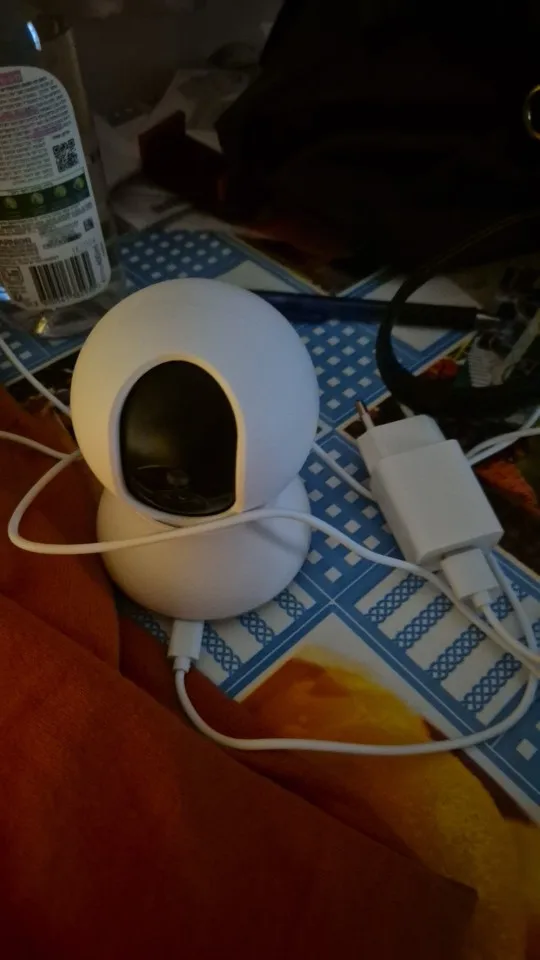
- Spotlight
- Indicator light
- TF card slot
- Speaker
- USB interface
- Reset button
4. Setup
4.1 Powering On
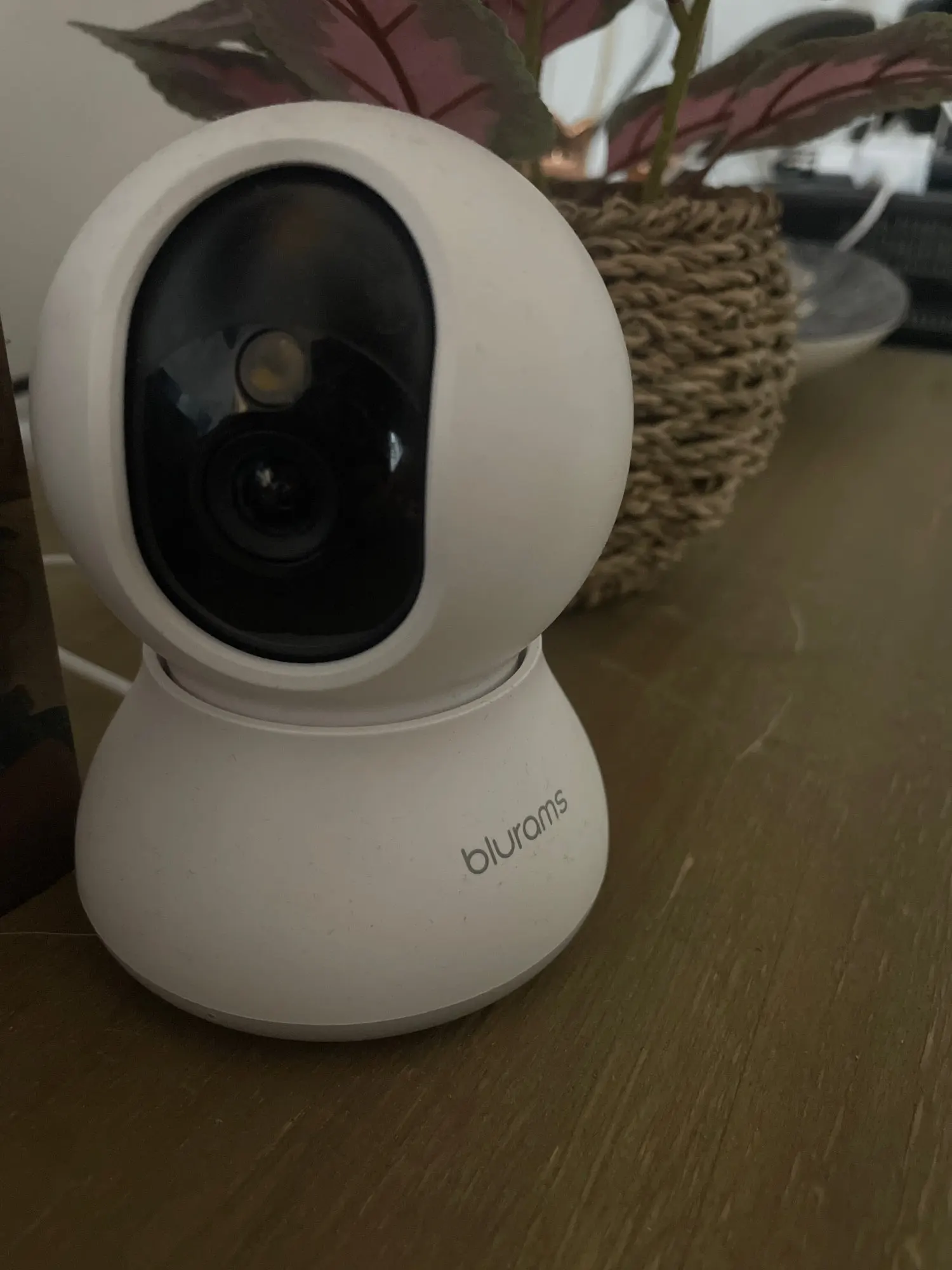
Connect the camera to a power source using the provided USB cable and power adapter (if included). Ensure you use a DC 5V/1A power adapter for optimal performance.
4.2 App Download
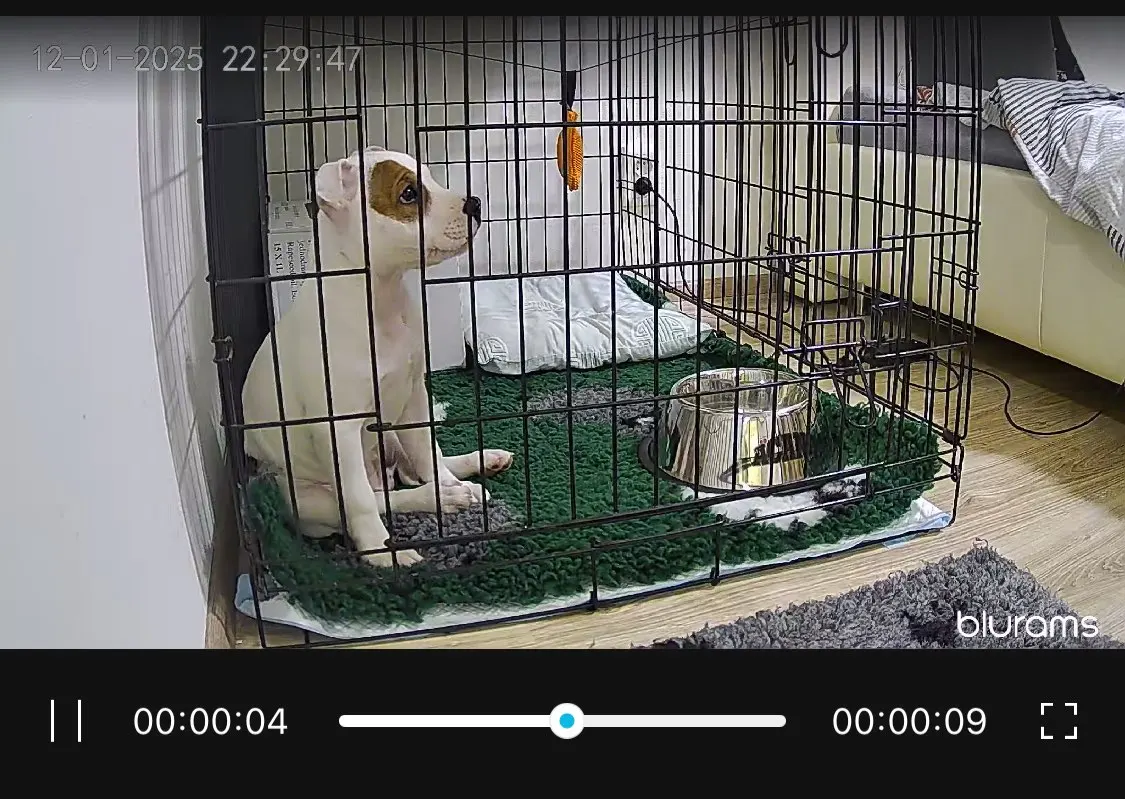
Download the blurams App to your mobile device. You can find it by searching "blurams" in the App Store (iOS) or Google Play (Android), or by scanning the QR code below:
4.3 Adding Your Camera to the App
Once the app is installed:
- Open the blurams App.
- Sign up for a free blurams account or log in if you already have one.
- Navigate to the home page.
- Click the "+" icon located in the top right corner.
- Select your camera model (A31S / Dome Flare) from the list.
- Follow the on-screen instructions within the app to complete the camera addition process. This typically involves connecting the camera to your 2.4GHz Wi-Fi network.
4.4 Mounting Options
The blurams A31S camera offers flexible installation options:
- Normal Mounted: Place the camera on a flat surface like a table or shelf.
- Wall Mounted: Use the included screw accessory pack and plotting sheet to securely mount the camera to a wall.
- Reverse Mounted: Mount the camera upside down on a ceiling for an overhead view. The app allows for image rotation to correct the orientation.
5. Operation
5.1 Key Features
- Motion Tracking: The camera can automatically detect and follow moving objects, such as pets or people, within its field of view.
- 360° Rotation (Pan/Tilt): Control the camera's viewing angle remotely via the app to get a full 360° panoramic view of your room.
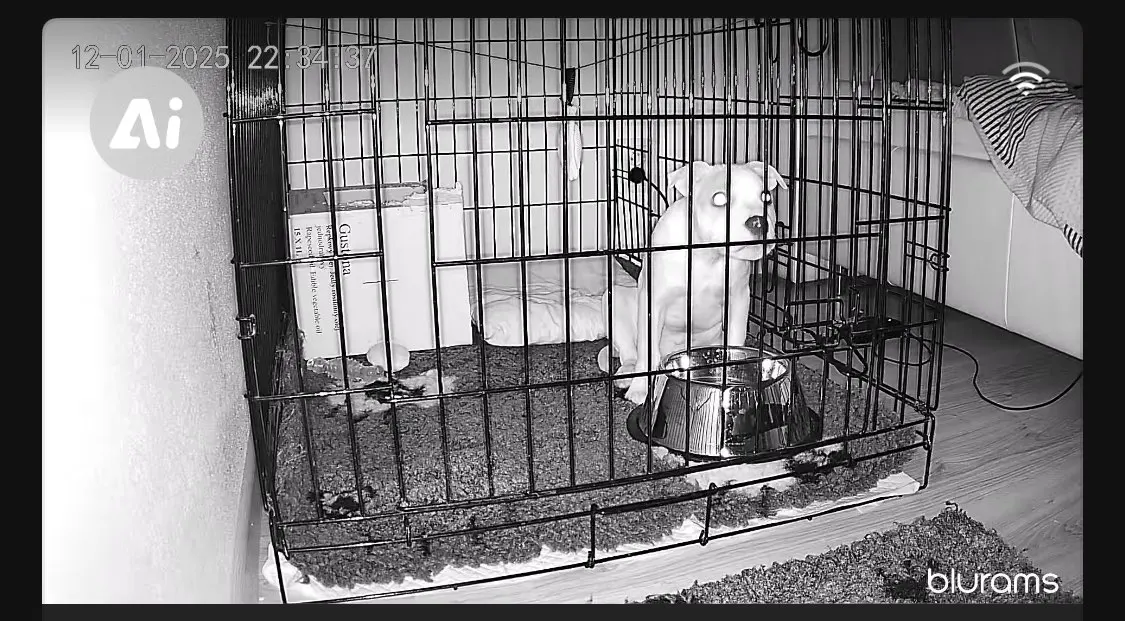
- IR Night Vision: The camera provides clear black and white video even in complete darkness, with an IR distance of up to 7 meters.
- Two-Way Audio: Communicate with your pets or family members through the camera using the built-in microphone and speaker.
- Micro SD/Cloud Storage: Store your recordings locally on a Micro SD card (up to 128GB) or subscribe to blurams Cloud Storage for secure cloud-based recording.
5.2 Access via Web Interface
In addition to the mobile app, you can access your camera's live feed and recordings through a web browser (Chrome, Firefox, Edge) on your computer:
- Open your web browser and go to: https://client.blurams.com/login
- Enter your registered email address, password, and any required verification code.
- Click on your camera to view the live image.
- Use the gear symbol in the top right corner to change camera settings and review recorded footage.
6. Maintenance
- Environmental Conditions: Do not use the camera in environments with excessively high or low temperatures. Avoid exposing the camera to strong direct sunlight or very humid conditions. The optimal operating temperature for the product and its accessories is between -10°C and 50°C.
- Cleaning: Gently wipe the camera lens and body with a soft, dry cloth. Avoid using harsh chemicals or abrasive cleaners.
- Firmware Updates: Regularly check the blurams App for available firmware updates to ensure your camera has the latest features and security enhancements.
7. Troubleshooting
- Camera not connecting to Wi-Fi: Ensure your Wi-Fi network is 2.4GHz. The camera does not support 5GHz Wi-Fi. Check your Wi-Fi password and signal strength.
- Sound delay: Some users have reported minor sound delays. This can sometimes be due to network latency. Ensure a stable internet connection.
- Recording requires subscription: The cloud recording feature is subscription-based. Local storage via a Micro SD card is an alternative for recording without a subscription.
- Missing power adapter: While a USB cable is always included, some packages may not contain a power adapter. A standard DC 5V/1A USB power adapter is required.
- Cannot connect multiple phones: Only one primary mobile phone can be directly connected for full control. However, the image feed can often be shared or viewed on other devices through the app's sharing features or the web interface.
- Image quality issues: Ensure the lens is clean and free from obstructions. Check your network speed for optimal streaming quality.
8. Specifications
| Feature | Specification |
|---|---|
| Model Number | A31S |
| Style | Dome Camera |
| High Definition | 3.0 Megapixels (2K) |
| Megapixels | 3 MP |
| Lens (mm) | 2mm |
| Lens Quantity | Single Lens |
| Viewing Angle | 360° |
| Movement Range (Pan) | 0°-360° |
| Sensor | CMOS |
| Connectivity | WIFI (2.4GHz) |
| AI Functions | Motion Detection, package detection, pet detection |
| Color Night Vision | Yes |
| IR Distance (m) | 7 Meter |
| Audio Output | Two Way Audio |
| TF Card Support | 128G TF Card (Max) |
| Power Mode | Mains Electricity |
| Power Supply (V) | DC 5V/1A |
| Power Consumption (W) | 5 W |
| Installation | Normal |
| Scene | Indoor |
| Dimensions (L x W x D)(mm) | 70*70*107 CM |
| Shell Material | Plastic |
| Supported Operating Systems | Windows 7, Mac OS, Windows 10 |
| Operating Frequency Range | 2412 MHz-2472 MHz |
| Max Output Power | 20dBm |
9. User Tips
- The blurams app is generally well-regarded for its functionality and ease of use.
- Video quality is crisp, and sound is clear for most users, making it effective for monitoring.
- Setup is straightforward, especially when following the app's instructions.
- Remember that the camera only supports 2.4GHz Wi-Fi networks.
- Consider the subscription for cloud recording if continuous footage storage is critical, as the recording function is subscription-based.
- If your package did not include a power adapter, ensure you use a compatible DC 5V/1A adapter.
- The camera works well in low-light conditions, providing clear night vision.
- While the app might seem complex initially, it offers comprehensive control and features.
10. Frequently Asked Questions (FAQ)
- Q: Is a power adapter included with the camera?
- A: While a USB cable is always included, some users have reported that the power adapter might not be in the package. A standard DC 5V/1A USB power adapter is required.
- Q: Does the camera require a subscription for recording?
- A: Yes, the cloud recording function is subscription-based. You can use a Micro SD card (up to 128GB) for local storage without a subscription.
- Q: What Wi-Fi frequency does the camera support?
- A: The blurams A31S camera supports 2.4GHz Wi-Fi networks only. It is not compatible with 5GHz networks.
- Q: Can I access the camera from a computer?
- A: Yes, you can access the camera's live feed and recordings via a web interface using browsers like Chrome, Firefox, or Edge. Visit client.blurams.com/login.
- Q: Is there a delay in audio?
- A: Some users have noted a slight delay in audio transmission, which can be influenced by network conditions.
11. Warranty & Support
For technical assistance, warranty inquiries, or to extend your product warranty for another 180 days, please contact blurams customer support:
- Email: support@blurams.com
- Phone: +1 (855) 917 4591 (Monday - Friday, 08:00 AM - 05:00 PM Pacific Time)
- Website: www.blurams.com
A PDF version of this user manual is also available for download: User Manual (PDF)
12. Regulatory Information (FCC Statement)
Information to User
This equipment has been tested and found to comply with the limits for a Class B digital device, pursuant to part 15 of the FCC rules. These limits are designed to provide reasonable protection against harmful interference in a residential installation. This equipment generates, uses and can radiate radio frequency energy and, if not installed and used in accordance with the instructions, may cause harmful interference to radio communications.
However, there is no guarantee that interference will not occur in a particular installation. If this equipment does cause harmful interference to radio or television reception, which can be determined by turning the equipment off and on, the user is encouraged to try to correct the interference by one or more of the following measures:
- Reorient or relocate the receiving antenna.
- Increase the separation between the equipment and receiver.
- Connect the equipment into an outlet on a circuit different from that to which the receiver is connected.
- Consult the dealer or an experienced radio/TV technician for help.
To assure continued compliance, any changes or modifications not expressly approved by the party responsible for compliance could void the user's authority to operate this equipment. (Example: use only shielded interface cables when connecting to computer or peripheral devices).
This equipment complies with Part 15 of the FCC Rules. Operation is subject to the following two conditions: (1) This device may not cause harmful interference, and (2) This device must accept any interference received, including interference that may cause undesired operation.
FCC Radiation Exposure Statement:
The equipment complies with FCC Radiation exposure limits set forth for uncontrolled environment. This equipment should be installed and operated with minimum distance 20cm between the radiator and your body.
FCC ID: 2ASAQ-A31S
This product can be used across EU member states.