
Introduction
This manual provides detailed instructions for the safe and effective use of your Kids Musical Smart Phone Toy Z10. Please read this manual thoroughly before operating the device and keep it for future reference.

The AMORUS Kids Musical Smart Phone Toy Z10, featuring a vibrant unicorn design.
Safety Information
⚠ Attention:
- Not suitable for children under 36 months (3 years).
- Children aged 0-3 years old must use this product under the direct supervision of their parents.
- Do not use the device while it is charging.
- Do not place the product near fire or high heat sources.
⚠ WARNING: CHOKING HAZARD
Small parts are not suitable for children under 3 years or any individuals who have a tendency to place inedible objects in their mouths.
Product Overview
Familiarize yourself with the various components of your Kids Musical Smart Phone Toy.

Front and rear view of the device with key components labeled.
- ON/Off Button
- Volume Up & Down Buttons
- Front Camera
- TF Card Slot
- Reset Switch
- Microphone
- 3.5mm Headphone Connector
- Home Button
- Type-C Port (Charging)
- Hanging Rope Hole
- Loud Speaker
- Rear Camera
- Flashlight
Setup
1. Initial Charging
Before first use, fully charge the device. Connect the provided Type-C cable to the Type-C Port (9) on the device and the other end to a 5V1A USB power adapter (not included). The charging duration is approximately 3-4 hours.
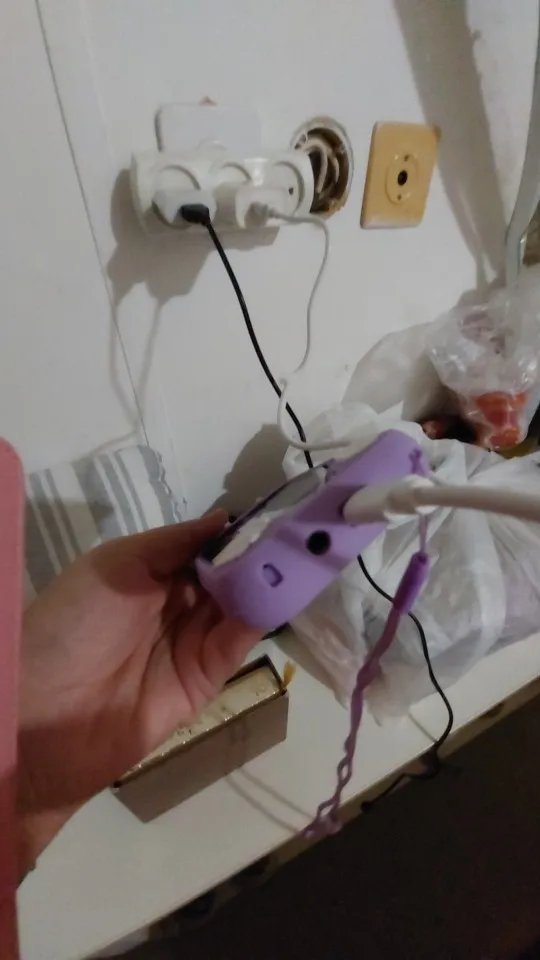
Charging the device using the Type-C port.
2. Inserting a TF Card (MicroSD Card)
The device supports TF cards with a capacity range of 4GB to 32GB. To expand storage for photos, videos, and music:
- Locate the TF Card Slot (4) on the side of the device.
- Carefully insert the TF card into the slot until it clicks into place. Ensure the card is oriented correctly.
- To remove, gently push the card inward until it springs out.
3. Powering On/Off
- To Turn On/Off: Long press the ON/Off Button (1) for 2 seconds.
- To Lock/Unlock Screen: Short press the ON/Off Button (1) once.
Operating Instructions
Basic Functions
- Volume Adjustment: Press the Volume Up & Down Buttons (2) once to raise or lower the volume.
- Reset Device: Move the Reset Switch (5) up to power on, or down to reset the device.
- Headphone Use: Connect 3.5mm headphones to the 3.5mm Headphone Connector (7) for private listening.
Applications and Features

The device features a variety of built-in applications for entertainment and learning.
1. Camera (Photography Mode)

The device features upgraded dual cameras with fun frames and stickers.
- Tap the camera icon to enter photography mode.
- Tap the screen to apply frames/filters; tap again to cancel.
- Tap the shutter button to take a photo.
- To switch between front and rear cameras, tap the camera switch icon.
- To view photos, switch to the album and swipe left/right. Use 'Options' to delete single or all photos.
- Tap the Home Button (8) to return to the main interface.
2. Video Recorder (Video Mode)
- Tap the video icon to enter video mode.
- Tap the record button to start recording; tap again to stop and save automatically.
- Tap to play or pause recorded videos.
- To view videos, switch to the album and swipe left/right. Use 'Options' to delete single or all videos.
- Tap the Home Button (8) to return to the main interface.
3. Music Player

The music player supports 3.5mm headphones and offers over 2 hours of playback.
- To play music, ensure MP3 format songs are placed in the "MP3" folder on the TF card.
- Tap the music icon to enter music mode.
- Tap to switch to the previous or next track.
- Tap to play or pause songs.
- Music playback is only available within the music interface.
- Tap the Home Button (8) to return to the main interface.
4. Games

Enjoy 10 built-in funny puzzle games for entertainment.
- Tap the game icon to enter the game menu.
- Select one of the available games to play.
- Tap the Home Button (8) to return to the main interface.
5. Settings
- Tap the settings icon to access the settings menu.
- Swipe left/right to toggle between setting options (e.g., Advanced, Brightness).
- Tap the advanced option to switch language and other settings.
- Tap the Home Button (8) to return to the main interface.
6. Other Functions
- Alarm Clock: Set up to 4 different alarms with specific times and reminder periods.
- Photos/Videos Album: Browse, delete, and play media.
- Recording: Start, pause, save, and manage audio recordings. Adjust recording quality.
- Calculator: Perform basic calculations using the numeric keypad.
- Calendar: View and switch between dates.
- Timer: Start, stop, and reset a countdown timer.
- Torch: Turn the flashlight ON or OFF.
- Player: Select and play videos.
- Theme: Select and save different themes for the device interface.
- Habits: Set up to 4 plans with reminder times.
- Story: Select and play stories.
- Wonders: Swipe through world landmarks and play their names.
- Tools: Access a stopwatch.
- Learn Card: Learn letter and word pronunciation.
Maintenance
- Cleaning: Use a soft, dry cloth to clean the device. Do not use liquid cleaners or abrasive materials.
- Storage: Store the device in a cool, dry place away from direct sunlight and extreme temperatures.
- Battery Care: To prolong battery life, avoid fully discharging the battery frequently. Charge the device regularly.
Troubleshooting
| Problem | Possible Cause | Solution |
|---|---|---|
| Device does not turn on. | Low battery or device frozen. | Charge the device for at least 30 minutes. If still unresponsive, try using the Reset Switch (5). |
| Screen is black or shows only text after use. | Software issue or corrupted firmware. | Try using the Reset Switch (5). If the issue persists, contact customer support for potential firmware reinstallation. |
| Touch screen is slow or unresponsive. | Temporary software glitch or heavy load. | Restart the device using the ON/Off button or Reset Switch (5). Close unused applications. |
| Cannot save photos/videos or add music. | TF card full or not inserted correctly. | Check if the TF card is properly inserted. Ensure there is sufficient space on the TF card (4GB-32GB supported). |
| Cannot download new games or apps. | Device does not support external app installation (e.g., Roblox) or Bluetooth connection. | This device is designed with pre-loaded content and does not support downloading additional apps or connecting via Bluetooth. |
User Tips
- Music for Entertainment: If the built-in games or stories are not engaging enough, download your child's favorite music in MP3 format to the TF card. This can provide hours of entertainment.
- Language Content: While the device supports multiple system languages (e.g., English, Spanish, German, French), some pre-loaded content like songs, stories, and learning games might only be available in English.
- Screen Responsiveness: If the touchscreen feels slow, try restarting the device.
Product Specifications
| Feature | Specification |
|---|---|
| Description | Touch Smartphone Toys |
| Model Number | Z10 |
| Screen Size | 2.8" IPS Screen 240*320 |
| Video Resolution | VGA/720P/1080P |
| Video/Audio Format | AVI. / mp3. |
| Photo Resolution | VGA/2M/3M/5M/8M/12M/16M |
| Battery Capacity | 600 mAh Lion Rechargeable Battery |
| Charging Duration | 3-4 Hours |
| Battery Life | 2-3 Hours |
| Input | DC 5V (Type-C) |
| Output | 2W |
| Product Material | ABS |
| Games | 2048, Basketball, Flyball, Gold coins, Princess Dress Up, Snake in the Grass, Table Tennis, Aircraft, Jelly Flow, Sweet Together, Crawl 2048, Basketball Shoot Master, Car Grab Goods, Ultimate Racing |
| Language | English, Chinese, German, French (and others) |
| Photo Quality | 1M-48 |
Support
For further assistance, detailed diagrams, or specific inquiries not covered in this manual, please refer to the official user manual PDF:
You may also contact the seller or manufacturer for technical support or warranty claims.
Product Video Demonstration
Watch this video for a visual guide on the features and operation of the Kids Musical Smart Phone Toy Z10.

A short video showcasing the design and various functions of the smart phone toy.