
1. Product Introduction
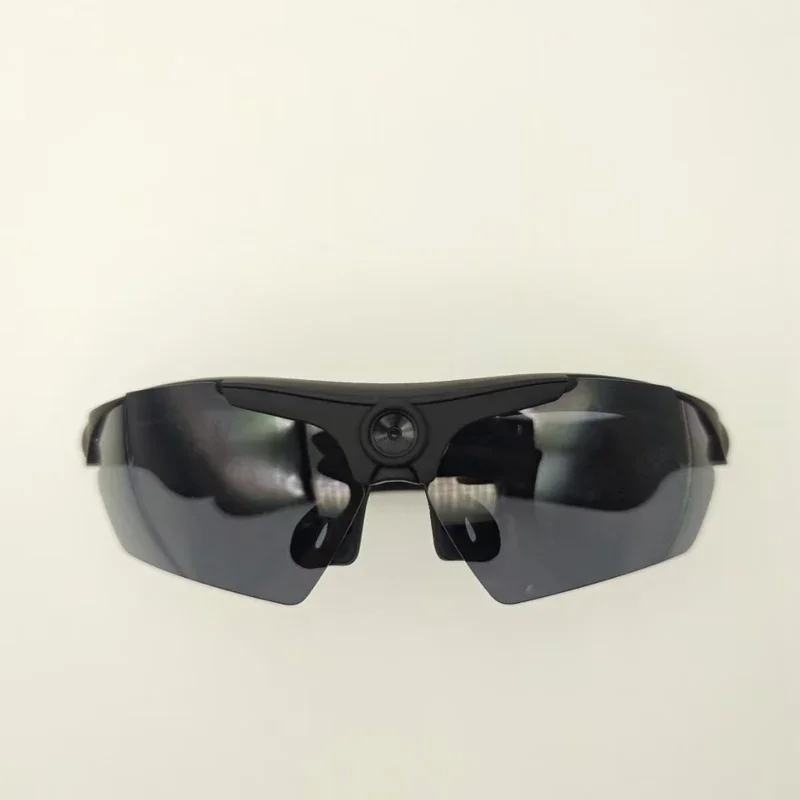
This product is the first sports glasses equipped with a high-definition digital camera, offering both camera and multi-function capabilities. It supports an external TF card for storage. Designed for ease of operation, its small, exquisite, beautiful, and practical form factor makes it easy to carry. It is an ideal tool for archers, hunters, fishermen, and traffic police, as well as for outdoor sports, tourism, and daily life, allowing you to record every unforgettable moment in real-time. The sleek and elegant design appeals to a wide range of users.


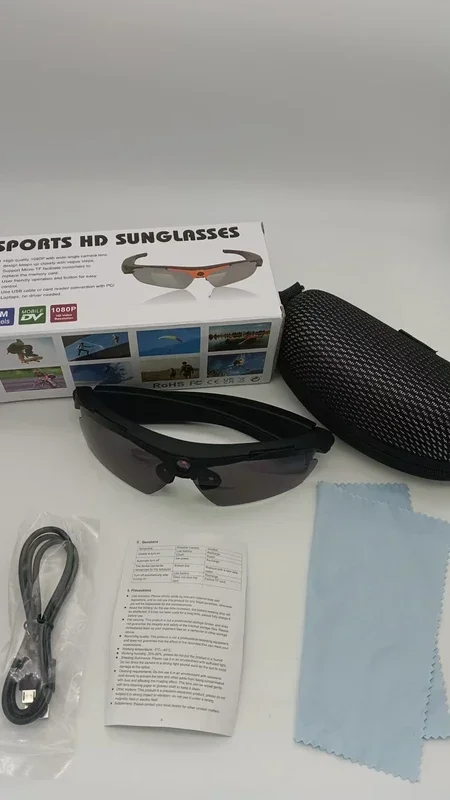
2. Package Contents
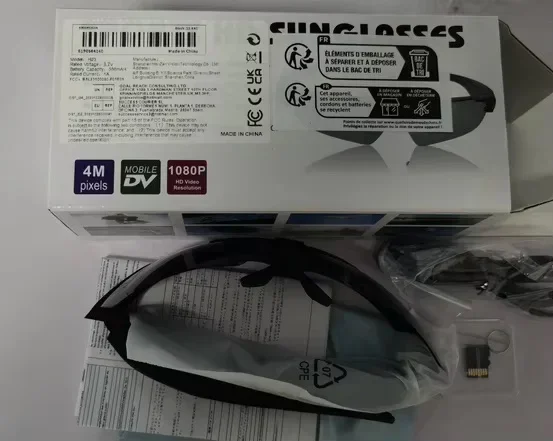
Please check the box for the following items:
- Sports Camera Glasses
- User Manual (this document and a printed version)
- USB Charging/Data Cable
- Cleaning Cloth
- Glasses Box/Case
- MicroSD Card (e.g., 32GB, depending on purchase)

A detailed PDF version of the user manual is available for download: User Manual (PDF)
3. Initial Setup
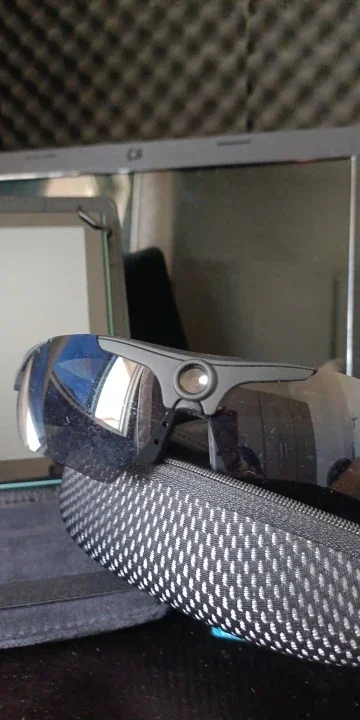
3.1 Product Function Diagram
3.2 Inserting the TF Card
Before using the glasses for recording, ensure a TF (MicroSD) memory card is inserted into the TF card slot. The device will not function correctly without a memory card.
3.3 Charging the Device
Connect the glasses to a computer's USB port or a compatible USB charger using the provided USB cable. The red indicator light will turn on during charging. Once the battery is fully charged, the red light will turn off.
4. Operating Instructions
4.1 Power On, Photo, and Video Recording
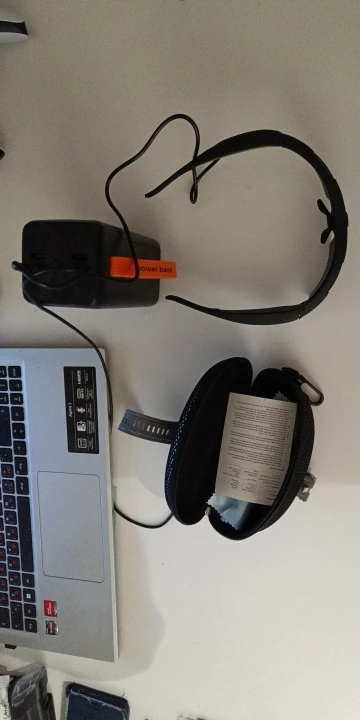
- Power On: Long press the operation button for approximately 2 seconds. The blue indicator light will turn on and remain steady, indicating the device is in standby mode.
- Photo Mode: While in standby mode, short press the operation button twice. The blue light will flash once, and a photo will be taken.
- Video Mode: While in standby mode, short press the operation button once. The blue light will flash three times and then turn off, indicating that recording has started. To stop recording, short press the operation button once again. The blue light will flash three times and then stay on, and the video file will be saved.
4.2 Power Off
Long press the operation button for approximately 3 seconds. The blue indicator light will turn off, and the device will power down.
Important Notes:
- Always turn off the glasses before removing the memory card to prevent data loss or damage.
- If no memory card is inserted, the blue light will quickly flash 5 times, and the device will automatically shut down.
- Avoid taking photos or recording directly against strong light sources (e.g., the sun) to prevent damage to the lens.
4.3 Time Setting
- Insert the TF memory card into the glasses. Connect the glasses to a computer via the USB cable. A new removable disk should appear on your computer.
- Open the removable disk and locate the "time" text file. Open this file to enter the desired time string.
- The time string format is "year, month, day, hour, minute, and second". For example, to display time, use:
2013.11.18 23:59:59 Y 3(Y for time display, N for no time display; 3 for 3 minutes to save a file, adjustable to 3-6 minutes). - Save the time setting file. Turn on the glasses, and the new time setting will be applied. The set time will be saved in the camera.
4.4 PC Camera Mode (Webcam)
When the glasses are connected to a computer via USB cable without a TF card inserted, they can function as a PC Camera (webcam). This allows you to use the glasses as a computer camera.
Note:
- Depending on your computer's configuration or system, the camera function might not be detected immediately. If this occurs, disconnect and then reconnect the glasses to the computer.
4.5 Recording While Charging
Insert a memory card into the device. You can operate the photo/video recording functions while the glasses are connected to a power source and charging.
5. Maintenance
5.1 Cleaning Requirements
To maintain optimal performance and image quality:
- Avoid using the device in environments with excessive dust density to prevent contamination of the lens and other parts.
- Gently wipe the lens with lens cleaning paper or the provided glasses cloth to keep it clean.
5.2 Battery Care
The battery's working time may shorten with extended use. If the device has not been used for a long period, fully charge it before use to ensure optimal battery performance.
6. Troubleshooting
If you encounter any issues, please refer to the table below for possible causes and solutions:
| Symptoms | Possible Causes | Solution |
|---|---|---|
| Unable to turn on | Low battery Crash |
Recharge Reset |
| Automatic turn off | Low power | Recharge |
| Device not recognized by computer | Broken USB cable | Replace with a new data cable |
| Turns off automatically after turning on | Low battery Does not read the card |
Recharge Format TF card |
6.1 Resetting the Device
If the device malfunctions, crashes, or cannot record video under normal conditions, press the reset button to reset it. The reset button is typically a small pinhole; use a thin object like a paperclip to press it gently.
7. Specifications
| Item | Related Parameters |
|---|---|
| Video Format | AVI |
| Video Encoding | M-JPEG |
| Video Resolution | 1920*1080 (1080P) |
| Video Frame Rate | 30FPS |
| Playback Software | Operating system's default player or mainstream audio/video playback software |
| Picture Format | JPG |
| Pixels | 2560*1440 |
| Image Ratio | 16:9 |
| Support System | Win7/WinMe/WinXP/Win2000/Vista/Mac OS10.5 |
| Charging Voltage | DC-5V |
| Interface Type | Micro USB |
| Storage Support | MicroSD (TF) up to 256GB |
8. User Tips
- Easy File Transfer: Files can be easily transferred to your computer via the included USB cable.
- Outdoor Sports: These glasses are well-suited for outdoor activities such as cycling, skiing, hiking, and motorcycling, providing a hands-free recording experience.
- Lighting Conditions: For best video and photo quality, use the glasses in environments with sufficient light. Avoid direct sunlight to prevent lens damage and overexposure.
- Data Backup: This device is not a professional storage solution. Regularly back up your important video and photo files to a computer or other dedicated storage device.
- TF Card Issues: If you experience recording problems or automatic shutdowns, ensure the TF card is properly inserted and consider formatting it if issues persist.
- Battery Life: The battery capacity may decrease over time. Always fully charge the glasses before extended use, especially if they have been stored for a while.
9. Safety Precautions
- Usage Legality: Strictly adhere to all relevant national laws and regulations. Do not use this product for any illegal purposes. You will be solely responsible for any consequences arising from misuse.
- File Integrity: This product is not a professional storage device. It does not guarantee the integrity and safety of internal storage files. Always back up important files to a computer or other storage device immediately.
- Recording Quality: This product is not professional recording equipment. The quality of recorded files may vary and might not always meet professional expectations.
- Operating Environment:
- Temperature: Operate within -5°C to 40°C.
- Humidity: Operate within 20%-80% humidity. Avoid humid environments.
- Illuminance: Use in environments with sufficient light. Do not point the camera directly at strong light sources (e.g., the sun) to prevent lens damage.
- Physical Handling: This is a precision electronic product. Avoid strong impacts or vibrations. Do not use it under strong magnetic or electric fields.
- Support: For any unclear matters or further assistance, please contact your local dealer or the seller.
10. Warranty and Support
For information regarding warranty coverage, returns, or technical support, please refer to the documentation provided at the time of purchase or contact the seller directly. Keep your proof of purchase for any warranty claims.