
1. Product Overview
The QANBA Drone 2 Arcade Joystick is a high-performance fighting stick designed for an authentic arcade experience. It is compatible with PlayStation 5, PlayStation 4, and PC.
Features
Below is a diagram of the joystick with its key features labeled:
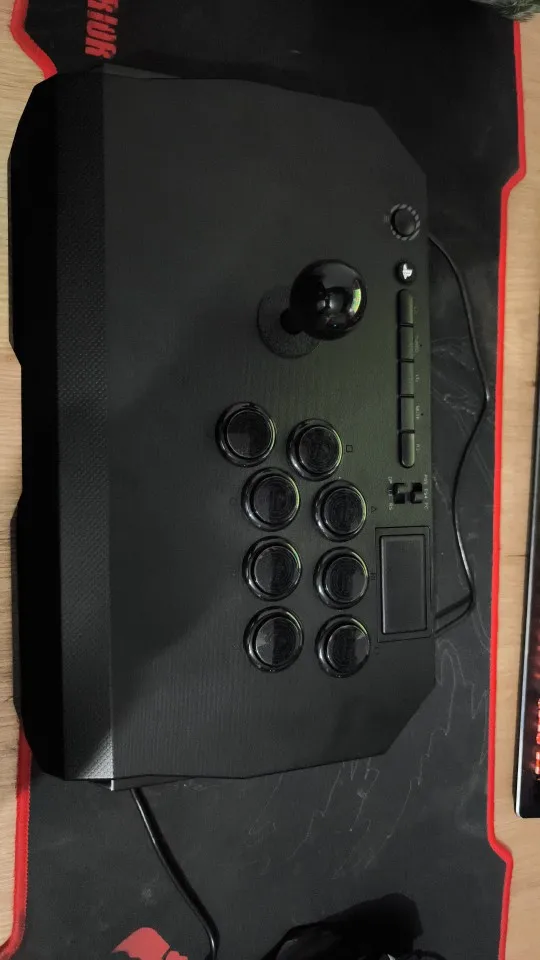
Figure 1: QANBA Drone 2 Arcade Joystick Top View
- USB cord and compartment
- Qanba lever
- Qanba 30mm buttons
- Touch pad
- 3.5mm headphone jack
- OPTIONS button
- PS button
- L3 button
- TURBO button
- CREATE button (SHARE button for PS4™ consoles)
- MUTE button
- R3 button
- COMPATIBILITY switch
- MODE switch
- Qanba lever access hole
2. Setup Instructions
Connecting to Your Console/PC
- Turn on your PlayStation® console or PC.
- Use the COMPATIBILITY switch (13) located on the top panel to select the appropriate "PS5 setting", "PS4 setting", or "PC".
- Plug your joystick into an available USB port on your PlayStation® console or PC.
- For PlayStation consoles, press the PS button (7) to initialize the joystick.
- To change the player assignment on PlayStation, press and hold the PS button (7).
Qanba Lever Access Hole
This feature provides access to the Qanba lever screw connected to the ball top, allowing for customization or maintenance.
- To gain access, turn the Qanba lever access hole (15) cover counterclockwise and remove it.
- To close, replace the cover and turn clockwise.
3. Operating Instructions
MODE Switch
The Qanba lever (2) can be toggled between three unique control modes using the MODE switch (14):
- Directional Pad (DP)
- Left Analog Stick (LS)
- Right Analog Stick (RS)
Slide the MODE switch (14) to toggle between these three unique control modes.
MUTE Button
The MUTE button (11) controls microphone functionality when headphones are connected:
- When the 3.5mm headphone jack (5) is not used, the MUTE button (11) has no function.
- When headphones are connected to the 3.5mm headphone jack (5), the microphone can be toggled between two modes:
- Microphone active (default setting): MUTE button LED off
- Microphone off: MUTE button LED on
Press the MUTE button (11) to cycle between these two unique control modes.
TURBO Button
Each of the eight Qanba 30mm buttons (3) can be toggled between three unique turbo modes:
- Turbo Off (default): LED off
- Push for Turbo: LED flashing red when button pressed
- Auto Turbo: LED always flashing
To set a turbo mode, press the TURBO button (9) and the desired Qanba 30mm button (3) at the same time, then release both to cycle between the three unique turbo modes.
4. Maintenance and Care
To ensure the longevity and optimal performance of your QANBA Drone 2 Arcade Joystick, please follow these guidelines:
- Carefully read the instruction manual.
- Do not clean the joystick with alcohol or other fluids. Use a dry cloth for cleaning.
- Do not disassemble the joystick.
- Unplug the joystick and wrap the USB cord when not in use to prevent tripping hazards.
- Keep the joystick in a cool, dry place away from liquids, smoke, and chemicals.
- Do not keep the joystick in hot climates, such as the trunk of your car in summer heat, for prolonged periods of time.
- Do not stack other items on top of the joystick.
5. Troubleshooting
If you encounter issues with your QANBA Drone 2 Arcade Joystick, try the following:
- Joystick not responding: Ensure the USB cable is securely connected to both the joystick and your console/PC. Verify that the COMPATIBILITY switch (13) is set to the correct platform (PS5, PS4, or PC). For PlayStation, ensure you have pressed the PS button (7) to initialize the joystick.
- Buttons or lever not working as expected: Check the MODE switch (14) setting to ensure it's in the desired control mode (DP, LS, or RS). If a button is not firing repeatedly, check its TURBO setting.
- Audio issues with headphones: Ensure headphones are fully plugged into the 3.5mm jack (5). Use the MUTE button (11) to toggle microphone status.
6. Specifications
Here are the detailed specifications for the QANBA Drone 2 Arcade Joystick:
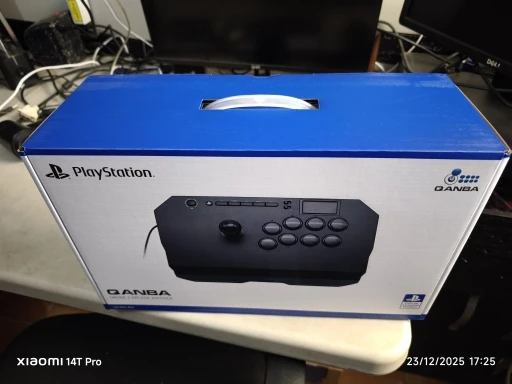
Figure 2: QANBA Drone 2 Arcade Joystick Dimensions
| Feature | Description |
|---|---|
| Product Name | Qanba Drone 2 Arcade Joystick |
| Model | N3 |
| Buttons | 8x Qanba Buttons |
| Joystick | Qanba OV7 Joystick |
| Dimensions | 356mm x 221mm x 116mm (14in x 8.7in x 4.57in) |
| Weight | 1.25kg / 2.76lb |
| Wired USB Cable Length | 2.3m / 7.5ft |
| Product Color | Black |
7. Warranty and Support
Warranty
Qanba USA, LLC will repair or replace the product at its discretion for 12 months from the original purchase date. Please retain your proof of purchase.
Support
For technical support or inquiries, please contact:
- USA Telephone Support: (888) 525-8783
- International Support (China): +8675529171459
- International Support (Korea): 031-997-3455
For a downloadable PDF version of this manual, please refer to the official product page or the provided link: QANBA Drone 2 User Manual (PDF)
8. User Tips
Based on user experiences, here are some tips to enhance your use of the QANBA Drone 2 Arcade Joystick:
- Button Customization: While the default buttons are functional, some users prefer a different tactile feel. The buttons are easily replaceable, allowing you to customize them to your preference.
- Lever Customization for Fighting Games: For serious fighting game enthusiasts, consider upgrading the lever's spring for greater resistance and potentially changing the restrictor gate to better suit your playstyle.
- Great for Beginners: This joystick is highly recommended for beginners, especially for games like Street Fighter, offering an exciting and precise gameplay experience.
9. Frequently Asked Questions (FAQ)
- Q: Does the QANBA Drone 2 Arcade Joystick work with PS3 and Android devices?
- A: The QANBA Drone 2 Arcade Joystick is officially designed and tested for compatibility with PlayStation 5, PlayStation 4, and PC. Compatibility with other platforms like PS3 or Android is not guaranteed.