
Introduction
Thank you for choosing the INPHIC A9 Bluetooth Compatible Wireless Gaming Mouse. This advanced mouse offers versatile connectivity with 2.4G wireless, Bluetooth 4.0, and Bluetooth 5.0 modes, providing seamless switching between multiple devices. Designed for comfort and precision, it features an ergonomic design, silent clicks, and adjustable DPI settings to enhance your productivity and gaming experience. This manual will guide you through the setup, operation, and maintenance of your new mouse.
Safety Information
- Keep the device away from water and other liquids.
- Do not attempt to disassemble or repair the device yourself.
- Avoid exposing the device to extreme temperatures or direct sunlight.
- Dispose of the battery and device according to local regulations.
Package Contents
Please check the package for the following items:
- INPHIC A9 Wireless Gaming Mouse
- USB Receiver (2.4G)
- Type-C Charging Cable
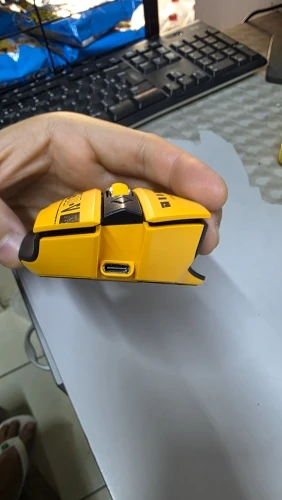
Product Overview
Familiarize yourself with the various parts and functions of your INPHIC A9 mouse.


Key Description
- Left Button
- Right Button
- Scroll Wheel
- DPI Button
- Forward Button
- Backward Button
- Mode Switch (2.4G/BT1/BT2)
- ON/OFF Switch
- Type-C Charging Port
- USB Receiver Storage
- Battery Indicator Light
Specifications
| Feature | Description |
|---|---|
| Wireless Technology | 2.4G wireless / Bluetooth 4.0 / Bluetooth 5.0 |
| Wireless Distance | 10m |
| Number of Buttons | 6 |
| DPI Resolution | 800-1200-1600-2000-2400 DPI (5 levels adjustable) |
| Battery Capacity | 500mAh |
| Charging Interface | Type-C |
| Rated Voltage/Current | 3.7V/10mA |
| Product Size | 125 x 70 x 42mm |
| Product Weight | 90g |
| Power Type | Rechargeable |
| Operation Mode | Opto-electronic |
| Hand Orientation | Right |
| Certification | CE |
| System Requirements | Windows 7/8/10/XP, Mac OS, Android, iOS (Bluetooth mode only for iOS 13.0 and above) |
Setup
1. Charging the Mouse
Before first use, fully charge the mouse. Connect the provided Type-C charging cable to the charging port (9) on the front of the mouse and the other end to a USB power source (e.g., computer USB port, USB wall adapter).

2. Connecting the Mouse
The INPHIC A9 mouse supports three connection modes: 2.4G Wireless, Bluetooth 4.0 (BT1), and Bluetooth 5.0 (BT2).

2.1. 2.4G Wireless Mode
- Locate the USB receiver stored in the compartment on the bottom of the mouse (10).
- Plug the USB receiver into an available USB port on your computer.
- Turn on the mouse using the ON/OFF switch (8) on the bottom.
- Slide the Mode Switch (7) to the '2.4G' position. The mouse should connect automatically.
2.2. Bluetooth Mode (BT1 / BT2)
- Turn on the mouse using the ON/OFF switch (8).
- Slide the Mode Switch (7) to either the 'BT1' (Bluetooth 4.0) or 'BT2' (Bluetooth 5.0) position.
- The mouse's indicator light will start flashing, indicating it's in pairing mode.
- On your device (PC, laptop, tablet, or smartphone), go to Bluetooth settings.
- Search for new devices and select 'INPHIC A9' from the list.
- Once paired, the indicator light will stop flashing and remain solid for a few seconds before turning off.
- To switch between BT1 and BT2, simply slide the Mode Switch (7) to the desired Bluetooth channel.
Operating Instructions
1. DPI Adjustment
The mouse features 5 adjustable DPI levels: 800, 1200, 1600, 2000, and 2400. Press the DPI Button (4) located on the top of the mouse to cycle through these settings. Each press will change the cursor speed, allowing you to find the optimal sensitivity for your tasks or games.

2. Battery Level Indicator
The mouse is equipped with a 3-bar lamp battery indicator (11) to show the remaining power:
- 2 lamps on: Battery level is lower than 75%.
- 1 lamp on: Battery level is lower than 50%.
- Flash lamp: Battery level is lower than 25%, indicating it's time to recharge.

3. Forward/Backward Buttons
Use the Forward Button (5) and Backward Button (6) on the side of the mouse for quick navigation in web browsers or file explorers.
4. Silent Clicks
The INPHIC A9 mouse features silent click technology, providing a quiet user experience ideal for shared workspaces or late-night use.
Maintenance
- Cleaning: Use a soft, dry cloth to clean the mouse. Avoid using harsh chemicals or abrasive materials.
- Battery Care: To prolong battery life, avoid fully discharging the mouse frequently. Charge it regularly, and store it in a cool, dry place if not used for an extended period.
- Storage: When not in use, you can store the USB receiver in its dedicated slot on the bottom of the mouse to prevent loss.
Troubleshooting
- Mouse not responding: Ensure the mouse is turned on and fully charged. Check that the Mode Switch (7) is set to the correct connection mode (2.4G, BT1, or BT2).
- 2.4G connection issues: Try plugging the USB receiver into a different USB port on your computer. Ensure the mouse is within range of the receiver.
- Bluetooth connection issues: Ensure Bluetooth is enabled on your device. Try unpairing and re-pairing the mouse in your device's Bluetooth settings. Make sure the mouse is in the correct BT1 or BT2 mode.
- Lag or stuttering: Ensure there are no strong interference sources nearby (e.g., other wireless devices). Try using the mouse on a different surface.
- Wired connection not working (charging cable): The included Type-C cable is primarily for charging. If you intend to use the mouse in wired mode, you may need a data-enabled Type-C cable, as the provided cable might only support charging.
User Tips
- The mouse is comfortable to hold and has a good size for many users.
- The silent click feature is highly appreciated for quiet environments.
- The multi-mode connectivity (2.4G and Bluetooth) works reliably, allowing easy switching between a computer and a mobile device.
- While the included cable is for charging, some users have found that a different Type-C cable is needed for wired data connection if that functionality is desired.
- The DPI adjustment and side buttons (forward/backward) are convenient for various tasks.
Warranty and Support
INPHIC provides a care-free warranty. If there is any defect or fault caused by defective material or workmanship within the warranty period, and such defect or fault is noted by the Customer to the Company, the Company will, at its sole discretion, either repair or replace the defective product or part thereof.
For technical support or warranty inquiries, please contact:
- Email: support@inphic.cn
- Website: inphic.com
For a complete user manual and detailed diagrams, please refer to the official PDF document: User manual (PDF)
Product Video
Watch this short video for a visual overview of the INPHIC A9 mouse and its features.
