
1. Product Overview
The MEKEDE 1Din 5-inch Car Radio Multimedia Player is a versatile in-car entertainment and navigation system. It features a touch screen display, supports Apple CarPlay and Android Auto (wired and wireless), Bluetooth connectivity, FM radio, and can integrate with a rear view camera.

Figure 1.1: MEKEDE 1Din 5-inch Touch Screen Multimedia Player with CarPlay interface.
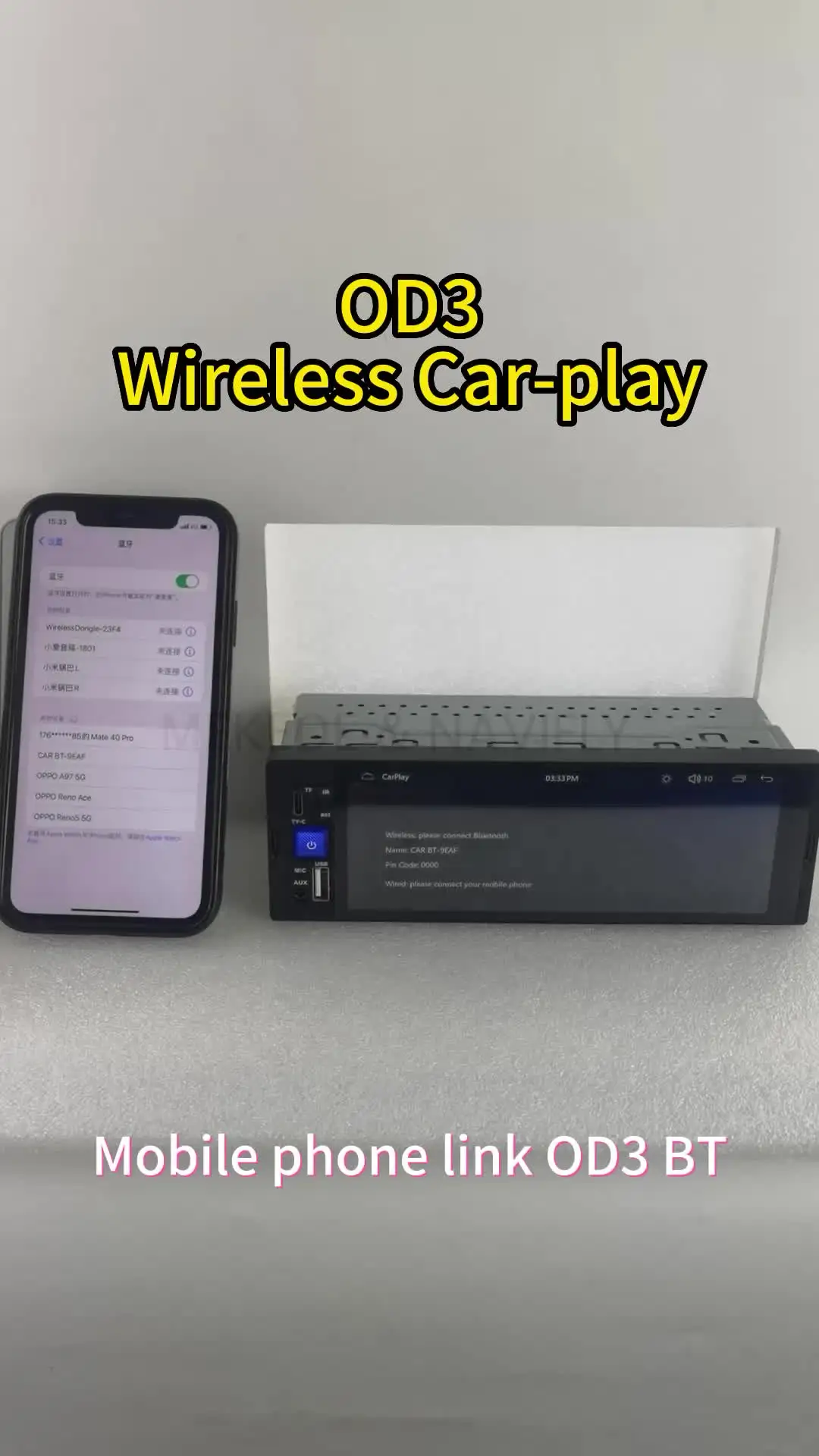
Video 1.1: Product overview and demonstration of key features.
2. Setup and Installation
2.1 Package Contents
Before installation, please verify that all items are included in the package:
- Mainframe (Car MP5 Player Unit)
- Instructions Manual
- Power Cable Harness
- Mounting Fittings
- Remote Control
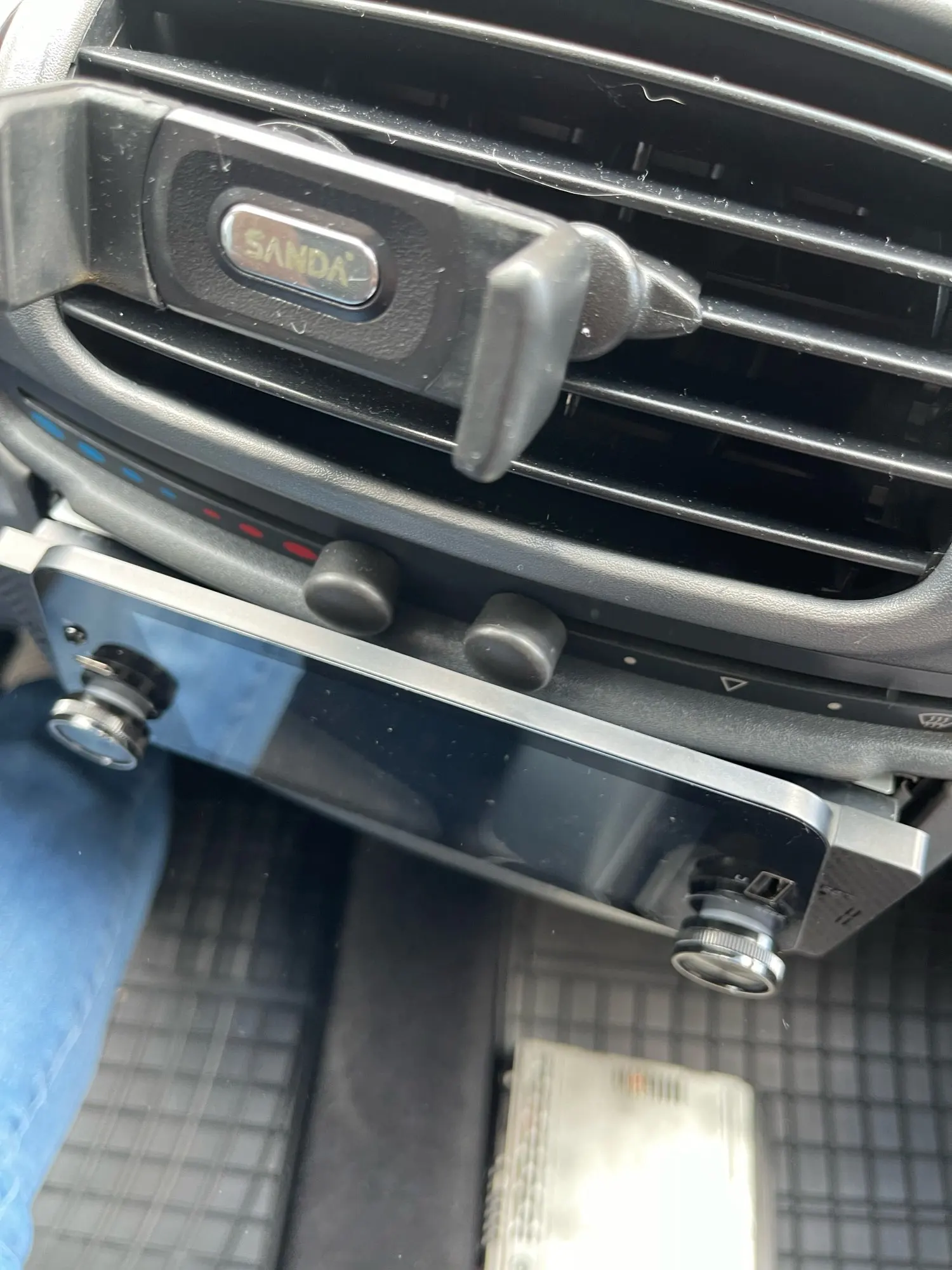
Figure 2.1: Contents of the product package.
2.2 Rear Interface Description
The rear panel of the unit provides various connection ports for power, speakers, antenna, and external devices. Refer to the diagram below for detailed wiring.
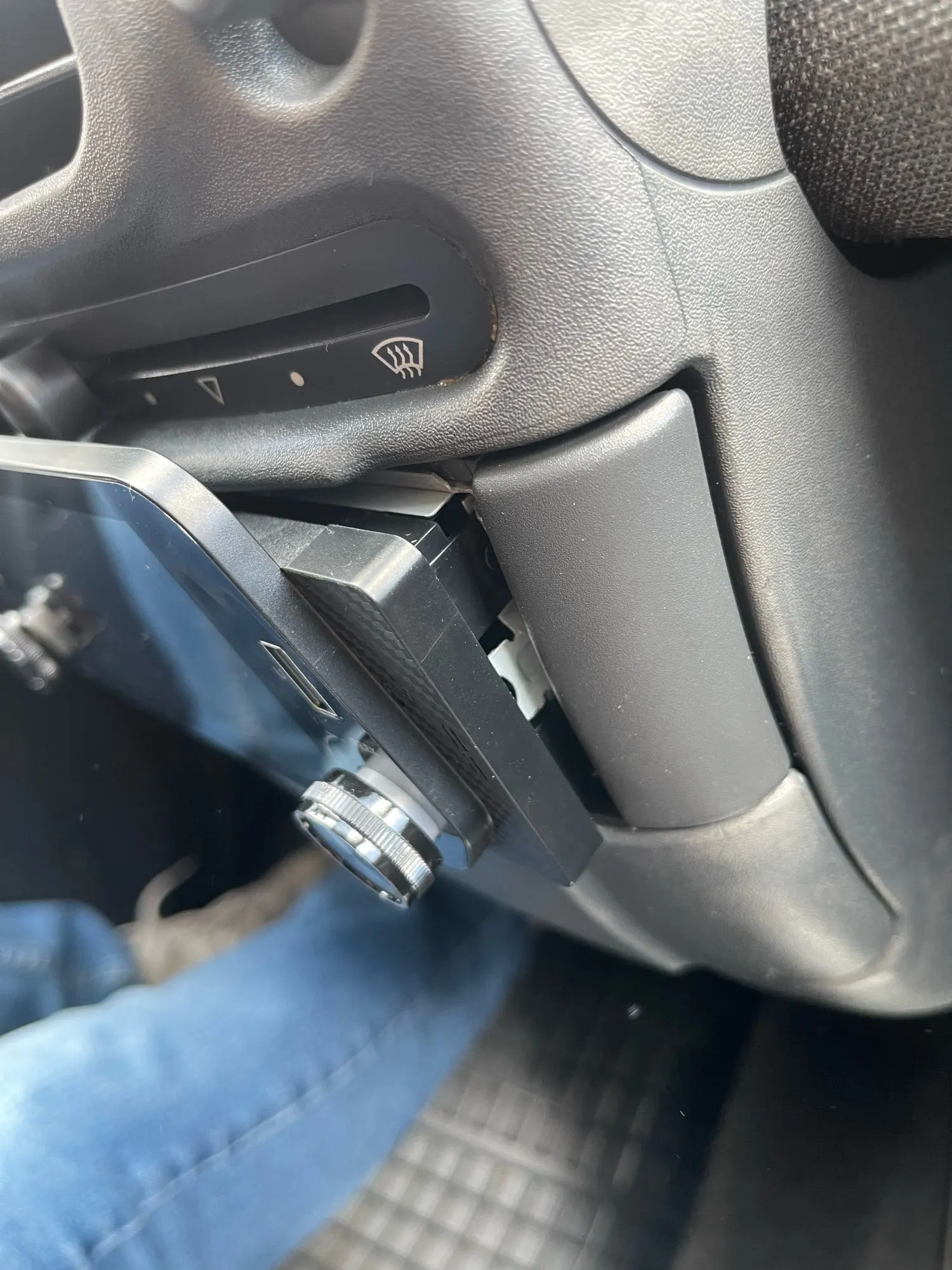
Figure 2.2: Rear interface wiring diagram and reversing camera installation method.
Wiring Connections:
- Red (ACC): Connect to Ignition Switch (+12V).
- Black (GND): Connect to Ground wire.
- Blue (ANT): Connect to Radio Antenna.
- Green (ILLUMINATION): Connect to Illumination.
- Brown (KEY): Connect to Steering wheel control.
- Yellow (BATTERY): Connect to Power Supply (+12V).
- Pink (REVERSE): Connect to Reversing camera trigger.
- Orange (BRAKE): Connect to Parking brake cable.
- Speaker Wires: Front Left (White/White-black striped), Front Right (Gray/Gray-black striped), Rear Left (Green/Green-black striped), Rear Right (Purple/Purple-black striped). Each speaker cable must not be grounded, shared, or touch other lines to avoid sound distortion or damage.
- USB Port: For USB devices (on some models).
- CVBS Input: Composite Video Blanking and Sync input.
- MICIN: External microphone input.
- L-OUT/R-OUT: Left/Right Audio Output.
- V-OUT1/V-OUT2: Video Output 1/2.
- CAMIN: Reversing Video Input.
Important: When the yellow B+ and red ACC lines both receive 12V positive power, the unit will power on normally. The yellow B+ line maintains power for memory function.
2.3 Reversing Camera Installation
To install the reversing camera, follow these steps:
- Locate the Pink (REVERSE) wire from the unit's power harness and connect it to the positive 12V trigger from your car's reverse light. This will trigger the screen to display the camera view when reverse gear is engaged.
- Connect the camera's video output cable to the CAMIN input on the rear of the unit.
- Connect the camera's power wire (red) to the positive 12V of the reverse light.
- Connect the camera's ground wire (black) to a suitable chassis ground.
Note: If the camera is not installed, do not connect the REVERSE/BACK cable to any power source. Otherwise, the unit may automatically enter reverse mode, causing malfunction.
2.4 Steering Wheel Control Learning
To program your steering wheel controls:
- Access the steering wheel control learning interface in the unit's settings.
- Press and hold a button on your car's original steering wheel.
- On the unit's screen, select the corresponding function icon for the button you just pressed.
- Repeat for all desired steering wheel buttons.
3. Operating Instructions
3.1 Phonelink Function (Mirrorlink)
This feature allows you to mirror your smartphone screen onto the unit's display.
- iPhone Mirrorlink: Connect your iPhone via USB. The phone screen will be projected onto the unit's display. Control is limited from the unit's screen.
- Android Mirrorlink: Connect your Android phone via USB. You may be prompted to install an APP. After installation, reconnect the USB cable. The screen will mirror, and you can control it from both the unit's screen and your phone. Audio transmission requires Bluetooth connection.
3.2 Bluetooth Connection
To connect your phone via Bluetooth:
- Turn on Bluetooth on your mobile phone.
- On the unit, go to the Bluetooth settings menu.
- Search for the unit's Bluetooth name (e.g.,