
1. Product Overview
Thank you for choosing Briame Wireless Neckband Headphones. This manual provides essential information for setting up, operating, and maintaining your device. Please read it carefully before use.

Figure 1: Briame Wireless Neckband Headphones
2. Package Contents
Please check the package for the following items:
- Briame Wireless Neckband Headphones
- USB Charging Cable
- Set of Ear Tips (various sizes)
- User Manual (this document)
3. Setup
3.1 Charging the Headphones
Before first use, fully charge your headphones. A full charge typically takes 2-3 hours.
- Connect the small end of the USB charging cable to the charging port on the headphone control module.
- Connect the larger end of the USB cable to a USB power adapter (not included) or a computer's USB port.
- The LED indicator will show charging status (e.g., red for charging, blue for fully charged).
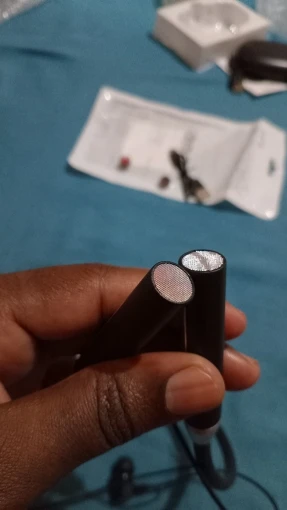
Figure 2: Battery and Charging Information (130mAh, 8H Playtime, 2-3H Charge)
3.2 Powering On/Off
- To Power On: Press and hold the Multi-function/Power button for approximately 3 seconds until the LED indicator flashes blue and you hear a power-on prompt.
- To Power Off: Press and hold the Multi-function/Power button for approximately 3-5 seconds until the LED indicator flashes red and you hear a power-off prompt.
3.3 Bluetooth Pairing
Pair your headphones with your device (smartphone, tablet, computer) to enjoy wireless audio.
- Ensure the headphones are fully charged and powered off.
- Press and hold the Multi-function/Power button for about 5-7 seconds until the LED indicator flashes red and blue alternately. This indicates the headphones are in pairing mode.
- On your device, enable Bluetooth and search for new devices.
- Select "Briame Headphones" (or similar name) from the list of available devices.
- Once connected, the LED indicator on the headphones will flash blue slowly, and you will hear a connection prompt.
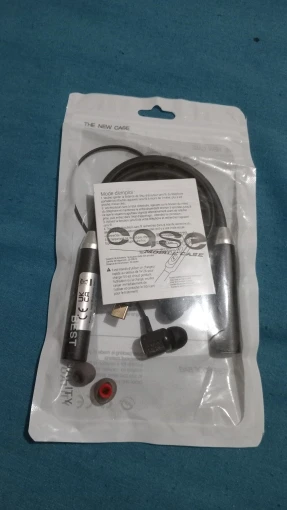
Figure 3: Wireless BT5.0 Chip for stable and simpler connection
4. Operating Instructions
4.1 Control Buttons
The control module on the neckband features several buttons for easy operation:
- Multi-function/Power Button: Power on/off, Play/Pause, Answer/End Call.
- Volume Up (+) Button: Increase volume, Next track.
- Volume Down (-) Button: Decrease volume, Previous track.
4.2 Music Playback
- Play/Pause: Press the Multi-function/Power button once.
- Next Track: Press and hold the Volume Up (+) button for 2 seconds.
- Previous Track: Press and hold the Volume Down (-) button for 2 seconds.
- Volume Up: Press the Volume Up (+) button briefly.
- Volume Down: Press the Volume Down (-) button briefly.
4.3 Phone Calls
- Answer Call: Press the Multi-function/Power button once when a call comes in.
- End Call: Press the Multi-function/Power button once during a call.
- Reject Call: Press and hold the Multi-function/Power button for 2 seconds when a call comes in.
- Redial Last Number: Double-press the Multi-function/Power button.
4.4 Magnetic Earbuds
The earbuds feature a magnetic design, allowing them to snap together when not in use. This helps prevent tangling and makes them easy to store around your neck.
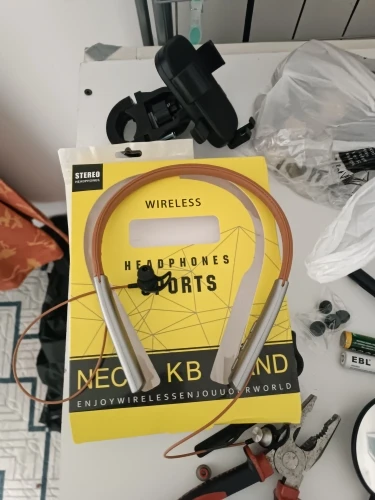
Figure 4: Magnetic Absorption Portable Design for easy storage
5. Maintenance
- Cleaning: Wipe the headphones with a soft, dry, lint-free cloth. Do not use abrasive cleaners or solvents.
- Storage: Store the headphones in a cool, dry place away from direct sunlight and extreme temperatures.
- Water Resistance: These headphones are designed to be life waterproof and sweatproof, making them suitable for sports and exercise. They are not designed for swimming or submersion in water. Ensure the charging port cover is securely closed to maintain water resistance.
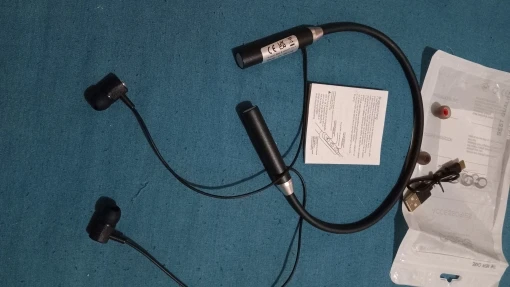
Figure 5: Life waterproof and sweatproof for active use
6. Troubleshooting
| Problem | Possible Cause | Solution |
|---|---|---|
| Headphones do not power on | Low battery | Charge the headphones fully. |
| Cannot pair with device | Headphones not in pairing mode; device Bluetooth off; too far apart | Ensure headphones are in pairing mode (flashing red/blue). Turn on device Bluetooth. Keep devices within 1 meter during pairing. |
| No sound or poor sound quality | Volume too low; not connected; interference | Increase volume on headphones and device. Reconnect Bluetooth. Move away from other wireless devices. |
| Microphone not working | Microphone obstructed; not connected properly | Ensure microphone hole is clear. Reconnect Bluetooth. |
7. Specifications
| Feature | Specification |
|---|---|
| Bluetooth Version | BT5.0 |
| Battery Capacity | 130mAh |
| Music/Talk Time | Up to 8 hours |
| Charging Time | 2-3 hours |
| Material | Plastic |
| Style | Neckband |
| Water Resistance | Life waterproof, Sweatproof (Not for swimming) |
| Vocalism Principle | Dynamic |
| Active Noise-Cancellation | No |
| Volume Control | Yes |
8. User Tips
- Sound Quality: Users often praise the loud and clear sound output.
- Lightweight Design: The headphones are noted for being lightweight and comfortable for extended wear.
- iPhone Compatibility: These headphones use standard Bluetooth technology and are compatible with iPhones and other Bluetooth-enabled devices.
- Microphone for Calls: The built-in microphone is suitable for general call usage.
- Not for Swimming: While sweatproof, these headphones are not designed for use in pools or for submersion in water.
9. Warranty and Support
Briame products are manufactured to high-quality standards. For warranty information, technical support, or service inquiries, please refer to the seller's policy or contact their customer service directly.