
1. Introduction
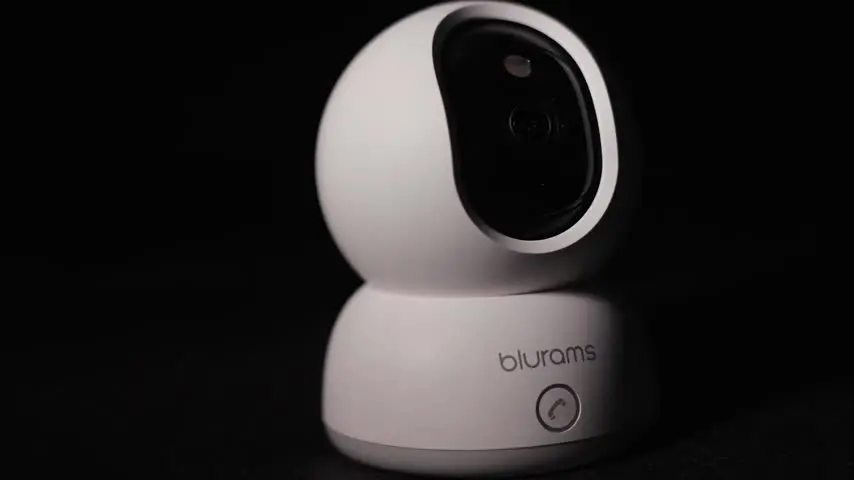
This manual provides essential instructions for setting up, operating, and maintaining your blurams Indoor Security Camera 2K (Model A31C). Please read this manual thoroughly before using the product to ensure proper functionality and safety.

Figure 1: blurams Lumi Security Camera A31C with highlighted features.
2. Packing List
Ensure all items are present in your package:
- 1 × Camera
- 1 × USB cable & Power adapter
- 1 × Screw accessory pack
- 1 × Plotting sheet (for mounting)
- 1 × Manual (this document)

Figure 2: Flexible recording options including human and pet detection (subscription may be required for some features).
3. Get to Know Your Camera
Familiarize yourself with the camera's components:
- Spotlight: Provides illumination for color night vision.
- Lens: Captures video footage.
- Microphone: For audio input and two-way communication.
- Micro SD card slot: For local video storage (supports up to 128GB).
- Indicator light: Displays camera status.
- Reset and Call Button: Used for one-touch calling and resetting the device.
- Charging Port: Connects to the power adapter.
- Speaker: For audio output and two-way communication.

Figure 3: The camera offers 355° pan and 110° tilt for full coverage.
4. Setup
4.1. Power Up Your Camera
Plug the power adapter into a power outlet and connect it to the camera using the provided USB cable. For optimal performance, always use the original accessories.
Indicator Light Status:
- Steady Red Light: The camera is connected to the power supply and is starting up.
- Red Light Flashing: The system has started successfully and is waiting for Wi-Fi configuration.
- White Light Flashes: The QR code has been recognized, and the camera is attempting to connect to Wi-Fi.
- Steady White Light: The connection to the server is successful.
4.2. Download blurams App
Download the blurams App from your device's app store:
- Search for "blurams" in the Apple App Store (for iOS devices) or Google Play Store (for Android devices).
- Alternatively, scan the QR code below using a QR scanner app to directly download the blurams App.
Scan to download the blurams App.
4.3. Add Your Camera to the App
- Open the blurams App, sign up for a free blurams account, and log in.
- On the home page, tap the "+" icon in the top right corner.
- Select your camera model (A31C) from the list.
- Follow the on-screen instructions within the App to complete the camera setup and connection. This typically involves scanning a QR code displayed on your phone with the camera.
5. Operating Instructions
5.1. Key Features Overview
- 2K High Video Quality: Provides clear and detailed surveillance footage.
- Color Night Vision: Utilizes a spotlight to capture full-color video even in low-light conditions.
- Motion Tracking: Automatically detects and follows moving objects or people within its field of view.
- One-Touch Calling: Allows for instant two-way communication by pressing the call button on the camera.
- 360° Rotation: Offers a wide viewing angle with 355° horizontal pan and 110° vertical tilt.
- Human Detection: Intelligently identifies human figures, reducing false alarms.
- Pet Detection: Recognizes pets (may require subscription).
- Local / Cloud Storage: Supports local storage via Micro SD card (up to 128GB) and cloud storage options.
- Sleep Mode: Allows you to temporarily disable recording for privacy.
- ISO 27001 & AgID Standards: Adheres to high security and privacy standards.
5.2. Using One-Touch Call
To initiate a call from the camera to your linked mobile device, simply short press the Call Button located on the camera's base. Your mobile device will receive a notification, allowing you to answer and engage in two-way audio communication.

Figure 4: Demonstrating the one-touch call feature.
5.3. Color Night Vision
The camera's integrated spotlight enables color night vision, providing clearer and more detailed images in dark environments compared to traditional black and white infrared night vision. You can toggle the spotlight on or off via the app settings.

Figure 5: Comparison of night vision with spotlight on (color) and off (monochrome).
5.4. Accessing the Camera via Web Interface
In addition to the mobile app, you can access your camera's live feed and settings through a web browser (Chrome, Firefox, Edge).
- Navigate to: https://client.blurams.com/login
- Enter your registered email address, password, and any required verification code.
- Click on your camera to view the live image. A gear symbol in the top right corner allows you to change settings and view recordings.
5.5. Product Demonstration Video
Video 1: A demonstration of the blurams camera's features, including setup, one-touch call, and night vision capabilities.
6. Maintenance
- Cleaning: Use a soft, dry cloth to clean the camera lens and body. Avoid using harsh chemicals or abrasive cleaners.
- Environmental Conditions: Do not use the camera in environments with excessively high or low temperatures. Never expose the camera to strong direct sunlight or overly wet conditions. The suitable operating temperature range for the product and its accessories is -10°C to 50°C.
- Firmware Updates: Regularly check the blurams App for firmware updates to ensure optimal performance and security.
7. Troubleshooting
7.1. Common Issues & Solutions
| Problem | Possible Cause / Solution |
|---|---|
| Camera not powering on | Ensure the power adapter is securely plugged into a working outlet and the USB cable is firmly connected to the camera. Use the original power adapter and cable. |
| Red Light Flashing (not connecting to Wi-Fi) | Ensure your Wi-Fi network is 2.4GHz. Check Wi-Fi password. Move camera closer to router. Reset the camera (long press button for >6 seconds) and try setup again. |
| White Light Flashing (QR code recognized but not connecting) | Ensure your Wi-Fi network is stable. Check router settings. Try resetting the camera and re-adding it. |
| No video feed / Offline | Check Wi-Fi connection. Restart the camera and your router. Ensure the app is updated to the latest version. |
| One-Touch Call not working | Ensure the camera is online and connected to the app. Check app notification settings on your phone. |
7.2. Resetting the Device
If you encounter persistent issues, you may need to reset the camera to its factory settings. To do this, long press the Reset and Call Button for more than 6 seconds until the indicator light changes, indicating a reset.
8. Specifications
| Feature | Specification |
|---|---|
| Model Number | A31C |
| High Definition | 3.0 Megapixels (2K) |
| Lens (mm) | 3.6mm |
| Sensor | CMOS |
| Connectivity | WIFI (2.4GHz) |
| Power Supply | DC 5V, 5W (Mains Electricity) |
| Video Compression Format | H.265 |
| Movement Range (Pan) | 0°-360° |
| Internal Storage | 128G (likely refers to cloud storage or buffer, Micro SD card slot available for local storage) |
| Supported Operating Systems | Windows 7, macOS, Windows 10 |
| AI Functions | Smart Tracking, Pet Detection, Package Detection |
| Scene | Indoor |
| Shell Material | Plastic |
| Package Dimensions (L x W x H) | 17 cm x 11 cm x 10 cm |
| Package Weight | 0.393 kg |
| Charger Type (Examples) | A806A-0501000-EU1, XED-CE050100CU, TEKA-UCA10EU (Output: DC 5V/1A) |
| RF Exposure | Maintain 20cm distance from the device to the human body. |
| Operating Frequency Range | 2412 MHz - 2472 MHz |
| Max Output Power | 20dBm |
9. User Tips
- Optimal Placement: Position the camera in a central location within the room to maximize its 360° rotation and coverage.
- Wi-Fi Stability: For consistent performance, ensure your camera is within good range of your 2.4GHz Wi-Fi router.
- Storage Management: If using a Micro SD card for local storage, periodically check its capacity and manage recordings through the app to prevent it from filling up.
- Power Cable Length: The included power cable is designed for standard indoor use. If you require a longer cable, ensure any replacement meets the DC 5V/1A specification and is of good quality to avoid power issues.
10. Warranty & Support
10.1. Feedback & Support
blurams strives to provide high-quality products and user experiences. We welcome your feedback and suggestions. You can send your feedback through the blurams App or by emailing support@blurams.com.
10.2. Regulatory Information (FCC Statement)
This equipment has been tested and found to comply with the limits for a Class B digital device, pursuant to part 15 of the FCC rules. These limits are designed to provide reasonable protection against harmful interference in a residential installation. This equipment generates, uses, and can radiate radio frequency energy and, if not installed and used in accordance with the instructions, may cause harmful interference to radio communications. However, there is no guarantee that interference will not occur in a particular installation.
If this equipment does cause harmful interference to radio or television reception, which can be determined by turning the equipment off and on, the user is encouraged to try to correct the interference by one or more of the following measures:
- Reorient or relocate the receiving antenna.
- Increase the separation between the equipment and receiver.
- Connect the equipment into an outlet on a circuit different from that to which the receiver is connected.
- Consult the dealer or an experienced radio/TV technician for help.
To assure continued compliance, any changes or modifications not expressly approved by the party responsible for compliance could void the user's authority to operate this equipment. (Example: use only shielded interface cables when connecting to computer or peripheral devices).
This equipment complies with Part 15 of the FCC Rules. Operation is subject to the following two conditions: (1) This device may not cause harmful interference, and (2) This device must accept any interference received, including interference that may cause undesired operation.
FCC Radiation Exposure Statement: The equipment complies with FCC Radiation exposure limits set forth for an uncontrolled environment. This equipment should be installed and operated with a minimum distance of 20cm between the radiator and your body. FCC ID: 2ASAQ-A31P
10.3. Product Disposal Information
This product can be used across EU member states. When disposing of the product, please follow local regulations for electronic waste. Do not dispose of with general household waste. Look for collection points or recycling facilities. Prioritize repair or donation of your device.

Figure 6: Summary of key features and regulatory compliance logos (CE, UKCA).
Congratulations!
Your camera is now ready to use. Thank you for choosing blurams.
For more information, visit: www.blurams.com