
1. Product Overview
The srnubi TY30 is a Bluetooth 5.0 Tire Pressure Monitoring System (TPMS) designed for both cars and motorcycles. It provides real-time monitoring of tire pressure and temperature directly to your mobile phone via a dedicated application. This system helps enhance driving safety by alerting you to potential tire issues.
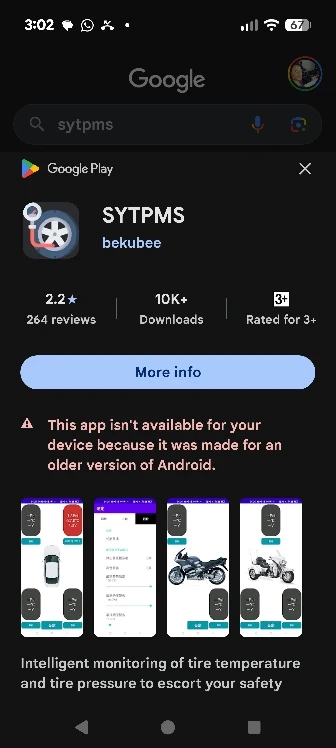
Figure 1: srnubi TY30 TPMS in use with a motorcycle, displaying real-time data on a smartphone.
Key Features:
- Bluetooth 5.0 Connectivity: Ensures stable, fast, and low-power data transmission.
- Mobile Phone Display: Monitor tire data directly on your Android or iOS smartphone.
- Real-time Monitoring: Provides continuous updates on tire pressure and temperature.
- Alarm Functions: Alerts for high/low pressure, high temperature, air leakage, and low sensor battery.
- IP67 Waterproof: Sensors are designed to withstand various weather conditions.
- Easy Installation: Simple screw-on sensor design with anti-theft nuts.
2. Package Contents
Please check the contents of your package upon arrival:
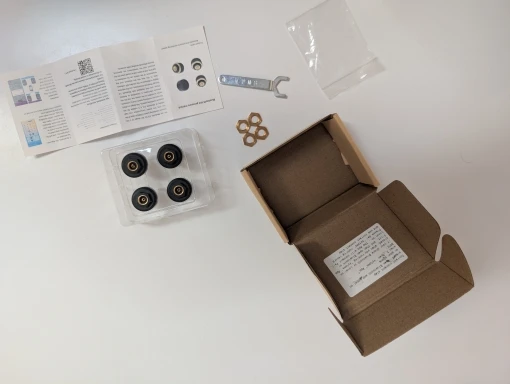
Figure 2: Contents of the srnubi TY30 TPMS package.
- TPMS Sensors (2, 3, or 4, depending on your order)
- Installation Wrench (1)
- Anti-theft Nuts (2 or 4, matching sensor count)
- User Manual (Printed)
- Packing Box
3. Setup and Installation
3.1. Sensor Installation
- Remove the valve core cap from your tire valve.
- Screw on the anti-theft nut onto the tire valve stem.
- Install the TPMS sensor by screwing it onto the tire valve stem until it is snug.
- Using the provided small wrench, rotate the anti-theft nut towards the sensor and tighten it to secure the sensor in place.
- Check for any air leakage around the sensor and valve stem. Ensure the installation is complete and secure.

Figure 3: Steps 1 & 2 for sensor installation.

Figure 4: Steps 3 & 4 for sensor installation and app setup.
3.2. App Download and Pairing
- Download the App: Scan the QR code in the printed manual or visit http://www.rek-tech.com/downapp.htm to download the official application (SYTPMS).
- Install the App: Follow the on-screen instructions to install the SYTPMS app on your mobile phone.
- Enable Bluetooth and GPS: On your mobile phone, ensure Bluetooth and GPS (location services) are turned on.
- Open the App: Launch the SYTPMS application.
- Pairing Sensors:
- The sensors are typically pre-paired at the factory. If they do not connect automatically, you may need to manually pair them.
- In the app, navigate to the pairing section (often labeled 'Setting' or 'Pairing').
- Install the first sensor onto its respective tire. Wait for the app to display a value for that sensor. Once a value appears, that sensor is paired.
- Repeat for all remaining sensors. Once all sensors display values, pairing is successful.
- The app interface will show 'ID Pairing Successful' upon successful connection.

Figure 5: SYTPMS app user interface showing pairing success and tire data.
4. Operating Instructions
4.1. Real-time Monitoring
Once the sensors are installed and paired with the app, you can view real-time tire pressure and temperature data on your smartphone. The app displays individual tire readings, typically showing pressure in Bar/PSI, temperature in °C/°F, and sensor battery voltage.

Figure 6: Real-time tire data displayed on a mobile phone in a car.
4.2. Alarm Functions
The system is equipped with several alarm functions to alert you to potential tire issues:
- High-Pressure Alarm: Triggers if tire pressure exceeds a set threshold (e.g., 3.0 Bar). The app will show a warning, and an audible alarm may sound.
- Low-Pressure Alarm: Triggers if tire pressure falls below a set threshold (e.g., 1.8 Bar). The app will show a warning, and an audible alarm may sound.
- High-Temperature Alarm: Triggers if tire temperature exceeds a set threshold (e.g., 75°C). The app will show a warning, and an audible alarm may sound.
- Air Leakage Alarm (Fast Leak): Triggers if there is a rapid drop in tire pressure.
- Sensor Low Battery Alarm: Alerts you when a sensor's battery is low and needs replacement.
- Sensor Fault Alarm: Indicates a sensor malfunction or loss of signal.

Figure 7: Visual representation of TPMS alarm types.
4.3. App Settings
Within the SYTPMS app, you can typically adjust various settings, including:
- Alarm thresholds for high/low pressure and high temperature.
- Pressure units (Bar/PSI) and temperature units (°C/°F).
- Tire position exchange (if you rotate your tires).
5. Maintenance
5.1. Battery Replacement
When the app indicates a low sensor battery, follow these steps to replace it:
- Using the small wrench provided, carefully remove the rear cover of the sensor by unscrewing it.
- Gently push out the old CR1632 battery.
- Insert a new CR1632 battery, ensuring correct polarity.
- Carefully screw the rear cover back onto the sensor until it is secure.

Figure 8: Step-by-step guide for sensor battery replacement.
Caution: Some users have reported difficulty unscrewing sensor covers. Exercise care to avoid damaging the sensor during battery replacement.
5.2. Waterproofing
The sensors are rated IP67 waterproof, meaning they are protected from dust and can withstand immersion in water up to 1 meter for 30 minutes. No special maintenance is required for waterproofing, but avoid prolonged submersion or high-pressure water jets directly on the sensors.

Figure 9: IP67 Waterproof rating ensures durability in various weather conditions.
6. Troubleshooting
6.1. App Not Working or Outdated
Critical Issue: Several users have reported that the SYTPMS app is outdated and incompatible with newer Android versions.
- Check Compatibility: Verify if the SYTPMS app is compatible with your phone's operating system version (Android or iOS).
- App Updates: Check your device's app store (Google Play Store or Apple App Store) for any available updates for the SYTPMS app. Install any updates.
- Alternative App: If the official app remains non-functional, search for alternative TPMS apps that might be compatible with generic Bluetooth sensors, though compatibility is not guaranteed.
- Contact Support: If the app is unusable, contact the seller or manufacturer for an updated app version or alternative solutions.

Figure 10: Google Play Store message indicating app incompatibility with newer Android versions.
6.2. Sensors Not Linking/Pairing Automatically
- Enable Bluetooth & GPS: Ensure Bluetooth and GPS (location services) are active on your phone.
- Re-initiate Pairing: In the app, go to the 'Setting' or 'Pairing' menu and follow the manual pairing steps (install one sensor at a time and wait for it to register).
- Check Sensor Battery: A low or dead battery can prevent a sensor from pairing. Replace the battery if necessary.
- Restart App/Phone: Close and reopen the SYTPMS app, or restart your mobile phone.
- Sensor ID: The sensors do not typically have QR codes or visible digits for manual entry; pairing is usually done by activating the sensor (e.g., by installing it) and letting the app detect it.
6.3. Inaccurate Readings
- Check Tire Pressure Manually: Use a reliable manual tire gauge to verify the pressure.
- Re-install Sensor: Ensure the sensor is tightly secured and there are no air leaks.
- Sensor Damage: If a sensor is damaged, it may provide incorrect readings or fail to transmit.
7. Specifications
| Brand | srnubi |
| Model Name | TY30 |
| Item Type | Tire Pressure Monitoring System |
| Connectivity | Bluetooth 5.0 |
| Display Method | Mobile Phone App (Android/iOS) |
| Pressure Range | 0 ~ 6.8 bar / 0 ~ 100 psi |
| Working Temperature | -40℃ ~ 125℃ |
| Pressure Accuracy | ± 0.1 bar / ± 1.5 psi |
| Temperature Accuracy | ± 3 ℃ |
| Wireless Frequency | 2.4GHz |
| Battery Type | CR1632 (Replaceable) |
| Battery Life | 1 ~ 2 Years |
| Waterproof Level | IP67 |
| Material | ABS + PC Composite Materials |
| Voltage | 12 V |
| Certifications | CE |

Figure 11: Dimensions of the TPMS sensor and installation wrench.
8. User Tips
- App Compatibility: Before purchasing, it is highly recommended to verify the compatibility of the SYTPMS app with your smartphone's operating system version to ensure full functionality.
- Battery Replacement: When replacing batteries, ensure the sensor cover unscrews smoothly. If it feels stuck, apply gentle, even pressure or contact support to avoid damage.
- Manual Pairing: If sensors don't connect automatically, try the manual pairing process by installing one sensor at a time and waiting for the app to register it.
- Regular Checks: Periodically check sensor battery levels via the app to ensure continuous monitoring.
9. Warranty and Support
For warranty information, please refer to the terms provided by your seller at the time of purchase. Typically, warranty covers manufacturing defects for a specified period.
If you encounter any issues not covered in this manual or require further assistance, please contact your seller or the manufacturer's customer support.
An additional user manual in PDF format may be available for download: View User Manual (PDF).