
Introduction
This manual provides detailed instructions for setting up, operating, and troubleshooting your KANAVI G96 TV Stick. Please read this guide thoroughly to ensure proper use and to maximize your device's performance.
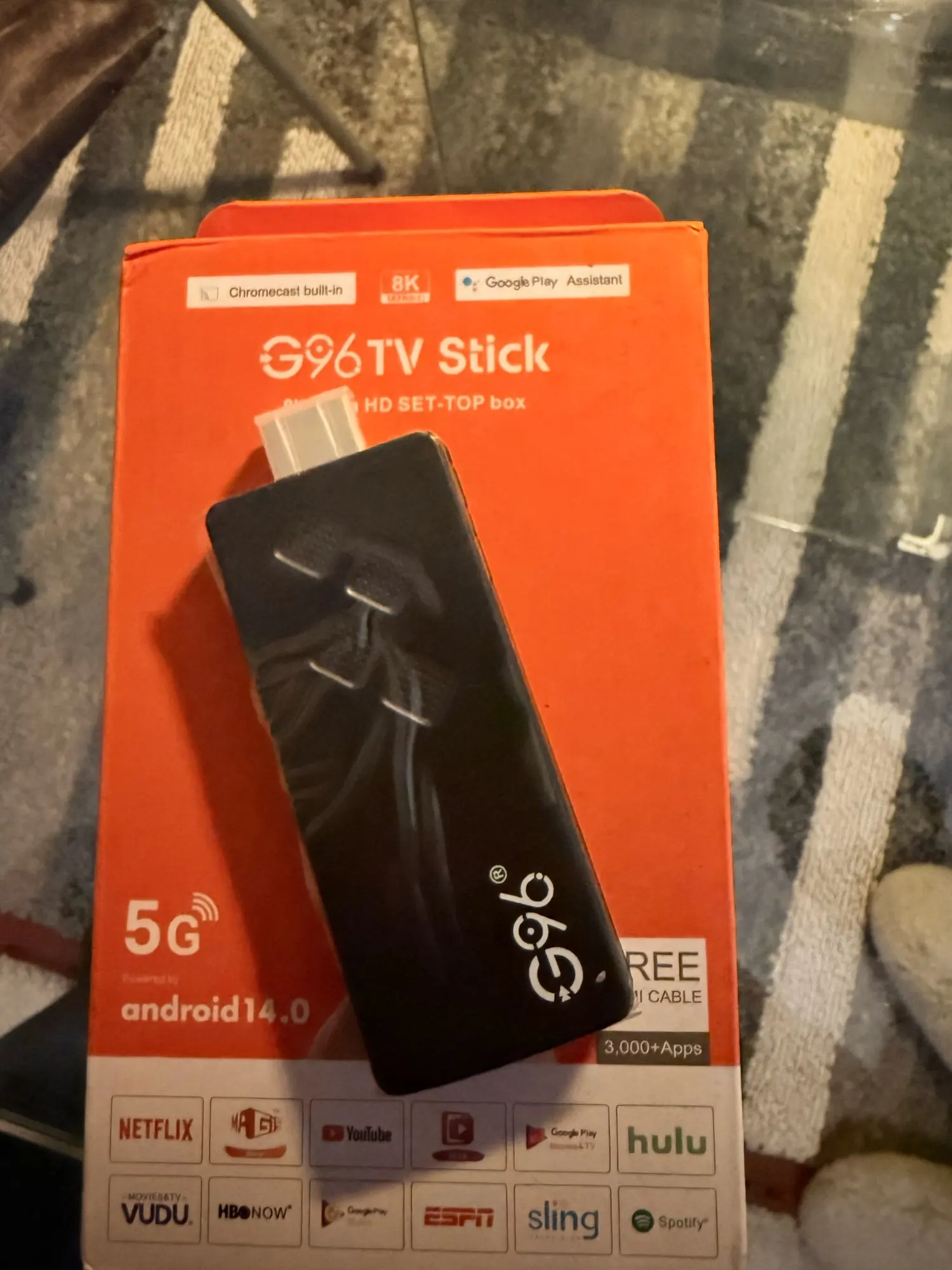
The KANAVI G96 TV Stick is a portable streaming media device running Android 13, designed to transform your television into a smart TV with access to various streaming services and applications. It supports 8K video decoding and features dual-band Wi-Fi and Bluetooth 5.0 connectivity.
Package Contents
Verify that all items are present in your package:
- TV Stick x1
- User Guide x1
- Power Cable x1
- Remote Controller x1
- HDMI Cable x1
- IR Receiver x1


Setup Guide
1. Connecting the TV Stick
- Plug the HDMI cable into the HDMI port of your TV.
- Connect the power cable to the USB port.
- Plug both the HDMI cable and the power cable into their respective ports on the TV Stick.
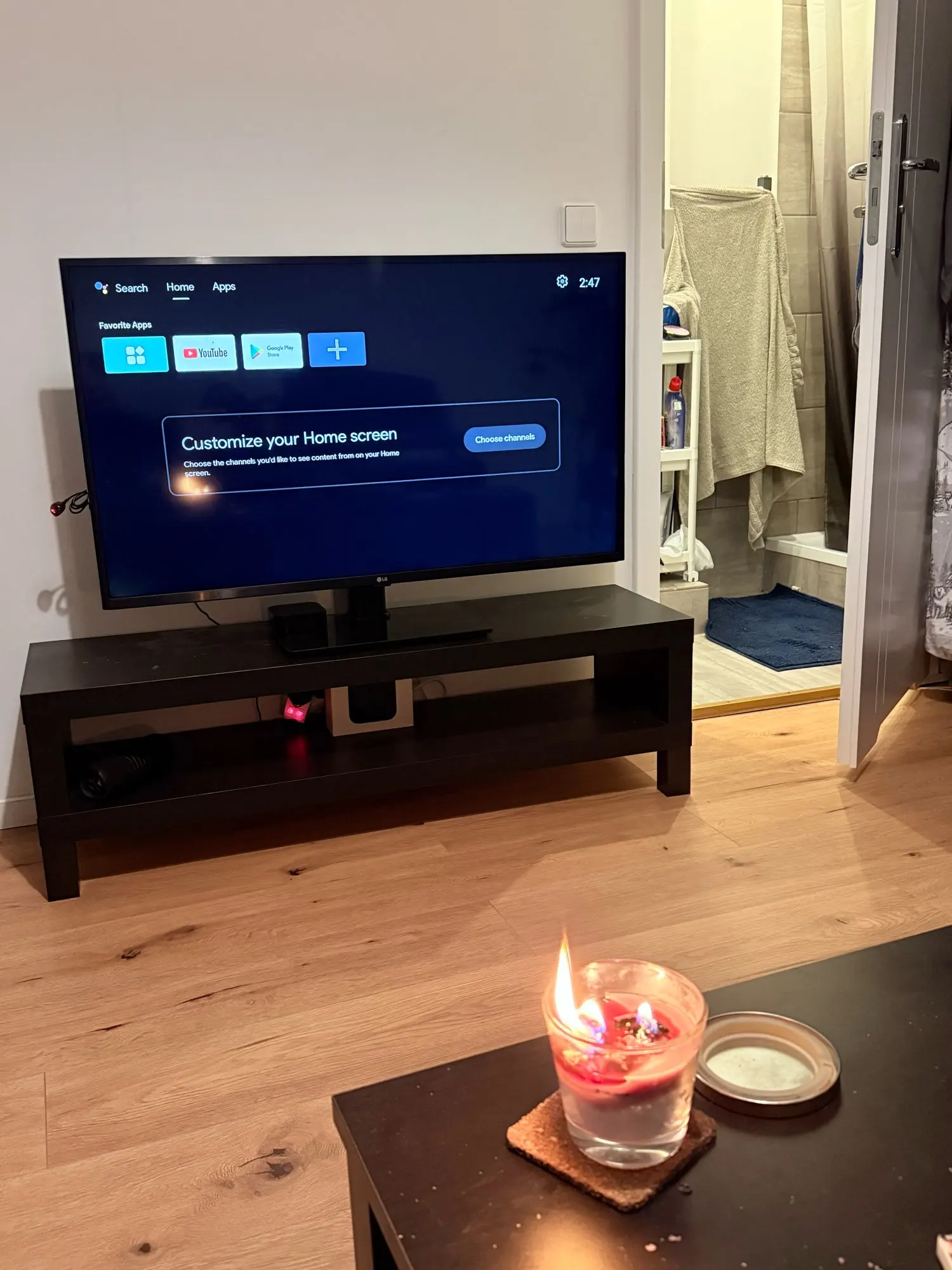
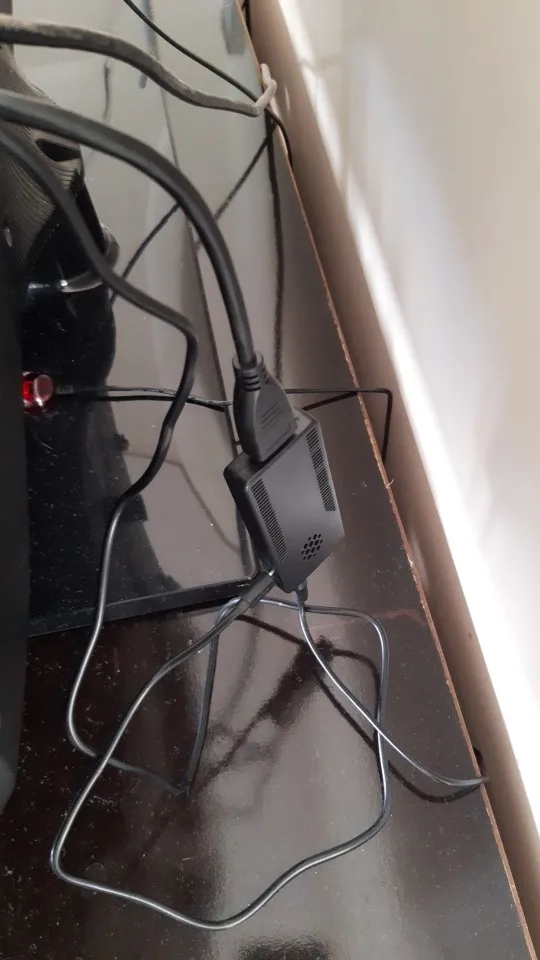
2. Powering On and LED Indicator
Once connected, the TV Stick will power on. The LED indicator has two colors: green and red.
- Green: The device is on and operating. The system starts automatically when power is supplied.
- Red: The system is in standby mode.
- Off: The LED indicator turns off when the power supply is disconnected.
3. Remote Controller Pairing (Bluetooth Voice Controller)
To pair the Bluetooth voice controller:
- After powering on the TV Stick, navigate to the main interface on your TV.
- Press the voice button on the remote controller to activate Bluetooth connection.
- Press and hold the "OK" and "-" buttons on the remote controller simultaneously for 3 seconds.
- Keep the remote close to the TV Stick during pairing.
- Release the buttons after the light on the remote control flashes.
- Wait for automatic pairing to complete.
4. Power Adapter Requirements
If you are using a USB power cable with an adapter, ensure the adapter meets the following specifications:
- Ideal Voltage: 4.8V to 5.3V
- Input Current: Should not be less than 1A
Caution: Some quick charge adapters may not be suitable for the TV Stick as their output voltage can become very high during use, potentially damaging the device.
Operating Instructions
1. Navigating the Android TV Interface
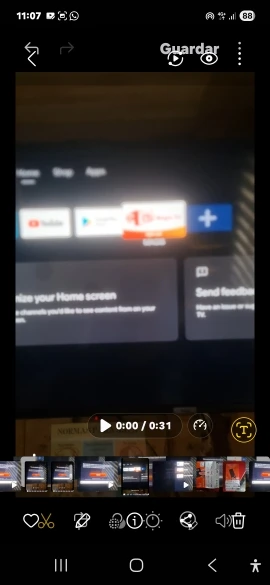
The G96 TV Stick runs on Android 13, providing a user-friendly interface. Use the remote controller to navigate through menus and select applications.
2. Remote Controller Functions
The remote controller provides the following functions:
- Power: Turns the TV Stick on/off.
- Voice Button: Activates voice control (requires Bluetooth pairing).
- Navigation Buttons (Up, Down, Left, Right, OK): For menu navigation and selection.
- Menu: Accesses system menus.
- Home: Returns to the home screen.
- Return: Goes back to the previous screen.
- Mouse: Activates mouse pointer mode.
- Vol Up/Down: Adjusts volume.
- Mute: Mutes/unmutes audio.
- Number Buttons (0-9): For direct input.
- APP: Quick access to applications.
- SETUP: Accesses setup options.
- IR: Infrared function.
3. Wi-Fi Connectivity
The TV Stick supports dual-band Wi-Fi (2.4GHz and 5.8GHz) for faster and more stable signal transmission using 802.11.ac technology. To connect to Wi-Fi:
- Go to Settings on the Android TV interface.
- Select Network & Internet.
- Choose your Wi-Fi network and enter the password.
4. Bluetooth Connectivity
The device features Bluetooth 5.0, allowing easy pairing with multiple devices such as speakers, headsets, keyboards, mice, and gamepads.
- Go to Settings on the Android TV interface.
- Select Connected Devices.
- Enable Bluetooth and search for available devices.
- Select the device you wish to pair and follow on-screen instructions.
Maintenance
- Keep the device in a dry environment and avoid exposure to liquids.
- Clean the device with a soft, dry cloth. Do not use abrasive cleaners or solvents.
- Ensure adequate ventilation around the TV Stick to prevent overheating.
- Regularly check for and install system updates via the "Wireless Update" feature in the settings menu to ensure optimal performance and security.
Troubleshooting
Common Issues and Solutions:
- Remote Control Not Responding/Connecting:
-
- Ensure the remote control batteries are correctly inserted and have sufficient charge.
- Re-attempt the Bluetooth pairing process (refer to "Remote Controller Pairing" in the Setup Guide).
- Ensure no obstructions are between the remote and the TV Stick's IR receiver.
- Device Overheating or Shutting Down Automatically:
-
- Ensure the TV Stick has proper ventilation and is not covered or placed in an enclosed space.
- Verify that the power adapter meets the specified voltage and current requirements (4.8V-5.3V, >=1A). Avoid using quick charge adapters that may output higher voltages.
- Disconnect the power, wait a few minutes, and reconnect to allow the device to cool down and reset.
- Wi-Fi Connection Issues:
-
- Check your Wi-Fi router and ensure it is working correctly.
- Verify that you have entered the correct Wi-Fi password.
- Restart the TV Stick and your Wi-Fi router.
- Ensure the TV Stick is within the Wi-Fi range (up to 10m).
- Streaming Apps (Netflix, YouTube, Prime Video) Not Working or Appearing:
-
- Ensure the TV Stick is connected to the internet.
- Check if the apps require updates. Go to the Google Play Store and update all pending applications.
- If an app is not appearing, check the "All Apps" section. If it's installed but not working, try uninstalling and reinstalling it from the Google Play Store.
- Some apps may have regional restrictions or specific compatibility requirements.
- General Unresponsiveness or Freezing:
-
- Perform a power cycle: Disconnect the power cable, wait 10 seconds, and then reconnect it.
- Close any background applications that may be consuming resources.
Specifications
| Feature | Specification |
|---|---|
| Brand Name | KANAVI |
| Model Number | q2 |
| Operation System | Android 13 |
| Decode Ability | 1080P (Full-HD) |
| Resolution | 8K |
| Connectors | HDMI-Compatible |
| Wi-Fi Range | 10m |
| Antenna Type | Internal |
| Transmission Distance | <50m |
| Hard Disk Capacity | < 100GB |
| Remote Control | Included |
| Built-in Battery | NO |
| Built-in Speaker | NO |
| Certification | CE, FCC, RoHS |
| Item Type | TV stick |
| Origin | Mainland China |
| Memory/Storage Options | 2GB RAM + 8GB Storage, 2GB RAM + 16GB Storage |
User Tips
- The G96 TV Stick is generally easy to install and use, making it a great way to upgrade an older TV to a smart TV.
- Ensure you correctly enter your Wi-Fi password during setup for a smooth connection.
- If you encounter issues with specific streaming apps, try updating them via the Google Play Store or reinstalling them.
- For optimal performance and to prevent overheating, ensure the TV Stick has good airflow and is not placed in a confined space.
- The device connects quickly and is generally easy to navigate once configured.
Warranty and Support
For detailed warranty information and further technical support, please refer to the official user manual PDF:
For additional assistance, please contact the seller or refer to the product support page on the platform where you purchased the device.