
1. Introduction
This manual provides essential information for the installation, operation, and maintenance of your SomnAmbulist M.2 NVMe Solid State Drive. Designed for high-performance computing, this SSD utilizes the PCIe 3.0x4 interface and NVMe protocol to deliver exceptional speed and efficiency for a wide range of applications.
The SomnAmbulist M.2 NVMe SSD is compatible with desktop computers, laptops, servers, workstations, industrial computers, and game consoles that support the M.2 2280 form factor and NVMe interface.


2. Installation Guide
2.1 Handling Precautions
Please ground yourself before handling the solid state drive, as electrostatic discharge (ESD) can cause damage to the drive and other computer components. It is recommended to wear an antistatic wrist strap or glove to prevent damage.
2.2 M.2 NVMe SSD Installation for Desktop/Laptop
Follow these steps to install your M.2 NVMe SSD. For detailed diagrams specific to your system, please consult your computer's owner's manual.
-
Shut Down and Disconnect Power: Before commencing installation, ensure your computer system is completely shut down and the power cord is disconnected from the wall outlet.
Step 1: Shut down your computer and disconnect the power cord. -
Open Computer Case: Remove the computer case cover to access the internal components. Refer to your computer's manual for instructions on how to safely open the case.
Step 2: Remove the computer case cover. -
Locate M.2 Slot: Identify the M.2 slot on your motherboard. It is typically labeled and may have a small screw and standoff nearby.
-
Insert M.2 SSD: Gently insert the M.2 NVMe SSD into the slot at a 30-degree angle, ensuring the gold contacts are fully seated.
-
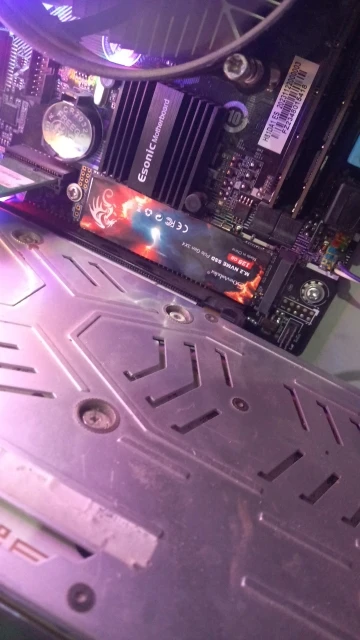
Secure the SSD: Push the SSD down until it is parallel with the motherboard. Secure it with the small screw provided with your motherboard or the SSD, attaching it to the standoff.

The M.2 NVMe SSD securely installed in a motherboard slot. -
Restore Case and Reconnect Power: Once the SSD is securely installed, close the computer case and reconnect the power cord.

Step 5: Restore the computer case and reconnect the power. -
Verify Installation: Turn on your computer. Access the BIOS/UEFI settings to confirm the SSD is recognized. For a new drive, you will need to initialize and partition it within your operating system's Disk Management utility before it can be used.

Step 6: Turn on the computer to verify installation.
Note: A PDF user manual is available for download at this link. Please be aware that the installation diagrams within this PDF are for SATA SSDs, not M.2 NVMe SSDs. Refer to the steps above for M.2 NVMe installation.
3. Operation
The SomnAmbulist M.2 NVMe SSD is designed for optimal performance in various computing tasks:
- Fast Boot-up: Experience significantly faster operating system boot times.
- Rapid Application Loading: Launch applications and load large files quickly.
- Enhanced Gaming: Reduce game loading screens and improve overall responsiveness.
- Efficient Multitasking: Handle multiple demanding tasks simultaneously with ease.
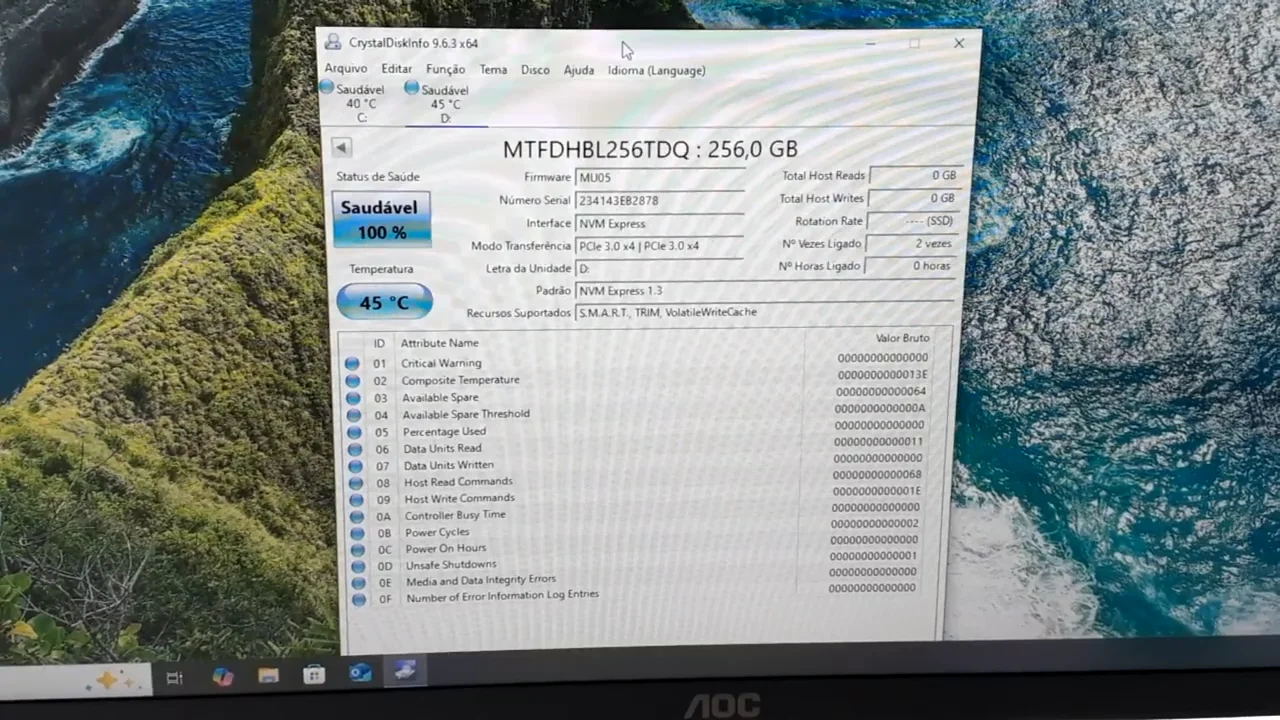
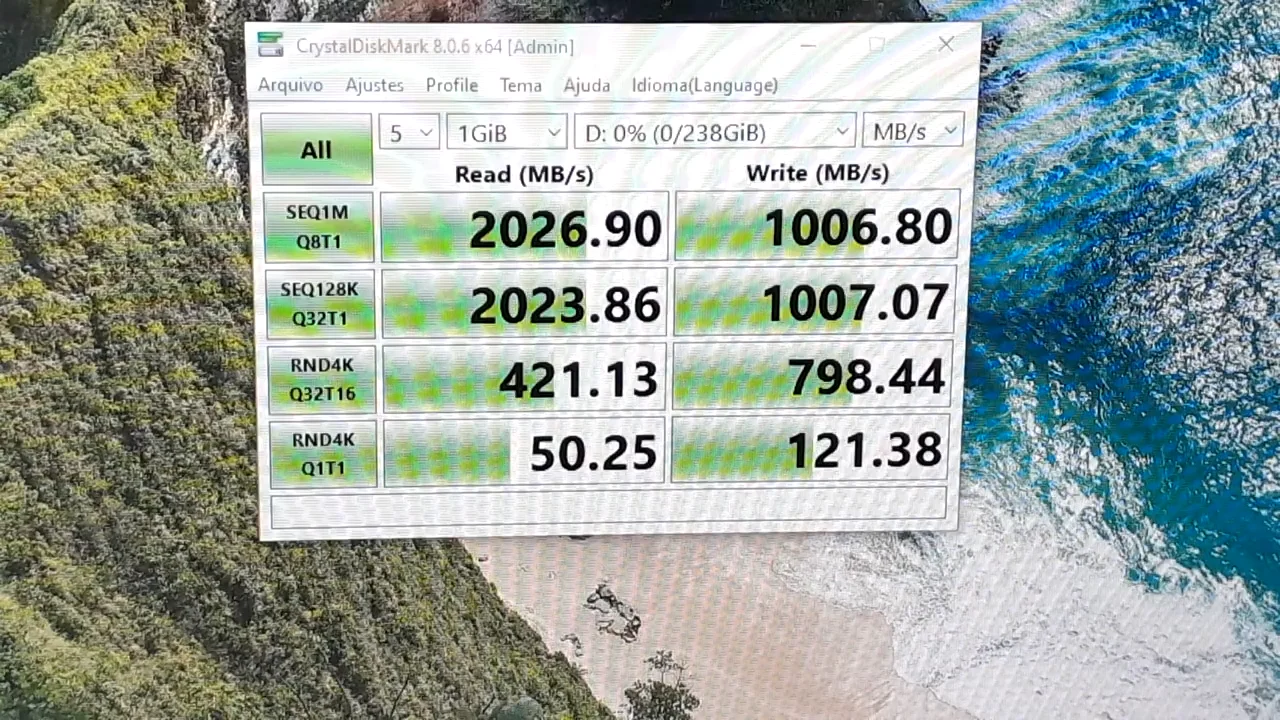
- Data Transfer: Benefit from high sequential read speeds up to 2600 MB/s and write speeds up to 1600 MB/s.

3.1 Initializing and Partitioning a New SSD
After physical installation, a new SSD must be initialized and partitioned before it can be used by the operating system. This process is typically done through Disk Management in Windows or Disk Utility in macOS.
- Connect the SSD to your computer and power on.
- Open Disk Management (Windows: Right-click Start button > Disk Management).
- Locate the new SSD (it will likely appear as 'Unallocated Space').
- Right-click the disk and select 'Initialize Disk'. Choose GPT (GUID Partition Table) for modern operating systems and drives larger than 2TB.
- Right-click the unallocated space and select 'New Simple Volume' to create partitions and format the drive.
4. Maintenance
Solid State Drives generally require less maintenance than traditional Hard Disk Drives. However, consider the following for optimal performance and longevity:
- Firmware Updates: Periodically check the manufacturer's website for firmware updates. Updating firmware can improve performance, stability, and compatibility.
- TRIM Command: Ensure your operating system has TRIM enabled. TRIM helps the SSD manage its storage space efficiently, maintaining performance over time. Modern operating systems usually enable this by default.
- Temperature Management: While SSDs are robust, excessive heat can impact performance and lifespan. Ensure your system has adequate airflow. The SomnAmbulist SSD includes a cooling fin to assist with heat dissipation. Under intense operation, temperatures can reach up to 70°C, which is within acceptable limits but good cooling is still beneficial.
- Avoid Filling to Capacity: For best performance, avoid filling the SSD to its absolute maximum capacity. Leaving some free space allows the SSD's wear-leveling algorithms to function optimally.
5. Troubleshooting
If you encounter issues with your SomnAmbulist M.2 NVMe SSD, refer to the following common troubleshooting steps:
5.1 SSD Not Recognized by System/BIOS
- Check Physical Connection: Ensure the M.2 SSD is fully seated in its slot and securely fastened.
- BIOS/UEFI Settings: Enter your system's BIOS/UEFI setup. Verify that the M.2 slot is enabled and configured correctly (e.g., PCIe mode, not SATA mode if applicable). Some motherboards share PCIe lanes, which might disable other ports when an M.2 SSD is installed.
- Motherboard Compatibility: Confirm your motherboard supports M.2 NVMe SSDs and the PCIe 3.0x4 interface.
- Driver Installation: For a new operating system installation, ensure the necessary NVMe drivers are available during the installation process. Modern OS versions often include generic NVMe drivers.
- Disk Initialization: For a brand new SSD, it must be initialized and partitioned in Disk Management (Windows) or Disk Utility (macOS) before it appears as a usable drive.
5.2 Slow Performance
- Check PCIe Lane Configuration: Ensure the M.2 slot is operating at PCIe 3.0x4 speed. Some motherboards may default to lower speeds or share lanes with other components.
- Driver Updates: Ensure your NVMe drivers and motherboard chipset drivers are up to date.
- TRIM Status: Verify that TRIM is enabled in your operating system.
- Temperature: Monitor the SSD temperature. High temperatures can lead to thermal throttling, reducing performance. Ensure adequate cooling.
- SSD Capacity: Performance can degrade slightly if the SSD is nearly full. Try to keep some free space.
5.3 Operating System Installation Issues
- GPT Format: When installing Windows or other modern operating systems, it is recommended to initialize the disk with the GPT (GUID Partition Table) partitioning scheme.
- Boot Order: Ensure the SSD is selected as the primary boot device in your BIOS/UEFI settings after OS installation.
6. Specifications
| Attribute | Value |
|---|---|
| Brand Name | SomnAmbuList |
| Style | SSD |
| Type | Internal |
| Interface Type | M.2 2280 |
| Size | M.2 2280 |
| Bus Type | PCIe 3.0x4 |
| Transport Protocol | NVME |
| Nand Flash Type | TLC |
| Controller | 2263 |
| Cache | None |
| Capacities Available | 128GB, 256GB, 512GB, 1TB |
| Max Sequential Read | 2600 MB/s |
| Max Sequential Write | 1600 MB/s |
| 4KB Random Read | 500 |
| 4KB Random Write | 350 |
| MTBF (Mean Time Between Failures) | 30000 hours |
| Cooling Fin | Yes |
| RGB | No |
| Package | Yes |
| Application | Desktop, Laptop, Server, Workstation, Industrial Computer |
| Origin | Mainland China |
| Certification | CE, FCC, RoHS |
6.1 Package Dimensions and Weight
- Length: 18 cm
- Width: 10 cm
- Height: 2 cm
- Weight: 0.03 kg
7. User Tips
Based on feedback from other users, here are some helpful tips for using your SomnAmbulist M.2 NVMe SSD:
- This SSD offers excellent value and performance for its price point, often exceeding expectations for budget-friendly drives.
- It is a good choice for X99 motherboard kits and is compatible with Xeon v3 and v4 processors, providing stable performance for gaming and rendering.
- Installing your operating system (e.g., Windows) on this SSD will significantly improve boot times and overall system responsiveness.
- During intense operations, the SSD's temperature can reach around 70°C. While this is generally within operating limits, ensuring good case airflow can help maintain optimal performance and longevity.
- For new installations, remember to initialize the disk as GPT (GUID Partition Table) before installing Windows for best compatibility and performance with modern systems.
8. Frequently Asked Questions (FAQ)
- Q: Will this SSD work on a PS5?
- A: The PS5 requires a PCIe Gen4 NVMe SSD with specific speed requirements. This SomnAmbulist SSD is PCIe Gen3, so it is not officially supported and may not function or provide adequate performance for PS5 games.
- Q: Is this compatible with a Sony PS4?
- A: No, the PS4 uses 2.5-inch SATA hard drives or SSDs, not M.2 NVMe drives.
- Q: Does it work on Motherboard X99?
- A: Yes, user feedback indicates compatibility and good performance with X99 motherboards, including those using Xeon v3 and v4 processors.
- Q: Is it compatible with the Samsung NP550XDA laptop?
- A: Compatibility depends on whether your specific Samsung NP550XDA model has an available M.2 NVMe slot. Please check your laptop's specifications or user manual.
- Q: Before installing Windows, do I need to convert it to GPT format?
- A: Yes, for modern operating systems like Windows 10/11 and drives of this size, it is highly recommended to initialize the disk using the GPT (GUID Partition Table) partitioning scheme for better compatibility and support for larger capacities.
- Q: The SSD is not recognized by the BIOS.
- A: Refer to the 'Troubleshooting' section (5.1 SSD Not Recognized by System/BIOS) in this manual for detailed steps.
- Q: My SSD stopped working after a few days.
- A: This is an unusual issue. First, re-check all physical connections and try the troubleshooting steps in section 5. If the issue persists, it may indicate a defective unit. Please contact customer support for assistance.
9. Warranty and Support
9.1 Warranty Information
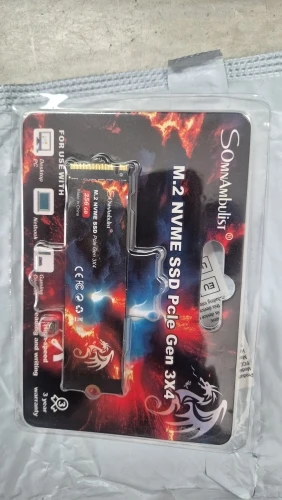
The SomnAmbulist M.2 NVMe SSD comes with a 3-year warranty from the date of purchase. This warranty covers manufacturing defects and failures under normal use conditions. Please retain your proof of purchase for warranty claims.
9.2 Customer Support
For technical assistance, warranty claims, or further inquiries, please contact your retailer or the manufacturer's customer support channel. Refer to the product packaging or the official SomnAmbulist website for contact details.